How to Enable or Disable OneDrive on This Day Notifications


OneDrive On This Day notifications are pop-up memory alerts that show you photos from past years directly on your Windows desktop. Microsoft includes this photo reminder feature in OneDrive version 23.221 and later.
You can turn these photo alerts on or off at any time through the settings menu inside the OneDrive app.
Navigate to OneDrive Settings, click Notifications, and toggle off ‘Notify me when On this day memories are available.’ You can also manage this in the mobile app or via the OneDrive web settings.
Change settings in the OneDrive app
OneDrive On This Day notifications can be turned on or off directly through the OneDrive app settings on your computer. You just need to open the app settings from your taskbar , go to the notifications tab, and check or uncheck the box for memories to control when Windows alerts you about past photos.
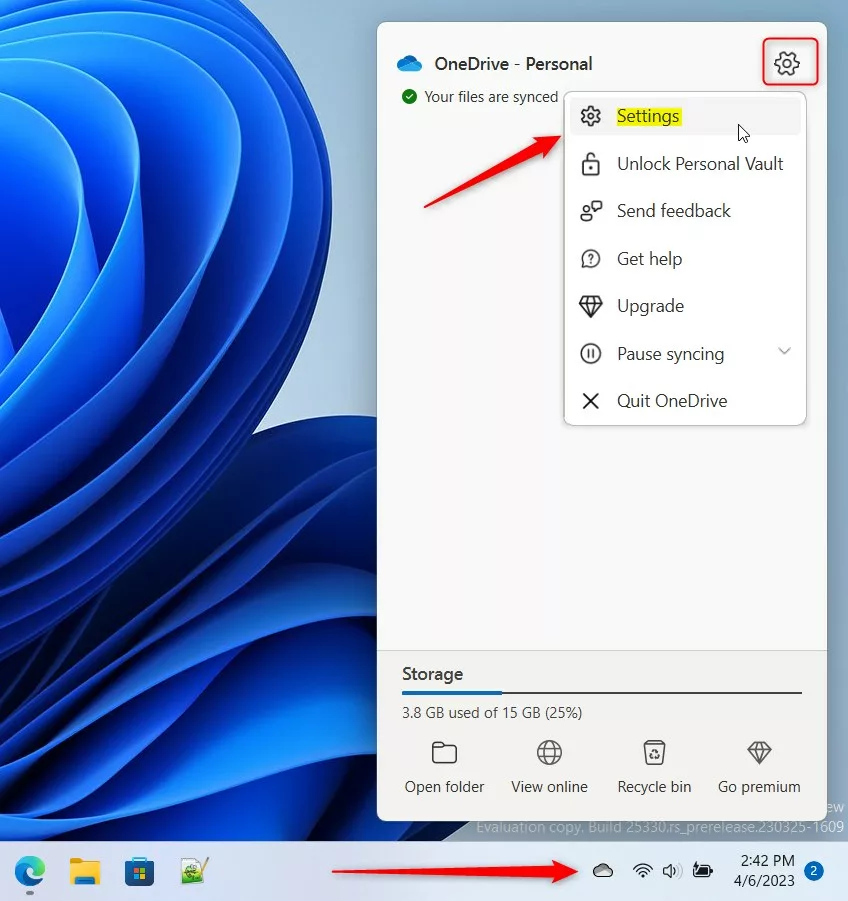
- Click the OneDrive icon in your Taskbar .
- Select the gear icon and choose Settings.
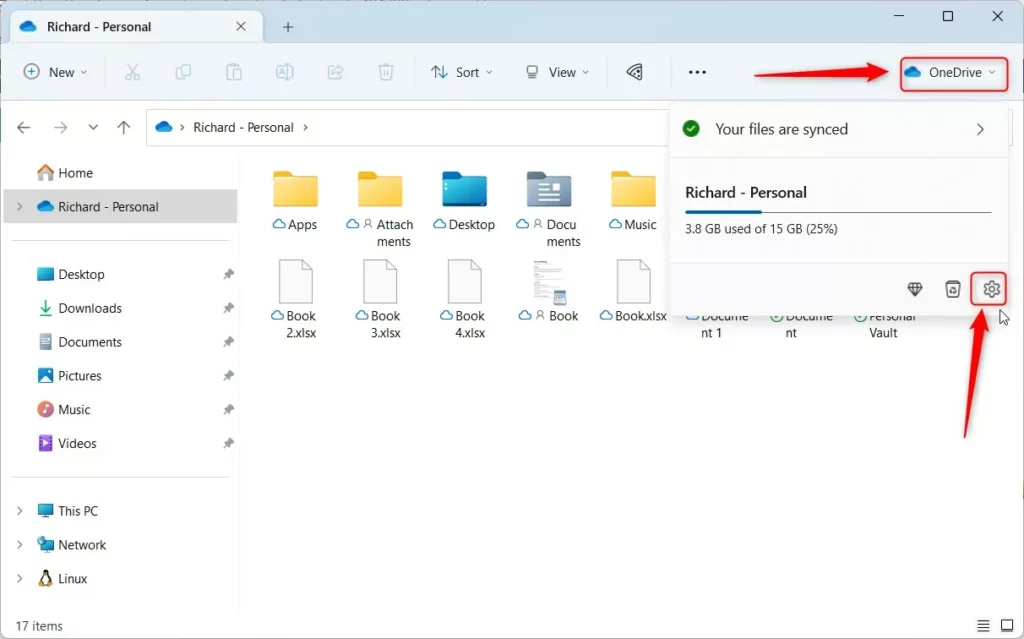
Alternatively, open your OneDrive folder in File Explorer , click the OneDrive button at the top, and select the gear icon.
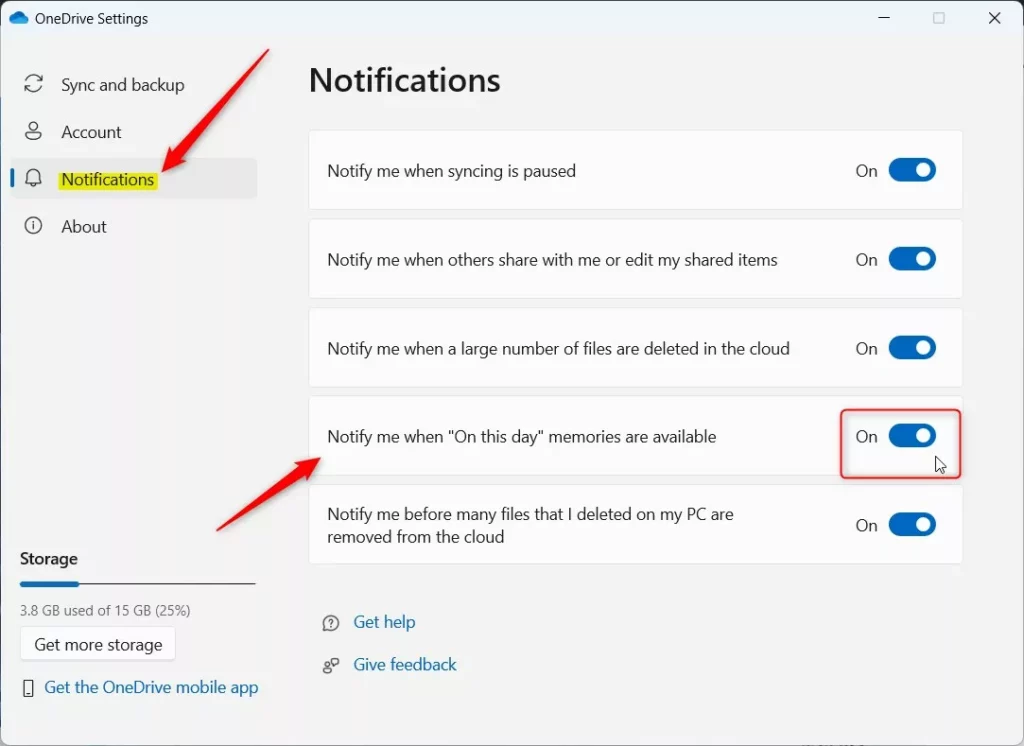
- In the Settings window, click Notifications on the left side.
- Find the switch for ‘Notify me when On this day memories are available.’
- Toggle this to On or Off based on your preference.
Manage OneDrive Memories on Mobile
Managing ‘On This Day’ memory alerts on mobile happens directly within the OneDrive app installed on your phone.
- Open the OneDrive app on your mobile device.
- Tap your profile icon or the Me tab.
- Go to Settings.
- Tap Notifications.
- Toggle off On This Day memories.
Disable via OneDrive Web Settings
Photo preferences also respond to changes made through a web browser. Visit the OneDrive web settings page to toggle memory preferences globally.
Change settings using the Registry (Admin Required)
OneDrive On This Day notifications can also be managed using the Registry Editor if you prefer a system-level fix. This method requires administrator rights and involves editing specific registry keys under HKEY_CURRENT_USER\Software\Microsoft\OneDrive to turn the memory alerts off for your user account.
Administrator rights are required to modify these notification settings through the Windows Registry. Proceed here only if comfortable navigating advanced system files.
- Open the Windows Registry.
- Go to this path:
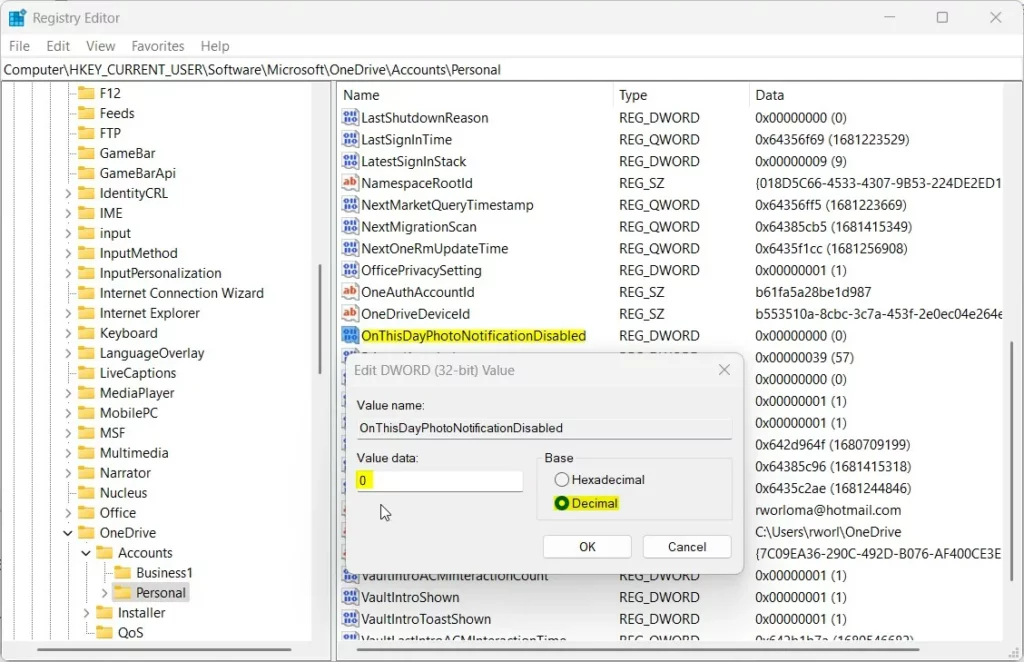
HKEY_CURRENT_USER\Software\Microsoft\OneDrive\Accounts\Personal
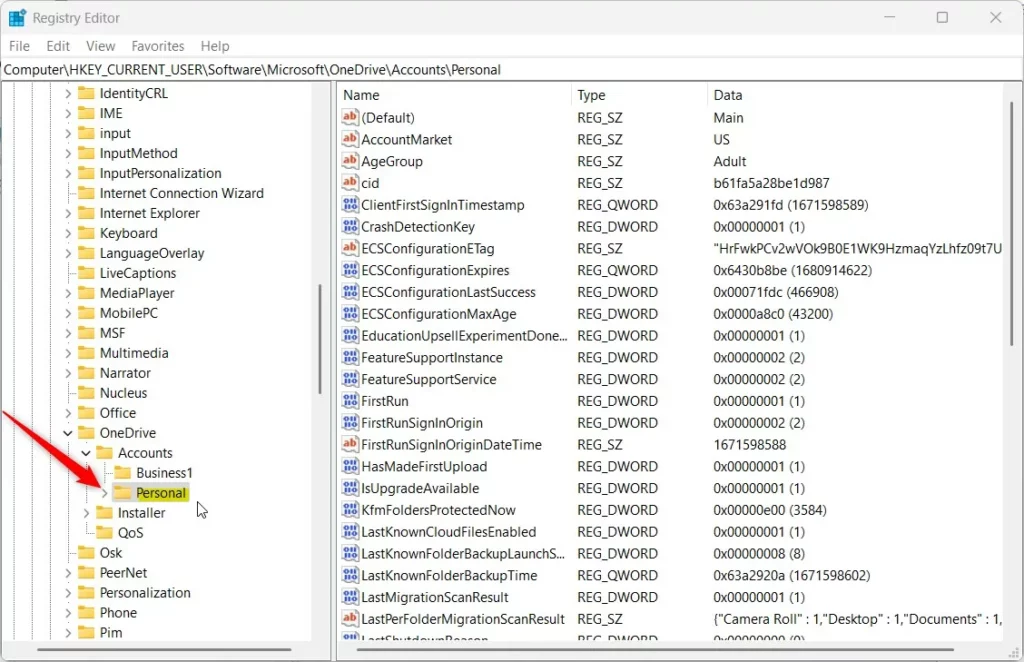
If the Personal folder remains hidden, right-click the Accounts key and create it.
- Right-click in the empty space on the right side and select New DWORD (32-bit) Value.
- Name the new item
OnThisDayPhotoNotificationDisabled. - Double-click this item, set the Base to Decimal, and enter
1to disable or0to enable.
Restart your computer to apply the changes.
Summary
OneDrive uses photos to send 'On this day' memory notifications, which respond to controls found in the app, mobile settings, or the Windows Registry.
Was this guide helpful?

About the Author
Richard
Tech Writer, IT Professional
Richard is a writer at Geek Rewind who turns complex IT tasks into clear, step-by-step guides. He draws on years of hands-on experience in system administration and enterprise IT operations, focusing on Windows, Linux and WordPress: the problems people actually run into, and the fixes that work. His server and WordPress guides come from systems he runs himself. Richard builds and maintains the platform behind Geek Rewind, from its Ubuntu servers and Nginx configuration to its custom WordPress plugins. Many new tutorials start with readers' questions, and he's always glad to answer them in the comments.


No comments yet — be the first to share your thoughts!