How to Disable IPV6 on Windows 11


IPv6 is the newer internet addressing system that lets your computer connect to websites and devices, serving as the successor to IPv4.
Windows 11 turns on IPv6 automatically for all network connections. Turn off IPv6 if you run into stubborn internet connection drops or need to troubleshoot network problems.
You disable IPv6 by right-clicking the network icon, selecting Network and internet settings, then your adapter, and unchecking “Internet Protocol Version 6 (TCP/IPv6)”. Alternatively, use PowerShell or the Registry Editor for more advanced control. Restart your computer after making changes.
Why disable or change IPv6?
Users sometimes prefer the older IPv4 internet protocol over IPv6. Other users wish to turn off IPv6 tunnel interfaces, which automatically connect when a computer detects specific network conditions. Completely disabling IPv6 is not advised, but users can control how IPv6 functions.
Understanding IPv6 settings
These IPv6 settings live in the Windows registry at this location:
HKEY_LOCAL_MACHINE\SYSTEM\CurrentControlSet\Services\Tcpip6\ParametersThe setting you change is called DisabledComponents, which uses hexadecimal values (a base-16 numbering system) to control IPv6 features.
IPv6 options and what they do
Prefer IPv4 over IPv6
Making Windows 11 prefer IPv4 over IPv6 is a safe alternative to completely turning off the newer network protocol. You can set this up using Command Prompt or PowerShell to ensure your computer tries the older, more compatible connection type first while keeping IPv6 available in the background.
Recommended: This is the best option instead of completely disabling IPv6.
To confirm this is working, follow these steps:
- Open Command Prompt or PowerShell
- Type:
ping bing.com - Look at the response. If IPv4 is preferred, you should see an IPv4 address returned
You can also check network settings by running:
netsh interface ipv6 show prefixpoliciesLook for entries with higher precedence numbers. These will be preferred over lower numbers.
Disable IPv6 completely via Registry - Recommended
Disabling IPv6 completely via the registry in Windows 11 stops the protocol from running for standard network tasks while leaving essential system functions working. You need administrator rights in Command Prompt to apply this change safely to your system.
⚠️ Admin Required: Administrator rights are necessary for these changes.
- Right-click on Command Prompt and select "Run as administrator"
- Type this command and replace with the number you want (like 0x20 or 0xFF):
reg add "HKEY_LOCAL_MACHINE\SYSTEM\CurrentControlSet\Services\Tcpip6\Parameters" /v DisabledComponents /t REG_DWORD /d 0xFF /f - Press Enter
Unbinding IPv6 from your network adapter - Not Recommended
Unbinding IPv6 from your network adapter removes the protocol entirely from your active internet connection, though Windows 11 relies on IPv6 for certain built-in features and network discovery tools. Doing this is generally not recommended because it can break internal system tasks that expect the protocol to be present.
Disabling IPv6 on Windows 11 is not recommended because the operating system performs best with it active. Certain programs and computer features, like some network discovery tools, actually require IPv6 to function correctly.
If you still want to unbind IPv6, you have two options:
Option 1Using Network Settings
- Right-click on the network icon in your taskbar
- Select "Network and internet settings"
- Find your network adapter
- Uncheck "Internet Protocol Version 6 (TCP/IPv6)"

Option 2Using PowerShell
Disabling IPv6 using PowerShell on Windows 11 requires running a specific command with administrator rights and replacing a placeholder with your actual network connection name, such as Ethernet or Wi-Fi. This method unbinds the protocol directly from your active adapter.
Replace <MyAdapter> with your network adapter name (like "Ethernet" or "WiFi"):
IPv6 tunnel interfaces act as pathways that let IPv6 traffic travel over older IPv4 networks using methods like 6to4, ISATAP, and Teredo. Windows automatically creates these interfaces when required.
Users can disable Internet Protocol version 6 (IPv6) and automatic network connections if IPv6 is not needed or if these connections cause problems. Turning off IPv6 on a computer can prevent network conflicts and improve performance for systems that use older network setups. This action helps ensure a smoother internet experience.
The main tunneling methods are:
- 6to4 tunneling
- ISATAP
- Teredo
How to disable tunnel interfaces
Method 1Using the registry
Disabling IPv6 tunnel interfaces in Windows 11 stops IPv6 traffic from traveling over older IPv4 networks and can be done using either the Windows Registry or Group Policy Editor. Both methods require administrator access and involve changing the DisabledComponents value to control how Windows handles these hidden connection pathways.
Set the DisabledComponents value to 0x01
Method 2Using Group Policy (Windows Pro/Enterprise only)
Disabling IPv6 tunnel interfaces in Windows 11 stops IPv6 traffic from traveling over older IPv4 networks and can be done using either the Windows Registry or Group Policy Editor. Both methods require administrator access and involve changing the DisabledComponents value to control how Windows handles these hidden connection pathways.
- Press Windows key + R
- Type
gpdit.mscand press Enter - Navigate to:
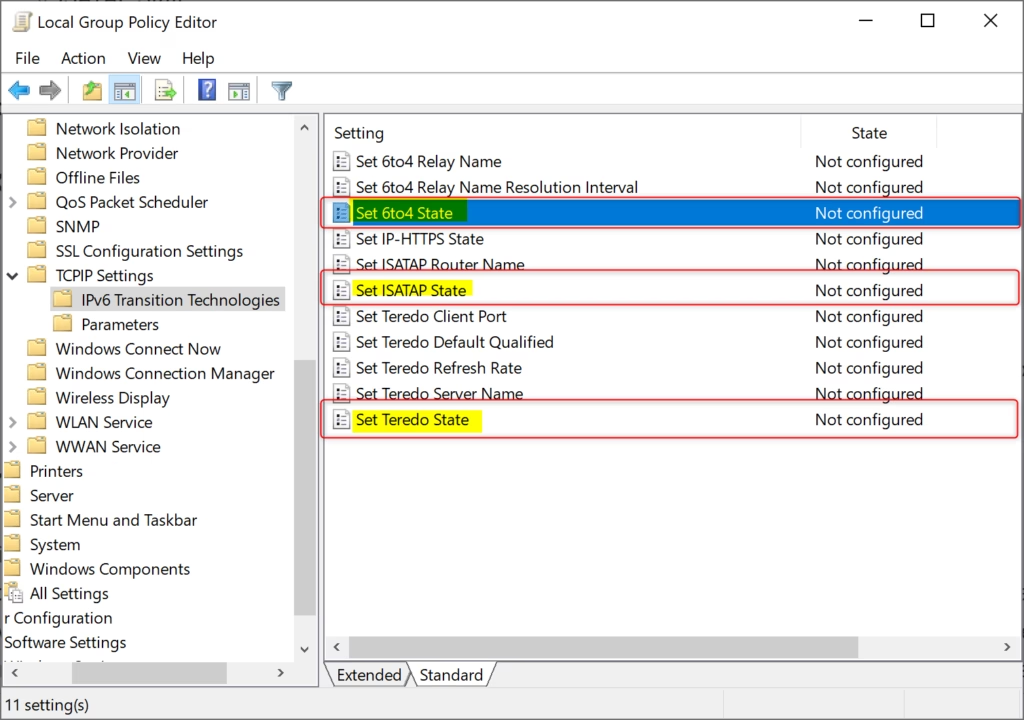
Computer Configuration\Administrative Templates\Network\TCPIP Settings\IPv6 Transition Technologies - Set the following to "Disabled":
- 6to4 State
- ISATAP State
- Teredo State
Important things to remember
Changing your registry to disable IPv6 does not uncheck the IPv6 box in your network adapter properties because these two settings operate independently in Windows 11. You also cannot turn off IPv6 entirely because the operating system needs the protocol for essential background tasks.- Changing the DisabledComponents registry setting doesn't change the checkbox in network properties. The checkbox and the registry setting work separately.
- You cannot completely disable IPv6. It runs internally for system tasks.
- Disabling IPv6 incorrectly (using 0xffffffff instead of 0xff) can delay your computer startup by five seconds.
- Some programs and features expect IPv6 to work properly.
Summary
The best method is usually to prefer IPv4 (using value 0x20) rather than disabling IPv6 entirely, and you need admin rights to make these changes.
```Was this guide helpful?

About the Author
Richard
Tech Writer, IT Professional
Richard is a writer at Geek Rewind who turns complex IT tasks into clear, step-by-step guides. He draws on years of hands-on experience in system administration and enterprise IT operations, focusing on Windows, Linux and WordPress: the problems people actually run into, and the fixes that work. His server and WordPress guides come from systems he runs himself. Richard builds and maintains the platform behind Geek Rewind, from its Ubuntu servers and Nginx configuration to its custom WordPress plugins. Many new tutorials start with readers' questions, and he's always glad to answer them in the comments.




No comments yet — be the first to share your thoughts!