How to Connect Google Calendar to Microsoft Teams in Windows 11

Microsoft Teams is a powerful tool for meetings and chat. By default, it uses your Outlook calendar. If you prefer Google, you can connect your Google Calendar to Teams. This guide helps you sync your schedule easily.
Why connect Google Calendar to Teams?
Connecting your calendars keeps all your appointments in one place. You do not have to switch between apps to see your day. It saves time and prevents scheduling conflicts.
What happens when you are done?
Once you connect your Google account, it becomes your default calendar in Teams. Your Outlook calendar will stop syncing. You can only use one calendar at a time. If you want to switch back, you must disconnect your Google account first.
Prerequisites and Account Requirements
To connect your accounts, you need a valid work or school account. Note that Microsoft has currently paused new customer onboarding for the native Google Calendar sync feature. If you are a new user, you may need to use the Microsoft Teams Meeting Add-on from the Google Workspace Marketplace instead.
Steps to Connect Google Calendar
- Open the Microsoft Teams app from your Start menu.

- Ensure you are signed in with your work or school account.

- Click the Settings and more button (the three dots) near your profile picture and select Settings.

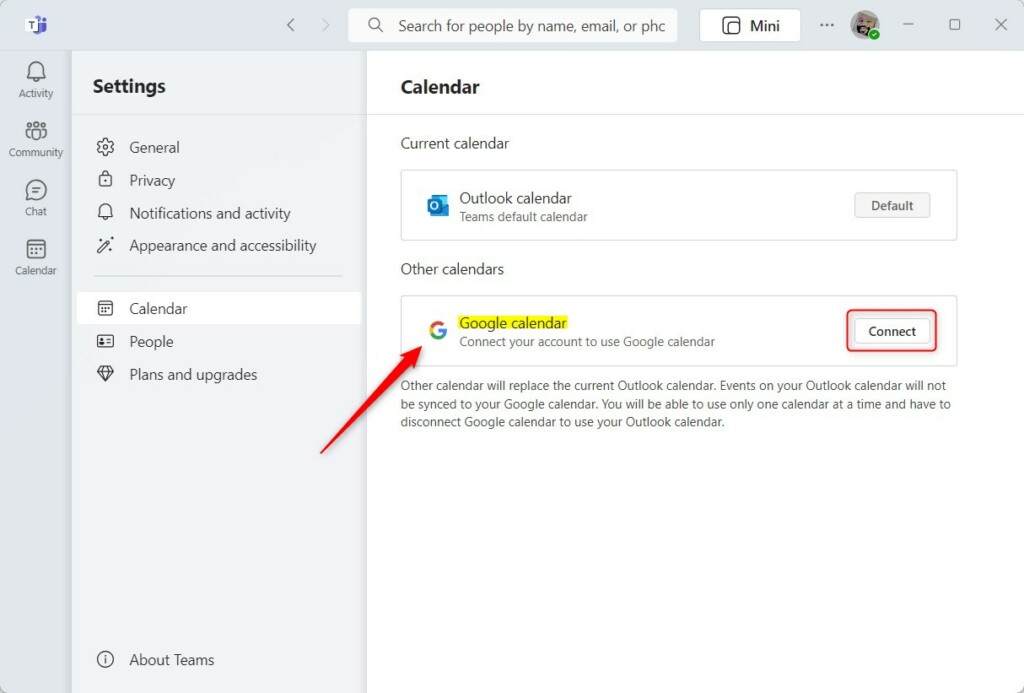
- On the left side, click the Calendar tab.

- Find the Google calendar tile and click the Connect button.
- Follow the on-screen prompts to authorize the connection.
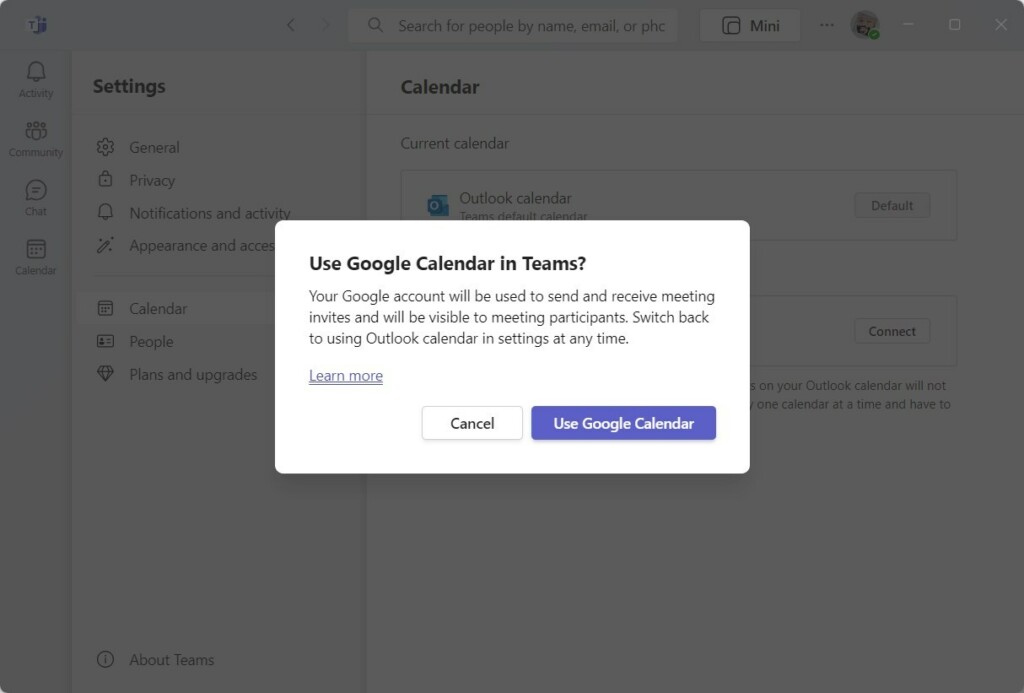
- Your web browser will open. Sign in to your Google account and grant the required permissions for calendar synchronization.
IT Admin and Enterprise Configuration
[Requires Admin Privileges] If you are an IT administrator, you must manage these settings via the Microsoft 365 admin center. You may need to configure OAuth authorization policies to allow users to link third-party calendars. Ensure that the Google Workspace integration is enabled in your organization’s security settings.
Troubleshooting Common Errors
If you face an authorization error, check your browser cookies. Sometimes, a sync pause status occurs if your organization’s security policy changes. If the calendar does not appear, try signing out of Teams and signing back in. You can also check your local logs at C:\Users\username\AppData\Local\Microsoft\Teams\logs.txt for specific error codes.
Summary
Connecting your Google Calendar to Microsoft Teams streamlines your workflow. While native sync is currently paused for new users, the Google Workspace Marketplace add-on provides a reliable alternative. Always ensure you have the correct permissions and check your settings if you encounter sync issues.
Can I use a personal Google account to sync with Teams?
Generally, Microsoft Teams is designed for work or school accounts. While some personal accounts may work with specific add-ons, the native calendar integration usually requires a business-grade Google Workspace account to ensure proper synchronization and security compliance within your organization’s environment.
Do meetings scheduled via the add-on appear in both calendars?
Yes, when you use the Microsoft Teams Meeting add-on, the meeting details are pushed to both platforms. This ensures that your Google Calendar reflects the Teams meeting link, and your Teams app recognizes the event, keeping your schedule consistent across both services.
Was this guide helpful?

About the Author
Richard
Tech Writer, IT Professional
Richard, a writer for Geek Rewind, is a tech enthusiast who loves breaking down complex IT topics into simple, easy-to-understand ideas. With years of hands-on experience in system administration and enterprise IT operations, he’s developed a knack for offering practical tips and solutions. Richard aims to make technology more accessible and actionable. He's deeply committed to the Geek Rewind community, always ready to answer questions and engage in discussions.



[…] are many settings one can enable in the Microsoft Teams app. You can connect your Google calendar, turn the camera and mic on or off on the lock screen, turn read receipts on or off, auto start […]
[…] are many settings one can enable in the Microsoft Teams app. You can connect your Google calendar, turn the camera and mic on or off on the lock screen, turn read receipts on or […]
[…] are many settings one can enable in the Microsoft Teams app. You can connect your Google calendar, turn the camera and mic on or off on the lock screen, turn read receipts on or off, auto start […]
[…] are many settings one can enable in the Microsoft Teams app. You can connect your Google calendar, turn the camera and mic on or off on the lock screen, turn read receipts on or […]
[…] are many settings one can enable in the Microsoft Teams app. You can connect your Google calendar, turn the camera and mic on or off on the lock screen, turn read receipts on or […]
[…] are many settings one can enable in the Microsoft Teams app. You can connect your Google calendar, turn the camera and mic on or off on the lock screen, turn read receipts on or […]
[…] are many settings one can enable in the Microsoft Teams app. You can connect your Google calendar, turn the camera and mic on or off on the lock screen, turn read receipts on or […]
[…] are many settings one can enable in the Microsoft Teams app. You can connect your Google calendar, turn the camera and mic on or off on the lock screen, turn read receipts on or off, auto start […]
[…] are many settings one can enable in the Microsoft Teams app. You can connect your Google calendar, turn the camera and mic on or off on the lock screen, turn read receipts on or off, auto start […]
[…] are many settings one can enable in the Microsoft Teams app. You can connect your Google calendar, turn the camera and mic on or off on the lock screen, turn read receipts on or […]
[…] are many settings one can enable in the Microsoft Teams app. You can connect your Google calendar, turn the camera and mic on or off on the lock screen, turn read receipts on or […]
[…] are many settings one can enable in the Microsoft Teams app. You can connect your Google calendar, turn the camera and mic on or off on the lock screen, turn read receipts on or off, auto start […]
[…] are many settings one can enable in the Microsoft Teams app. You can connect your Google calendar, turn the camera and mic on or off on the lock screen, turn read receipts on or […]
[…] are many settings one can enable in the Microsoft Teams app. You can connect your Google calendar, turn the camera and mic on or off on the lock screen, turn read receipts on or […]
[…] are many settings one can enable in the Microsoft Teams app. You can connect your Google calendar, turn the camera and mic on or off on the lock screen, turn read receipts on or […]
[…] are many settings one can enable in the Microsoft Teams app. You can connect your Google calendar, turn the camera and mic on or off on the lock screen, turn read receipts on or off, auto start […]
[…] are many settings one can enable in the Microsoft Teams app. You can connect your Google calendar, turn the camera and mic on or off on the lock screen, turn read receipts on or off, auto start […]
[…] are many settings one can enable in the Microsoft Teams app. You can connect your Google calendar, turn the camera and mic on or off on the lock screen, turn read receipts on or off, auto start […]
[…] are many settings one can enable in the Microsoft Teams app. You can connect your Google calendar, turn the camera and mic on or off on the lock screen, turn read receipts on or off, auto start […]
[…] are many settings one can enable in the Microsoft Teams app. You can connect your Google calendar, turn the camera and mic on or off on the lock screen, turn read receipts on or off, auto start […]
[…] are many settings one can enable in the Microsoft Teams app. You can connect your Google calendar, turn the camera and mic on or off on the lock screen, turn read receipts on or off, auto start […]
[…] are many settings one can enable in the Microsoft Teams app. You can connect your Google calendar, turn the camera and mic on or off on the lock screen, turn read receipts on or off, auto start […]
[…] are many settings one can enable in the Microsoft Teams app. You can connect your Google calendar, turn the camera and mic on or off on the lock screen, turn read receipts on or […]
[…] are many settings one can enable in the Microsoft Teams app. You can connect your Google calendar, turn the camera and mic on or off on the lock screen, turn read receipts on or […]
[…] are many settings one can enable in the Microsoft Teams app. You can connect your Google calendar, turn the camera and mic on or off on the lock screen, turn read receipts on or […]
[…] are many settings one can enable in the Microsoft Teams app. You can sync contacts with Teams, connect to Google Calendar, link your mobile device, turn message preview on or off, manage teams notifications during […]
[…] are many settings one can enable in the Microsoft Teams app. You can sync contacts with Teams, connect to Google Calendar, link your mobile device, turn message preview on or off, manage teams notifications during […]
[…] are many settings one can enable in the Microsoft Teams app. You can sync contacts with Teams, connect to Google Calendar, link your mobile device, turn message preview on or off, manage filters, and […]
[…] are many settings one can enable in the Microsoft Teams app. You can sync contacts with Teams, connect to Google Calendar, link your mobile device, turn message preview on or off, manage filters, enable or disable […]
[…] Connect Google Calendar to Microsoft Teams […]
[…] can connect your Google calendar, turn the camera and mic on or off on the lock screen, turn read receipts on or off, auto start […]
[…] can connect your Google calendar, turn the camera and mic on or off on the lock screen, turn read receipts on or off, auto start […]