How to Set Default Speaker in Microsoft Teams

You can set your default speaker in Microsoft Teams by changing the audio output device within the application’s settings.
Microsoft Teams often defaults to the wrong speaker during calls, disrupting your communication. This tutorial shows you exactly how to select your preferred audio output, ensuring you hear every word clearly.
Having your primary headset or speakers correctly configured is crucial, especially for important meetings where missing information is not an option. You can easily resolve this common issue with a few simple steps within Teams itself.
Select your desired speaker in Microsoft Teams by going to Settings > Devices > Speaker and choosing your preferred audio output. This ensures you hear calls and meetings through the correct device.
How to change your audio device
You can change your default speaker in Microsoft Teams directly from the app settings. This lets you pick which speaker Teams uses for calls and meetings without needing any special computer permissions.
- Open the Microsoft Teams app from your Start menu.
You can also open the app using the Taskbar or Taskbar overflow.

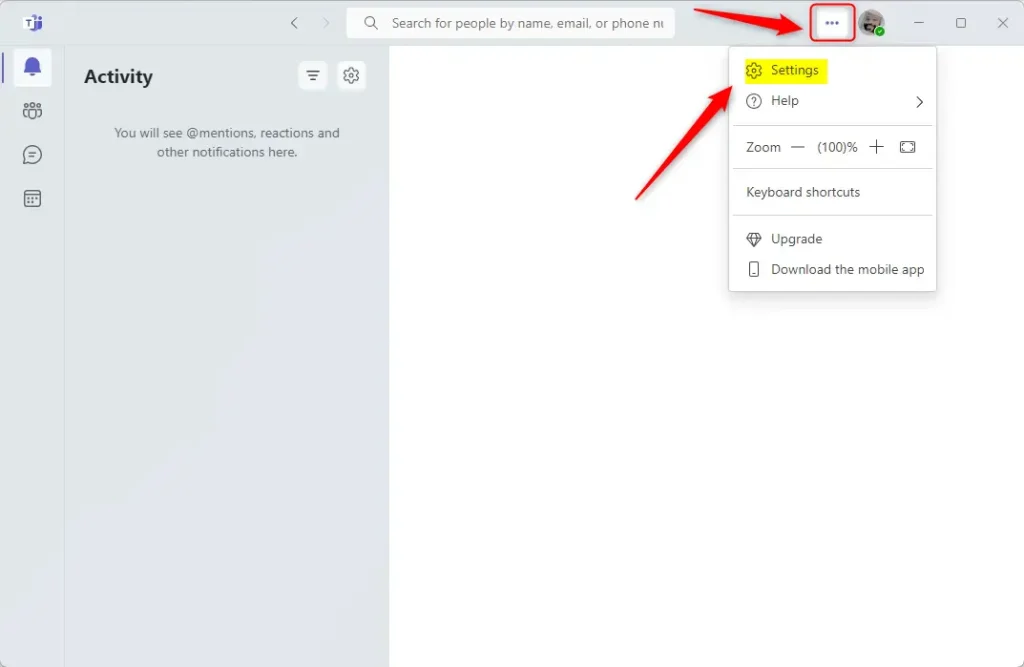
- Click the Settings and more (…) button located near your profile picture. Select Settings from the list.
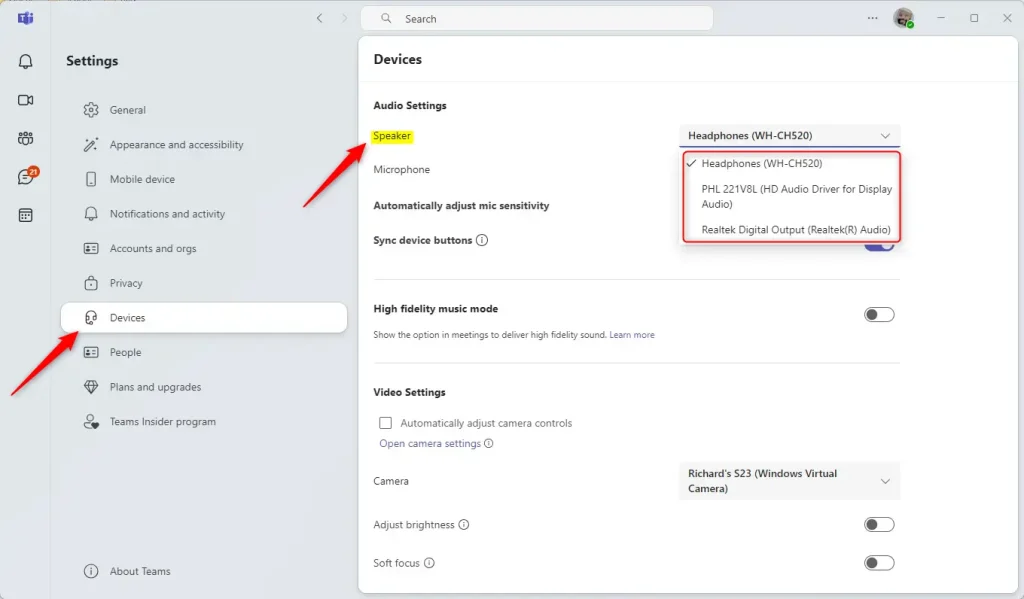
- Select the Devices tab on the left side of the window.
- Under the Audio Settings section, look for the Speaker drop-down menu.
- Click the menu and select the device you want to use from the list.
This section also includes other settings, like connecting your Google calendar, managing your lock screen camera and mic, and controlling message previews.
Summary
To set your default speaker in Microsoft Teams, just open the app and find the Settings menu. You can then easily pick your preferred speaker from the Devices tab.
- Open Teams: Start the app from your taskbar or menu.
- Go to Settings: Find the three-dot menu icon.
- Pick your device: Select the right speaker under the Devices tab.
Adjusting these settings helps you avoid audio problems and makes your online meetings run more smoothly.
Why am I speaker 1 on Teams?
You'll appear as Speaker 1,2 (Room name) if you haven't set up a voice profile. Select Identify speaker. You'll be asked if you'd like to update all instances of Speaker 1,2 (Room name) to your name.
Was this guide helpful?

About the Author
Richard
Tech Writer, IT Professional
Richard, a writer for Geek Rewind, is a tech enthusiast who loves breaking down complex IT topics into simple, easy-to-understand ideas. With years of hands-on experience in system administration and enterprise IT operations, he’s developed a knack for offering practical tips and solutions. Richard aims to make technology more accessible and actionable. He's deeply committed to the Geek Rewind community, always ready to answer questions and engage in discussions.


[…] your mobile device, turning message preview on or off, manage teams notifications during calls, set default speakers, set default microphone, enable high fidelity sound, change mic sensitivity, and […]
[…] your mobile device, turning message preview on or off, manage teams notifications during calls, set default speakers, set default microphone, enable high fidelity sound, change mic sensitivity, set default camera, […]
[…] Set Default Speaker in Teams […]