How to Enable or Disable Sound Notifications in Microsoft Teams on Windows 11

Microsoft Teams is a popular tool for chatting, video calls, and working with your team. Sometimes, the constant sound of incoming calls or meeting alerts can get distracting. This guide shows you how to control these sounds so you can work in peace.
To enable or disable sound notifications in Microsoft Teams on Windows 11, open Teams, go to Settings, then Notifications and activity. Uncheck or check the “Play sound with incoming calls” box to disable or enable sounds.
Why do this? Constant pings can break your concentration. Customizing your notification sounds helps you stay focused when you need to be, while still being alerted to important calls.
What happens when done? Your computer will either play a sound or stay silent when you have an incoming call or a meeting starting, depending on your choice.
You can connect your Google calendar, turn the camera and mic on or off on the lock screen, turn read receipts on or off, auto start Teams, disable Teams chat, sync contacts with Teams, connect to Google Calendar, link your mobile device, turning message preview on or off, turn spell check on or off, turn on or off phone number in search results, manage notifications, turn on or off suggested replies in chat, enable or disable sound notifications, and more.
How to change your notification sounds
1. Open the Microsoft Teams app from your Start menu.

You can also launch the app from the Taskbar or Taskbar overflow.

2. If a small window opens, click the expansion button on the top menu bar to see the full window.

3. Click the Settings and more (…) button next to your profile picture at the top right, then choose Settings.

4. On the left sidebar, click Notifications and activity.
5. Look for the General section on the right. You will see a box labeled “Play sound with incoming calls, requests to join, and meeting start notifications.”
- Check the box to turn sounds on.
- Uncheck the box to turn sounds off.
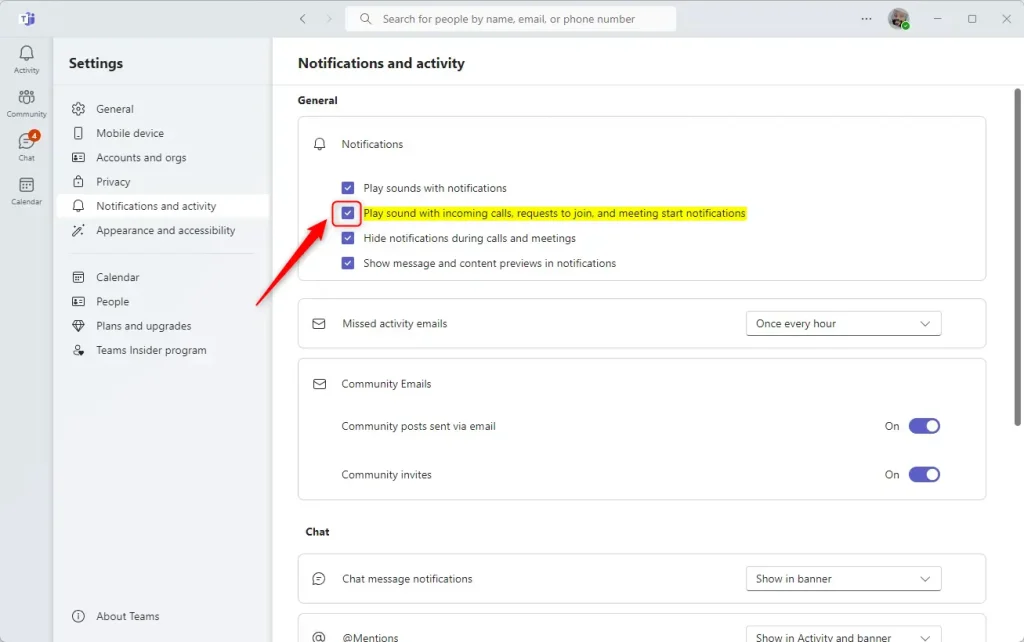
Your changes are saved automatically.
Summary
Managing your sound settings in Microsoft Teams is a simple way to create a better work environment. By toggling the notification sound setting, you can choose whether to be alerted by audio or keep your workspace quiet. This helps you stay productive and reduces unnecessary interruptions throughout your day.
Was this guide helpful?

About the Author
Richard
Tech Writer, IT Professional
Richard, a writer for Geek Rewind, is a tech enthusiast who loves breaking down complex IT topics into simple, easy-to-understand ideas. With years of hands-on experience in system administration and enterprise IT operations, he’s developed a knack for offering practical tips and solutions. Richard aims to make technology more accessible and actionable. He's deeply committed to the Geek Rewind community, always ready to answer questions and engage in discussions.



[…] notifications, turn on or off suggested replies in chat, enable or disable sound notifications, enable or disable notifications for incoming calls and meetings, enable or disable notifications during calls and meetings, enable or disable chat message […]