How to Stop Microsoft Teams from Launching at Startup

Microsoft Teams startup launching stops when you change a setting inside the Teams app.
Microsoft Teams is a program that helps you chat and work with others. It often opens automatically as soon as your Windows 11 computer starts up, which can make your PC slower.
Stopping Teams from starting automatically speeds up your computer’s boot time. This is a simple change you can make directly in Teams’ settings.
Disable the “Runs at login” toggle in Microsoft Teams app settings and set “Background apps permissions” to “Never”. Restart your computer to apply these changes and prevent Teams from automatically opening.
How to stop Microsoft Teams from starting automatically
Here’s how to stop Microsoft Teams from starting automatically: You can prevent Microsoft Teams from launching when you turn on your computer. The automatic launch setting is found inside the Microsoft Teams app, not in Windows settings. Follow these steps to find the option and turn off the automatic launch so Microsoft Teams only opens when you want it to.
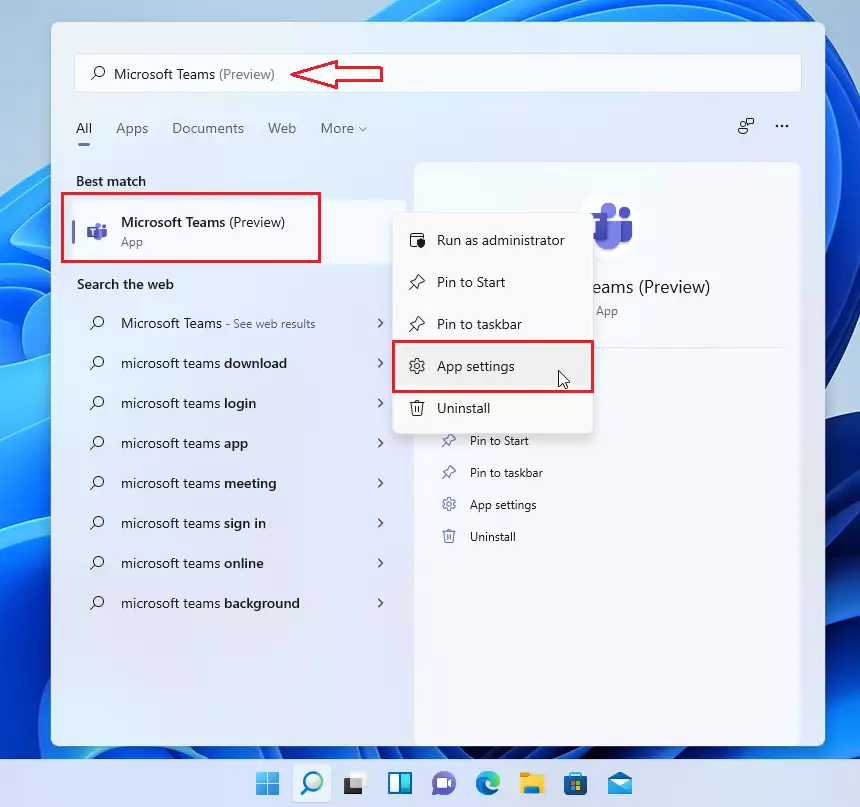
- Click the Start button on your taskbar.
- Type “Microsoft Teams” in the search box.
- Right-click the Microsoft Teams app in the search results and select App settings.
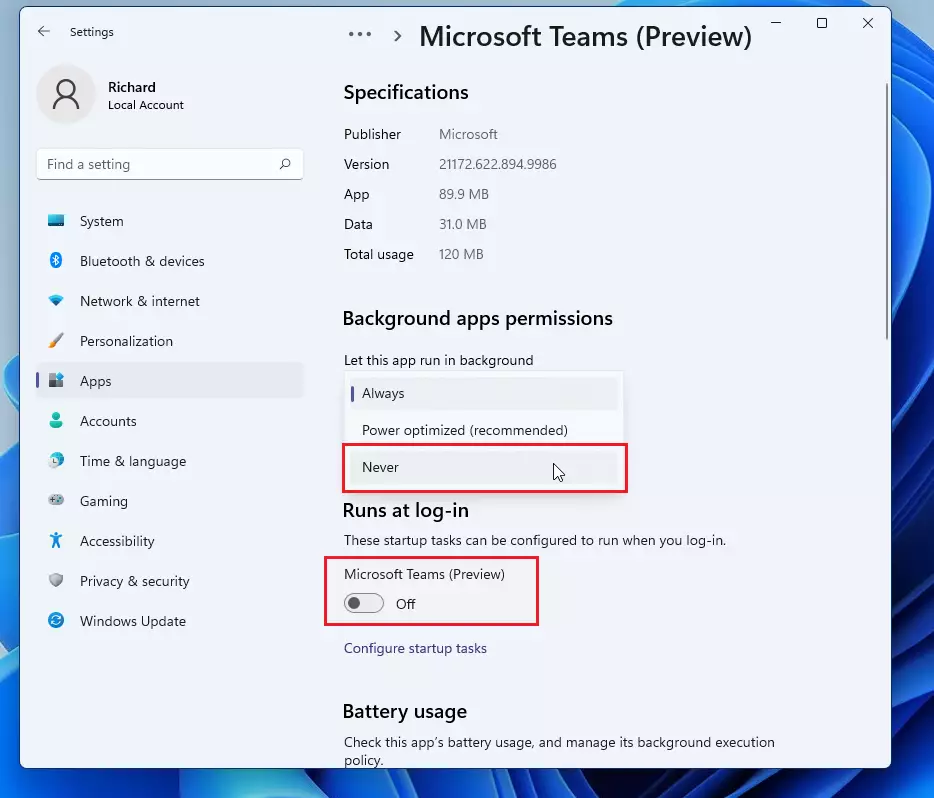
- Find the section labeled Runs at login. Click the toggle switch to set it to Off.
- Next, look for Background apps permissions. Change the setting to Never. This prevents the app from running in the background when you aren’t using it.
Restart your computer to save the startup changes. Now, Microsoft Teams will only open when you click on the Teams icon, preventing the application from launching automatically when your computer starts.
Summary
You’ve now successfully stopped Microsoft Teams from launching automatically when your computer starts, saving system resources and keeping things running smoothly.
Was this guide helpful?

About the Author
Richard
Tech Writer, IT Professional
Richard, a writer for Geek Rewind, is a tech enthusiast who loves breaking down complex IT topics into simple, easy-to-understand ideas. With years of hands-on experience in system administration and enterprise IT operations, he’s developed a knack for offering practical tips and solutions. Richard aims to make technology more accessible and actionable. He's deeply committed to the Geek Rewind community, always ready to answer questions and engage in discussions.


You can just uninstall it, like the option is right there
[…] the camera and mic on or off on the lock screen, turn read receipts on or off, auto start Teams, disable Teams chat, sync contacts with Teams, connect to Google Calendar, link your mobile device, turning message […]
[…] the camera and mic on or off on the lock screen, turn read receipts on or off, auto start Teams, disable Teams chat, sync contacts with Teams, connect to Google Calendar, link your mobile device, turning message […]
[…] mic on or off on the lock screen, turn read receipts on or off, auto start Teams, disable Teams chat, sync contacts with Teams, connect to Google Calendar, and […]
[…] the camera and mic on or off on the lock screen, turn read receipts on or off, auto start Teams, disable Teams chat, sync contacts with Teams, connect to Google Calendar, link your mobile device, turning message […]
[…] mic on or off on the lock screen, turn read receipts on or off, auto start Teams, disable Teams chat, sync contacts with Teams, connect to Google Calendar, link your mobile […]
[…] the camera and mic on or off on the lock screen, turn read receipts on or off, auto start Teams, disable Teams chat, sync contacts with Teams, connect to Google Calendar, link your mobile device, turning message […]