How to Configure Speech Synthesis Rate in Settings Time and Language Speech

- 21 steps
- Needs administrator rights
- Includes a restart or sign-out
The speech synthesis rate in Windows 11 controls how fast the built-in text-to-speech voice reads words aloud. Text-to-speech is a feature that turns on-screen text into spoken audio. A slower rate helps with dense text or language learning. A faster rate helps you get through long documents or notifications quickly.
You change the rate in the Settings app, under Settings Time & language Speech. The control is a slider you move left or right. The sections below cover the slider, adding voices, third-party apps, Narrator and troubleshooting.
The setting is the same on Windows 11 Home and Pro, and you do not need administrator rights to change it. Labels on the Speech page can differ slightly between Windows 11 versions. The names below match recent releases.
Open Settings with Win+I, then go to Time & language Speech and drag the Speed slider left to slow the voice or right to speed it up. Click Preview to hear a sample at the new rate. The change applies immediately, and no administrator rights or restart are needed.
Accessing Speech Settings in Windows
The speech settings sit a few clicks deep in the Settings app. The keyboard shortcut is the fastest way to get there.
- Press Win+I together to open Settings. The Settings window appears with a list of categories on the left.

- Click Time & language in the left-hand navigation menu. The page now shows options such as Date & time, Language & region and Speech.

- Click Speech. The page with the text-to-speech and voice options opens.
How to Configure Speech Synthesis Rate
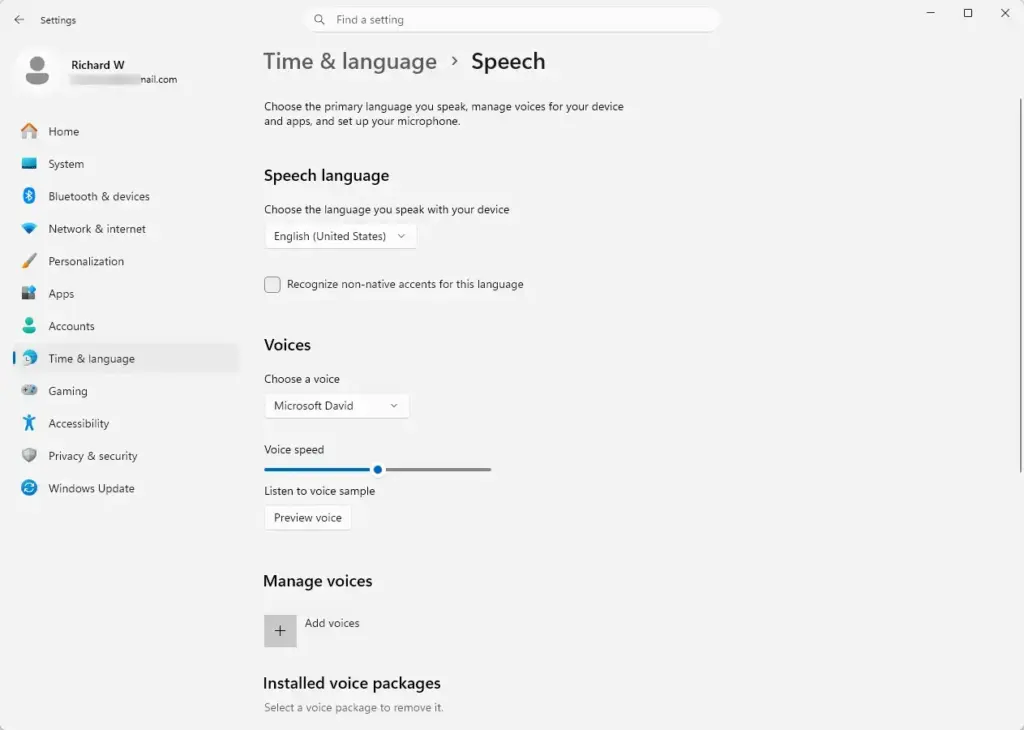
Once the Speech page is open, the speed control is a single slider. Dragging it to the left slows the voice down. Dragging it to the right speeds it up. The preview button lets you test each change before you move on.
- Scroll down to the voice section of the Speech page, which holds the voice and speed options. Recent builds label this area Voices or Manage voices.
- Find the slider labeled Speed.
- Click and drag the slider handle to the left to slow the speech rate, or to the right to speed it up.
- Click the Preview button below the slider. You should hear a sample sentence read in the current voice at the speed you just set.
- Repeat the adjustment and preview until the pacing feels right. The change applies automatically, so you do not need to restart Windows or click a save button.
To undo a change, drag the slider back to where it was. If you do not remember the original value, move the handle to the middle and preview again.
Narrator also has its own natural voices, which sound more like a human speaker than the classic system voices. To change its speed, open Settings Accessibility Narrator and look for the voice options, including the speed setting. The same page has an option to add natural voices. These voices need a download before you can use them.
- Press Win+Ctrl+Enter to start Narrator. Press the same keys again to turn it off.
- Hold Caps Lock + Alt and press Plus to make Narrator speak faster.
- Hold Caps Lock + Alt and press Minus to make it speak slower.
Caps Lock is the default Narrator key. If you changed that key in the Narrator settings, use your own Narrator key in place of Caps Lock.
Managing Installed Voices and Language Packs
You can also change how your computer sounds by installing extra voices and language packs. These add other languages and regional accents. You manage them from the same Speech page.
- Open Settings, click Time & language, and select Speech, as in the steps above.
- Find the Add voices section. It shows a prompt with an Add button.
- Click the Add button next to the prompt. A pop-up window opens with a list of languages.
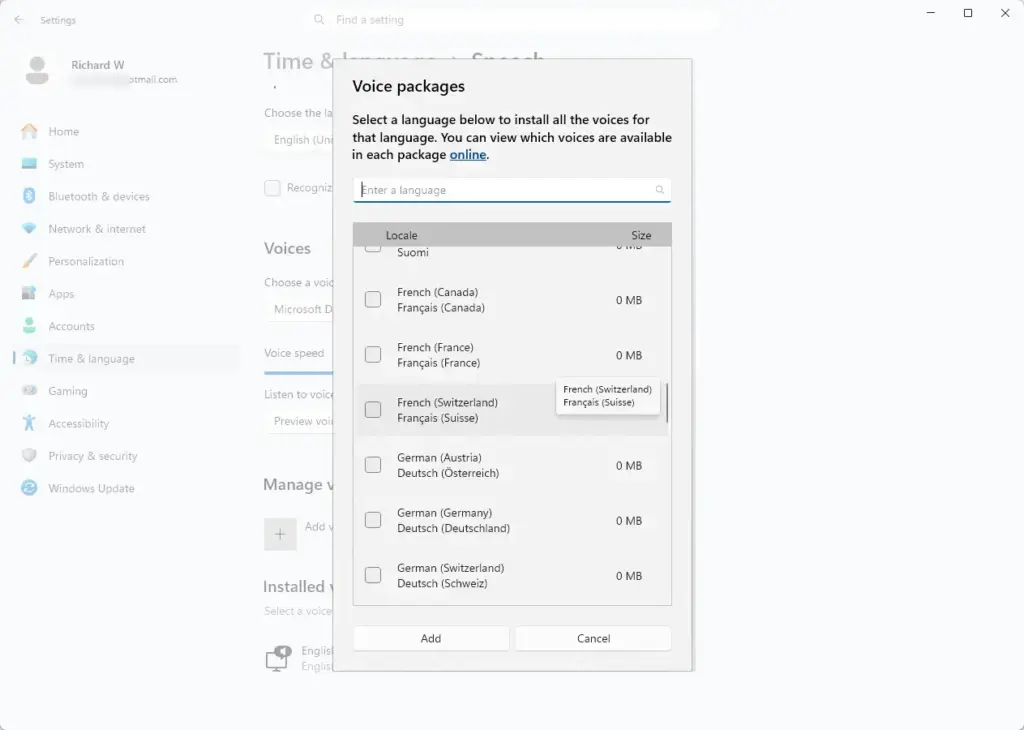
- Search for or select the language you want from the list.
- Check the box for text-to-speech if it is not already selected.
- Click Add to download and install the new voice package. The voice appears in the voice list once the download finishes.
The download needs an internet connection. If the install stalls, check your connection and try again. To remove a voice you no longer want, return to this page and uninstall it from the list of installed voices.
Using the Speech Synthesis Rate in Third-Party Applications
Third-party applications do not always follow the Windows speed slider. It depends on whether the program uses the system voice or its own engine. Many web browsers and custom tools use a JavaScript interface called SpeechSynthesisUtterance to control how text is read aloud, instead of relying on Windows settings.
In web development, the rate property sets the speed of the spoken text. A value of 1.0 is the default, normal speed. Values below 1.0 slow the speech down, and values above 1.0 speed it up.
These web adjustments are separate from the global Windows setting. They only affect the browser tab or application script that runs the code. If an app ignores your Windows speed change, look for a speech or voice option inside that app.
Troubleshooting Common Speech Rate Issues
If the speed slider stops working or speech output goes quiet, start with your audio hardware. Then restart the Windows Audio service. These steps fix most problems.
- Confirm that your main audio output device works by playing a system sound or a media file. If you hear nothing, check the volume, the cable or Bluetooth connection, and the selected output device.
- Restart the Windows Audio service if speech output stops entirely. Open the Start menu, type services.msc, and press Enter. The Services window opens.
- In the Services window, find Windows Audio in the list, right-click it, and select Restart. Sound may cut out for a second or two while the service restarts.
- Check for pending updates. Open Settings, select Windows Update, and click Check for updates. Outdated system files can occasionally break the built-in accessibility speech drivers. Restart the PC if Windows asks you to.
If the preview still does not play after these steps, try a different installed voice. You can also reinstall the voice from the Add voices section.
What to do next
You should now hear your computer reading text at the speed you chose. If you use speech often, learn the Narrator keyboard commands, such as the speed shortcuts above, to speed up your daily work.
Have a question about this guide?
Answered by AI from this guide. Good questions may be added to this page — please don't include personal details.
Did this guide fix your problem?

About the Author
Richard
Tech Writer, IT Professional
Richard is a writer at Geek Rewind who turns complex IT tasks into clear, step-by-step guides. He draws on years of hands-on experience in system administration and enterprise IT operations, focusing on Windows, Linux and WordPress: the problems people actually run into, and the fixes that work. His server and WordPress guides come from systems he runs himself. Richard builds and maintains the platform behind Geek Rewind, from its Ubuntu servers and Nginx configuration to its custom WordPress plugins. Many new tutorials start with readers' questions, and he's always glad to answer them in the comments.
No comments yet — be the first to share your thoughts!