How to Enable Dark Mode in Notepad on Windows 11

Dark mode in Notepad on Windows 11 changes the bright white background to a dark gray theme that is easier on your eyes. This feature requires Notepad app version 11.2307.20.0 or newer to work.
You can check your app version and get updates through the Microsoft Store. Turning it on makes the text switch to white and matches your menus to the rest of your system dark theme.
Open Notepad, click the gear icon for Settings, then select your preferred theme from the App theme dropdown menu. You can choose Light, Dark, or System default to match your Windows settings . Your changes apply immediately.
Why change your theme?
Switching to Notepad’s dark mode makes the screen more comfortable to view at night and can help conserve battery power on laptops.
How to change the Notepad theme
Notepad dark mode Windows 11 settings let you switch your text editor from the bright default look to a dark background that is easier on your eyes in low light. You can change this look instantly by opening the gear-shaped settings menu inside the app and picking the dark option.
- Open the Notepad app from your Start menu .
- Click the Settings (gear icon) button at the top right of the window.
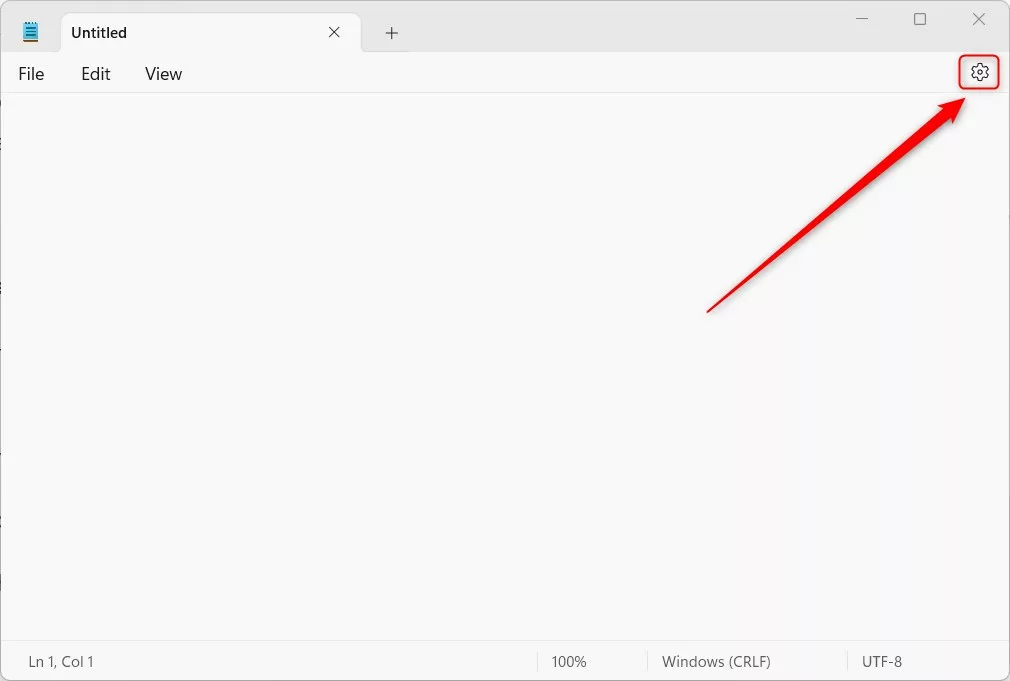
3. On the Settings screen, click the App theme section to expand it.
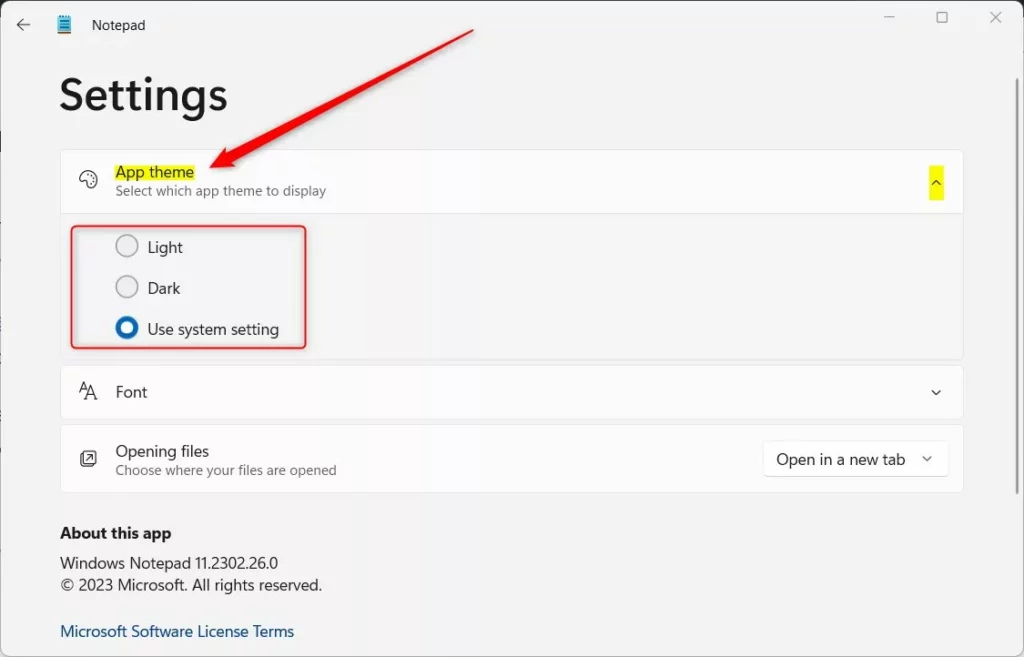
4. Select your preferred look from the dropdown menu. Options include Light, Dark, or System default.
5. Close the Settings pane when finished. Changes apply immediately.
System-wide vs. App-specific settings
Windows 11 lets you change the theme for the entire operating system, but Notepad also supports independent appearance settings.
Troubleshooting Notepad updates
Missing the theme option in Notepad? Updating the app through the Microsoft Store usually resolves the issue.
Summary
Notepad in Windows 11 allows switching between light and dark themes for greater comfort. This feature's dark mode reduces eye strain, especially in low light conditions.
Does 🪟 Windows 11 Notepad support dark mode natively?
Yes, the modern version of Notepad for Windows 11 includes native support for dark mode. Switching themes takes a few clicks inside the app menu without touching any system files or registry keys.
Can I have a light system theme but a dark Notepad?
Yes, this configuration works independently. Select the Dark theme in the Notepad settings menu. This setting overrides the Windows system default, allowing the main computer interface to remain in light mode while the text editor uses a darker palette.
Was this guide helpful?

About the Author
Richard
Tech Writer, IT Professional
Richard, a writer for Geek Rewind, is a tech enthusiast who loves breaking down complex IT topics into simple, easy-to-understand ideas. With years of hands-on experience in system administration and enterprise IT operations, he’s developed a knack for offering practical tips and solutions. Richard aims to make technology more accessible and actionable. He's deeply committed to the Geek Rewind community, always ready to answer questions and engage in discussions.



[…] you use Notepad on Windows, you can personalize it to open files in new tabs, turn on dark mode, change the font, open Notepad from previous sessions, enable spell check, and […]
[…] you use Notepad on Windows, you can personalize it to open files in new tabs, turn on dark mode, change the font, open Notepad from previous sessions, enable spell check, turn rewrite on or off, […]