How to Change Alt+Tab Tabs in Windows 11


You can change how many recent app tabs appear in Windows 11’s Alt+Tab switcher and Snap Assist feature.
This setting controls whether you see more, fewer, or no previews of open application tabs when multitasking. Windows 11 build 22621.1928 changed the default behavior. Now, it shows the ’20 most recent tabs’ instead of ‘All tabs,’ aiming for a cleaner experience.
Adjusting the Windows Registry editor changes the multitasking view to suit your workflow. Users can decide how many previews of Microsoft Edge or other tabbed applications appear in the Alt+Tab switcher.
Open Settings, go to System > Multitasking > Desktops, and select your preferred tab count from the dropdown menu. You can choose to show 20, 5, or 3 recent tabs, or disable tabs entirely.
Option One
Change Number of Tabs from Apps to Show when Snapping or Alt+Tab for Your Account Using Settings
You can change the number of app tabs that show up when you use Alt+Tab in Windows 11 by using the Settings app.
- Open Settings by pressing ⊞ Win+I.
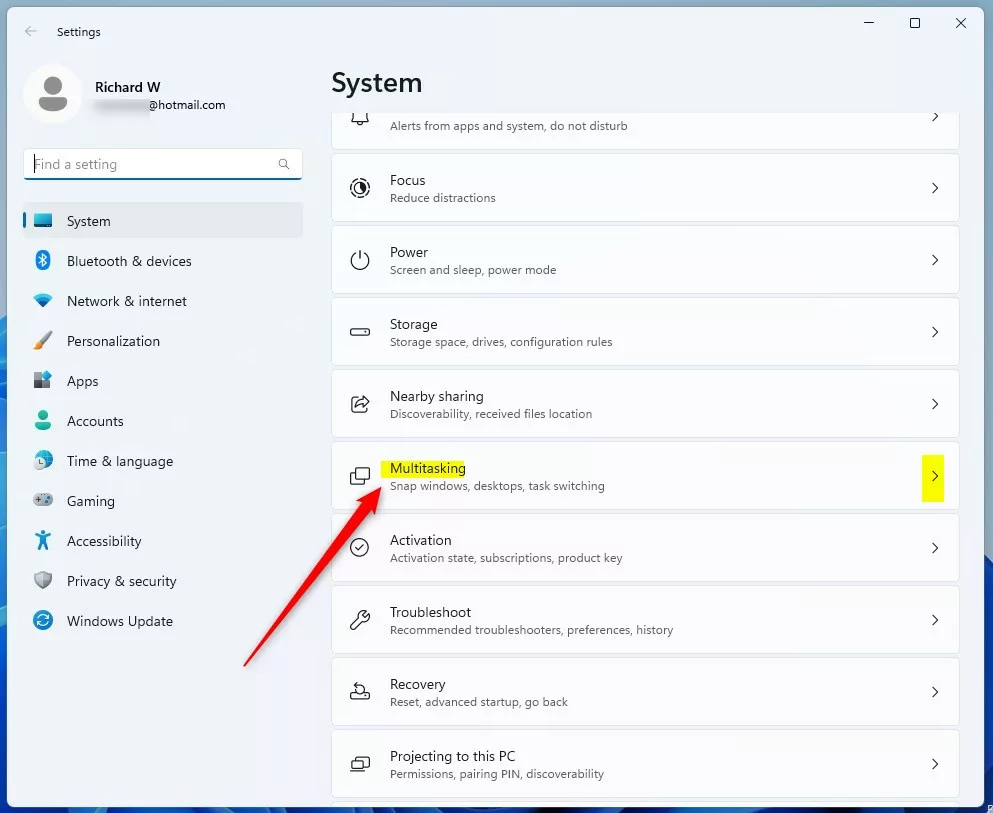
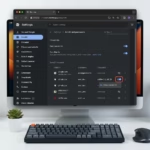
- Click System on the left side, then click Multitasking on the right side.
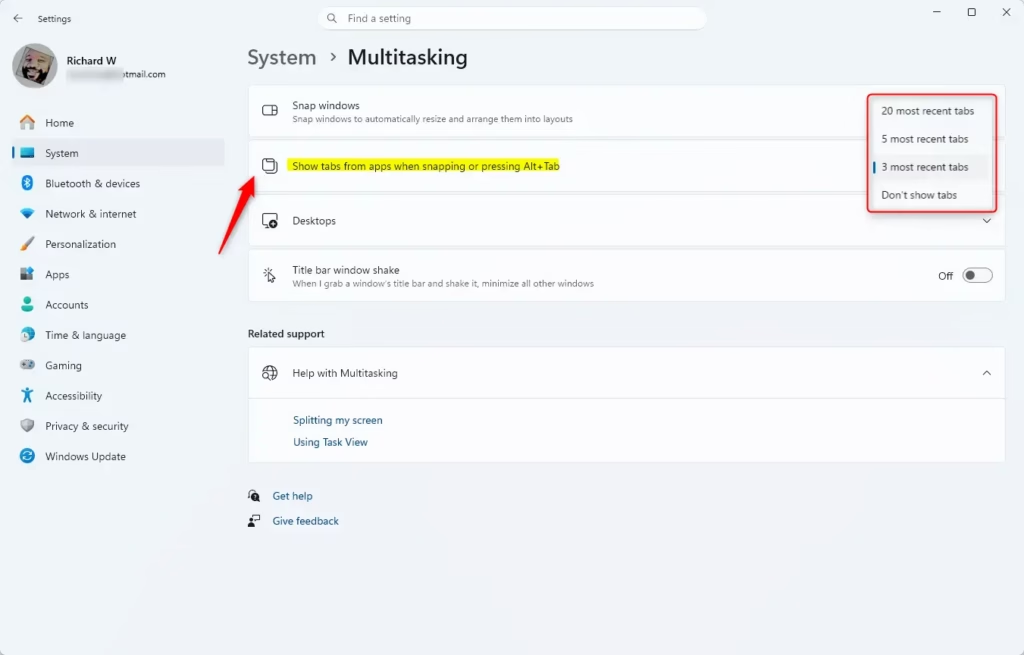
- Click Desktops on the right side to expand it.
- Select what you want from the Show tabs from apps when snapping or pressing Alt+Tab drop menu:
- 20 most recent tabs
- 5 most recent tabs
- 3 most recent tabs (default)
- Don’t show tabs
- You can now close Settings.
Option Two
Change Number of Tabs from Apps to Show when Snapping or Alt+Tab for Your Account Using Registry
If you want more control over how many Windows 11 Alt+Tab tabs appear, you can use the Registry Editor to change this number.
Show 20 most recent tabs from apps when snapping or Alt+Tab
reg add "HKEY_CURRENT_USER\SOFTWARE\Microsoft\Windows\CurrentVersion\Explorer\Advanced" /v MultiTaskingAltTabFilter /t REG_DWORD /d 0 /fShow 5 most recent tabs from apps when snapping or Alt+Tab
reg add "HKEY_CURRENT_USER\SOFTWARE\Microsoft\Windows\CurrentVersion\Explorer\Advanced" /v MultiTaskingAltTabFilter /t REG_DWORD /d 1 /fShow 3 most recent tabs from apps when snapping or Alt+Tab
This is the default setting.
reg add "HKEY_CURRENT_USER\SOFTWARE\Microsoft\Windows\CurrentVersion\Explorer\Advanced" /v MultiTaskingAltTabFilter /t REG_DWORD /d 2 /f
Don’t show tabs from apps when snapping or Alt+Tab
reg add "HKEY_CURRENT_USER\SOFTWARE\Microsoft\Windows\CurrentVersion\Explorer\Advanced" /v MultiTaskingAltTabFilter /t REG_DWORD /d 3 /f
Option Three
Change Number of Tabs from Apps to Show when Snapping or Alt+Tab for All or Specific Users Using Local Group Policy Editor
Windows 11 Pro, Enterprise, or Education users with admin rights can use the Local Group Policy Editor to set the number of Alt+Tab tabs shown for everyone.
- Open the Local Group Policy Editor for all users, specific users or groups, or all users except administrators, depending on how you want this policy applied.
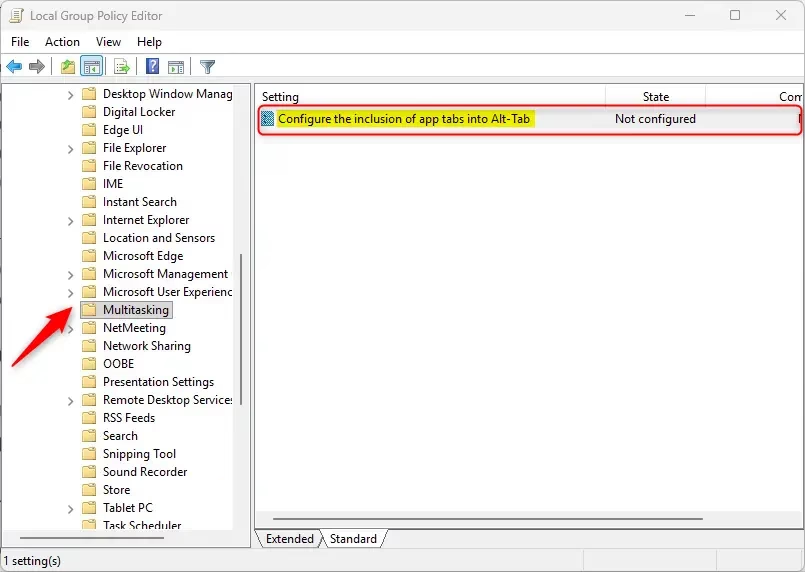
- Navigate to this location in the left pane:
User Configuration > Administrative Templates > Windows Components > Multitasking
- In the right pane, double-click the Configure the inclusion of app tabs into Alt-Tab policy to edit it.
- To show tabs:
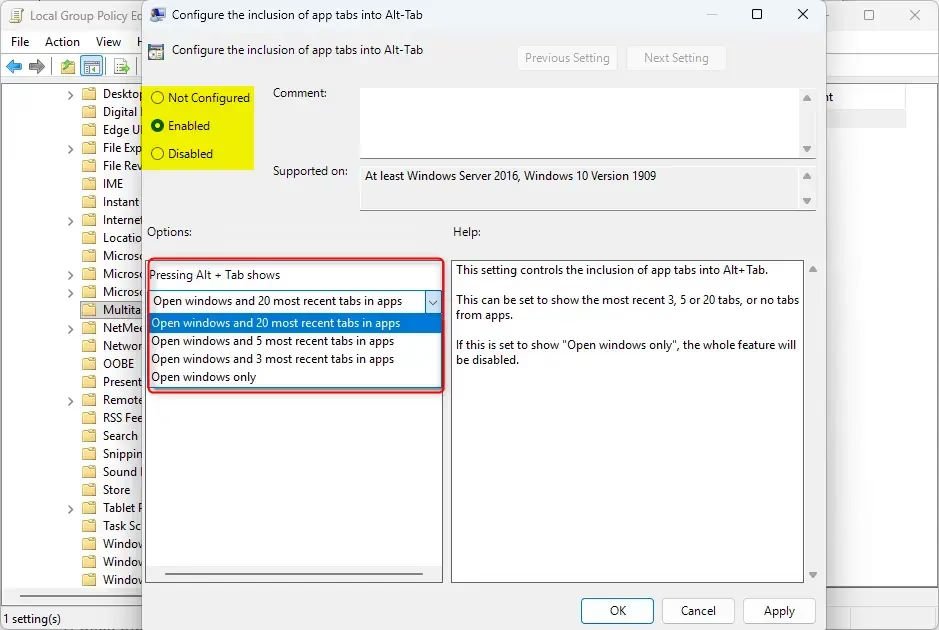
- Select Enabled.
- In the Pressing Alt+Tab shows drop menu, select one of these options:
- Open windows and 20 most recent tabs in apps
- Open windows and 5 most recent tabs in apps
- Open windows and 3 most recent tabs in apps
- Open windows only
- Click OK.
- To use the default user-choice setting:
- Select Not Configured.
- Click OK.
- You can now close the Local Group Policy Editor.
Option Four
Change Number of Tabs from Apps to Show when Snapping or Alt+Tab for All Users Using Registry
Admins can change the number of Windows 11 Alt+Tab tabs shown for all users by using a special registry file you can download.
- Click the Download button below to download the registry file you want to use.
Show 20 most recent tabs from apps when snapping or Alt+Tab for all users
reg add "[HKEY_LOCAL_MACHINE\SOFTWARE\Policies\Microsoft\Windows\Explorer" /v MultiTaskingAltTabFilter /t REG_DWORD /d 1 /fShow 5 most recent tabs from apps when snapping or Alt+Tab for all users
reg add "[HKEY_LOCAL_MACHINE\SOFTWARE\Policies\Microsoft\Windows\Explorer" /v MultiTaskingAltTabFilter /t REG_DWORD /d 2 /fShow 3 most recent tabs from apps when snapping or Alt+Tab for all users
reg add "[HKEY_LOCAL_MACHINE\SOFTWARE\Policies\Microsoft\Windows\Explorer" /v MultiTaskingAltTabFilter /t REG_DWORD /d 3 /fDon’t show tabs from apps when snapping or Alt+Tab for all users
reg add "[HKEY_LOCAL_MACHINE\SOFTWARE\Policies\Microsoft\Windows\Explorer" /v MultiTaskingAltTabFilter /t REG_DWORD /d 4 /fDefault user-choice number of tabs from apps to show when snapping or Alt+Tab
reg delete "HKEY_LOCAL_MACHINE\SOFTWARE\Policies\Microsoft\Windows\Explorer" /v MultiTaskingAltTabFilter /f
Summary
You’ve learned four ways to control how many app tabs appear in Windows 11’s Alt+Tab switcher: using Settings, editing the registry for your account, using Group Policy for Pro versions, or a registry file for all users.
How do I change the Alt tab settings in 🪟 Windows 11?
You can change your Windows 11 Alt+Tab settings by opening the Settings app (press ⊞ Win+I) and going to System, then Multitasking.
How to fix alt tab glitch in 🪟 Windows 11?
If your Alt+Tab isn’t working right in Windows 11, try restarting Windows Explorer through Task Manager first.
How do I bring back the old Alt Tab switcher on 🪟 Windows 11?
Windows 11 does not provide a native toggle to revert to the classic Windows 10 Alt+Tab interface. The current switcher is integrated into the system shell. You can only customize the behavior of recent app tabs within the Multitasking settings menu to limit or hide the browser tab previews.
Why is Alt Tab not working in 🪟 Windows 11 24H2?
Your Alt+Tab might not be working in Windows 11 24H2 because of old display drivers, other software interfering, or damaged system files.
Was this guide helpful?

About the Author
Richard
Tech Writer, IT Professional
Richard, a writer for Geek Rewind, is a tech enthusiast who loves breaking down complex IT topics into simple, easy-to-understand ideas. With years of hands-on experience in system administration and enterprise IT operations, he’s developed a knack for offering practical tips and solutions. Richard aims to make technology more accessible and actionable. He's deeply committed to the Geek Rewind community, always ready to answer questions and engage in discussions.

No comments yet — be the first to share your thoughts!