Every Common Emoji and Symbol Meaning on Windows 11

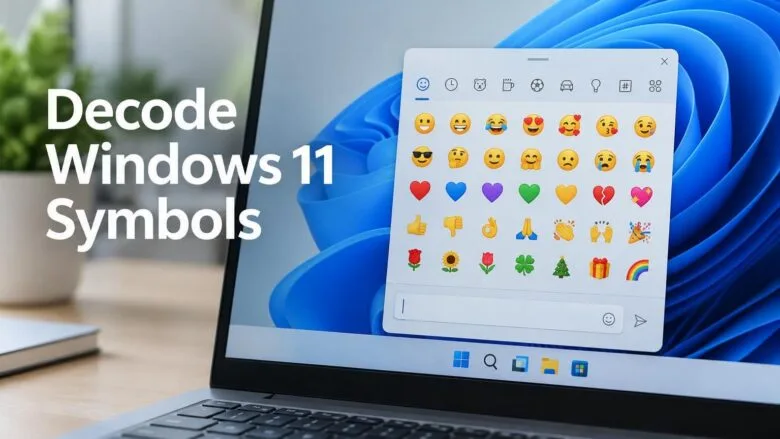
A symbol’s meaning on Windows 11 starts with its Unicode name (the international standard that gives every character a code and a name), which Character Map shows when you select it. Searching the emoji panel (Windows + period) works too, and the tables below answer “what does this symbol mean” for the common emoji, punctuation marks and system icons.
Windows 11 draws emoji with the Segoe UI Emoji font and opens the emoji panel in any text box. The panel has tabs for emoji, GIFs, kaomoji (faces built from text characters), symbols and clipboard history. None of this depends on your edition, so Home, Pro and Enterprise behave the same, and nothing needs a restart or administrator rights.
The meaning of a symbol on Windows 11 comes from its Unicode name, which Character Map shows when you select the character. For emoji, press Windows + period (.) in any text box to open the emoji panel, then type a keyword such as thinking to see its name. For text symbols like © or ≈, use Character Map.
How to Look Up an Unknown Emoji or Symbol on 🪟 Windows 11
Three tools cover almost every case. The emoji panel is best for emoji, Character Map is best for text symbols, and a web search is the fallback for anything else. Start with whichever matches what you are looking at.
Method 1Find an Emoji in the Emoji Panel
The emoji panel lets you search emoji by name or keyword, so you can confirm what an emoji is called before you use it. It works in Notepad, Word, browsers and most chat apps.
- Click inside any text box, such as a Notepad window or a chat field.
- Press Windows + . (the period key). The emoji panel opens. Windows + ; (semicolon) opens the same panel.
- Click the Emoji tab if it is not already selected.
- Type a word in the search box, for example thinking or heart. The grid filters to matching emoji.
- Click an emoji to insert it into the text box.
Click inside it and press the shortcut again. Some games, older desktop programs and remote sessions ignore the shortcut. In those cases, type the emoji in Notepad, copy it, and paste it where you need it.
The Kaomoji tab holds faces made from text characters, such as the shrug ¯\_(ツ)_/¯. The Symbols tab holds punctuation, currency, math and other special characters, sorted into categories along the bottom of the panel.
Method 2Identify a Text Symbol with Character Map
Character Map is an older Windows tool that lists every character in a font and shows each character's Unicode code (its number in the standard) and its name. It works well for symbols such as ©, § or ≈. It is less useful for colour emoji, so use the emoji panel for those.
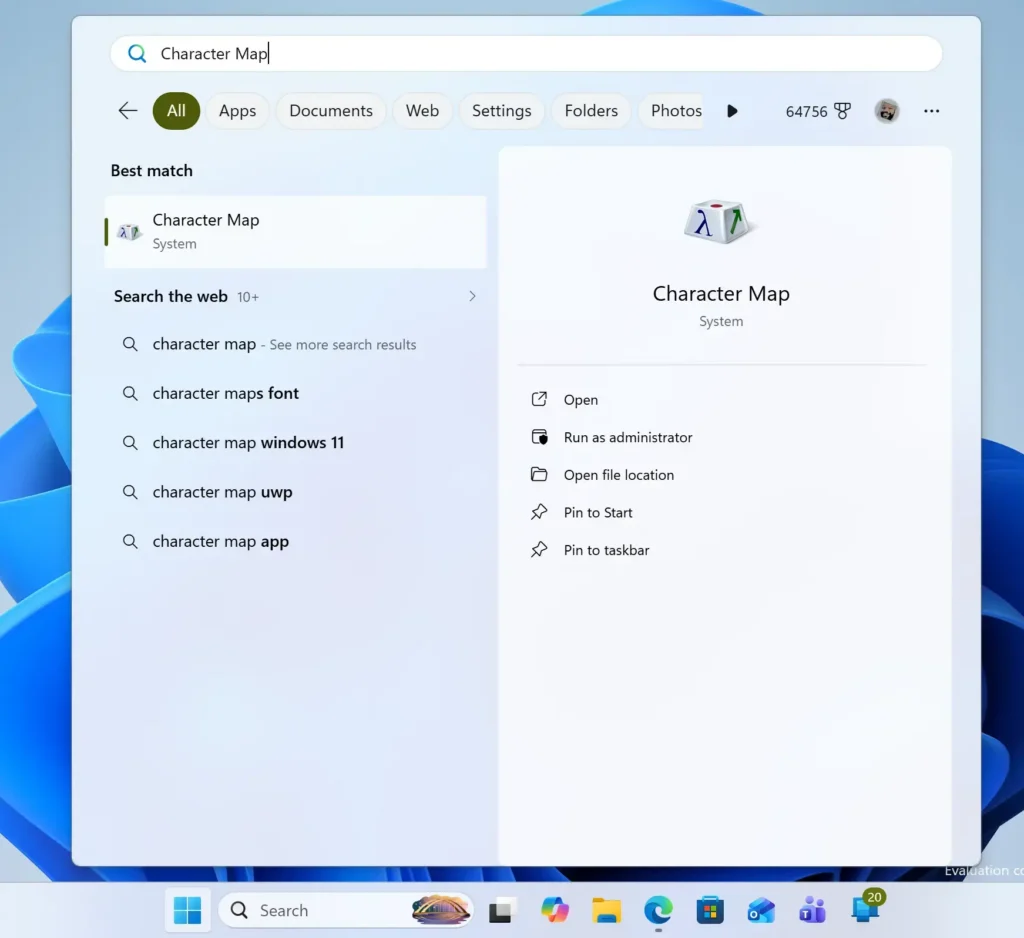
- Click Start, type Character Map, and press Enter. The Character Map window opens with a grid of characters.
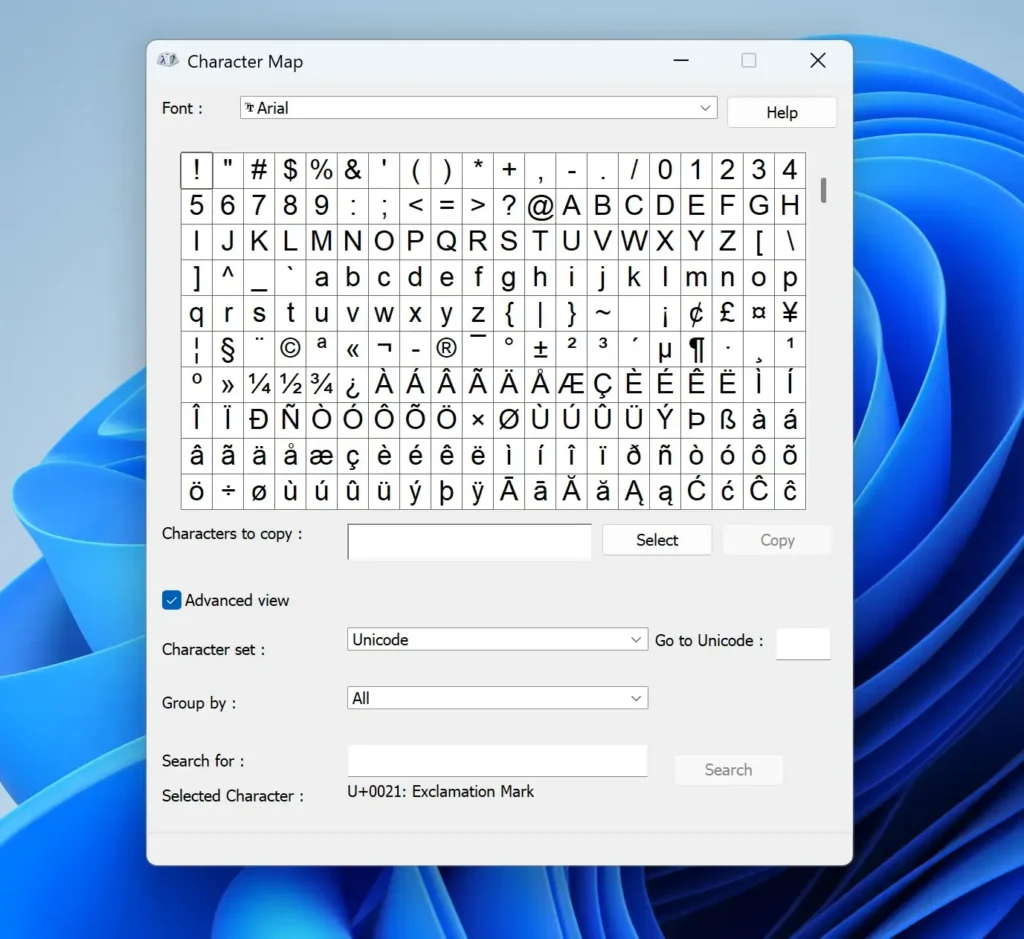
- Select the Advanced view check box. Extra options appear at the bottom of the window.
- Open the Group by list and choose Unicode Subrange. A second window lists categories such as currency symbols, mathematical operators, arrows and geometric shapes.
- Click a category. The grid jumps to the characters in that group.
- Click a character in the grid. The status bar at the bottom shows its code and official name, for example U+00A9 followed by Copyright Sign.
If you already know the code, type it into the Go to Unicode box in Advanced view and the grid jumps straight to that character. If the character does not appear in the grid, change the Font list at the top to another font, since each font covers a different set of characters.
Method 3Search the Web with the Character Itself
When the symbol arrives in an email, a document or a web page, the quickest check is to copy it and search for it.
- Select the symbol and press Ctrl + C to copy it.
- Open Microsoft Edge and click the address bar.
- Press Ctrl + V, add the word symbol after it, and press Enter. The results usually give the character's name and common uses.
Look-alike characters can differ in meaning. A hyphen, an en dash (–), an em dash (—) and a minus sign are four separate characters that look alike in many fonts. If a search gives an odd result, copy the exact character from the source rather than retyping it.
Common Emoji Meanings on 🪟 Windows 11
An emoji has two layers of meaning. The first is its official Unicode name, which is fixed. The second is how people use it in conversation, which changes with age group, region and platform. The tables give both.
Face and Emotion Emoji
| Emoji | Official name | What people usually mean |
|---|---|---|
| 😀 | Grinning face | Happy, friendly, upbeat. |
| 😂 | Face with tears of joy | Something is very funny. |
| 🤣 | Rolling on the floor laughing | Laughing harder than 😂 would show. |
| 🙂 | Slightly smiling face | Polite or mild approval. It can read as cold or sarcastic. |
| 🙃 | Upside-down face | Irony, sarcasm or playfulness. |
| 😉 | Winking face | Joking, teasing or sharing a secret. |
| 😅 | Grinning face with sweat | Relief after a close call, or awkward nervousness. |
| 🥲 | Smiling face with tear | Happy and sad at once, or holding back tears. |
| 😭 | Loudly crying face | Sadness, but often used for laughing hard or being overwhelmed. |
| 🥺 | Pleading face | Asking sweetly, begging, or feeling touched. |
| 🙄 | Face with rolling eyes | Annoyance or disbelief. |
| 🤔 | Thinking face | Considering something, or doubting it. |
| 😬 | Grimacing face | Awkward or cringing at a situation. |
| 😎 | Smiling face with sunglasses | Cool, confident, relaxed. |
| 🫠 | Melting face | Embarrassed or overwhelmed, wanting to disappear. |
| 💀 | Skull | Literally death, but in chat "I'm dead" means laughing very hard. |
Hand and Gesture Emoji
| Emoji | Official name | What people usually mean |
|---|---|---|
| 👍 | Thumbs up | Approval or "got it". In a work chat it can read as curt. In some regions it is rude. |
| 👎 | Thumbs down | Disapproval or disagreement. |
| 👌 | OK hand | All good, perfect. In some countries it is offensive. |
| 🙏 | Folded hands | Thank you, please, or prayer. Some people read it as a high five. |
| 👏 | Clapping hands | Applause or congratulations. |
| 🙌 | Raising hands | Celebration or praise. |
| 🤝 | Handshake | An agreement or a deal. |
| 🤞 | Crossed fingers | Hoping for luck. |
| 🤷 | Person shrugging | "I don't know" or "who cares". |
| 💪 | Flexed biceps | Strength, effort or a personal win. |
| 👀 | Eyes | Looking, paying attention, or "this is interesting". |
| ✌️ | Victory hand | Peace or victory. |
Status and Warning Emoji
These show up in project updates, checklists and alerts. Most people read these the same way, so they are the safest choice for work messages.
| Emoji | Official name | What people usually mean |
|---|---|---|
| ✅ | Check mark button | Done, approved or confirmed. |
| ✔️ | Check mark | Yes, correct, completed. |
| ❌ | Cross mark | No, wrong, cancelled or failed. |
| ⚠️ | Warning | Caution. Read this before you continue. |
| ❗ | Red exclamation mark | Important or urgent. |
| ❓ | Red question mark | A question or something unclear. |
| 🚫 | Prohibited | Not allowed. |
| ℹ️ | Information | A note or extra detail. |
| 🔒 | Locked | Secure, private or restricted. |
| 🔔 | Bell | Notification or reminder. |
| 📌 | Pushpin | Pinned or worth keeping in view. |
Heart, Fire, and Reaction Emoji
| Emoji | Official name | What people usually mean |
|---|---|---|
| ❤️ | Red heart | Love, thanks or strong approval. |
| 💔 | Broken heart | Heartbreak or disappointment. |
| 🔥 | Fire | Impressive, exciting or popular. |
| 💯 | Hundred points | Perfect, or "I fully agree". |
| 🎉 | Party popper | Celebration or congratulations. |
| ⭐ | Star | Favourite or excellent. |
| ✨ | Sparkles | New, clean or polished. |
| 🚀 | Rocket | A launch or fast progress. |
| 💡 | Light bulb | An idea. |
Common Text Symbols and What They Mean
Text symbols are plain characters rather than pictures, so they follow the font and colour of the text around them. Most have one fixed meaning.
Legal and Reference Symbols
| Symbol | Name | Meaning |
|---|---|---|
| © | Copyright sign | The work is protected by copyright. |
| ® | Registered sign | The brand name is a registered trademark. |
| ™ | Trade mark sign | The name is claimed as a trademark, whether or not it is registered. |
| § | Section sign | Points to a numbered section of a law or document. |
| ¶ | Pilcrow | Marks a paragraph. Word shows it when you turn on formatting marks. |
| † | Dagger | Marks a footnote. |
| № | Numero sign | Short for "number", as in № 5. |
Math and Measurement Symbols
| Symbol | Name | Meaning |
|---|---|---|
| ° | Degree sign | Degrees of temperature or angle. |
| ± | Plus-minus sign | Plus or minus a margin, such as ±2. |
| ≠ | Not equal to | The two values differ. |
| ≈ | Almost equal to | The values are approximately the same. |
| ≤ ≥ | Less-than or equal to, greater-than or equal to | A value is at most, or at least, another. |
| ∞ | Infinity | Without limit. |
| √ | Square root | The number that, multiplied by itself, gives the value. |
| µ | Micro sign | One millionth, as in µm. |
Punctuation and Typing Symbols
| Symbol | Name | Meaning |
|---|---|---|
| @ | At sign | Separates a name from a domain in email addresses. Also used to mention someone in chat. |
| # | Number sign (hash) | A number, or a hashtag that groups posts by topic. |
| & | Ampersand | Means "and". |
| … | Ellipsis | Trailing off, or text left out. |
| • | Bullet | Marks an item in a list. |
| – | En dash | A range, such as 10–20. |
| — | Em dash | A break in a sentence, longer than a hyphen. |
| ← → ↑ ↓ | Arrows | Direction, a result, or a step in a path. |
Currency Symbols
The common ones are $ (dollar), € (euro), £ (pound), ¥ (yen or yuan) and ¢ (cent). The Symbols tab in the emoji panel has a currency category that lists more. Windows also uses a currency symbol when it formats amounts in apps and Settings. To change that symbol, follow the guide on how to change the currency symbol in Windows 11 Region settings.
Symbols in Code and Command Lines
Technical guides use keyboard symbols that carry special meanings in a terminal (the text window where you type commands). The meanings change with the shell (the program that reads your commands), so check which one a tutorial uses.
- \ (backslash): separates folders in Windows paths, such as C:\Windows\System32.
- / (forward slash): separates folders in web addresses and Linux paths. Some Windows commands use it to mark options (switches) that change how the command runs.
- | (pipe): sends the output of one command into another.
- > (greater-than sign): in Command Prompt and PowerShell, writes a command's output to a file.
- % (percent sign): wraps an environment variable in Command Prompt, such as %USERPROFILE%.
- $ (dollar sign): starts a variable name in PowerShell.
- ~ (tilde): in a Linux shell, stands for your home folder.
- { } (curly braces) and [ ] (square brackets): group values in code and configuration files.
Linux tutorials lean on these characters heavily. A guide such as how to install the MEAN stack on Ubuntu Linux is a good place to see them in real commands. Type each one exactly as shown, because a swapped slash or a missing symbol changes what the command does.
🪟 Windows 11 System Icons and What They Mean
Not every symbol is a text character. Windows draws many status icons itself, and each one has a fixed meaning in Windows 11. Hover over an icon to check its name before you click it.
| Icon | Where you see it | Meaning |
|---|---|---|
| Blue and yellow shield | On a button or program icon | The action needs administrator approval and triggers a User Account Control prompt. |
| Yellow triangle with an exclamation mark | Device Manager | Windows found a problem with the device or its driver. Double-click the device and read the Device status box. |
| Down arrow on a device | Device Manager | The device is disabled. |
| Green check mark | Windows Security | That protection area needs no action. |
| Yellow warning triangle | Windows Security | Windows recommends an action. |
| Red X | Windows Security | That area needs your attention now. |
| Cloud outline | File Explorer, OneDrive folders | The file is online only and uses no space on your PC until you open it. |
| Green circle with a white check mark | File Explorer, OneDrive folders | The file is stored on your PC. A solid green circle means it is set to stay on this device. |
| Two circling arrows | File Explorer, OneDrive folders | The file is syncing. |
| Red circle with a white X | File Explorer, OneDrive folders | Sync failed for that file. |
| Microphone | Taskbar notification area | An app is using your microphone. |
| Globe | Taskbar network icon | Windows has no working network connection. |
The taskbar icons are small, so hover over one to see a tooltip (a short label that appears on screen). Click it to open the related panel, such as the network list or the Quick Settings menu. If a system icon shows an error you cannot explain, the Windows 11 troubleshooting guide for common PC errors covers the usual fixes.
Why the Same Emoji Looks Different on Other Devices
Unicode defines each emoji's name and meaning, but every platform draws its own picture. The 😬 you send from Windows 11 can look noticeably different on an iPhone or an Android phone. The difference can change the tone. A face that looks cheerful in one design can look strained in another.
When an emoji matters, such as in a customer email, check how it looks to the recipient. If the meaning is unclear, use words as well. Skin-tone variants, flags and newer emoji are the most likely to display differently.
Why You See a Box or a Question Mark Instead of a Symbol
Two problems cause most of these cases, and each has a different cause.
The Empty Box
An empty rectangle means the font in use has no picture for that character. This often happens with newer emoji, because each Windows build (a numbered release of Windows 11) supports a fixed set. Open Settings Windows Update, select Check for updates, and install anything offered. If the box appears only in one app, change the font in that app to Segoe UI Emoji or Segoe UI Symbol.
The Replacement Character (�)
The black diamond with a question mark is the Unicode replacement character, U+FFFD. Windows shows it when text saved in one encoding (the scheme that turns characters into bytes) is read as another, or when the file is damaged. Reading the file again with the same encoding will not restore the character, because the file no longer holds it.
- Open the file in Notepad.
- Click the encoding label in the status bar at the bottom right of the window.
- Choose Reopen with Encoding, then try UTF-8 and other options until the text reads correctly.
If every encoding still shows �, the characters were lost when the file was saved. Ask the sender for the original file, or request the text again.
How to Type Symbols Without the Emoji Panel
They need a numeric keypad. On a laptop without one, use the emoji panel instead.
- Turn on Num Lock.
- Hold down the left Alt key.
- Type the four-digit code on the numeric keypad, not the number row.
- Release Alt. The symbol appears at the cursor.
| Code | Symbol |
|---|---|
| Alt + 0169 | © |
| Alt + 0174 | ® |
| Alt + 0153 | ™ |
| Alt + 0176 | ° |
| Alt + 0177 | ± |
| Alt + 0167 | § |
| Alt + 0182 | ¶ |
| Alt + 0128 | € |
| Alt + 0163 | £ |
If nothing appears, Num Lock is probably off, or you typed the digits on the number row. In Microsoft Word you can also type a character's hex code (a base-16 number, such as 00A9), then press Alt + X to turn it into the symbol.
What to Do Next
If a symbol still has no name, paste it into Edge with the word "symbol" after it, or find it by shape in the Advanced view of Character Map. To change how Windows writes amounts of money, open the currency symbol guide for Windows 11 Region settings next. If a missing symbol comes with other glitches, work through the Windows 11 troubleshooting article.
Have a question about this guide?
Answered by AI from this guide. Good questions may be added to this page — please don't include personal details.
Did this guide fix your problem?

About the Author
Richard
Tech Writer, IT Professional
Richard is a writer at Geek Rewind who turns complex IT tasks into clear, step-by-step guides. He draws on years of hands-on experience in system administration and enterprise IT operations, focusing on Windows, Linux and WordPress: the problems people actually run into, and the fixes that work. His server and WordPress guides come from systems he runs himself. Richard builds and maintains the platform behind Geek Rewind, from its Ubuntu servers and Nginx configuration to its custom WordPress plugins. Many new tutorials start with readers' questions, and he's always glad to answer them in the comments.
No comments yet — be the first to share your thoughts!