Enhance Windows 11 Security with System Guard


System Guard in Windows 11 blocks hidden malware from infecting your computer’s startup code before the operating system boots. This built-in security feature checks core system startup files every time you turn on your machine.
Standard antivirus software cannot reach threats hidden deep inside firmware. System Guard stops this malicious code right away to keep your files safe from serious attacks.
You enhance Windows 11 security by enabling System Guard’s firmware protection through the Windows Security app under Device security, then Core isolation details. If unavailable, adjust the registry at 🗝️HKEY_LOCAL_MACHINE\
Enable Firmware Security in Windows
Windows 11 firmware security settings protect your computer startup process from unauthorized changes by turning on core isolation features inside the Windows Security app. You need compatible hardware to use this feature, which stops malicious software from taking over your system before Windows even starts up.
- Open the Windows Security app.
- Go to Device security.
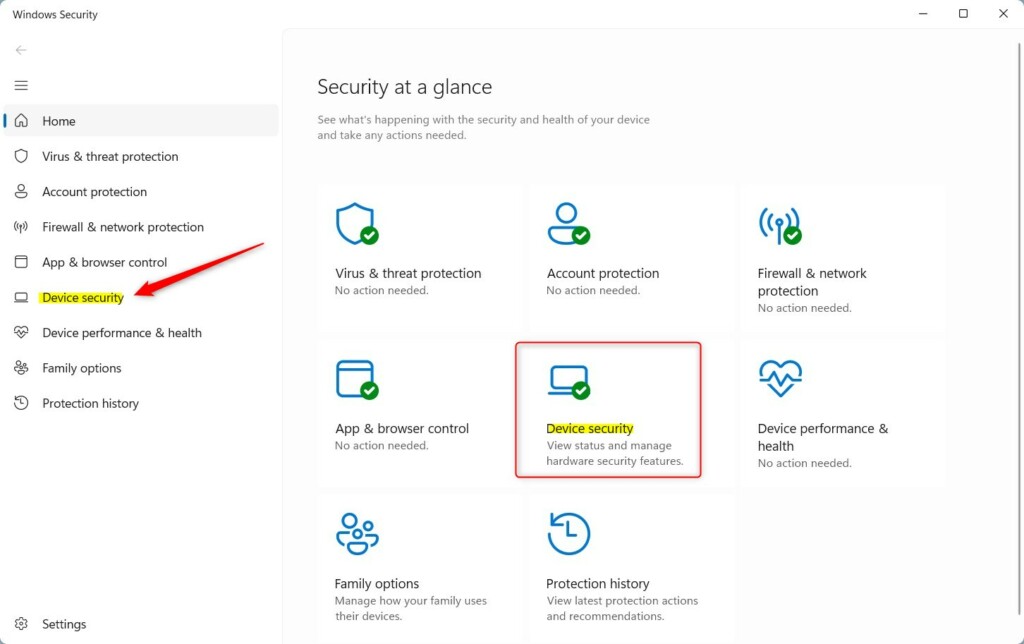
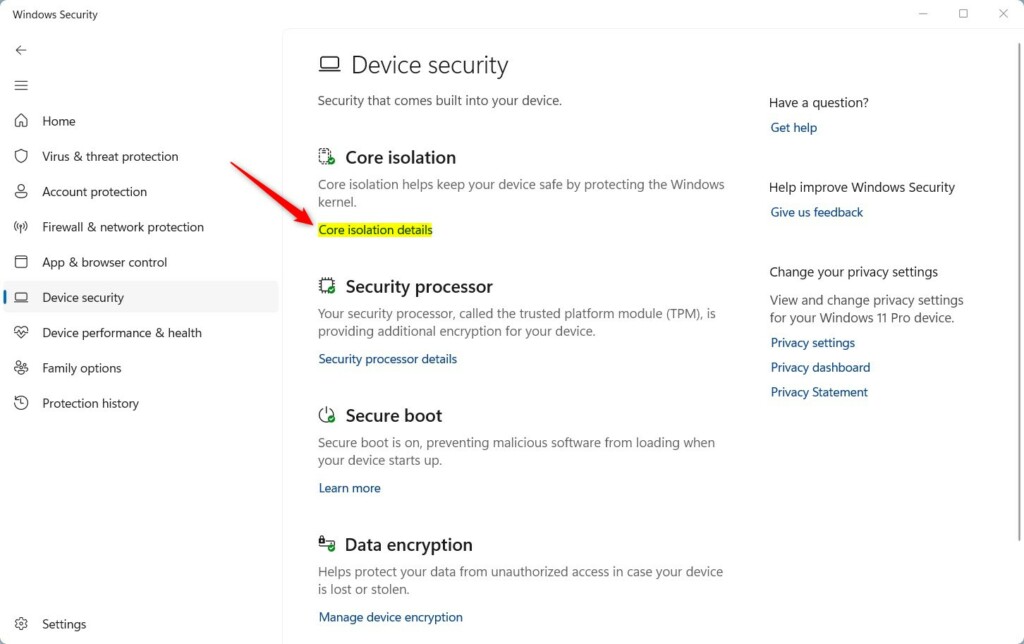
- Click the Core isolation details link.
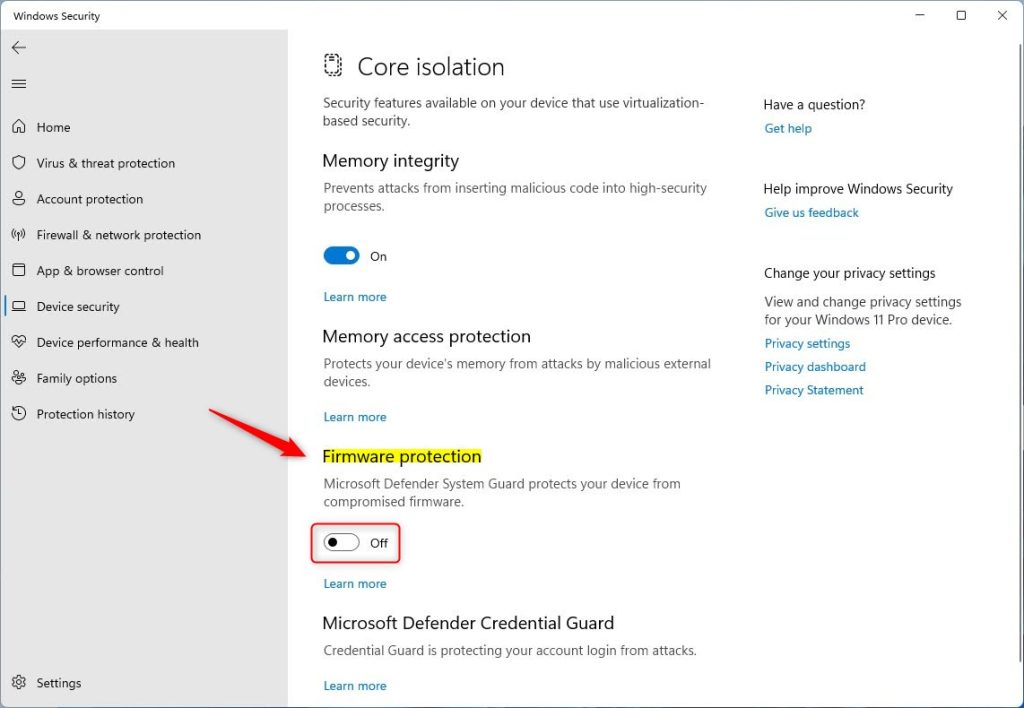
- Toggle the Firmware protection switch to On.
Adjusting the registry overrides this block. [Admin Privileges Required]
Open Registry Editor and navigate to this path:
HKEY_LOCAL_MACHINE\SYSTEM\CurrentControlSet\Control\DeviceGuard\Scenarios\SystemGuard
Change the Managed DWORD value from 1 to 0. Restart the PC afterward.
Enable Firmware Protection via Registry
Windows 11 firmware security can still be turned on using the Registry Editor (a tool for changing advanced system settings) if the normal switch is missing from the Windows Security app. Making changes here forces your computer to turn on the same startup protections even when the standard menu options are greyed out or unavailable.
Head to this folder path in the Registry Editor:
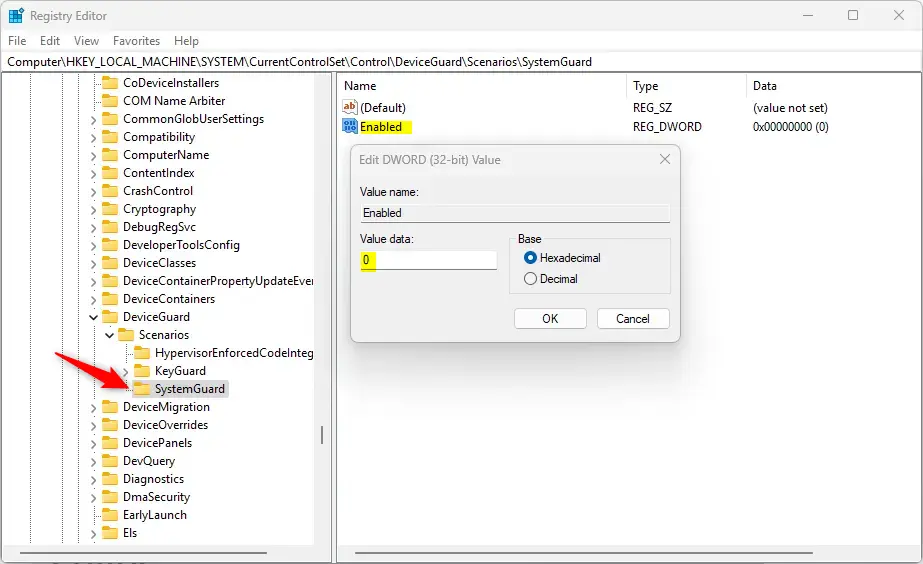
Computer\HKEY_LOCAL_MACHINE\SYSTEM\CurrentControlSet\Control\DeviceGuard\Scenarios\SystemGuard
- Right-click in the empty space, select New, then DWORD (32-bit) Value.
- Name this new value Enabled.
- Double-click Enabled and set the value to 1 to turn it on, or 0 to turn it off.
Restart the computer to apply changes.
For more technical details, visit Microsoft.
Summary
Activating firmware protection locks down a Windows 11 PC against sophisticated rootkits. Establishing hardware-based security checks during startup protects systems against advanced malware that standard tools miss. These steps guarantee a clean, trusted boot state on every startup.
Was this guide helpful?

About the Author
Richard
Tech Writer, IT Professional
Richard, a writer for Geek Rewind, is a tech enthusiast who loves breaking down complex IT topics into simple, easy-to-understand ideas. With years of hands-on experience in system administration and enterprise IT operations, he’s developed a knack for offering practical tips and solutions. Richard aims to make technology more accessible and actionable. He's deeply committed to the Geek Rewind community, always ready to answer questions and engage in discussions.



No comments yet — be the first to share your thoughts!