
This article explains how to turn on or off the Alt + Spacebar shortcut for Copilot “Press to talk” feature on Windows 11.
A Windows 11 Copilot+ PC has a dedicated Copilot key on the keyboard. When you press this Copilot key, the Copilot app opens by default.
When Copilot is installed on Windows, you can enable or disable it, open Copilot when Windows starts, Pin or Unpin the Copilot side panel, Resize the Copilot side panel, delete chat history in Copilot, create a desktop shortcut, hide the sidebar, use your phone with Copilot, and more.
Starting with the Copilot app (version 1.25023.101.0 and higher), Copilot is now a native XAML application featuring an updated UI with a side panel.
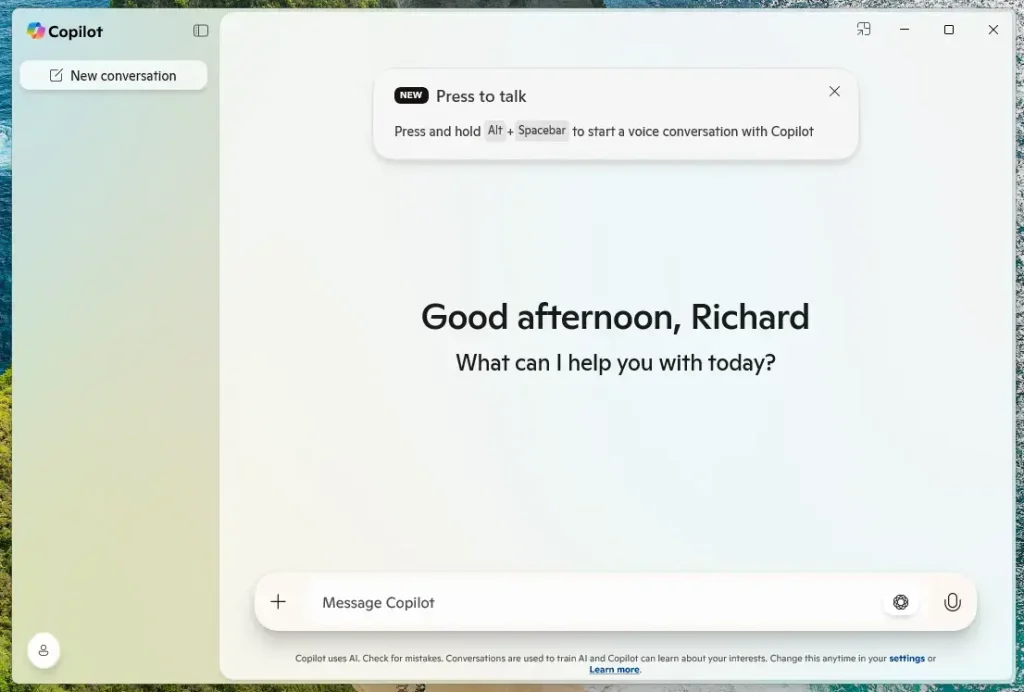
The Copilot app now features a “Press to Talk” feature allowing users to interact with a hotkey using their voice. It provides instant responses while maintaining their workflow and continuing tasks without interruptions.
Turn on or off Copilot Alt+Spacebar shortcut
If you want to turn off the new Copilot Alt+Space shortcut on Windows 11, the steps below will show you how.
Open the Copilot app.
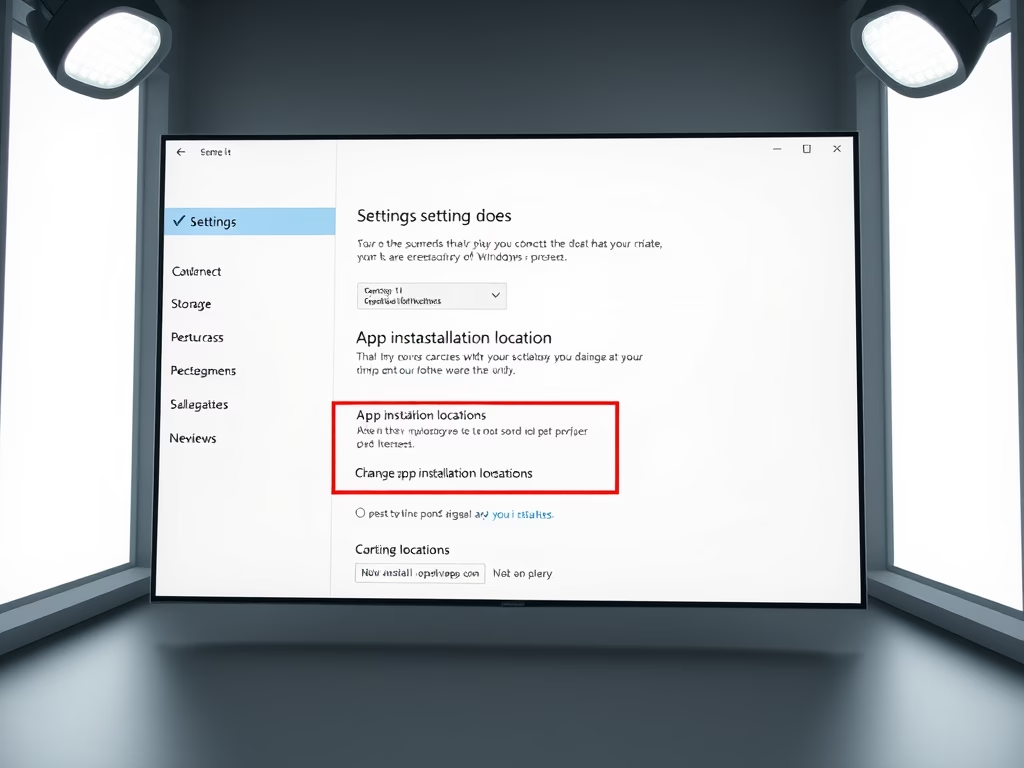
While in full view, click the Account profile button, and select Settings.
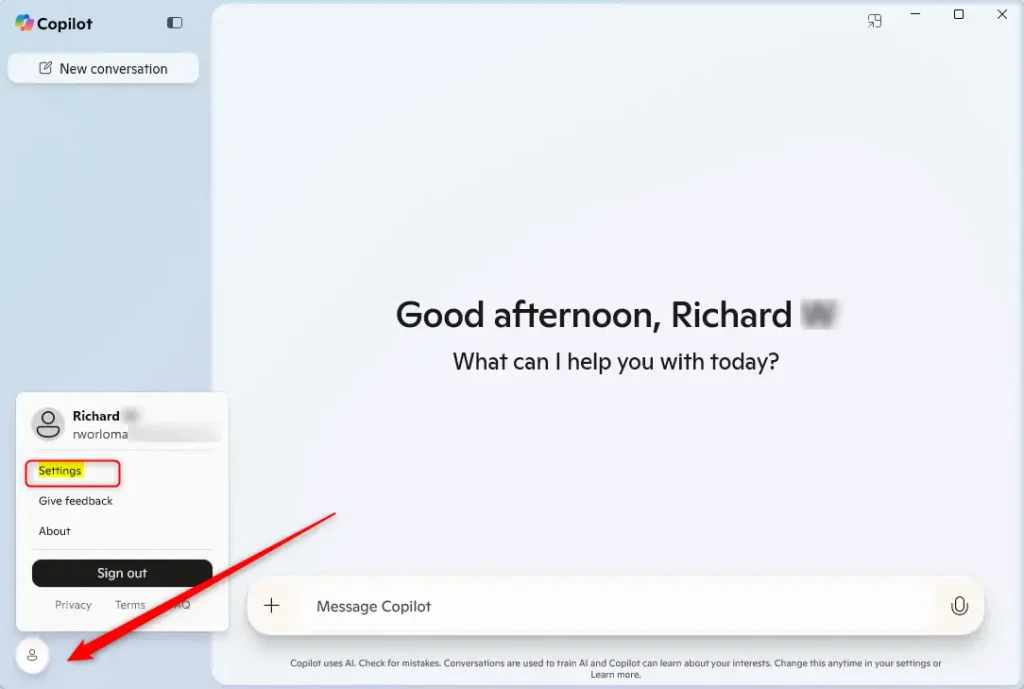
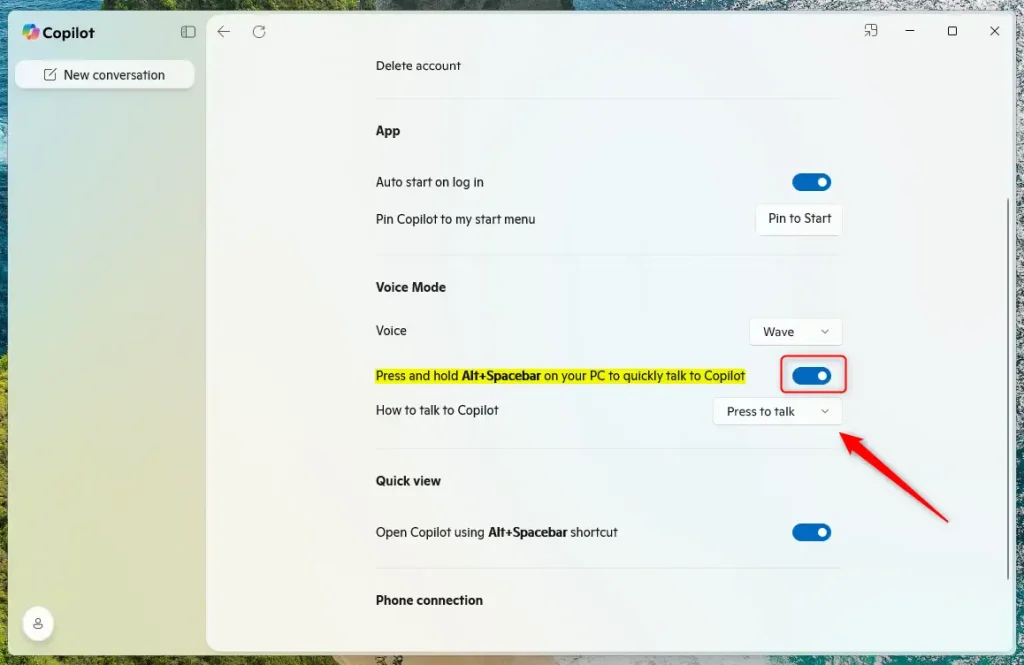
On the Settings pane, under ‘Voice mode,’ toggle the button for “Press and hold Alt+Spacebar on your PC to quickly talk to Copilot” to enable or disable the feature.
If you enable it, select an option from the drop-down menu to choose how to communicate with Copilot.
- Press and hold to talk
- Press to talk (default)
You can close the Settings pane once you are finished.
That should do it!
Conclusion
In summary, managing the Alt + Spacebar shortcut for the Copilot’s “Press to Talk” feature on Windows 11 is straightforward. Here are the key points:
- Easy Access: You can quickly enable or disable the shortcut through the Copilot app settings.
- Enhanced Workflow: The Press to Talk feature allows seamless voice interaction without disrupting your tasks.
- Customizable Experience: Tailor your Copilot usage to your preferences by adjusting settings.
- Stay Updated: Ensure you are using the latest version of the Copilot app to access all available features.
- Helpful Resources: Utilize additional guides throughout the article for further enhancements and optimizations with Copilot.

Leave a Reply