Enable or Disable Autocorrect in Windows 11

Autocorrect in Windows 11 fixes spelling mistakes as you type. When you press space or punctuation, Windows swaps a misspelled word for the one it thinks you meant. It works through the Windows text services, so it applies in many apps and websites, and it is most noticeable with the touch keyboard.
You can turn autocorrect on or off at any time in the Settings app . Turning it off stops Windows from changing words you typed on purpose, such as slang, gaming shorthand, names or technical terms. The change takes effect straight away and you can reverse it with the same switch.
Some apps have their own autocorrect that Windows does not control. Microsoft Word, for example, has its own proofing options. If a word still changes after you turn the Windows setting off, check the settings in that app.
To enable or disable autocorrect in Windows 11, open Settings , go to Time & language Typing, and toggle the switch next to Autocorrect misspelled words on or off. The change takes effect immediately without requiring a restart.
How to Turn Autocorrect On or Off in 🪟 Windows 11
The simplest method is the Settings app. Go to Time & language Typing and use the switch for autocorrecting misspelled words. It works the same on Windows 11 Home and Pro, and you do not need to restart.
- Open the Settings app: Click the Start menu (the Windows icon on the taskbar ) and choose Settings. Or press the Win+I to open it quickly. The Settings window opens with a list of categories on the left.

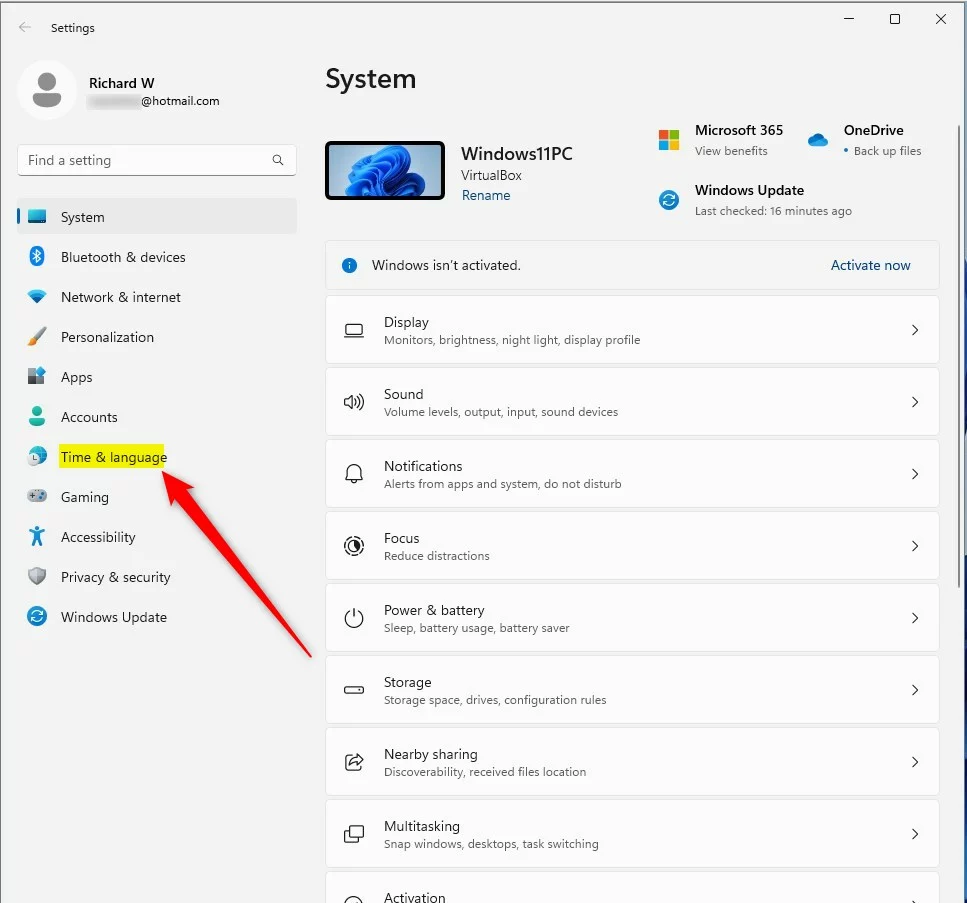
- In the Settings window, click Time & language in the left-hand list. The language and region options appear on the right.
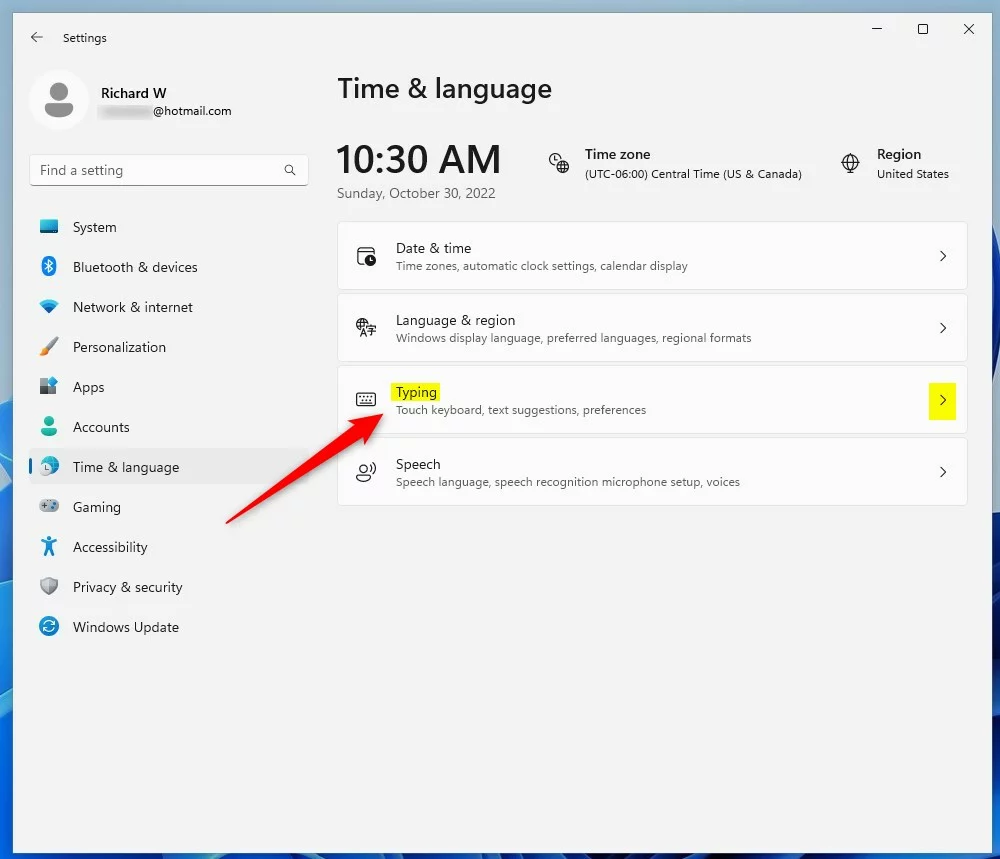
- On the right side, click Typing to open the typing settings. You should see a list of switches, including the ones for text suggestions and misspelled words.
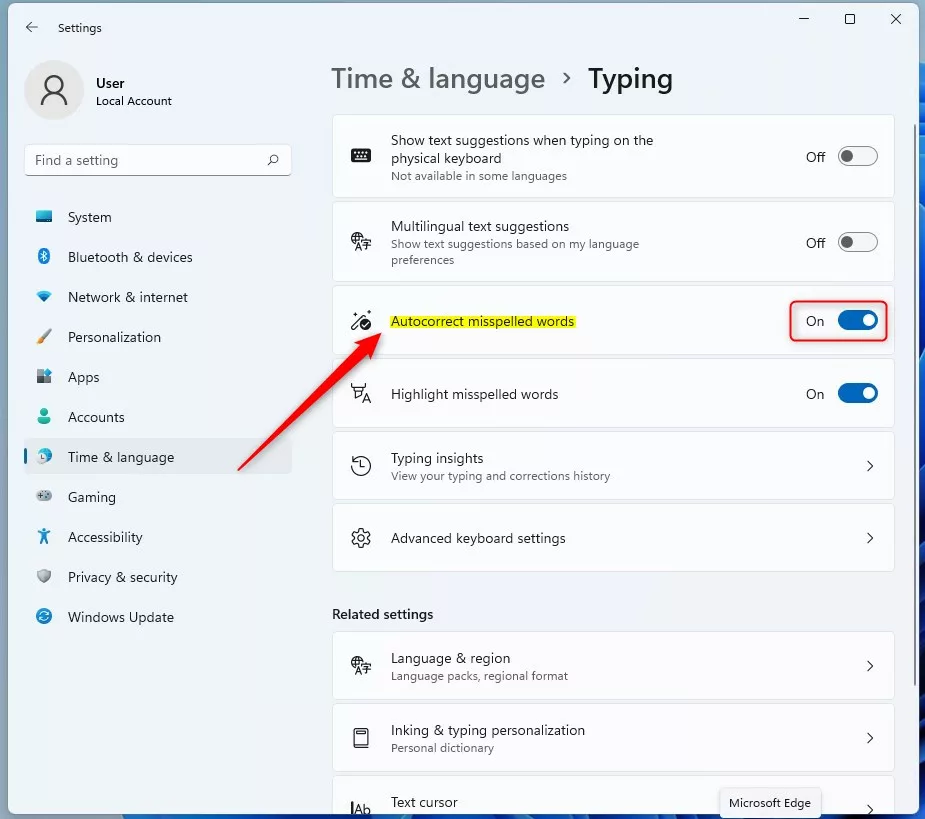
- Find the option called Autocorrect misspelled words. Some builds label it slightly differently, such as “Auto-correct misspelled words”, but it is the same switch.
- Click the switch to set it to On if you want autocorrect enabled, or to Off if you want to disable it. The label next to the switch changes to show the new state.
To undo the change, come back to the same page and flip the switch again. The related Highlight misspelled words option underlines mistakes without changing them. If you turn autocorrect off but still want a hint when you misspell something, leave that one on.
Turn Autocorrect On or Off Using the Windows Registry (Advanced Users)
You open Registry Editor and change the AutoCorrection value. This is an advanced method, and a wrong change in the registry can cause system problems. Use the Settings app above unless you have a reason not to, such as scripting the change for several PCs.
In Registry Editor, choose File Export, pick a location, and save a copy. If something goes wrong, double-click that file to restore it. Because this setting lives under HKEY_CURRENT_USER, it only affects your own account, and you do not need administrator rights to change it.
- Open the Registry Editor by typing
regeditin the Start menu search and pressing Enter. If Windows asks whether to allow the app to make changes, click Yes. - Go to this folder path. You can paste it into the address bar at the top of the Registry Editor window, or expand the folders on the left one by one:Registry
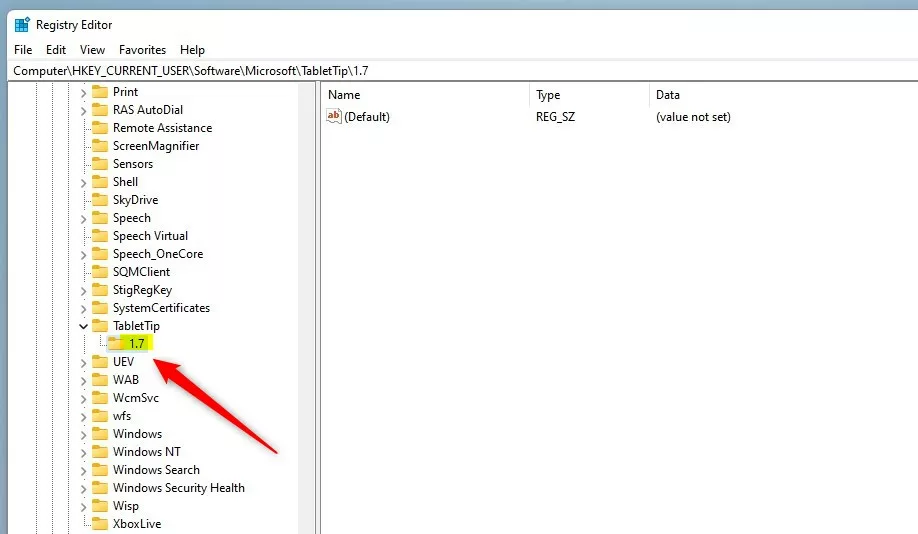
HKEY_CURRENT_USER\SOFTWARE\Microsoft\TabletTip\1.7
- If you don’t see the
1.7folder, right-click onTabletTip, choose New Key, and name it1.7. The new key appears in the left pane. - With
1.7selected, right-click an empty area on the right side, choose New DWORD (32-bit) Value, and name itEnableAutocorrection. If the value already exists, skip this step. - Double-click
EnableAutocorrectionand set the value data to:1to turn autocorrect On0to turn autocorrect Off
- Close the Registry Editor and restart your computer for the changes to take effect. After you sign back in, check Settings Time & language Typing to confirm the switch matches what you set.
To undo the change, set the value back to the opposite number, or restore the backup you exported earlier, and restart again.
Summary
- Autocorrect fixes spelling mistakes automatically while you type in Windows 11.
- Turn it on if you want help with spelling or you type in multiple languages.
- Turn it off if it corrects words wrongly or gets in your way.
- You can change this setting in the Windows Settings app under Time & language Typing If you prefer, advanced users can change it through the Registry Editor.
- Apps with their own autocorrect, such as Word, have separate settings.
Windows 11 autocorrect is a typing feature that fixes spelling mistakes as you write. You can turn it on or off through the Settings app or the Registry Editor. Enable it if you want better spelling help. Disable it if it keeps changing words you meant to type.
Was this guide helpful?

About the Author
Richard
Tech Writer, IT Professional
Richard is a writer at Geek Rewind who turns complex IT tasks into clear, step-by-step guides. He draws on years of hands-on experience in system administration and enterprise IT operations, focusing on Windows, Linux and WordPress: the problems people actually run into, and the fixes that work. His server and WordPress guides come from systems he runs himself. Richard builds and maintains the platform behind Geek Rewind, from its Ubuntu servers and Nginx configuration to its custom WordPress plugins. Many new tutorials start with readers' questions, and he's always glad to answer them in the comments.



No comments yet — be the first to share your thoughts!