How to Enable or Disable Passkey Managers on Windows 11

This article explains how to enable or disable Passkey Managers on Windows 11.
Open Settings, navigate to Accounts > Passkey settings > Advanced options, and toggle the “Save passkeys to this device” option. This allows you to enable or disable third-party passkey manager integration.
What Are Passkeys?
Passkeys are a new, safer way to sign in to websites and apps without needing a password, acting like a digital key for your device.
By default, Windows offers to save the passkey locally if you’re using Windows Hello. After you create and save a passkey with Windows Hello, you can sign in using your device’s biometrics or PIN.
Windows 11 now integrates smoothly with passkey managers. This means you can use your favorite credential manager – like 1Password or Bitwarden – to handle passkeys without any fuss.
Why Enable a Passkey Manager?
You might be wondering why you’d want to do this. By default, you can’t turn off saving passkeys to Windows. If you install a third-party passkey manager, like 1Password or Bitwarden, you can enable or disable saving passkeys to your Windows device.
How to Enable or Disable Passkeys Manager on Windows
As mentioned, the latest Windows build lets you enable or disable saving passkeys to Windows when third-party modules are installed.
Here’s how to do it:
Step 1Open the Settings App
First, open the Windows Settings app.
You can do that by clicking on the Start menu and selecting Settings. Or press the keyboard shortcut (Windows key + I) to launch the Settings app.
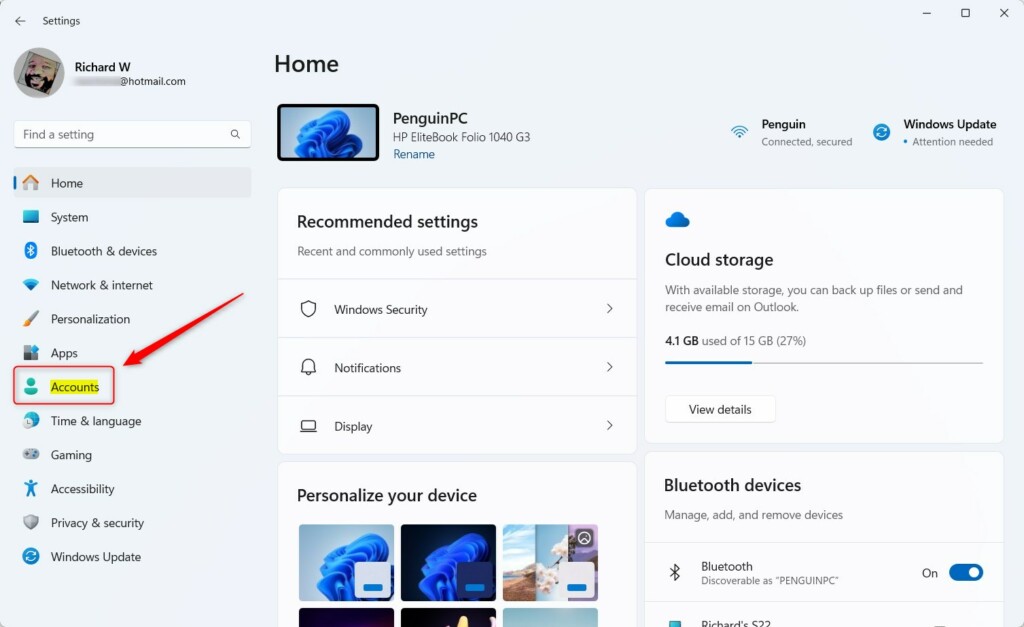
Step 2Go to Accounts
When the Settings app opens, click the Accounts button on the left.
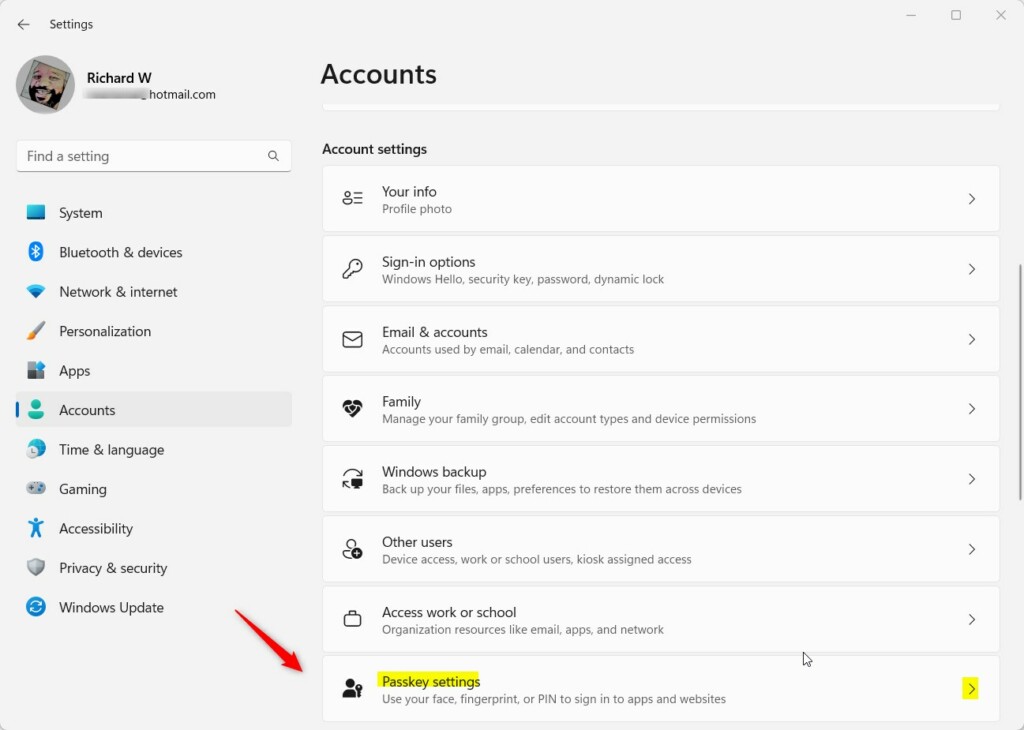
Step 3Select Passkey Settings
On the right, select the Passkey settings tile to expand it.
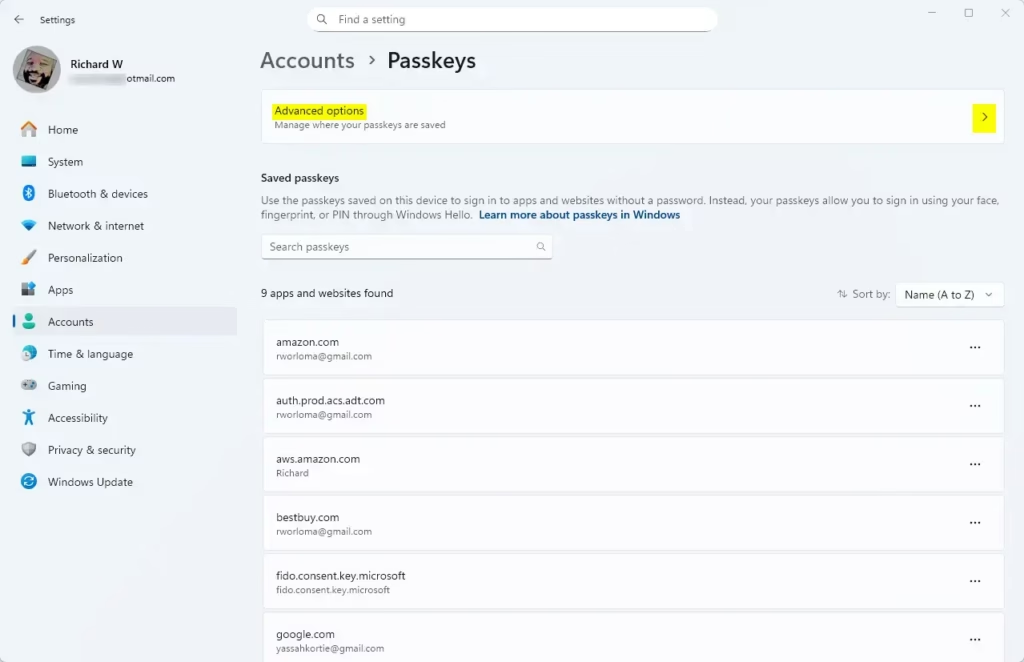
Step 4Open Advanced Options
On the Accounts > Passkey settings pane, select the “Advanced options” tile to expand it.
Step 5Toggle Passkey Manager On or Off
Then, toggle the button to enable or disable saving passkeys to Windows device.
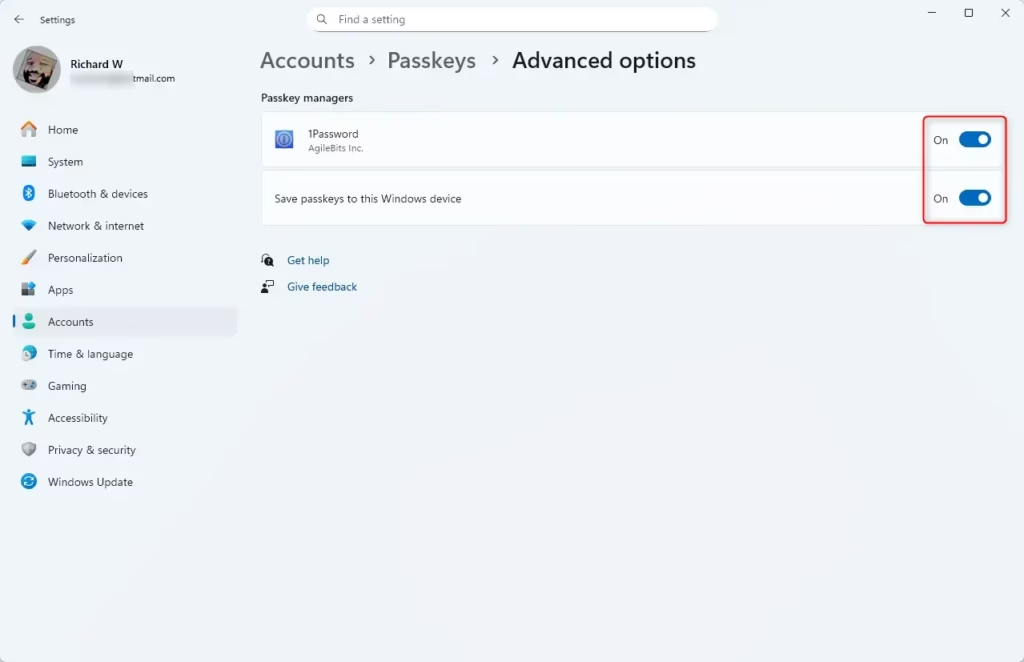
That’s all there is to it!
Summary
Using a Windows 11 passkey manager makes logging into your accounts safer and simpler by letting you use your fingerprint or PIN instead of passwords.
- Passkeys provide a secure alternative to traditional passwords, utilizing biometrics or PINs for authentication.
- Windows 11 supports integration with third-party passkey managers, improving workflow and user experience.
- You can enable or disable the saving of passkeys to your Windows device through the Settings app.
- Following the outlined steps allows for easy management of passkeys according to your preferences.
- Always ensure you are using updated software and security measures for the best experience.
How do I manage passkeys in 🪟 Windows 11?
Manage where your Windows passkeys are saved In the Settings app on your Windows device, select Accounts > Passkeys > Advanced options. You can enable or disable the passkey services available on your Windows device by toggling them on or off.
Does 🪟 Windows 11 have passkeys?
Passkey privacy consent on Windows 11 Users can manage passkey access at any time in Settings > Privacy & security > Passkey access.
Does 🪟 Windows 11 expand passkey manager support?
Today, we're excited to announce a major step forward in passwordless authentication: native support for passkey managers in Windows 11. This new capability empowers users to choose their favorite passkey manager — whether it's Microsoft Password Manager or trusted third-party providers.
Was this guide helpful?

About the Author
Richard
Tech Writer, IT Professional
Richard, a writer for Geek Rewind, is a tech enthusiast who loves breaking down complex IT topics into simple, easy-to-understand ideas. With years of hands-on experience in system administration and enterprise IT operations, he’s developed a knack for offering practical tips and solutions. Richard aims to make technology more accessible and actionable. He's deeply committed to the Geek Rewind community, always ready to answer questions and engage in discussions.




No comments yet — be the first to share your thoughts!