How to Change Microsoft Teams Download Location

You can change the Microsoft Teams download location to organize your files better.
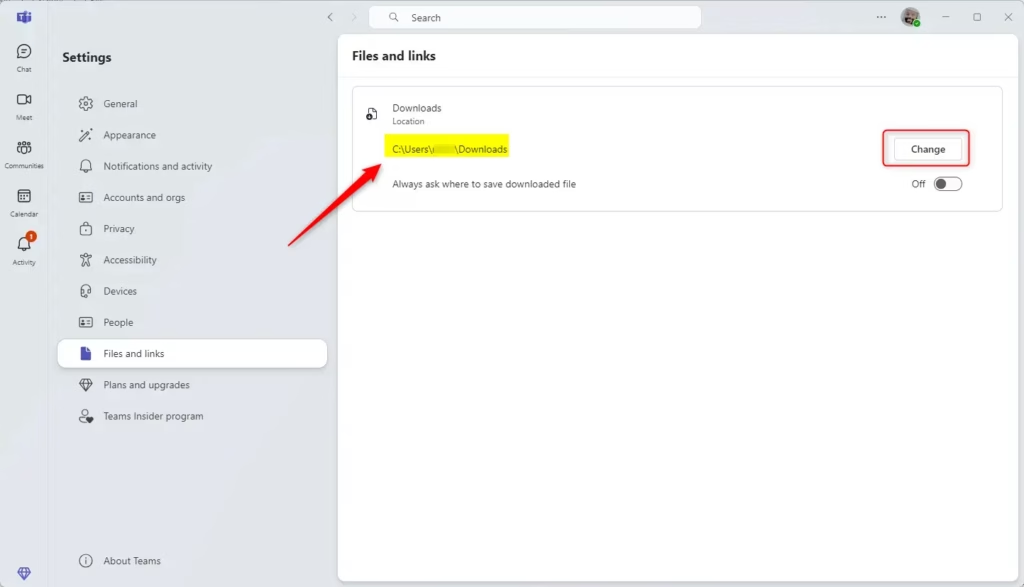
Microsoft Teams, a popular communication platform for work and school, defaults to saving all downloaded files in your system’s main Downloads folder, typically found at 📁C:\Users\[YourUsername]\Downloads.
By changing this default setting, you take control over where your downloaded documents and media are stored, improving your personal file management system.
This adjustment helps prevent your primary Downloads folder from becoming cluttered and ensures files are saved directly to a location that makes sense for you.
How to Change Teams Download Location
You can easily pick a new folder for your files. Follow these steps:
1. Open the Microsoft Teams app.

2. Click the Settings and more (…) icon near your profile picture.

3. Select Settings from the menu.

4. Click the Files and links tab on the left.
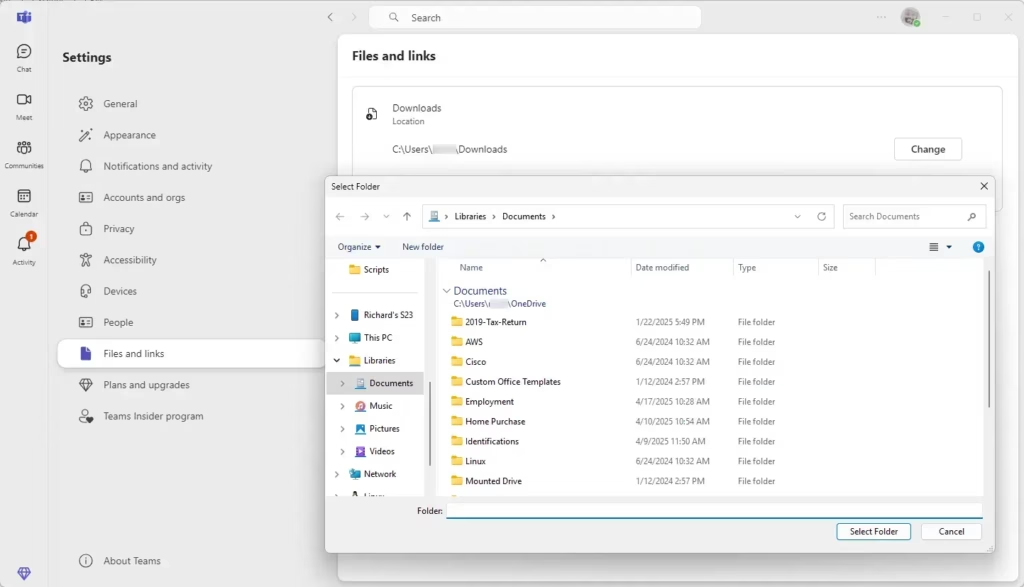
5. Under the Downloads section, click the Change button.
6. Pick your preferred folder and click Select Folder.
Browser vs. Desktop Client Differences
It is important to know that the Teams desktop app and the web version behave differently. The desktop app uses its own internal settings. However, if you use Teams in a web browser like Microsoft Edge or Google Chrome, the browser controls the download path. Changing the setting in the Teams desktop app will not change where your browser saves files. You must update your browser settings separately to change those locations.
Troubleshooting Permission Issues
Sometimes you cannot change the folder. This often happens if you do not have permission to write to that drive. Note: If you are trying to save to a system folder like 📁C:\Windows\System32, you will need admin privileges. Always try to save files to your personal user folders to avoid these errors.
Syncing with OneDrive and SharePoint
Teams stores files in SharePoint or OneDrive. When you download a file, you are creating a local copy. If you want to keep files in sync, consider using the OneDrive sync client. This allows you to access your files directly in File Explorer without needing to download them manually every time.
Comparison Table: Download Behavior
| Platform | Control Method |
|---|---|
| Teams Desktop App | Teams Settings Menu |
| Web Browser | Browser Download Settings |
| Mobile App | System File Manager |
Summary
Changing your Teams download location helps you stay organized. You can move files to a secondary drive or a specific project folder to save space on your main drive. Remember that the desktop app and web browsers manage files differently. For more official guidance, visit the Microsoft Support website.
Can I set a different download location for each channel?
No, Microsoft Teams currently only allows you to set one global default download location for all files. You cannot assign specific folders to individual channels. All files downloaded from any chat or channel will go to the single folder you have selected in your settings.
How do I reset my Teams download settings to default?
To reset your settings, simply return to the Files and links tab in your Teams settings. Click the Change button again and navigate back to your default user Downloads folder. Selecting the original path will restore the default behavior for all future file downloads within the application.
Was this guide helpful?

About the Author
Richard
Tech Writer, IT Professional
Richard, a writer for Geek Rewind, is a tech enthusiast who loves breaking down complex IT topics into simple, easy-to-understand ideas. With years of hands-on experience in system administration and enterprise IT operations, he’s developed a knack for offering practical tips and solutions. Richard aims to make technology more accessible and actionable. He's deeply committed to the Geek Rewind community, always ready to answer questions and engage in discussions.



No comments yet — be the first to share your thoughts!