Enable or Disable Guest Mode in Google Chrome


You can enable or disable Guest Mode in Google Chrome to control who can browse privately on your computer.
Guest Mode in Chrome provides a temporary browsing session that doesn’t save your history, cookies, or site data. This means anyone can use your browser on your PC without leaving a trace of their activity.
For example, you might want to disable Guest Mode if you want to ensure all users on your machine use their own Chrome profiles to save their data. Disabling it prevents new guest sessions from starting.
This feature is particularly useful on shared computers. It allows visitors to browse freely without compromising your personal browsing information.
Before proceeding, ensure your Chrome browser isn’t managed by an organization, as this can override local settings.
Edit the Windows Registry to enable or disable Chrome’s Guest Mode. Navigate to Computer\🗝️HKEY_LOCAL_MACHINE\SOFTWARE\Policies\Google\Chrome, create a DWORD value named BrowserGuestModeEnabled, and set it to 0 to disable or 1 to enable.
Enable / Disable Guest Mode in Chrome using the Registry
You can turn guest mode on or off in Chrome by changing a setting in the Windows Registry Editor, which is a powerful tool for managing system settings.
If your registry keys are locked by an existing policy, manual creation will fail. You must run the Registry Editor as an Administrator to make these changes.
First, open the Windows Registry. You should back up your registry before you start, or create a System Restore point as a safety measure.
Go to this path:
Computer\🗝️HKEY_LOCAL_MACHINE\SOFTWARE\Policies\Google\Chrome
If you do not see the Google folder, right-click the Policies folder and create a new key named Google. Do the same for Chrome if it is missing.
Right-click the Chrome folder. Select New > DWORD (32-bit) Value. Name it BrowserGuestModeEnabled.
Double-click BrowserGuestModeEnabled. Set the value to 0 to turn off Guest Mode. Set it to 1 to turn it on.
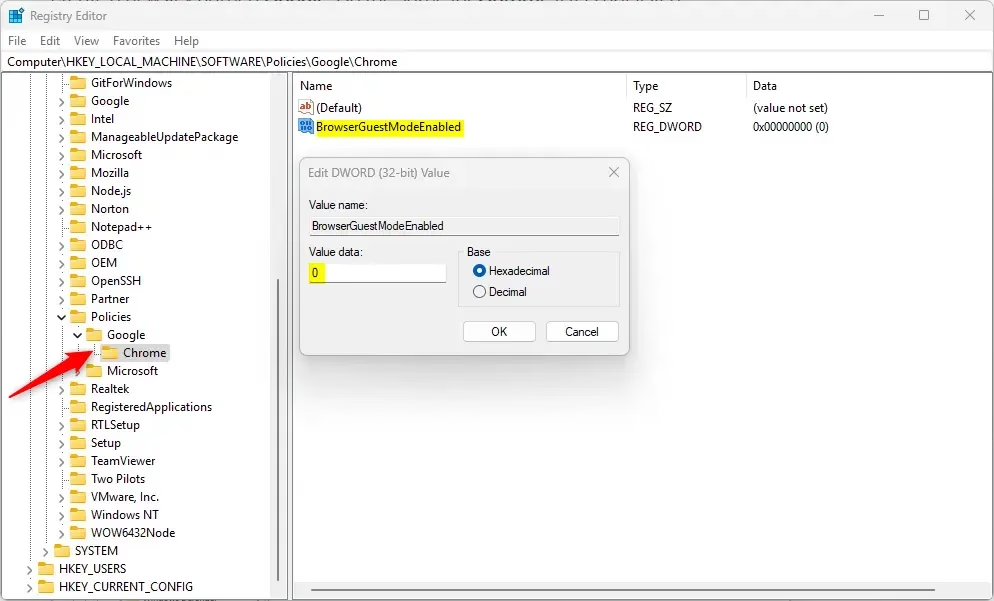
To restore the default settings, delete the BrowserGuestModeEnabled entry. You may need to restart your computer for these changes to work.
Using Google Chrome ADMX Templates
Businesses and IT teams can manage guest mode settings for many computers using Google Chrome ADMX templates with the Group Policy Editor.
Conclusion
You can control Guest Mode through the Windows Registry or via Group Policy. Always back up your registry before you change anything. If your computer is managed by an organization, please contact your IT department to change these settings.
Reference:
What are the disadvantages of guest mode?
Allowing guest users on a network can introduce security risks, primarily because it is harder to control what guests access and download. If not properly configured, a guest network might be exploited by malicious users to gain unauthorized access to sensitive data or to infect the network with malware.
Was this guide helpful?

About the Author
Richard
Tech Writer, IT Professional
Richard, a writer for Geek Rewind, is a tech enthusiast who loves breaking down complex IT topics into simple, easy-to-understand ideas. With years of hands-on experience in system administration and enterprise IT operations, he’s developed a knack for offering practical tips and solutions. Richard aims to make technology more accessible and actionable. He's deeply committed to the Geek Rewind community, always ready to answer questions and engage in discussions.



No comments yet — be the first to share your thoughts!