How to Make Notepad++ Default in Windows 11


This post shows students and new users the steps to install and make Notepad++ the default text editor in Windows 11. By default, Notepad is the default text editor in Windows 11. If you prefer another editor, including Notepad++, this post will show you how to replace Notepad with your preferred text editor in Windows 11.
Notepad++ is a source code editor and Notepad replacement that supports several languages. There are also so many features available in Notepad++ that are not in Windows Notepad.
If you’re a serious developer or need a great text editor and features not available in Windows Notepad, then Notepad++ is a great alternative. One can install several other text editors, but Notepad++ is a leader.
The steps below will show you how to install Notepad++ and make it your default text or code editor to automatically open when you want to read or edit text, code, and another file type.
This post can be applied to other text editors, not just Notepad++. If you have another text editor besides Notepad++, use the steps below to make it the default in Windows 11.
To get started with replacing Notepad with Notepad++ in Windows 11, follow the steps below.
How to install Notepad++ on Windows 11
As mentioned above, one can use Notepad++ to replace Windows Notepad to enjoy great features and support for multiple languages not available in Notepad.
First, go to the link below to download Notepad++
Once downloaded, go to your Downloads folder and run the executable. Follow the installation wizard to complete the setup.
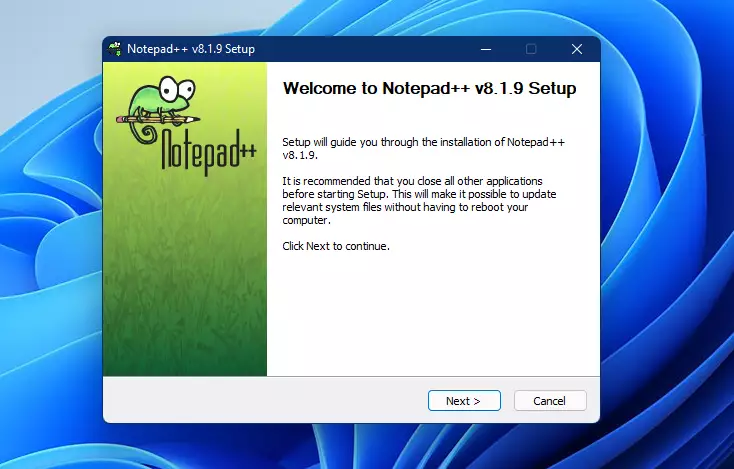
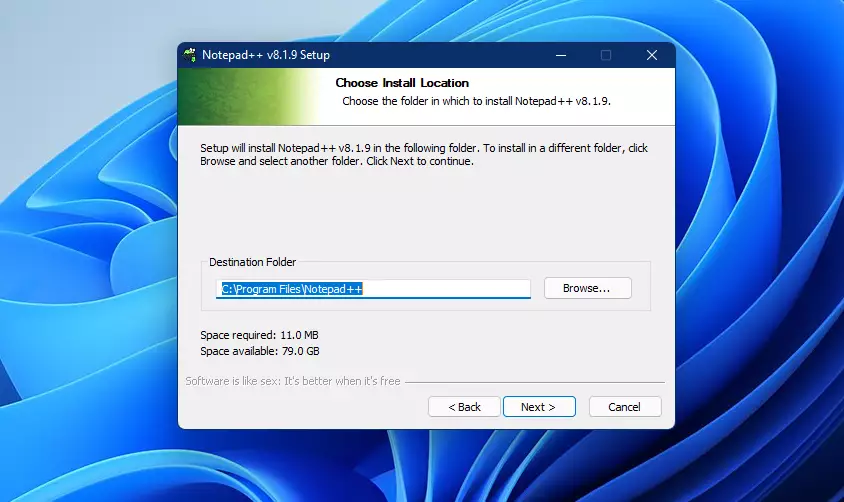
By default, Notepad++ will install in the C:Program FilesNotepad++ folder. To install in a different folder, click Browse and select another folder.
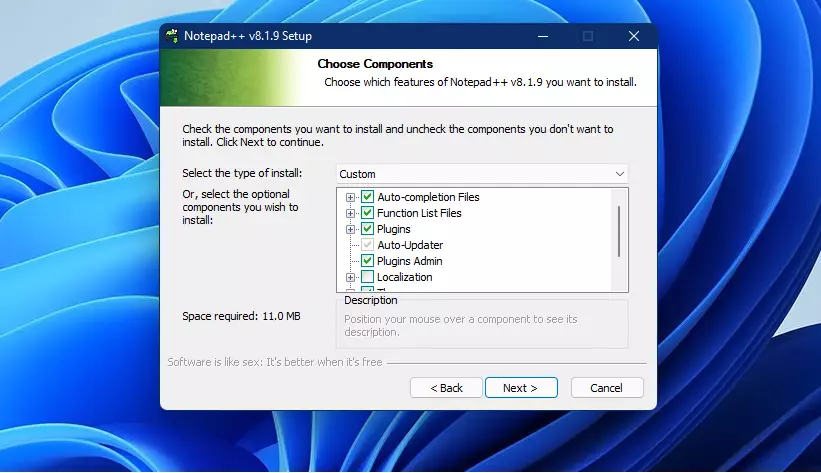
Next, check the components you want to install and uncheck the ones you don’t want to install. The default selections should be good in many situations. Click Next to continue.
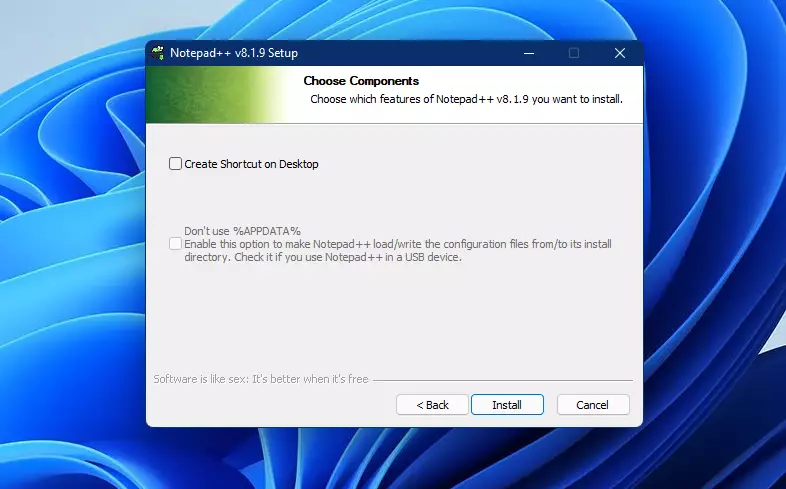
Next, click Install to finish the installation wizard.
How to make Notepad++ default text editor in Windows 11
Now that Notepad++ is installed, you can make it a Windows default text editor by following the steps below.
Windows 11 has a centralized location for the majority of its settings. Everything can be done, from system configurations to creating new users and updating Windows from its System Settings pane.
To get to System Settings, you can use the Windows key + I shortcut or click on Start ==> Settings, as shown in the image below:
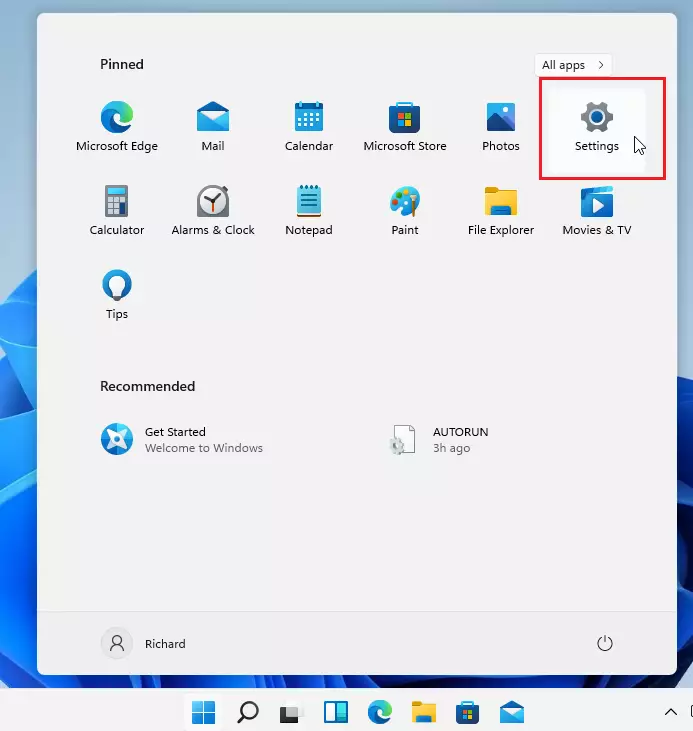
Alternatively, you can use the search box on the taskbar and search for Settings. Then select to open it.
Windows Settings pane should look similar to the image below. In Windows Settings, click Apps, and select Default Apps on the right pane of your screen shown in the image below.
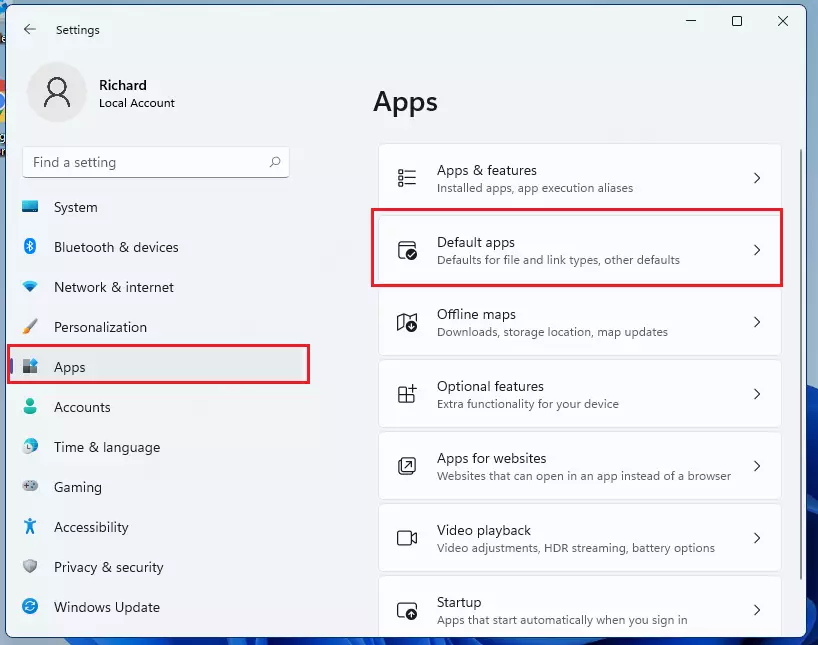
When Default apps settings open, use the search box and type Edge to search for the default app for applications.
Microsoft Edge will appear in the result below. Click on Notepad.
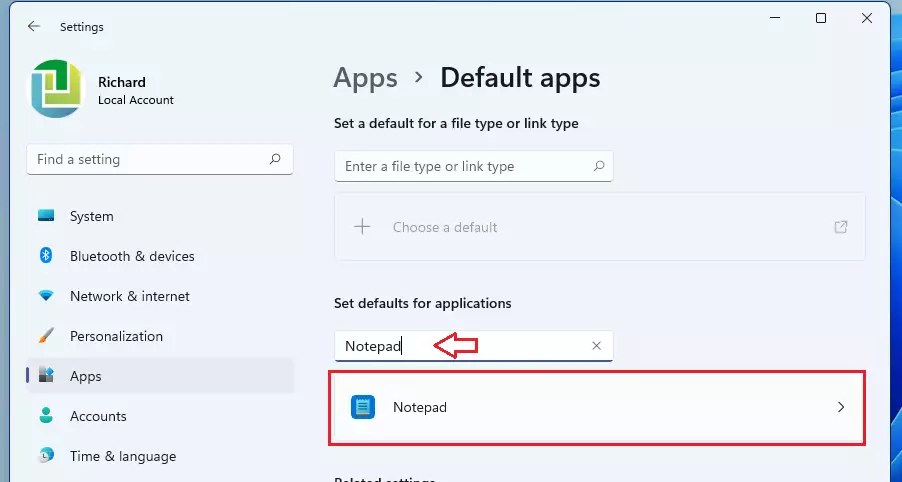
The next page will list all the default file types and file types for which Notepad is the default. Simply select each type and switch from Notepad to Notepad++.
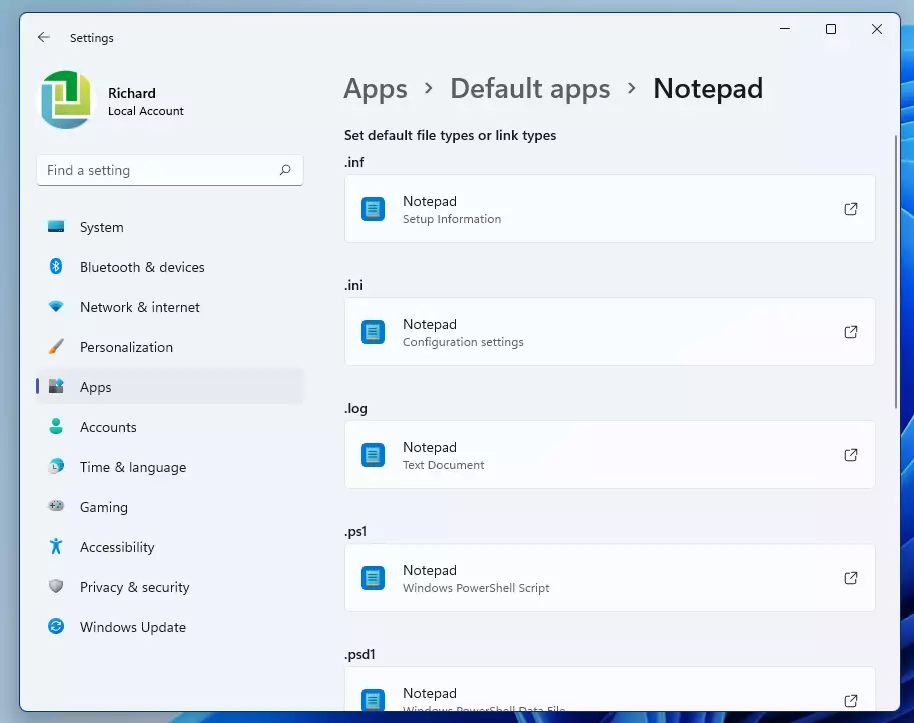
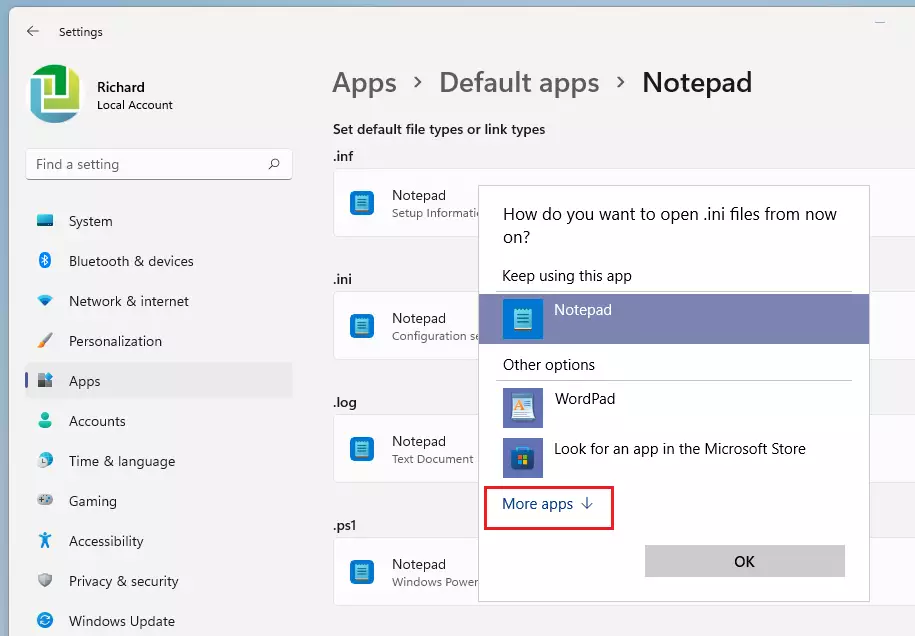
When you select Notepad, a pop-out window will prompt you to select the app you want always to open this type of file.
Click on the More apps link as highlighted below.
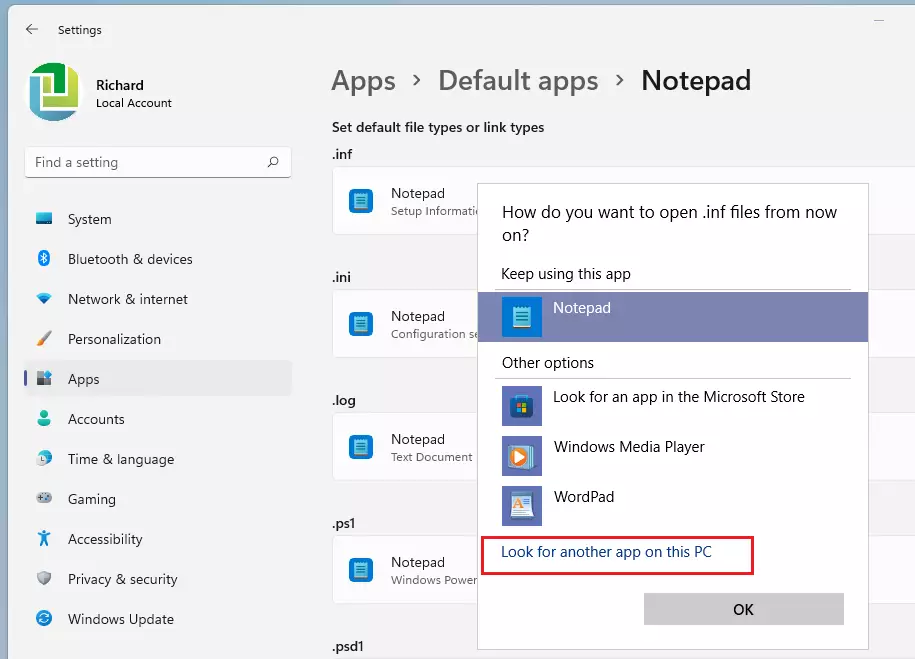
Next, select Look for another app on this PC link.
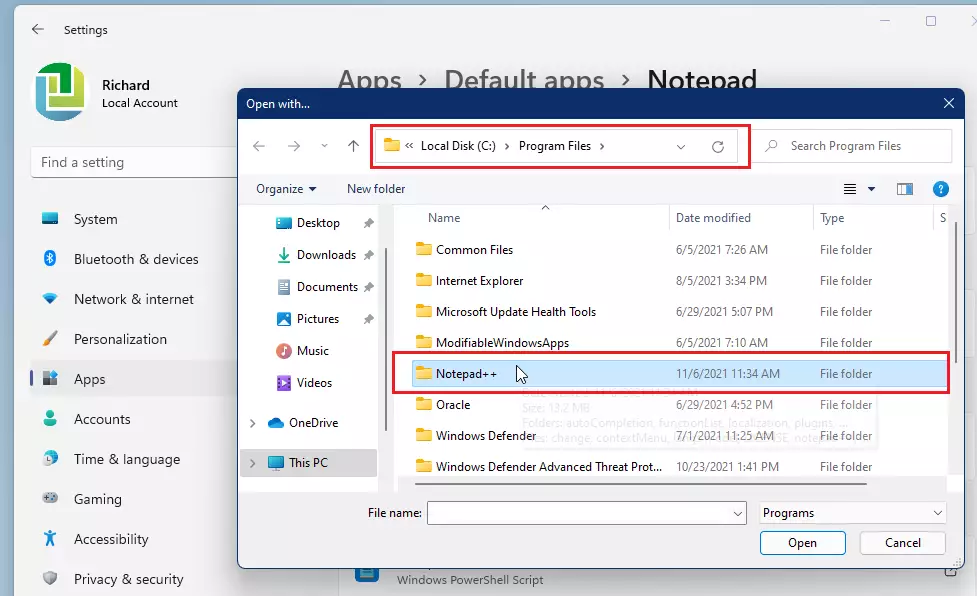
By default, it will open the C:Program Files directory. Open the Notepad++ folder and select the Notepad++ app
Select the Notepad++ app and click Open to always open this file with Notepad++.
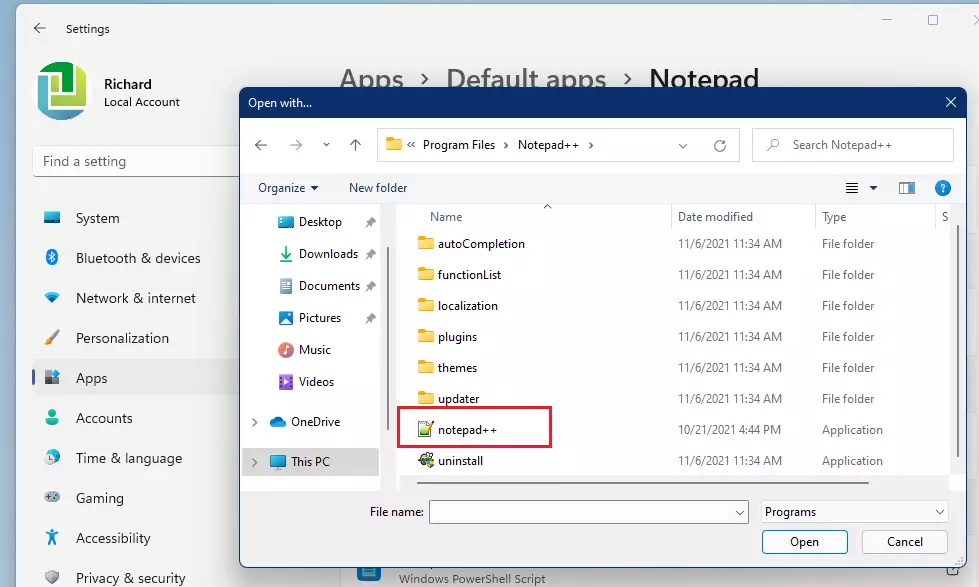
Do this for each file type until Notepad++ is chosen as the default to open these files.
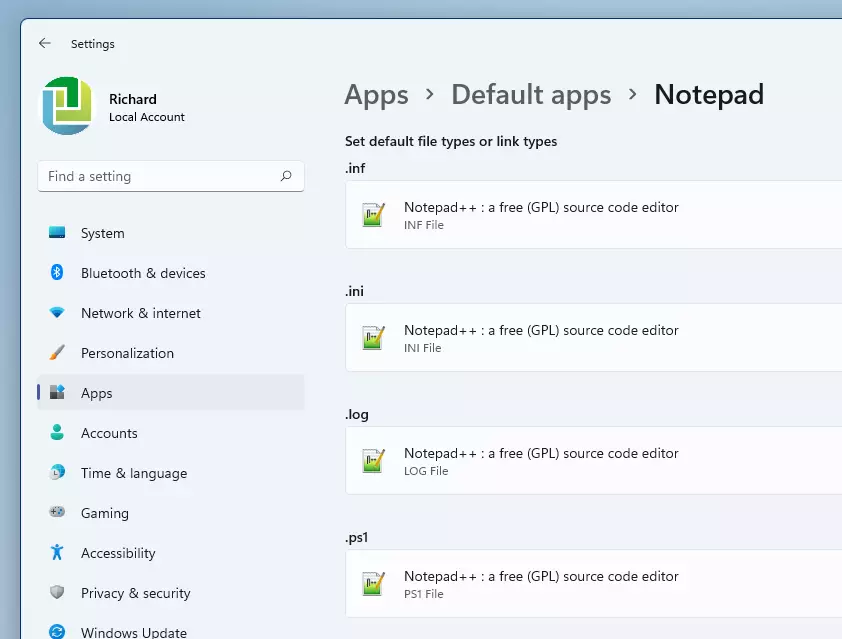
How to completely make Notepad++ default in Windows 11
Additional steps you can perform to make Notepad++ the default in Windows 11 is running the commands below as administrator.
First, open the command prompt as administrator. Click the Start menu, search for Command Prompt, right-click, and select Run as administrator.

Once the Command Prompt opens, run the commands below:
REG ADD “HKLMSOFTWAREMicrosoftWindows NTCurrentVersionImage File Execution Optionsnotepad.exe” /v “Debugger” /t REG_SZ /d “”%ProgramFiles%Notepad++notepad++.exe” -notepadStyleCmdline -z” /f
To undo the commands above, run the commands below:
REG DELETE “HKLMSOFTWAREMicrosoftWindows NTCurrentVersionImage File Execution Optionsnotepad.exe” /v “Debugger” /f
That should do it!
Conclusion:
- Notepad++ offers advanced features and support for multiple programming languages, making it an excellent alternative to the default Notepad application in Windows 11.
- The installation process is straightforward, ensuring that users can quickly set up and configure Notepad++ to meet their needs.
- Changing the default text editor to Notepad++ allows for a more efficient workflow, particularly for developers and users handling various file types.
- By following the outlined steps, users can personalize their text editing experience and take full advantage of what Notepad++ has to offer.
- Remember to apply the additional command line steps if you want to ensure Notepad++ fully replaces Notepad in all scenarios.
Enjoy your enhanced text editing experience with Notepad++!
Frequently Asked Questions
How do I install Notepad++ on Windows 11?
How can I set Notepad++ as my default text editor in Windows 11?
What are the benefits of using Notepad++ over Windows Notepad?
Can I use other text editors as the default in Windows 11?
Is Notepad++ free to use?
Was this guide helpful?

About the Author
Richard
Tech Writer, IT Professional
Richard, a writer for Geek Rewind, is a tech enthusiast who loves breaking down complex IT topics into simple, easy-to-understand ideas. With years of hands-on experience in system administration and enterprise IT operations, he’s developed a knack for offering practical tips and solutions. Richard aims to make technology more accessible and actionable. He's deeply committed to the Geek Rewind community, always ready to answer questions and engage in discussions.



Thanks for covering this. I have one issue – that last command if I copy/paste it in a admin window and go to execute it I get “ERROR: Invalid syntax. Type “REG ADD /?” for usage.
I am running windows 11 Pro. Thanks…