How to Hide Task View on Windows 11 Taskbar

The Task View button is designed to help you manage multiple virtual desktops. However, many users prefer a cleaner taskbar. By removing this icon, you reduce visual clutter and prevent accidental clicks.
What happens when you do this? The button disappears from your taskbar, but the virtual desktop feature remains fully functional in the background.
How to hide Task View from the Taskbar
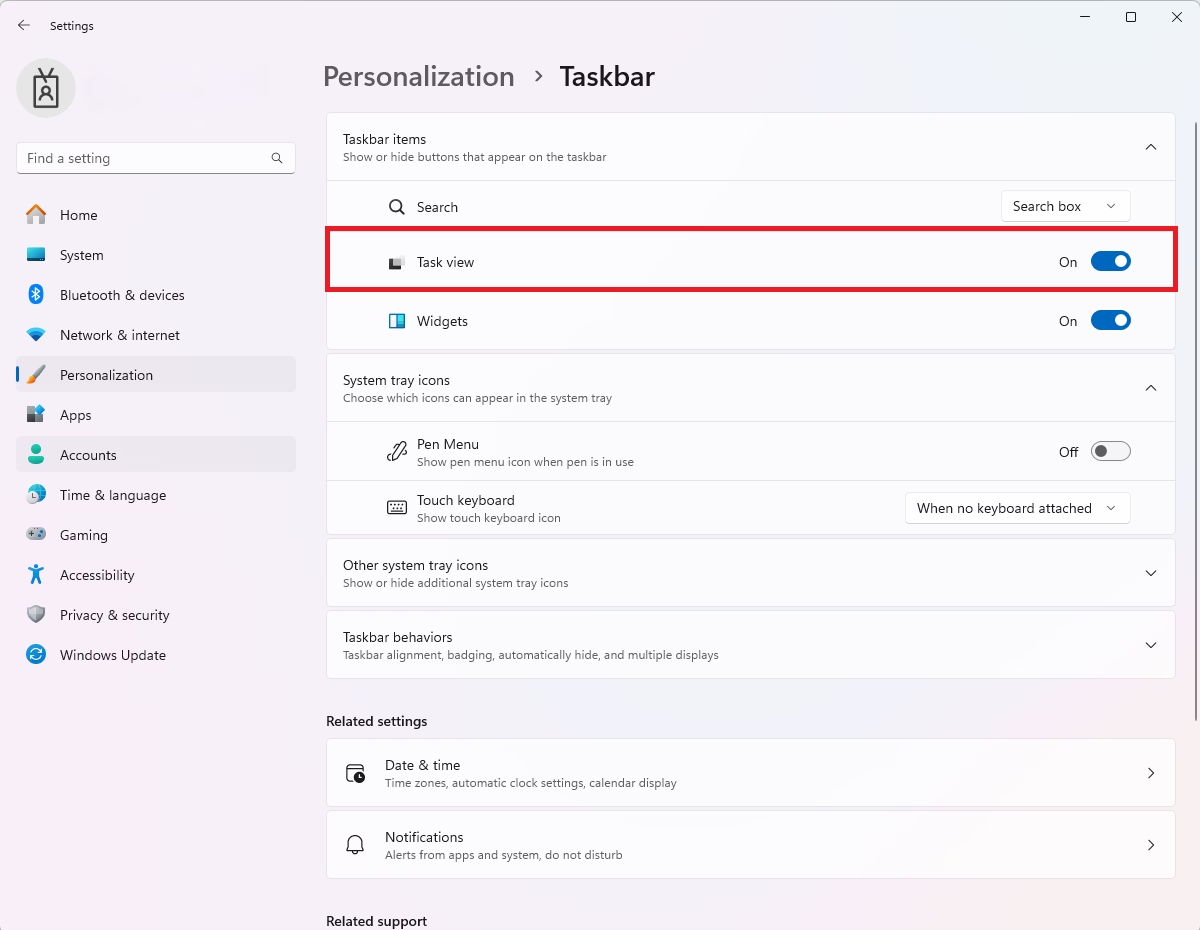
You can easily manage this through the Windows settings menu. Use the Windows key + I shortcut to open Settings. Navigate to Personalization and select Taskbar. Locate the Task view toggle and switch it to Off.

Accessing Virtual Desktops without the button
Even if you hide the button, you can still use virtual desktops. Simply press the Windows key + Tab on your keyboard to open the interface. This keeps your workflow fast without needing a permanent icon on your taskbar.
Advanced: Using the Registry Editor
Warning: Modifying the registry can cause system issues. Always back up your registry before proceeding. Requires Admin Privileges.
1. Press Windows + R, type regedit, and hit Enter.
2. Navigate to: HKEY_CURRENT_USER\Software\Microsoft\Windows\CurrentVersion\Explorer\Advanced
3. Find the DWORD named ShowTaskViewButton.
4. Double-click it and set the value to 0 to hide it, or 1 to show it.
Enterprise Management via Group Policy
For IT administrators managing multiple computers, you can disable this feature for all users using Group Policy. Requires Admin Privileges.
1. Open the Group Policy Editor (gpedit.msc).
2. Go to: Computer Configuration\Administrative Templates\Windows Components\Windows Taskbar
3. Locate Remove the Task View button and set it to Enabled.
Automation with PowerShell
You can automate this change across your network using a simple script. Requires Admin Privileges.
Set-ItemProperty -Path "HKCU:\Software\Microsoft\Windows\CurrentVersion\Explorer\Advanced" -Name "ShowTaskViewButton" -Value 0
Summary
Hiding the Task View button helps keep your Windows 11 taskbar clean and organized. You can achieve this through simple settings, registry edits, or enterprise-level Group Policy. While the button is removed, you can still access virtual desktops using the Windows + Tab keyboard shortcut. Always remember to back up your registry before making manual changes to system settings.
Can I disable the Win + Tab keyboard shortcut?
Yes, you can disable the Win + Tab shortcut by using third-party tools like AutoHotkey or by modifying specific registry keys. However, this is not recommended for average users as it may interfere with other system functions. It is safer to simply ignore the shortcut if you do not wish to use it.
How do I hide Task View for all users on a domain?
To hide Task View for all users on a domain, use the Group Policy Management Console. Navigate to the Windows Taskbar policy settings under Administrative Templates and enable the policy titled ‘Remove the Task View button’. This will apply the restriction to all computers within the selected organizational unit.
Was this guide helpful?




[…] 11. The Taskbar in Windows 11 is centered on the screen and shows the Start menu, Search, Task View, Widgets, Teams Chat, File Explorer, Microsoft Edge, and Microsoft Store buttons by […]
[…] way to add multiple desktops is to use the Task View feature. To do that, hover your mouse over the Task View icon, then using the desktop preview, select New desktop button to add a […]
[…] Menu Icon, which opens the Start menu; the Search Icon, which lets you search for files; and the Task View Icon, which enables you to see all open windows and virtual desktops, the Widgets Icon provides quick […]