Set Up Picture Password in Windows 11


You set up a picture password in Windows 11 by selecting an image and drawing three specific gestures on it to unlock your PC.
A picture password replaces your traditional text password with a visual login method. You interact with a chosen photo using taps, lines, and circles to access your computer.
This feature, available since Windows 11 version 22H2, offers a unique and often quicker way to log in. You can use your mouse, touchpad, or touchscreen to create your gesture sequence.
You can configure a picture password for both local Windows accounts and your Microsoft account.
To set up a picture password in Windows 11, go to Settings > Accounts > Sign-in options > Picture password > Add. Choose your picture, then draw three specific gestures on it. Confirm your gestures to complete the setup and use them to sign in.
How to setup picture password in 🪟 Windows 11
Here’s how to set up your picture password in Windows 11. This feature lets you sign in using your own pictures. You won’t need to remember complex passwords anymore. You’ll guess the correct patterns on an image to sign in to your PC.
Windows 11 keeps most of its settings in one place, called System Settings. You can do everything here, from system configurations to creating new users and updating Windows.
To get to System Settings, you can press the Windows key + I shortcut or click on Start ==> Settings, as shown in the image below:

Alternatively, you can use the search box on the taskbar and search for Settings. Then select it to open.
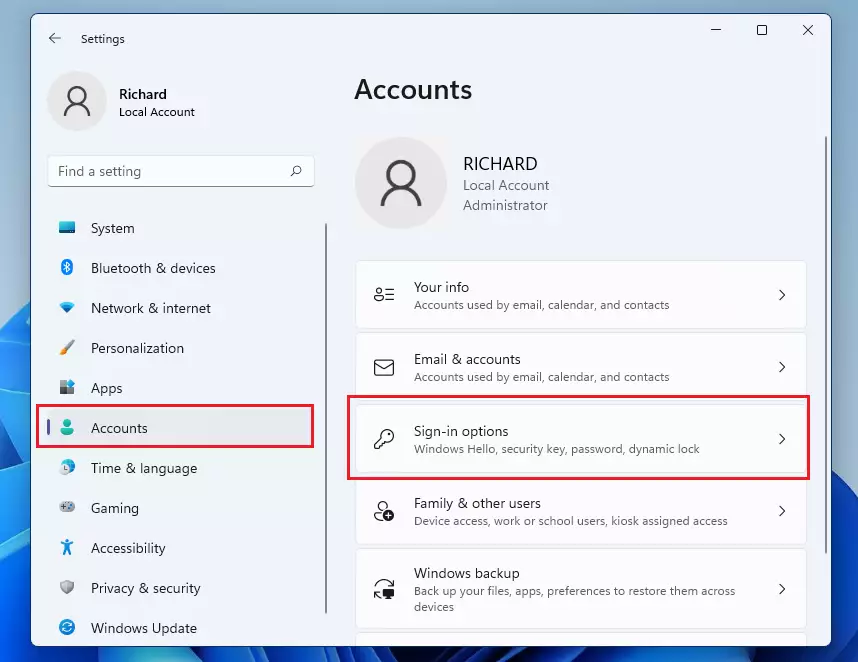
Your Windows Settings should look similar to the image below. In Windows Settings, click Accounts, and select Sign-in options on the right side of your screen, shown in the image below.
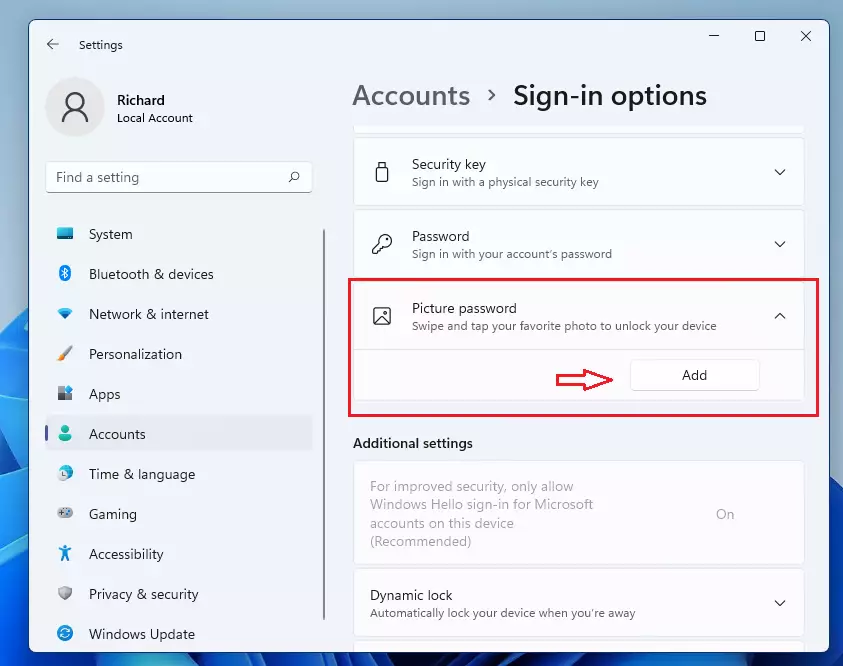
Select Picture password to expand on the Sign-in options settings, and then click Add as highlighted below.
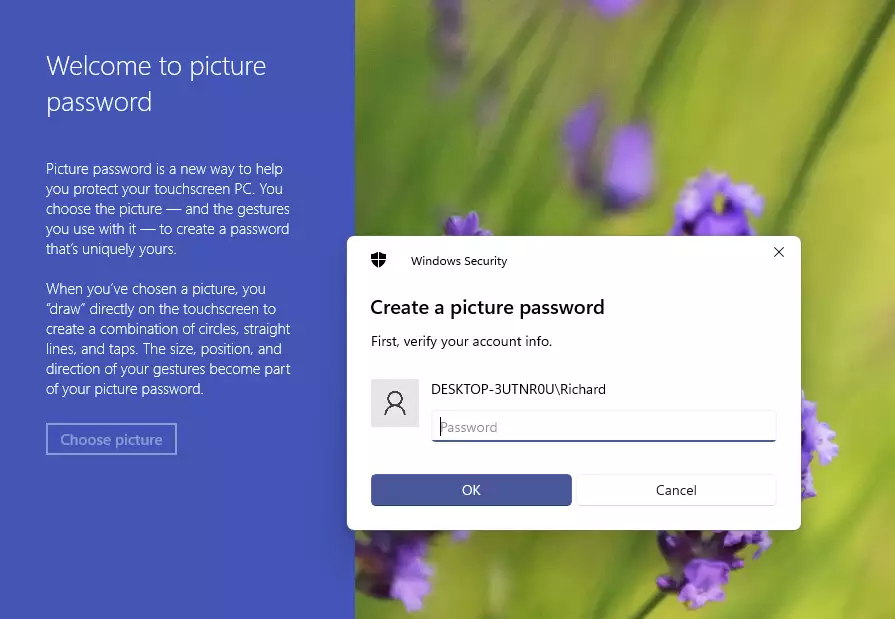
When you click Add above, it will prompt you to confirm your password.
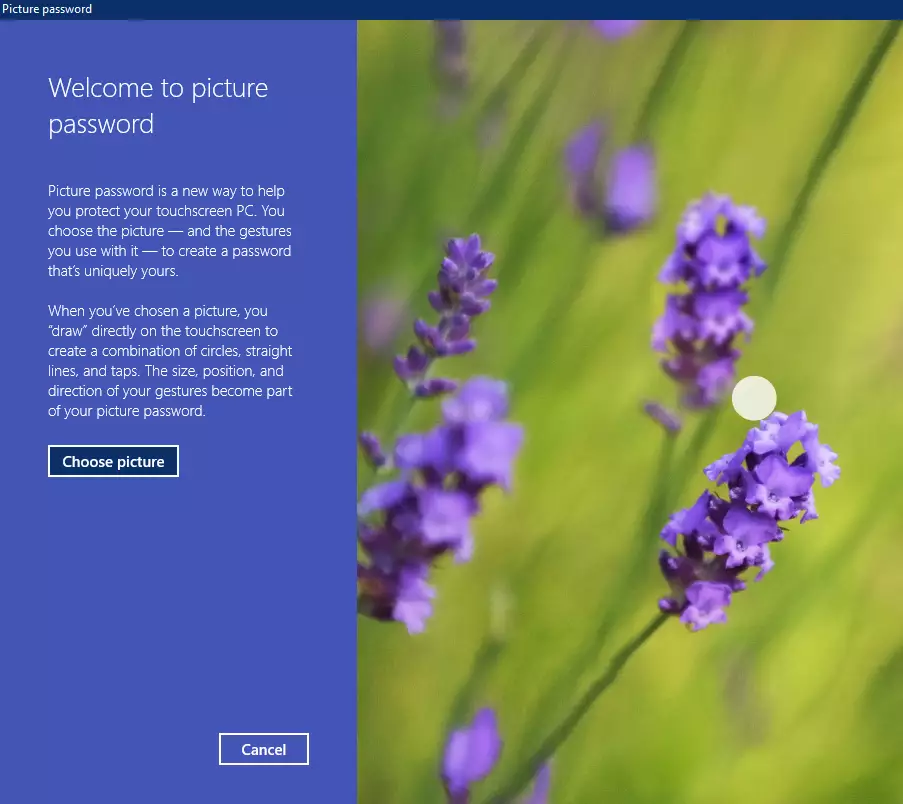
After confirming your password, click the left link to Choose a picture to use.
Browse and select the picture you want to use. Then on the top right, click the link that reads “Use this picture,” as highlighted below.

Now you can draw three gestures on the picture. You can use a combination of circles, straight lines, and taps. You’ll need to remember the size, position, and direction of your gestures.
When you successfully draw and confirm your patterns, Windows should accept them as your password. For this post, I drew three circles over both eyes and the nose.
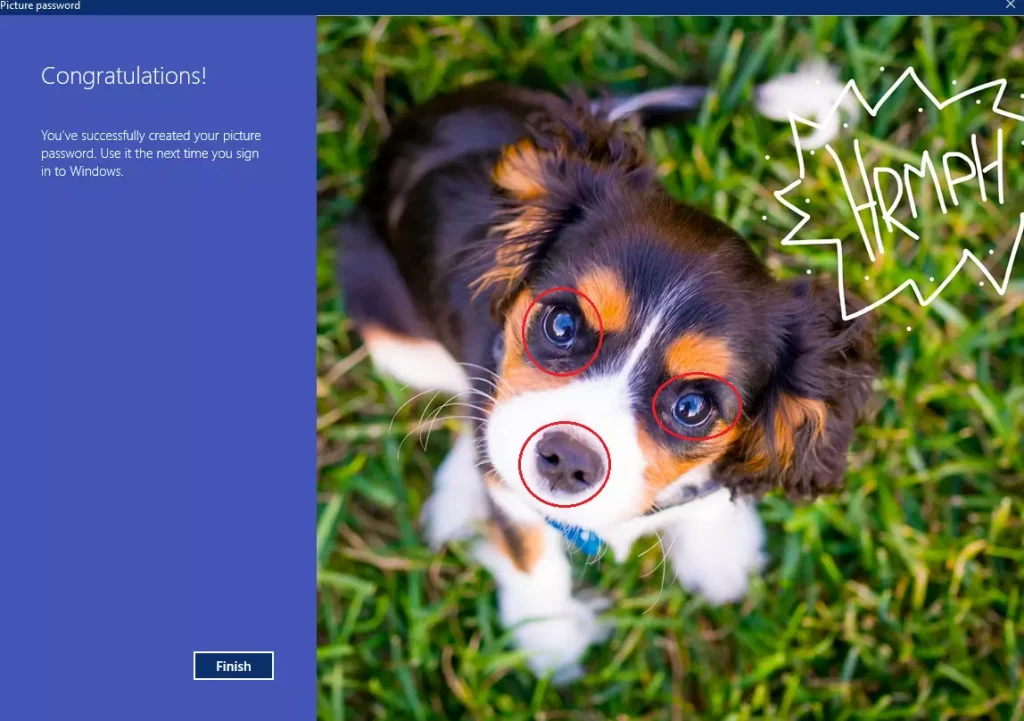
Click Finish to complete the setup.
The next time you want to sign in to Windows, you’ll need to confirm the correct patterns.

That should do it!
Conclusion:
- Using a picture password in Windows 11 provides a convenient and secure way to sign in to your device.
- The process involves selecting a personal image and creating three unique gestures that are easy for you to remember.
- Once set up, picture passwords eliminate the need for complex alphanumeric passwords.
- This feature is available for both local and Microsoft accounts, enhancing user accessibility and personalization.
- Remember to choose an image and gestures that are meaningful to you for easier recall during login.
Was this guide helpful?

About the Author
Richard
Tech Writer, IT Professional
Richard, a writer for Geek Rewind, is a tech enthusiast who loves breaking down complex IT topics into simple, easy-to-understand ideas. With years of hands-on experience in system administration and enterprise IT operations, he’s developed a knack for offering practical tips and solutions. Richard aims to make technology more accessible and actionable. He's deeply committed to the Geek Rewind community, always ready to answer questions and engage in discussions.


My Laptop doesn’t have this picture password option although it’s Windows 11. What should I do to activate and have it?
me too
[…] Windows Hello, one can use a PIN, facial recognition, picture, or fingerprint to sign into their Windows devices. In addition, the Windows Hello […]
[…] PIN is part of the Windows Hello security feature that enables other sign-in options. One can use a picture password, PIN, fingerprint, and face to sign into Windows. Hello, the PIN is secure because it is tied to […]
[…] it only works on your device, making it more secure. Windows 11 also lets you sign in using a picture password, fingerprint, or face […]
[…] 11 also lets you sign in using other methods like a picture password, fingerprint, or face […]