How to Show or Hide the Sidebar in Windows 11 Copilot

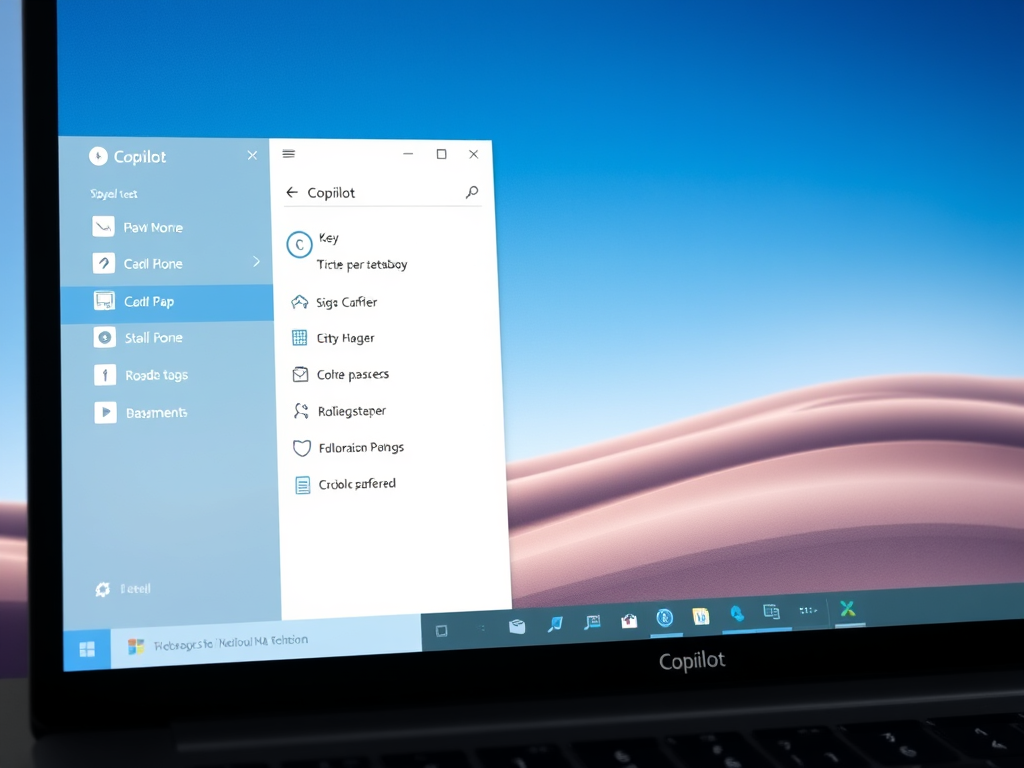
You show or hide the Windows 11 Copilot sidebar by using a simple toggle within the Copilot interface.
Open the Copilot app. While in full view, click the sidebar button to open or close it. This toggles the display of your past chats for more screen space or easy access.
The Copilot sidebar is a helpful panel that displays your AI assistant’s conversation history and tools, but you can easily conceal it to maximize screen space when needed.
This feature is particularly useful if you find the sidebar distracting while working on complex tasks or want a cleaner view of your applications.
Recent updates, such as those in Copilot version 1.25023.101.0 and later, refine how this sidebar appears, offering a dedicated area for past chats that you can now manage with greater ease.
Was this guide helpful?

About the Author
Richard
Tech Writer, IT Professional
Richard, a writer for Geek Rewind, is a tech enthusiast who loves breaking down complex IT topics into simple, easy-to-understand ideas. With years of hands-on experience in system administration and enterprise IT operations, he’s developed a knack for offering practical tips and solutions. Richard aims to make technology more accessible and actionable. He's deeply committed to the Geek Rewind community, always ready to answer questions and engage in discussions.



[…] Make sure Copilot is in full view. Then, click the Account button on the left sidebar, and select Settings.How to open and close the sidebar […]