
This article explains how to open desktop folders and external folder links in a new tab in File Explorer on Windows 11.
Windows File Explorer is a file manager application included in the Microsoft Windows operating system. A graphical user interface lets you view, copy, move, delete, and rename files and folders and organize them hierarchically.
With File Explorer, you can use the Undo and Redo commands, enable or disable File Explorer folder options, show or hide the details pane, show or hide the Gallery, and more.
The current File Explorer settings are set to “Open each folder in the same window” or “Open each folder in its own folder.” A new hidden experimental feature adds the ability to “Open desktop folders and external folder links in new tab” in the beta version.
This is enabled by default and is the new default when opening folders and external links in File Explorer.
This feature isn’t visible in the beta version of Windows. One must use the ViveTool, which enables or disables hidden features in Windows to turn it on.
The command to turn it on is vivetool /enable /id:48525682.
Open folders and external links in new tabs in File Explorer
As mentioned, a new experiential feature currently hidden in the beta version of Windows 11 enables a new default behavior when opening folders and external links.
Here’s how to do it.
First, read the post below to install ViVeTool on Windows 11.
Once the ViVeTool is downloaded, run the command below to enable the hidden feature to display a shortened version of the date and time.
vivetool /enable /id:49143212,48433719
Once enabled, open File Explorer Folder Options.
On the General tab under Browse folders, check or uncheck the “Open desktop folders and external folder links in new tab” radio button.
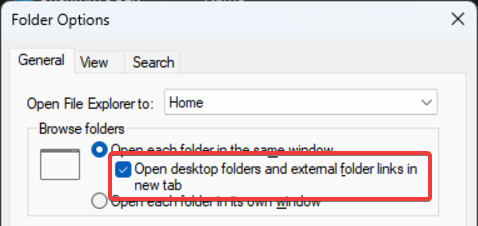
Close the Folder Options page when you are done.
Change folder behavior in File Explorer via the Windows Registry
Another way to change the folder behavior in File Explorer in Windows is to use the Windows Registry editor.
First, open the Windows Registry and navigate to the folder key path below.
ComputerHKEY_CURRENT_USERSoftwareMicrosoftWindowsCurrentVersionExplorer
Right-click Explorer > New > DWORD (32-bit) Value and name the new DWORD OpenFolderInNewTab.
Double-click OpenFolderInNewTab and change the value 1 to change the default behavior for opening folders and external links in File Explorer.
Enter 0 to turn it off.
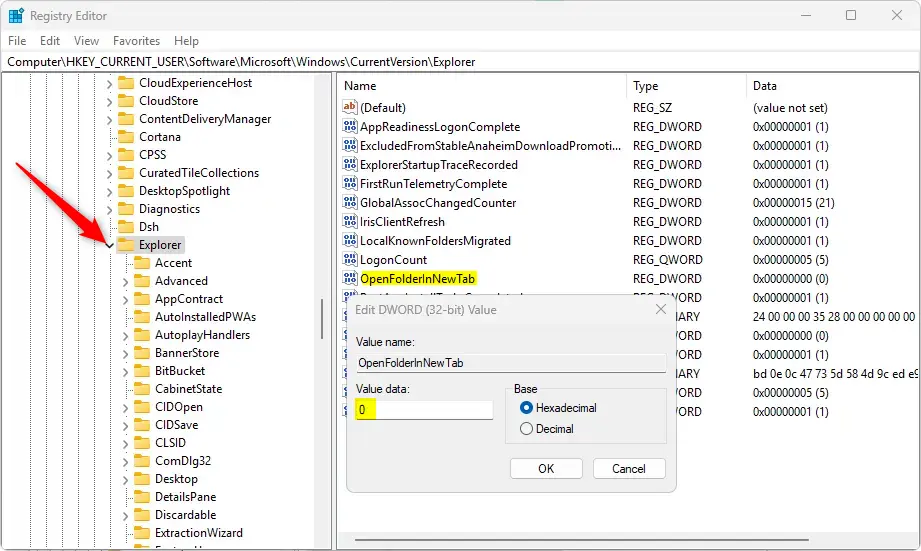
You may have to reboot your computer to apply the changes.
That should do it!
Conclusion:
In summary, enabling the ability to open desktop folders and external folder links in new tabs within File Explorer on Windows 11 provides a more efficient way to manage your files. Here are the key takeaways:
- New Feature: The experimental feature allows you to open folders and links in new tabs, improving multitasking.
- Default Setting: This functionality is enabled by default in the beta version of Windows 11 but requires ViVeTool for activation.
- Configuration Options: Users can control this behavior through Folder Options or the Windows Registry.
- Improved User Experience: This feature streamlines file management and enhances productivity by keeping files organized in tabs.
- Resource Links: For detailed instructions and troubleshooting, refer to the links mentioned throughout the article.
By taking advantage of these features, you can optimize your file management experience in Windows 11.



Leave a Reply