How to Resize Windows 11 Copilot Side Pane


You cannot directly resize the Windows 11 Copilot side pane using its built-in settings.
Copilot is the AI assistant integrated into Windows 11, offering help with tasks and information retrieval through natural language. It first appeared in builds like 23493.
While some specialized business applications allow for resizing of their AI side panes, this functionality is not currently available for the standard Windows 11 Copilot experience. You’re stuck with its default width for now.
You cannot manually resize the Windows 11 Copilot side pane. This feature is not currently available in Windows 11, though some specific enterprise applications do allow side pane resizing.
How to resize the side pane in supported applications
If you’re using a supported application like Business Central, here’s how to resize its side pane:
- Open your application workspace.
- Locate the side pane interface.
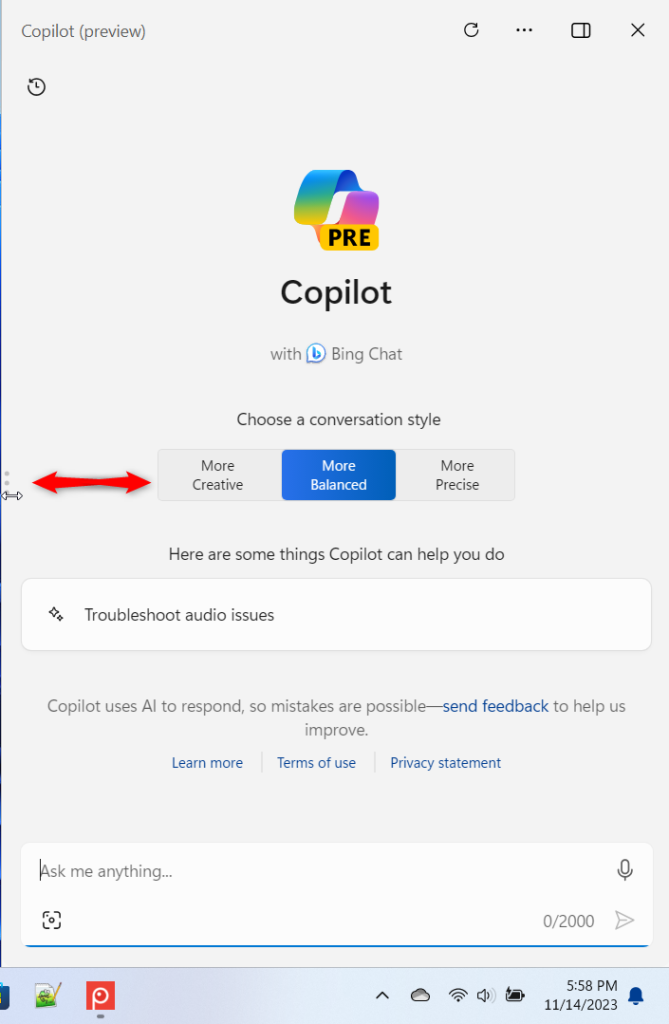
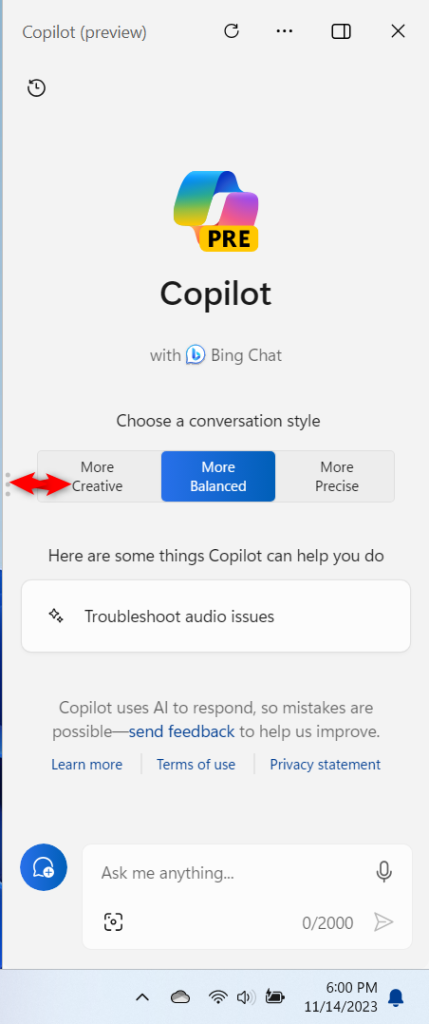
- Move your mouse pointer to the inner edge of the pane.
- Wait for the cursor to change into a double-headed arrow.
- Click and drag the edge to your preferred width.

Why adjust your workspace layout?
Adjusting the side pane helps you see more information without scrolling. It makes your daily tasks faster and more organized.
What happens when you are done?
The application saves your layout settings. The next time you open the workspace, the side pane will stay at the width you set.
Summary
While you can’t resize the Windows 11 desktop Copilot, you can customize side panes in enterprise tools like Dynamics 365. Always check the official Microsoft release plans to see if new features are coming to your specific software version.
Why does the side pane not resize in 🪟 Windows 11?
The Windows 11 desktop Copilot has a fixed width; it’s a system component. It’s designed to provide a consistent experience across all devices. Unlike web apps or specific enterprise software like Dynamics 365, the Copilot built into the operating system doesn’t currently let you manually drag to resize its interface.
Was this guide helpful?
0% of readers found this helpful (1 votes)

About the Author
Richard
Tech Writer, IT Professional
Richard, a writer for Geek Rewind, is a tech enthusiast who loves breaking down complex IT topics into simple, easy-to-understand ideas. With years of hands-on experience in system administration and enterprise IT operations, he’s developed a knack for offering practical tips and solutions. Richard aims to make technology more accessible and actionable. He's deeply committed to the Geek Rewind community, always ready to answer questions and engage in discussions.



[…] on or off, enable or disable Copilot using content from Edge, refresh Copilot prompts, resize the Copilot side pane, and […]
[…] or off, enable or disable Copilot using content from Edge, refresh Copilot prompts, resize the Copilot side pane, delete recent activity, and […]
[…] disable it, open Copilot when Windows starts, Pin or Unpin the Copilot side panel, Resize the Copilot side panel, delete chat history in Copilot, create a desktop shortcut, hide the […]