How to Change Dropbox Folder Location in Windows 11


This guide explains how to move your Dropbox folder to a different spot on your Windows 11 computer.
Dropbox is a service that saves your files to the cloud. It helps you keep your work safe and share it across different devices.
You can change many settings in the Dropbox app, such as starting Dropbox on system startup, disabling Dropbox startup in the background, adding Microsoft Office add-in, turning notifications on or off, managing backups, turning automatic backups on or off, renaming backup device name, changing backup frequency, and choosing back up folders.
Why move your Dropbox folder?
When you first install Dropbox, it creates a folder in your main user directory, usually found at C:\Users\Username\Dropbox. You might want to move this if your main hard drive is getting full. Moving it to a secondary drive with more space helps you save room. It also helps you keep your files organized exactly where you want them.
What happens when done?
Once you finish these steps, Dropbox will automatically move all your files to the new location. Your computer will treat this new folder as the main hub for all your synced files from that point forward.
How to change the location
Note: You do not need special admin privileges to perform this task, as you are only moving your own personal data files.
- Find the Dropbox icon in your taskbar. It is usually near the clock. Click the taskbar overflow icon if you don’t see it immediately.

- Click the Settings icon, which looks like a gear, and select Preferences.

- Click on the Sync tab. Look for the section labeled “Dropbox folder location” and click the Move button.
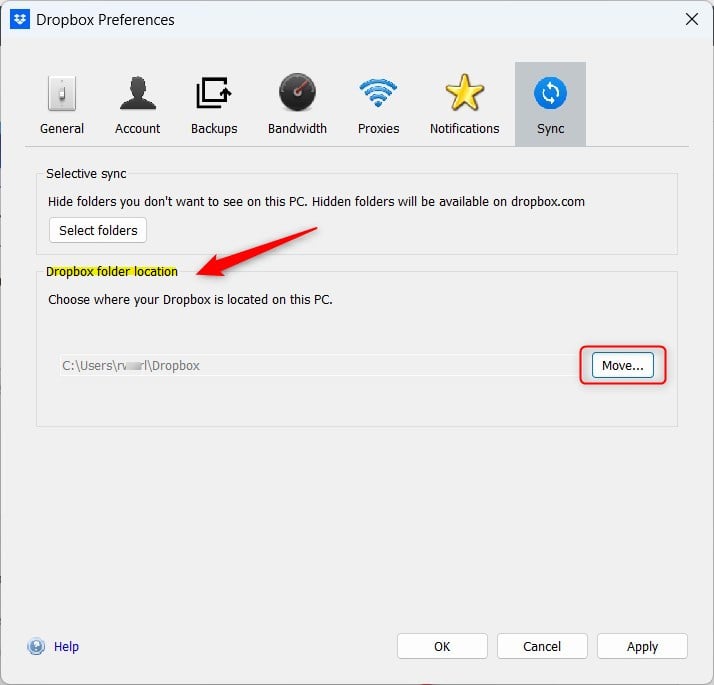
- A window will pop up. Choose the new folder where you want your Dropbox files to live. You do not need to make a new folder named “Dropbox” yourself; the app will create it for you automatically.
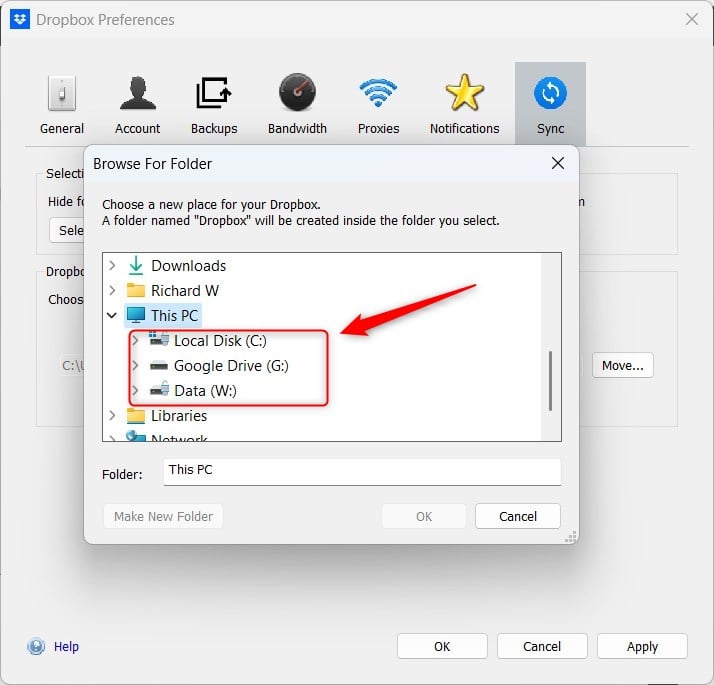
After you select the new location, Dropbox will move your files. You can confirm the change by checking the new path listed under the Sync tab in your preferences menu.
Summary
Moving your Dropbox folder is a quick way to free up space on your primary drive or keep your digital files organized. By using the Sync settings in the Dropbox app, you can relocate your data to any drive or folder on your computer without losing any of your saved content.
How do I change the Dropbox folder location in Windows 11?
Can I move my Dropbox folder to another drive?
Will my files be lost if I change the Dropbox folder location?
What should I do if I encounter issues while moving my Dropbox folder?
Is it necessary to create a new folder for Dropbox when changing its location?
Was this guide helpful?




Leave a Reply