How to Change Device Visibility in Android Nearby Share

You control your device’s visibility for Android Nearby Share directly from your Windows 11 PC.
Nearby Share is a built-in Windows 11 feature that lets you quickly send files, like photos and documents, between your Android phone and your computer. It utilizes Bluetooth and Wi-Fi to establish the connection.
By adjusting visibility settings, you choose who can discover your device for sharing. Common options include “Everyone nearby,” “Your devices,” or “Nobody,” ensuring your files reach only intended recipients.
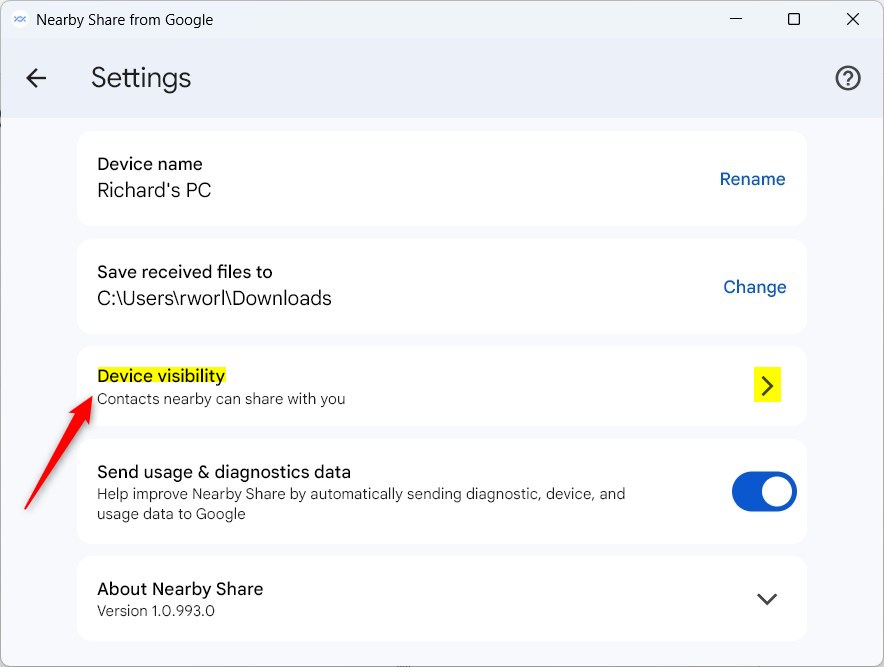
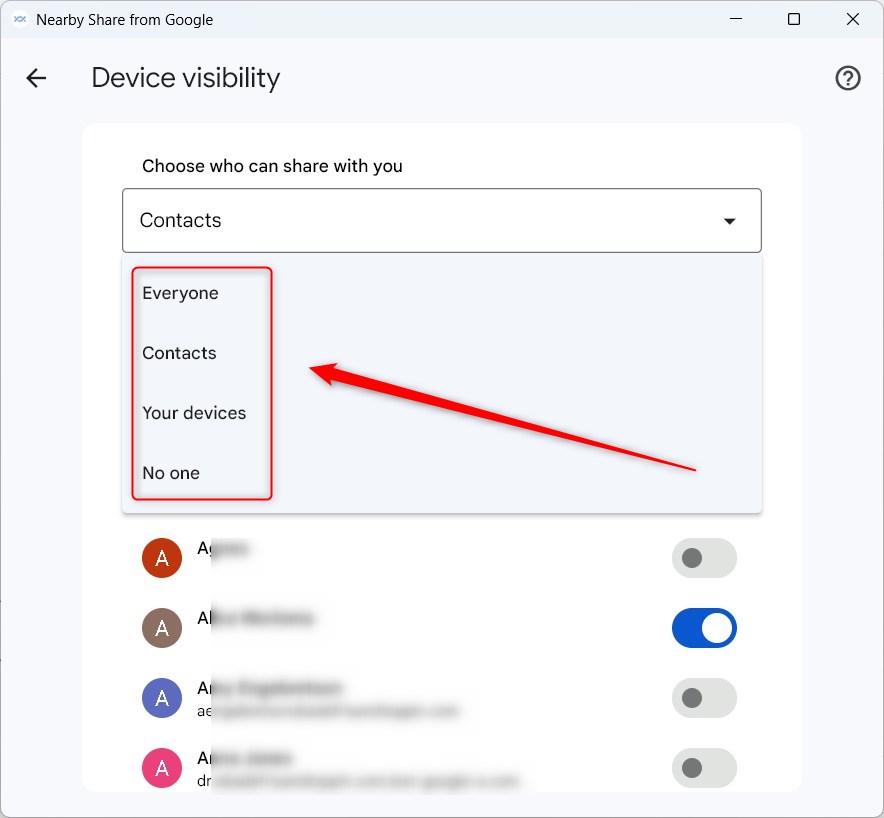
Open the Quick Share app, click the Settings gear, and select the Device visibility tile. Choose from options like “Everyone,” “Contacts,” “Your devices,” or “No one” to control who can share files with you.
Important Update: Nearby Share is Now Quick Share
Google has renamed ‘Nearby Share’ to Quick Share. This update makes sharing files between Android, ChromeOS, and Windows devices even better. While the name’s changed, what it does is still the same. You can find more details on the official Google Support page.
Why Manage Quick Share Visibility?
You’ll want to control who can see your computer and send you files. This keeps your PC safe from strangers in public places. What happens when you are done? Your computer will only accept files from the people or devices you have chosen, keeping your data private.
Changing Device Visibility in Quick Share
You can change your device visibility in Quick Share by opening the app and going to its settings.
1. Open the app by clicking the Start menu and finding it in your list of apps.

2. You can also launch the app from the Taskbar or Taskbar overflow.

3. Once the app is open, click the Settings gear icon in the top right corner.

4. Select the Device visibility tile to see your options.
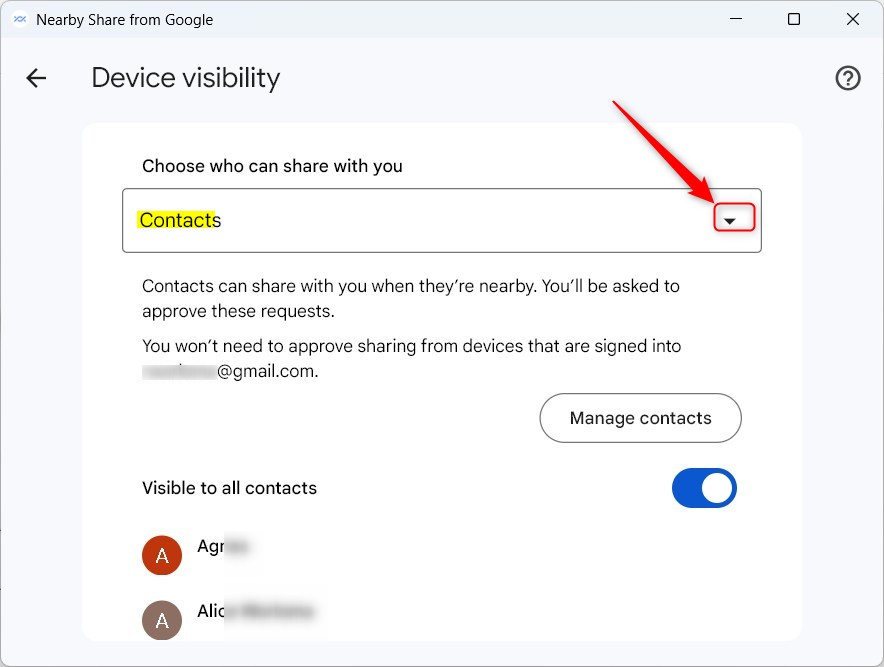
5. Click the drop-down menu. This is where you’ll choose who can share files with you.
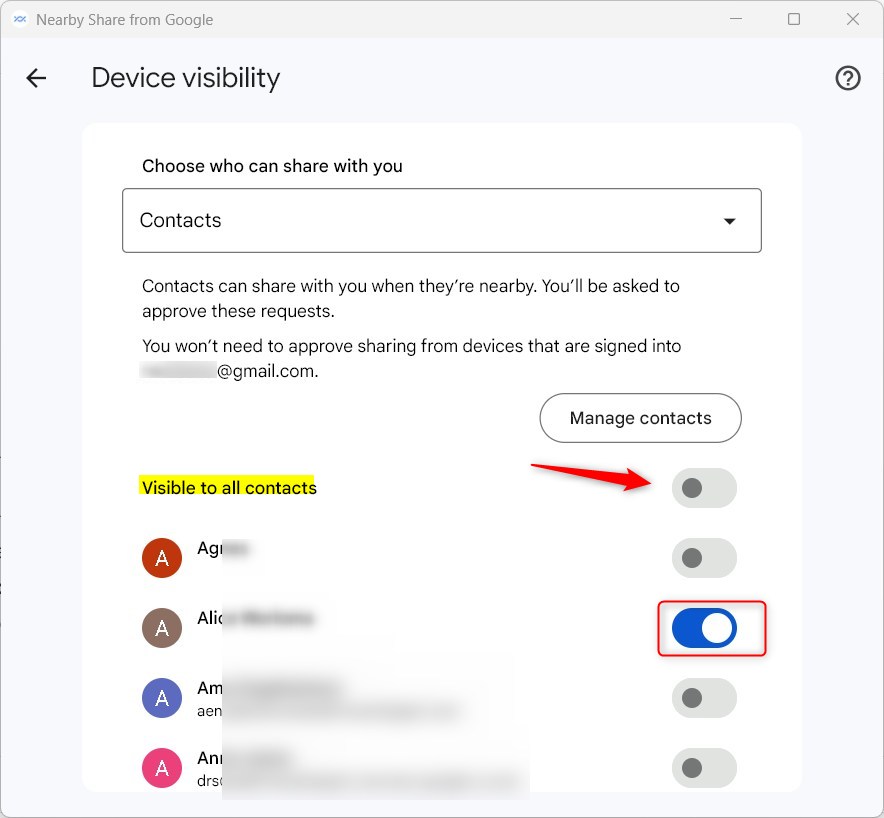
6. To pick specific people, toggle the “Visible to all contacts” button and select the users you trust.
7. Choose one of these levels for your visibility:
- Everyone: Anyone nearby can see your computer.
- Contacts: Only people in your Gmail contacts can see your computer.
- Your devices: Only other computers or phones you own (logged into your account) can see your computer.
- No one: Your computer is completely hidden.
Troubleshooting Quick Share Visibility
If you cannot see your device, check these common issues:
- Bluetooth and Wi-Fi: Quick Share requires both to be turned on.
- Google Play Services: Ensure your Android device is updated.
- Proximity: Move your devices closer together.
- Network Type: Ensure your PC is not on a Public network profile.
Cross-Platform Sharing
Quick Share works seamlessly between Android phones and Windows PCs. It uses Bluetooth to find devices and then Wi-Fi Direct for quick file transfers. This means even large files transfer fast between your devices, no cloud service needed.
Summary
Managing your visibility settings in Quick Share helps you control who can send you files, keeping your computer secure.
Note: No administrative privileges are required to change these settings within the app.
Why can’t I see my device in Quick Share?
If your device is missing, ensure Bluetooth and Wi-Fi are enabled on both devices. Check that your PC is not in ‘No one’ visibility mode. Also, verify that both devices are signed into the same Google account if you are using the ‘Your devices’ visibility setting for easier discovery.
Does Quick Share work if Bluetooth is off?
No, Quick Share requires Bluetooth to be active for the initial device discovery process. Once the devices find each other, they switch to Wi-Fi Direct for the actual file transfer. Keep Bluetooth turned on to ensure your devices can detect each other reliably when you need to share files.
How do I change visibility to ‘Everyone’ permanently?
You can set your visibility to ‘Everyone’ by selecting it in the Quick Share settings menu. Note that for security reasons, some versions may revert this setting after a period of inactivity. Always check your settings before sharing to ensure you are comfortable with who can discover your device.
Is Quick Share available on all Android versions?
Quick Share is available on most Android devices running Android 6.0 or newer. It relies on Google Play Services to function. If you have an older device, ensure your system software and Google Play Services are fully updated to the latest version to access the full range of sharing features.
Was this guide helpful?

About the Author
Richard
Tech Writer, IT Professional
Richard, a writer for Geek Rewind, is a tech enthusiast who loves breaking down complex IT topics into simple, easy-to-understand ideas. With years of hands-on experience in system administration and enterprise IT operations, he’s developed a knack for offering practical tips and solutions. Richard aims to make technology more accessible and actionable. He's deeply committed to the Geek Rewind community, always ready to answer questions and engage in discussions.



No comments yet — be the first to share your thoughts!