How to Enable Live Caption in Google Chrome


You enable Live Caption in Google Chrome to automatically generate real-time captions for any audio or video playing in your browser.
Live Caption is a built-in Chrome feature that creates on-screen text for spoken content directly on your device, enhancing accessibility and comprehension.
This powerful tool works instantly, displaying text as the audio plays, ensuring you never miss a word even without sound.
For example, when you play a YouTube video or a podcast within Chrome version 102 or later, Live Caption will detect the audio and provide immediate text transcription.
You can easily toggle this feature on or off within Chrome’s accessibility settings, making it a user-friendly experience.
Enable Live Caption in Chrome by going to Settings, then Accessibility, and toggling the Live Caption switch on. This feature automatically generates captions for audio and video played in your browser. You can also manage language packs and translation options here.
Enable or disable Live Caption in Google Chrome
You can easily turn Live Caption on or off in Google Chrome right from your browser’s settings menu.
- Open the Google Chrome browser.
- Click the Customize and Control button (the three vertical dots) in the top right corner.
- Select Settings.

On the Settings page, look at the left panel. Click the Accessibility link.
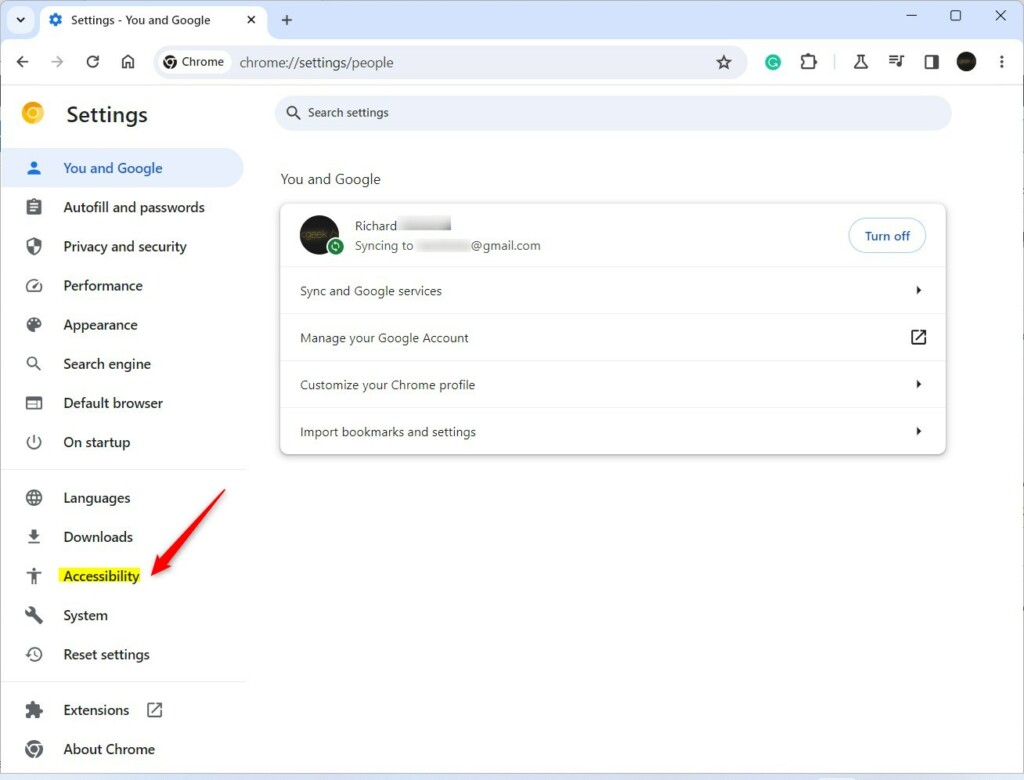
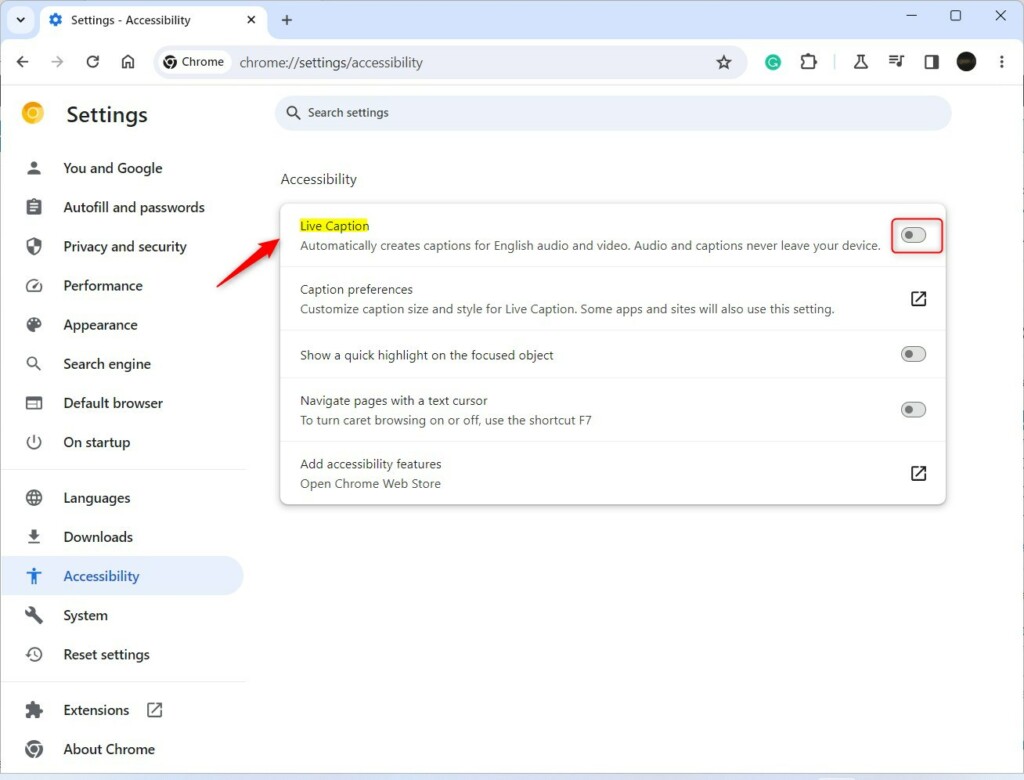
On the right side, click the Live Caption tile. You can also type chrome://settings/accessibility into your address bar to go there directly.
Toggle the Live Caption switch to On or Off.
Managing Languages and Translation
When you first turn on Live Caption in Google Chrome, it downloads a language pack for speech recognition, and you can add more packs to support different languages.
There’s also a Live Translate feature that translates English captions into other languages as they appear. Pick your preferred language in the Live Caption settings, and the text will update while you watch.
That is all you need to do! You can now enjoy automatic captions for your media directly within Google Chrome.
Conclusion:
Great! You now know how to control Live Caption in Chrome. You can switch it on or off anytime you want. This feature makes browsing more accessible for everyone. If you’d like to change the caption’s appearance, you can adjust the style settings in the same menu.
We’d love to hear your thoughts or questions in the comments below!
Was this guide helpful?

About the Author
Richard
Tech Writer, IT Professional
Richard, a writer for Geek Rewind, is a tech enthusiast who loves breaking down complex IT topics into simple, easy-to-understand ideas. With years of hands-on experience in system administration and enterprise IT operations, he’s developed a knack for offering practical tips and solutions. Richard aims to make technology more accessible and actionable. He's deeply committed to the Geek Rewind community, always ready to answer questions and engage in discussions.


No comments yet — be the first to share your thoughts!