How to List Installed WSL Distros on Windows 11


You list installed WSL distros on Windows 11 using the wsl -l -v command in Command Prompt or PowerShell.
The Windows Subsystem for Linux (WSL) allows you to run Linux environments directly on your Windows machine. Knowing your installed distributions helps you manage disk space and switch between them effectively.
This command specifically shows you the name of each distro, its current state (like Running or Stopped), and the WSL version it’s using, typically WSL 1 or WSL 2.
Check via File Explorer
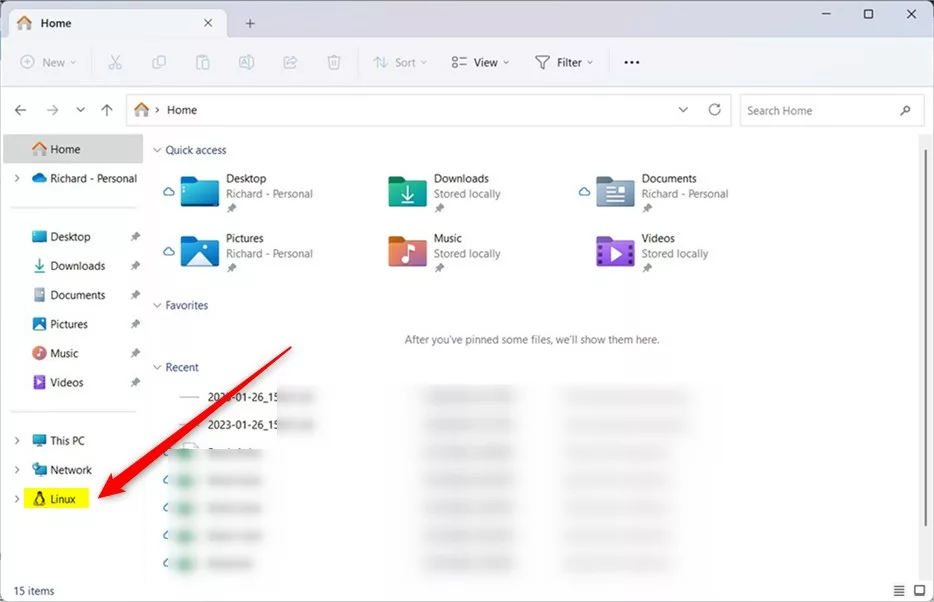
The easiest way to see your installed Linux systems is by using the built-in File Explorer.
- Open File Explorer on your computer.
- Look at the menu on the left side of the window.
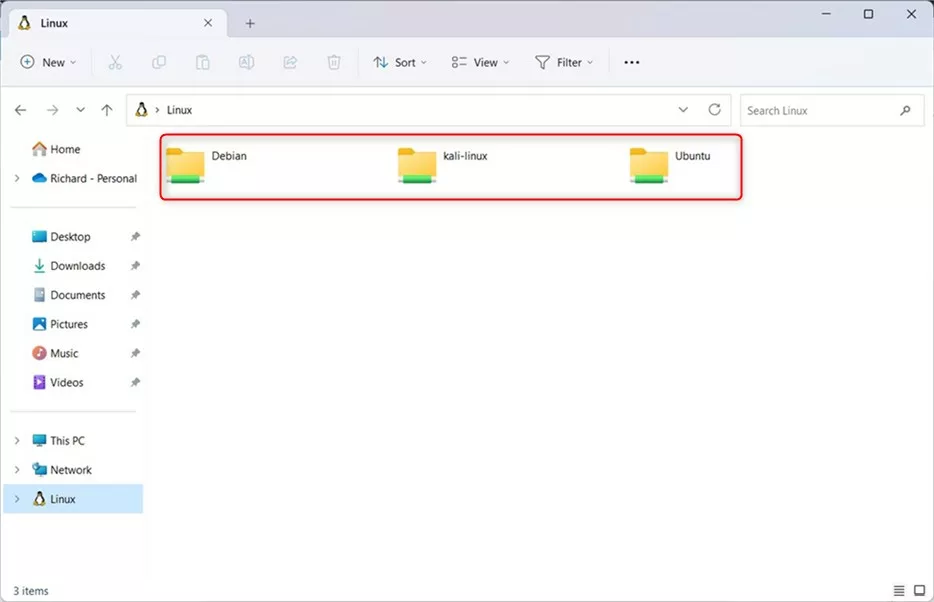
- Click on the Linux folder.
You will see a folder for every Linux version installed on your device.
Check via Terminal
If you prefer using commands, you can use the Terminal app to get more details about your Linux setup. You do not need admin privileges for basic listing commands, but some management tasks may require them.
Open the Terminal app to access Command Prompt or Windows PowerShell.
Understanding wsl –list vs wsl –list –verbose
The wsl --list command shows basic names. The wsl --list --verbose command (or wsl -l -v) provides the status (Stopped/Running) and the WSL version (1 or 2).
wsl -l -v
Expected Output:
  NAME            STATE           VERSION
* Ubuntu          Running         2
  Debian          Stopped         2
How to find new distributions
If you want to see what is available to install from the Microsoft Store, use this command:
wsl --online
Identifying the default-wsl-distro-in-windows-11/" class="sal-link" rel="noopener" target="_blank" data-sal-id="33244">Default Distro
The distro marked with an asterisk (*) in the list is your default. This is the version that opens when you type wsl in your terminal.
Troubleshooting Missing Distros
If a distro does not appear, ensure the WSL feature is enabled. You can check your status by running wsl --status. If you have issues, ensure your PowerShell execution policy allows script execution by running Set-ExecutionPolicy RemoteSigned in an admin terminal.
Summary
You can view your installed Linux distributions quickly by opening the Linux folder in File Explorer. For more technical details, use the wsl -l -v command in your Terminal. Both methods help you keep track of your Linux environment on Windows 11. For advanced configuration, refer to the official Microsoft documentation.
How do I list available distributions that are not yet installed?
You can view a list of all Linux distributions available for download from the Microsoft Store by running the command ‘wsl –online’ in your terminal. This command fetches the latest list of supported distributions, allowing you to choose the right one for your development needs.
Can I list WSL distros from a non-admin terminal?
Yes, you can list installed WSL distributions using a standard, non-admin terminal. Commands like ‘wsl -l’ or ‘wsl -l -v’ do not require elevated permissions to execute, making it safe and easy for any user to check their current Linux environment status on Windows 11.
Was this guide helpful?

About the Author
Richard
Tech Writer, IT Professional
Richard, a writer for Geek Rewind, is a tech enthusiast who loves breaking down complex IT topics into simple, easy-to-understand ideas. With years of hands-on experience in system administration and enterprise IT operations, he’s developed a knack for offering practical tips and solutions. Richard aims to make technology more accessible and actionable. He's deeply committed to the Geek Rewind community, always ready to answer questions and engage in discussions.



[…] When the Windows Terminal app opens, run the commands below to list the currently installed distros. […]