How to Sign In and Out of Windows 11 Widgets Board


This guide explains how to sign in or sign out of the Widgets board on Windows 11.
Understanding Windows 11 Widgets
The Windows 11 Widgets board is a dedicated space for live updates like weather, news, and stocks. Signing in with a Microsoft Account (MSA) or Microsoft Entra ID allows the system to sync your preferences across devices. This ensures your feed personalization remains consistent.
Why use the Widgets board?
The Widgets board acts as a central hub for information. By signing in, you allow Windows to tailor content to your specific interests. It saves time by providing a quick snapshot of your digital life without needing to open multiple browser tabs.
What happens when you are done?
Once you complete the sign-in process, your Widgets board will display personalized content. Your feed will reflect your location, interests, and linked service data. This creates a seamless experience where your news and updates are always relevant to you.
How to Check Your Microsoft Account Link
Before troubleshooting, ensure your Windows 11 account is correctly linked. Go to Settings > Accounts > Your info. If you see your email address listed, your account is active. If you are using a local account, you may need to switch to a Microsoft account to enable full widget functionality.
How to Sign In to the Widgets Board
If you are using a local account, you will see a Sign-in button when you open the widgets board.
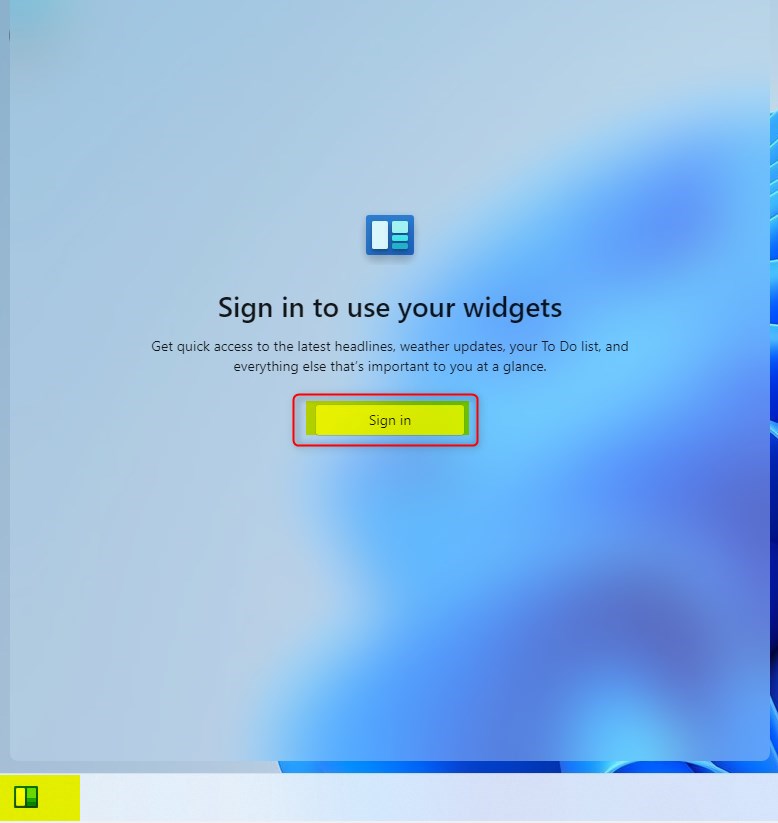
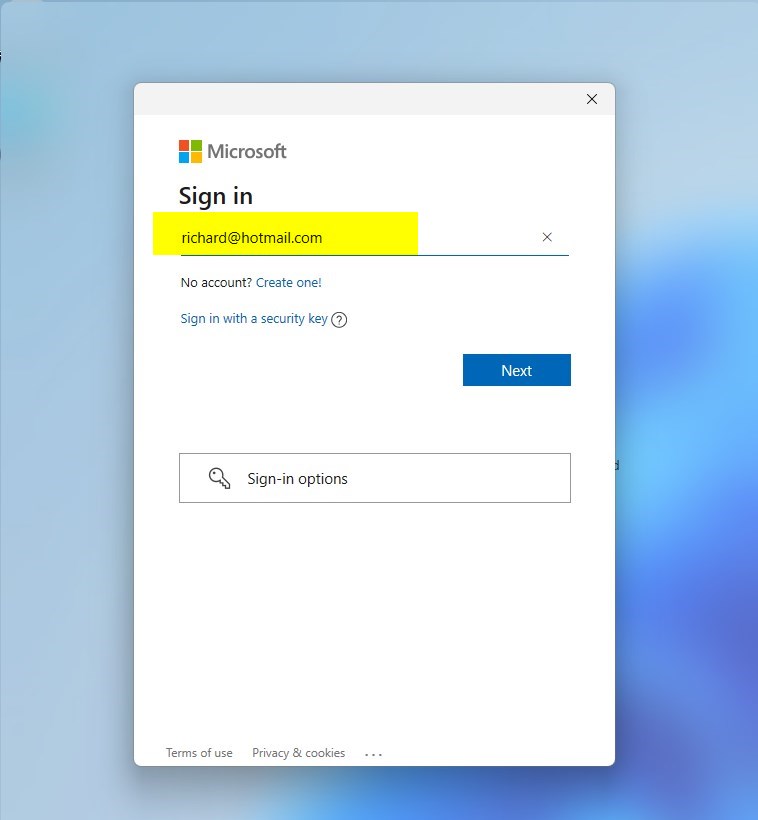
Click the button and enter your Microsoft account email address. Click Next.
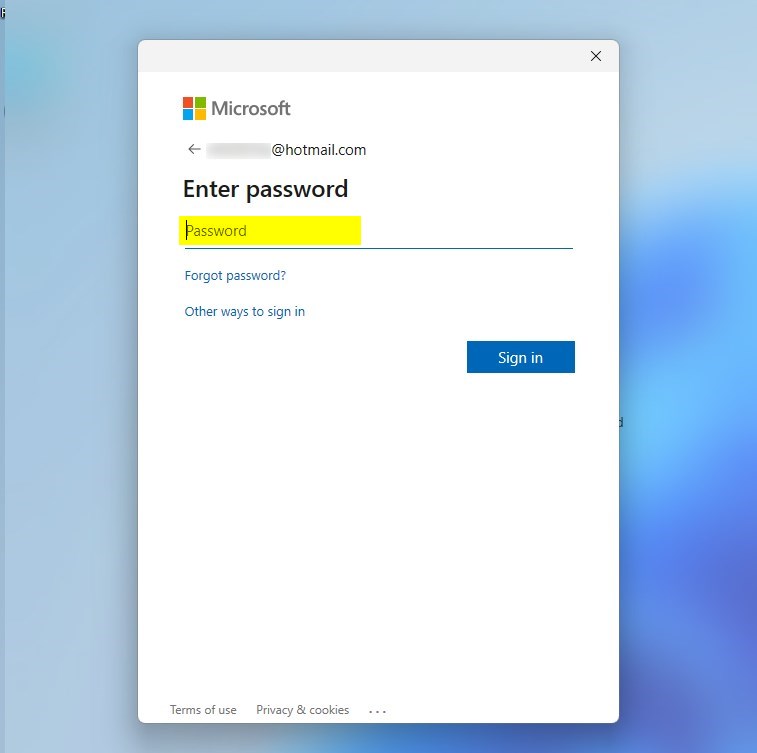
Type in your password and click Next.
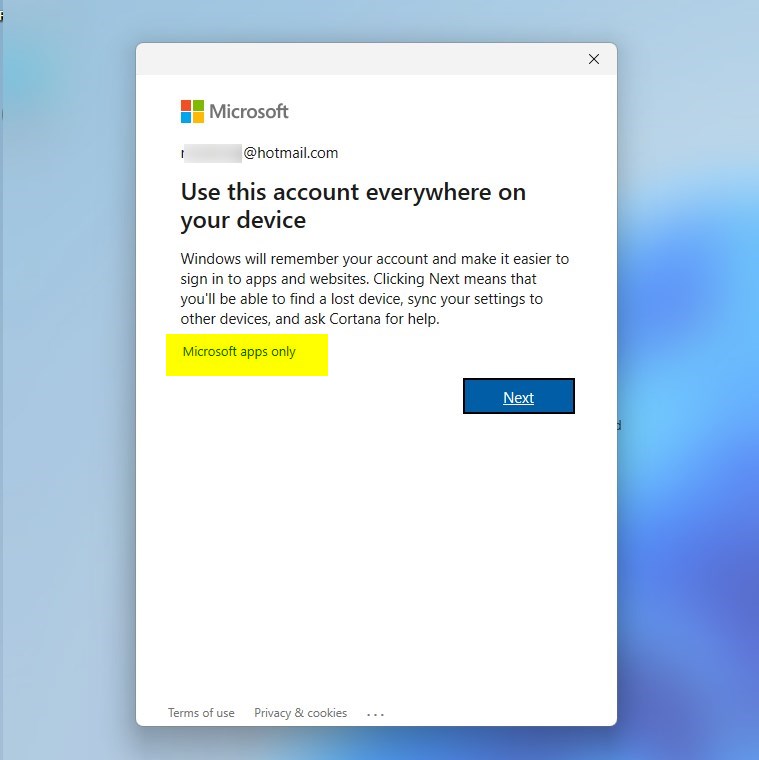
Choose “Microsoft apps only” to sign in to the widgets board. Note: This may prompt your Windows 11 local account to switch to a Microsoft account.
Once signed in, your widgets will populate with personalized data.
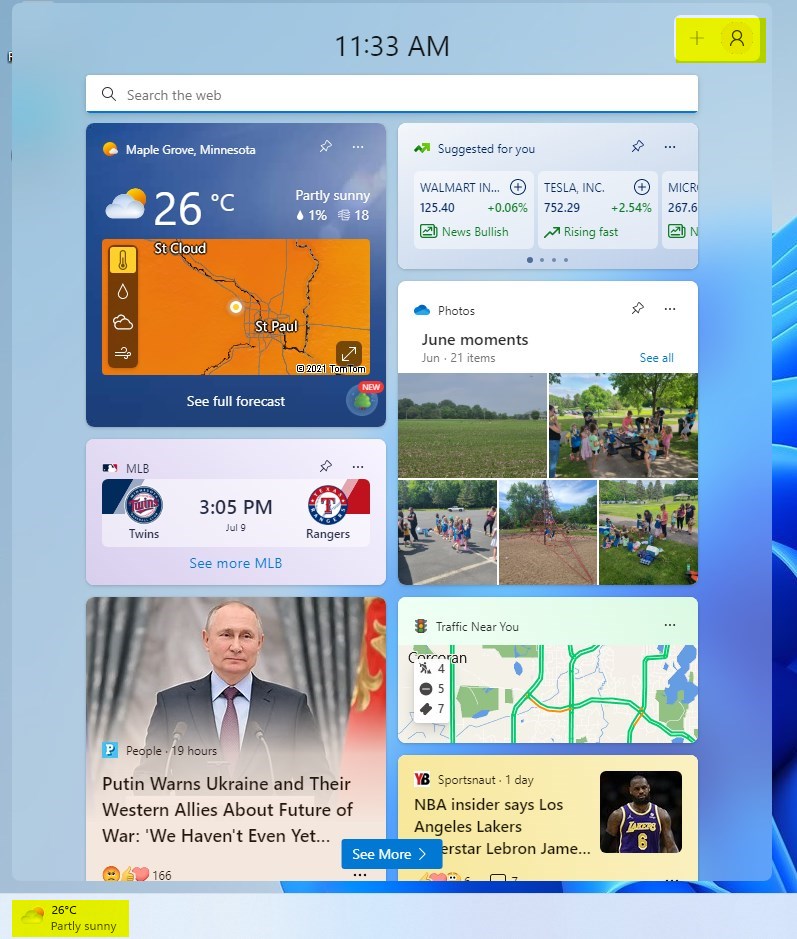
How to Sign Out of the Widgets Board
If you prefer not to sync your data, you can sign out at any time.
- Open the widgets board by pressing Windows + W.
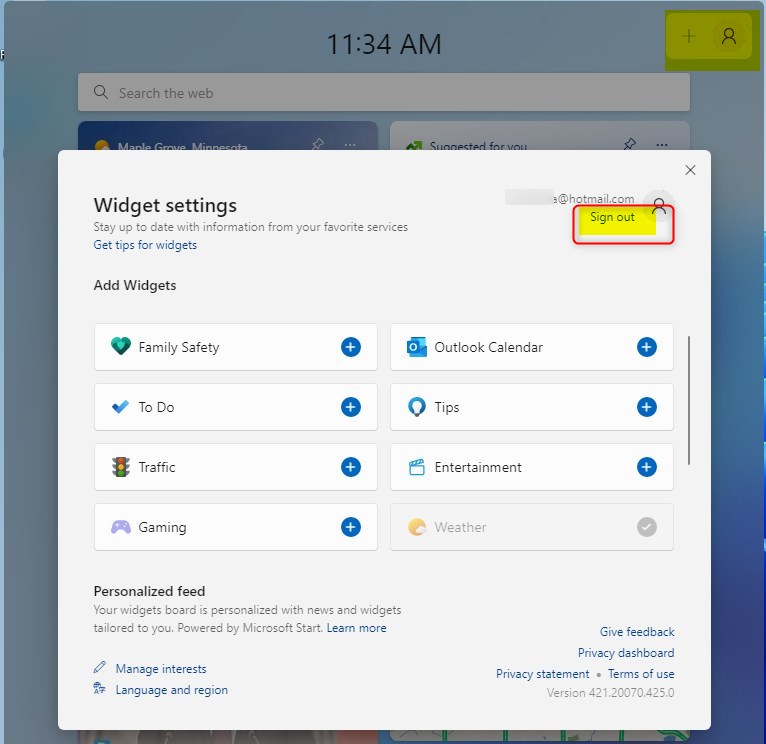
- Click on your account picture or the avatar icon.
- Select Sign out.
Troubleshooting Sign-in Errors
If you see a “We can’t sign you in” error, check your internet connection first. Sometimes, clearing the cache helps. You can navigate to C:\Users\GenericUser\AppData\Local\Packages\Microsoft.Windows.Widgets_cw5n1h2txyewy and clear the contents of the LocalState folder. Note: This action requires admin privileges. For further help, visit the official Microsoft Support page for Widgets.
Can I use Windows 11 Widgets without signing in?
Yes, you can use the Widgets board without signing in. However, your feed will be generic and will not show personalized content like your specific calendar events, personalized news, or synced interests. Signing in is required to unlock the full potential of the widget board’s personalization features.
Why is the sign-in button missing in my Widgets board?
Does signing out of Widgets affect my Windows user profile?
Signing out of the Widgets board does not remove your Windows user profile. It simply disconnects your Microsoft account from the widget service. Your computer will remain logged in, and your other system settings will stay exactly as they were before you signed out of the board.
Summary
The widgets board is a powerful tool for staying informed. By signing in with your Microsoft account, you enable feed personalization and data synchronization. If you encounter issues, verify your account link in Windows settings or clear your local cache. You can sign out anytime to maintain privacy.
Was this guide helpful?

About the Author
Richard
Tech Writer, IT Professional
Richard, a writer for Geek Rewind, is a tech enthusiast who loves breaking down complex IT topics into simple, easy-to-understand ideas. With years of hands-on experience in system administration and enterprise IT operations, he’s developed a knack for offering practical tips and solutions. Richard aims to make technology more accessible and actionable. He's deeply committed to the Geek Rewind community, always ready to answer questions and engage in discussions.



[…] Widgets board, you can add or remove Phone Link, enable or disable the open Widgets board on hover, sign in or out of the Widgets board, reinstall Widgets features, completely uninstall Widgets, and […]
[…] Widgets or press the Windows key + W on your […]