How to Change Screen Timeout to Turn Off Display After in Windows 11


This tutorial shows you how to set how long your computer waits before turning off the display when you’re not using it in Windows 11.
You can choose a screen timeout for how long your PC stays inactive before your display automatically turns off.
Why does this matter?
Turning off your display when you’re not using it saves power and helps your battery last longer.
What happens when you do this?
The fastest way to change screen timeout in Windows 11 is through the Settings app: press ⊞ Win+I, click System, select Power & battery, click Screen and sleep, then use the dropdown menu to select Never or your preferred timeout duration in minutes or hours.
By default, Windows 11 turns off your screen after 5 minutes on battery power and 15 minutes when plugged in.
Starting with Windows 11 build 29550.1000 (Canary), changes you make to power settings (like display, sleep, and hibernate timeouts) from Settings now apply to all power plans. This means your choices stay the way you want them.
Reference:
Power settings in Windows 11 – Microsoft Support
You can use screen and sleep settings to save energy and make your battery last longer.
If your device has a presence sensor, you can turn on or off Automatically turn off my screen when I leave and turn on or off Automatically wake up my device when I approach. The location of presence detection settings varies depending on your device brand and model.
Option One
The fastest way to change screen timeout in Windows 11 is through Settings. Here’s how:
- Press
Win+Ito open Settings. - Click
Systemon the left side. - Click
Power & batteryon the right side (depending on whether your PC has a battery). - Click
Screen and sleepon the right side. - Select
Neveror choose how many minutes or hours you want for screen timeout. Use the drop-down menus for “On battery power, turn off my screen after” and/or “When plugged in, turn off my screen after.” - Close Settings.
Change Screen Timeout in Settings
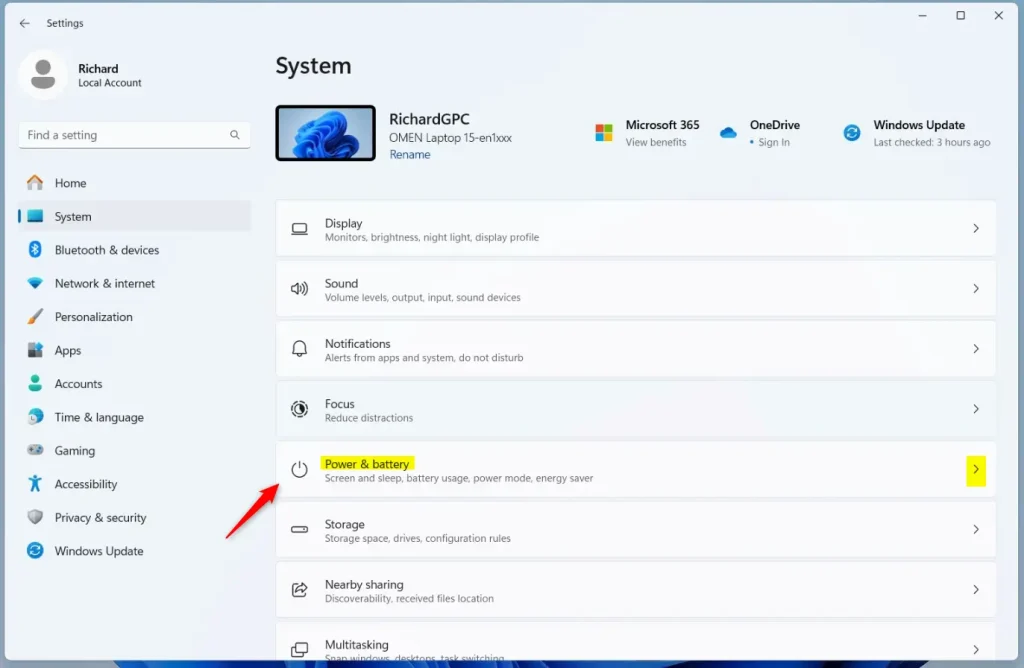
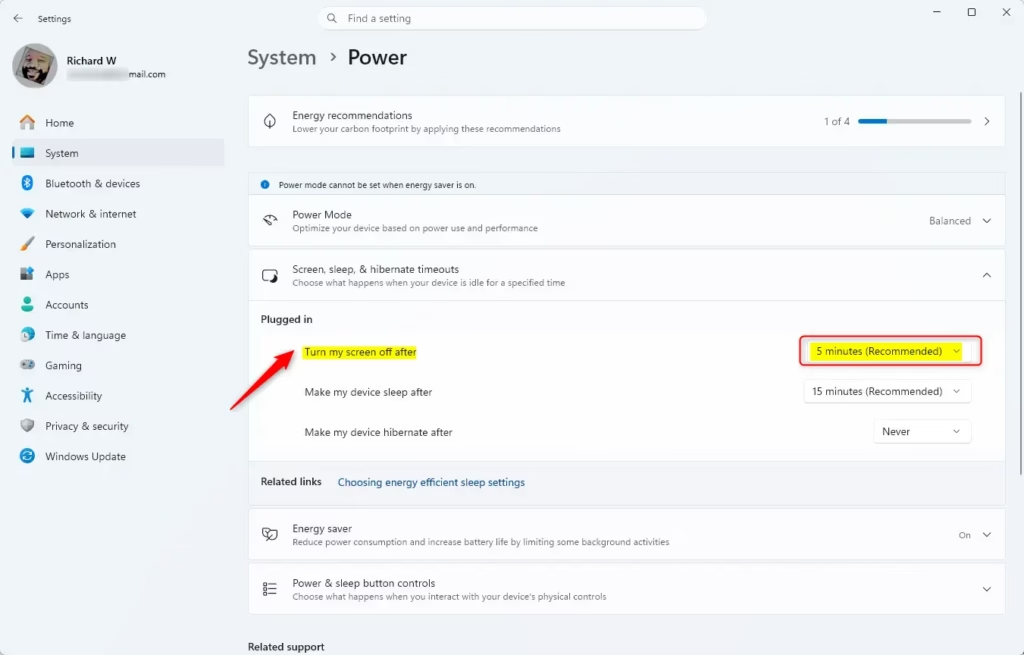
Option Two Open Power & battery settings
You can also change screen timeout using Control Panel. This method gives you access to your power plan settings.
- Open Control Panel in icons view.
- Click the
Power Optionsicon. - Click
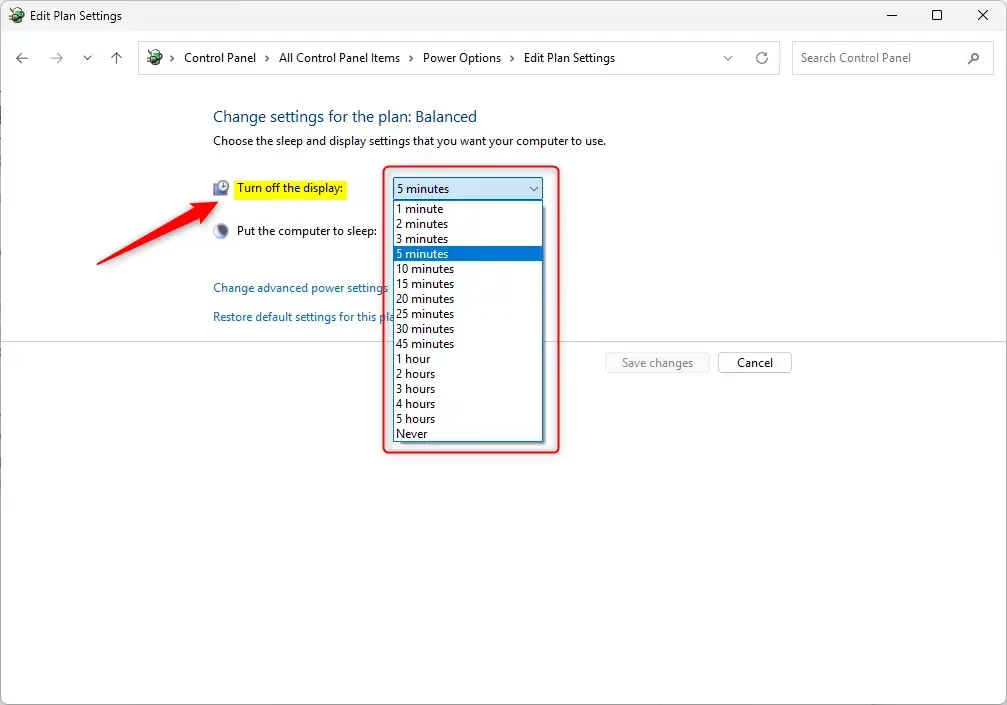
Choose when to turn off the displayon the left side. - Select
Neveror choose how many minutes or hours you want for screen timeout. Use the drop-down menus for “On battery” and/or “Plugged in.” - Click
Save changes. - Close Control Panel.
Change Screen Timeout in Power Plan Settings
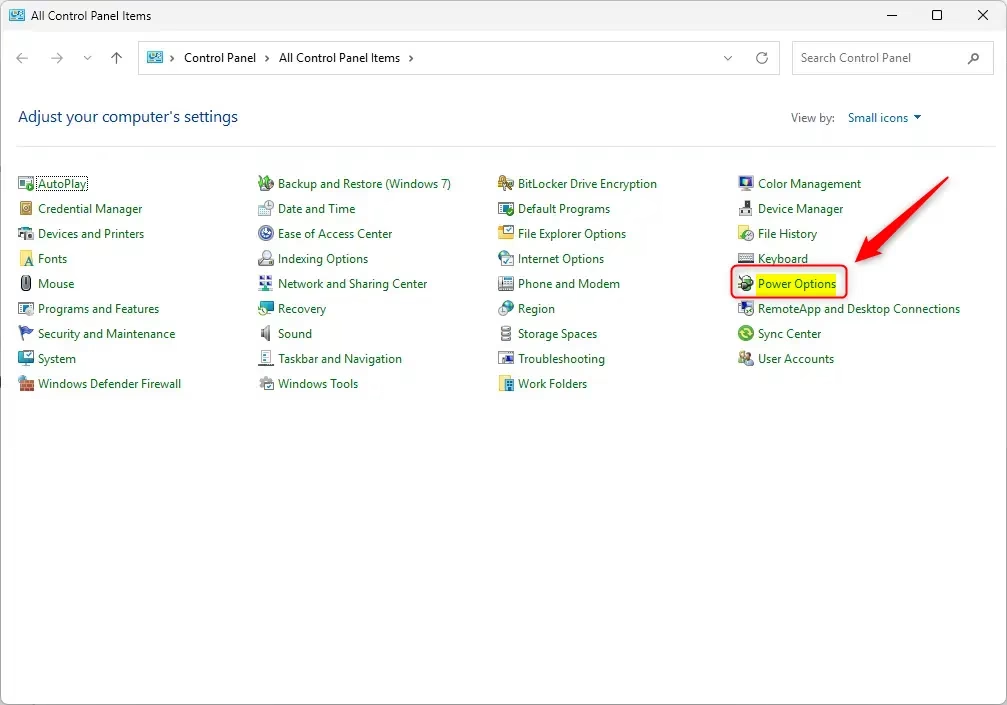
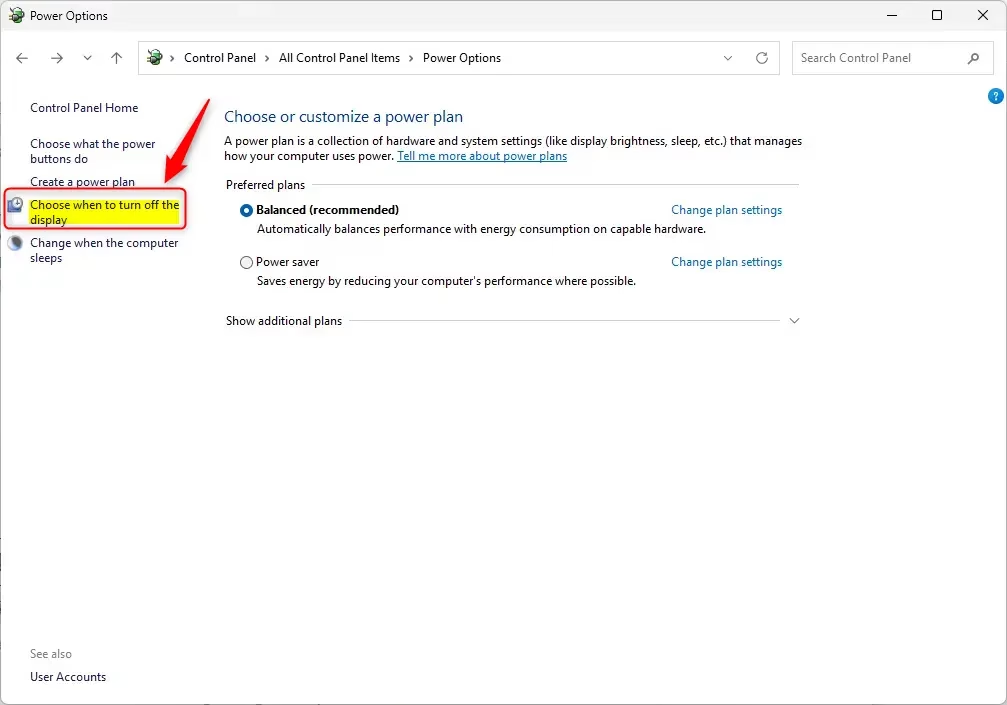
Option Three
For more detailed control, you can use Advanced Power Plan Settings.
- Open Control Panel in icons view.
- Click the
Power Optionsicon. - Click
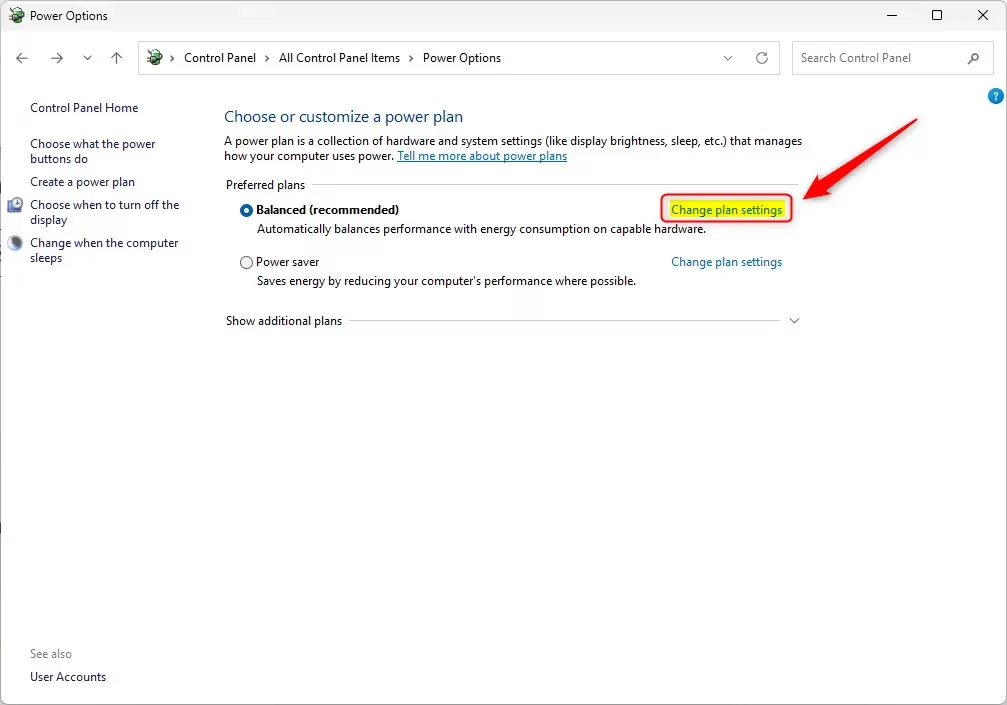
Change plan settingsfor your active power plan (for example: “Ultimate Performance”). - Click
Change advanced power settings. - Scroll down and expand
DisplayandTurn off display after. - Select
Neveror choose how many minutes or hours you want for screen timeout. Use the drop-down menus for “On battery” and/or “Plugged in.” - Click
OK. - Close Control Panel.
Change Screen Timeout in Advanced Power Plan Settings
Option Four
⚠️ Admin privileges required
If you prefer typing commands, you can use Windows Terminal to change your screen timeout.
- Open Windows Terminal and select
Command PromptorWindows PowerShell. - Type one of the commands below and press Enter.
For battery power:
powercfg -change -monitor-timeout-dc <minutes>OR
powercfg /SETDCVALUEINDEX SCHEME_CURRENT 7516b95f-f776-4464-8c53-06167f40cc99 3c0bc021-c8a8-4e07-a973-6b14cbcb2b7e <seconds>For plugged in:
powercfg -change -monitor-timeout-ac <minutes>OR
powercfg /SETACVALUEINDEX SCHEME_CURRENT 7516b95f-f776-4464-8c53-06167f40cc99 3c0bc021-c8a8-4e07-a973-6b14cbcb2b7e <seconds>Important:
- Replace
<minutes>with how many minutes you want before the display turns off. - Replace
<seconds>with how many seconds you want before the display turns off. - Using
0(zero) minutes or seconds works the same as choosing “Never.”
- Close Windows Terminal.
Summary
You now know how to change your screen timeout in Windows 11. You have four different ways to do it:
- Option One: Use the Settings app for a quick and easy change.
- Option Two: Use Power Options in Control Panel to adjust when your display turns off.
- Option Three: Use Advanced Power Plan Settings for more detailed control.
- Option Four: Use command-line tools if you prefer typing commands (requires admin privileges).
Choose the option that works best for you. All of these methods will help you save power and extend your battery life.
Was this guide helpful?

About the Author
Richard
Tech Writer, IT Professional
Richard, a writer for Geek Rewind, is a tech enthusiast who loves breaking down complex IT topics into simple, easy-to-understand ideas. With years of hands-on experience in system administration and enterprise IT operations, he’s developed a knack for offering practical tips and solutions. Richard aims to make technology more accessible and actionable. He's deeply committed to the Geek Rewind community, always ready to answer questions and engage in discussions.


No comments yet — be the first to share your thoughts!