How to Enable or Disable Copilot Access to Microphone in Windows 11


This tutorial will show you how to grant Copilot microphone access in Windows 11, or how to take it away if you prefer.
Control Copilot’s microphone access through Copilot Settings or Windows Settings. In Copilot, navigate to Settings > Preferences > Permission settings and toggle the Microphone switch. Alternatively, go to Windows Settings > Privacy & security > Microphone, find Copilot, and adjust its toggle.
What is Microsoft Copilot?
Microsoft Copilot is your helpful AI assistant built right into Windows, ready to help with all sorts of tasks.
When you give Copilot microphone access, you can have voice conversations with it. This is helpful if you like to use your hands for other things or just prefer speaking.
Reference: Using Copilot Voice with Microsoft Copilot – Microsoft Support
Microsoft Copilot Voice lets you talk to Copilot using your natural voice instead of typing.
Option 1Use Copilot Settings
The easiest way to manage your Copilot microphone access is right within the Copilot app’s settings.
- Open the Copilot app.
- Sign in with your Microsoft account if you want to keep your settings saved.
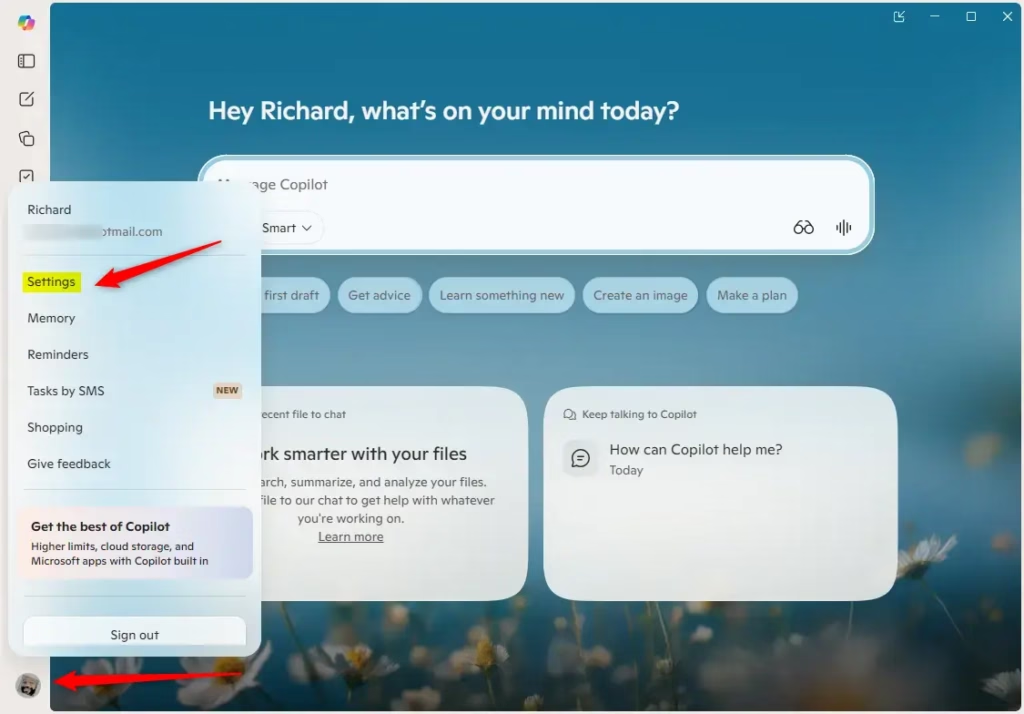
- Click or tap the Account button on the left side. Then click or tap Settings.
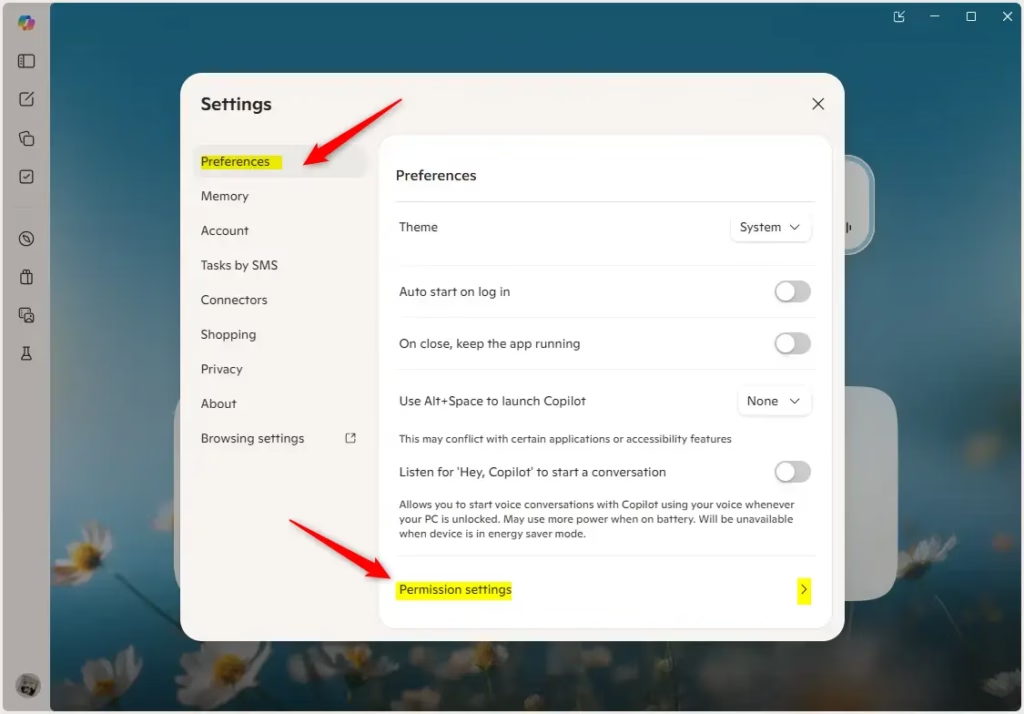
- Click or tap Preferences on the left. Then click or tap Permission settings on the right side.
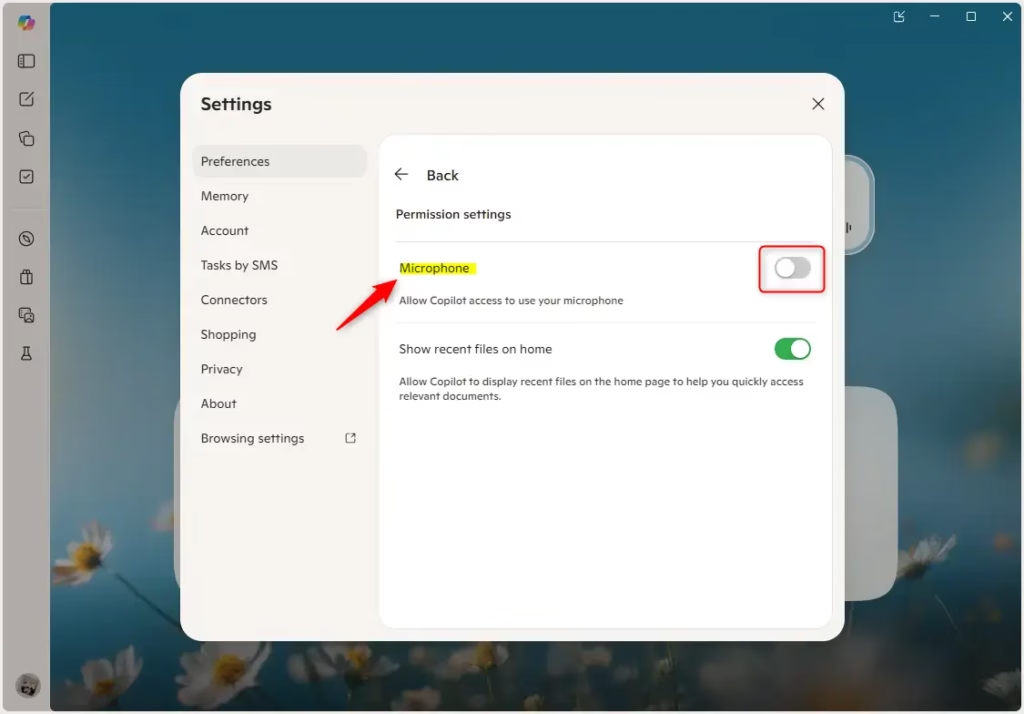
- Turn the Microphone switch on or off. On is the default setting.
- If you turned on microphone access, click or tap Yes to confirm.
Option 2Use Windows Settings
Alternatively, you can manage microphone access through Windows Settings.
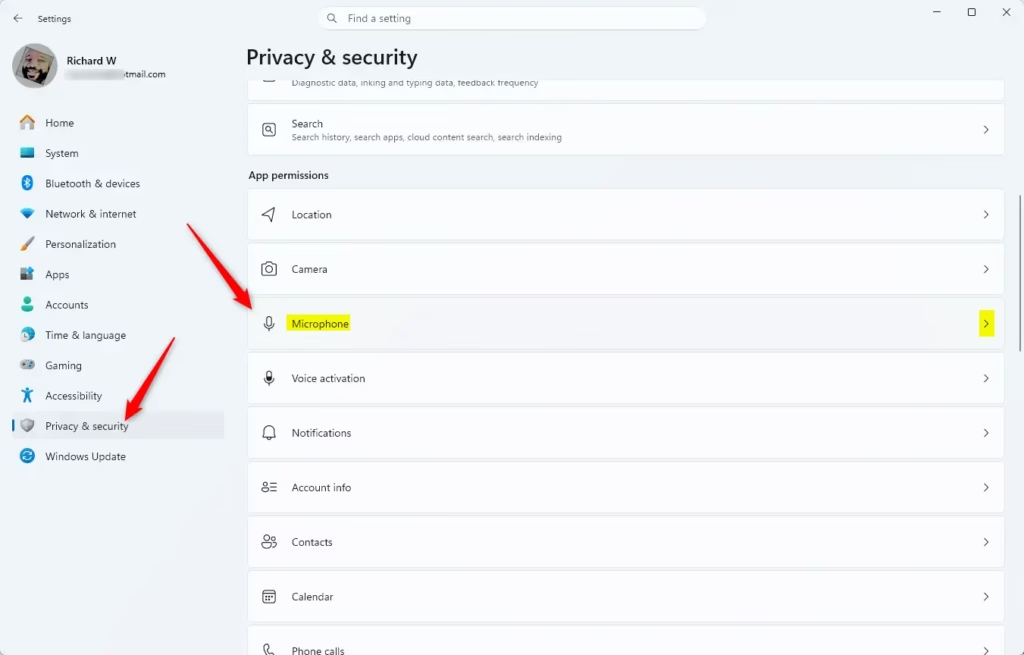
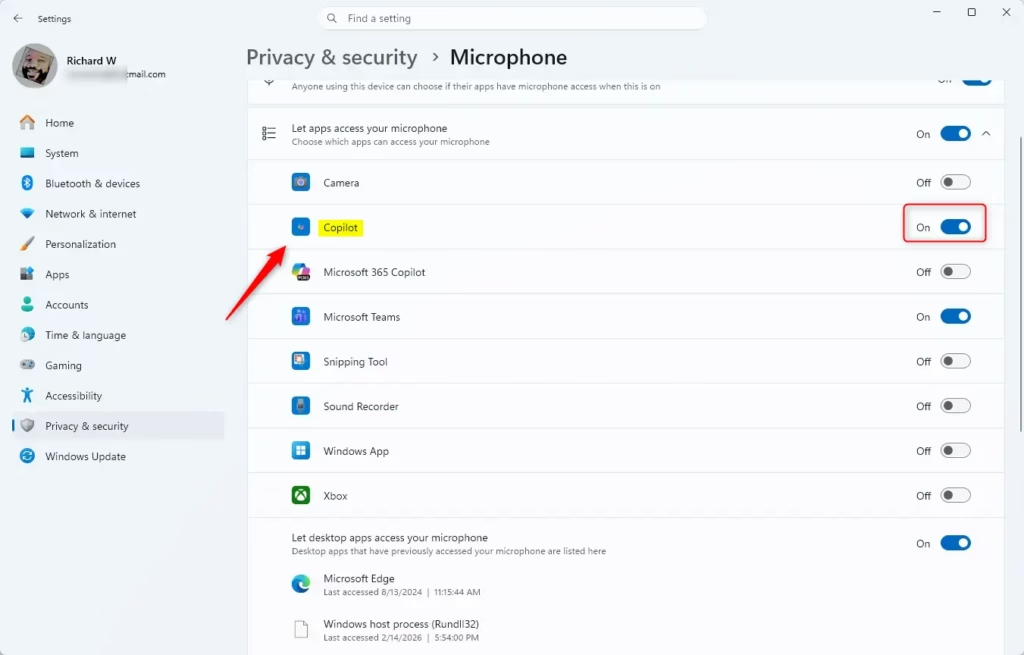
- Open Settings and go to Privacy & security > Microphone.
- Find Copilot in the list of apps.
- Turn the toggle on or off to allow or block microphone access.
Summary
You can easily change your Copilot microphone access settings anytime in either the Copilot app or Windows Settings, deciding if you want Copilot to hear your voice commands.
How to access Copilot voice?
On copilot.com: Select your profile icon, select your profile name, then select Voice and the specific voice you want to use. In Copilot for Windows or macOS: Select your profile icon, then select Settings. Next to Voice, select the specific voice you want to use.
Was this guide helpful?

About the Author
Richard
Tech Writer, IT Professional
Richard, a writer for Geek Rewind, is a tech enthusiast who loves breaking down complex IT topics into simple, easy-to-understand ideas. With years of hands-on experience in system administration and enterprise IT operations, he’s developed a knack for offering practical tips and solutions. Richard aims to make technology more accessible and actionable. He's deeply committed to the Geek Rewind community, always ready to answer questions and engage in discussions.



No comments yet — be the first to share your thoughts!