How to Automate Do Not Disturb in Windows 11

You can automate Do Not Disturb in Windows 11 to silence notifications automatically based on your schedule or when you’re using certain apps.
Do Not Disturb is a Windows 11 feature that mutes all notifications, including banners and sounds, so you can concentrate. It’s designed to help you minimize distractions when you need to focus on tasks or want uninterrupted downtime.
You can set specific times for Do Not Disturb to turn on and off automatically, ensuring peace during your work hours or even overnight. For example, you might want it active between 9 AM and 5 PM on weekdays.
This article shows you how to set up these automated rules in Windows 11, so you never miss an important alert but also never get unnecessarily interrupted.
How to Set Do Not Disturb to Turn On Automatically in 🪟 Windows 11
Follow these simple steps to make Do Not Disturb start and stop automatically:
- settings-app-in-windows-11/" class="sal-link" rel="noopener" target="_blank" data-sal-id="38379"> Open Settings: Click the Start menu button (Windows icon) at the bottom-left of your screen. Then select Settings. Or press Windows key + I on your keyboard to open Settings quickly.
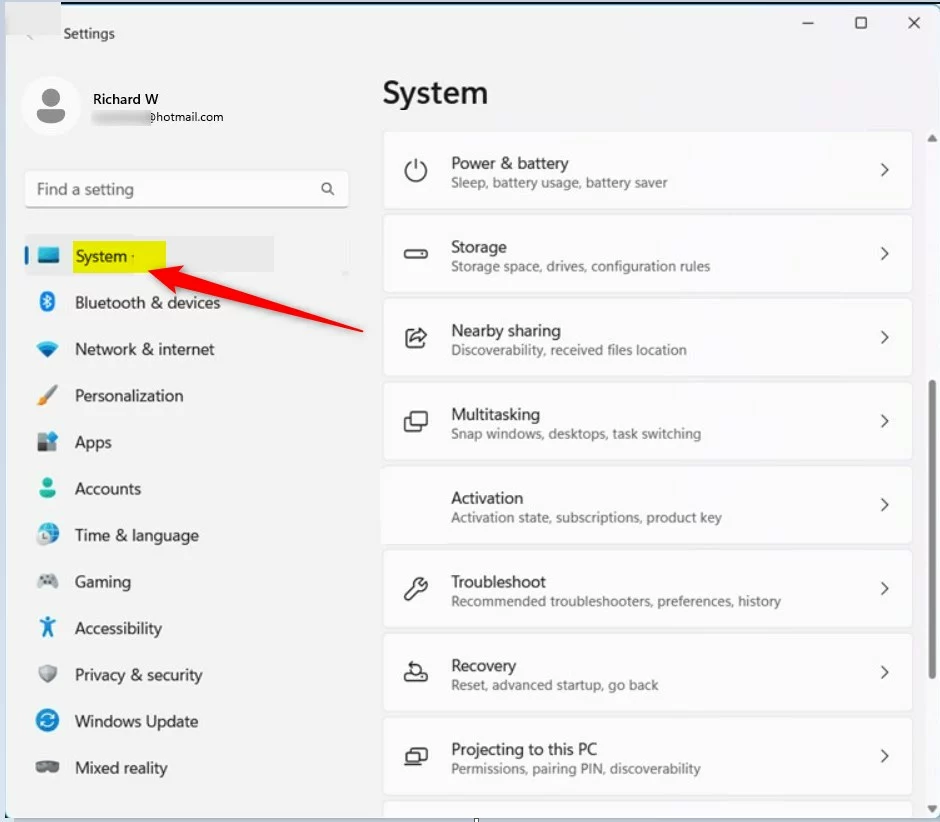
- Go to System Settings: In the Settings window, click on System from the left side menu.
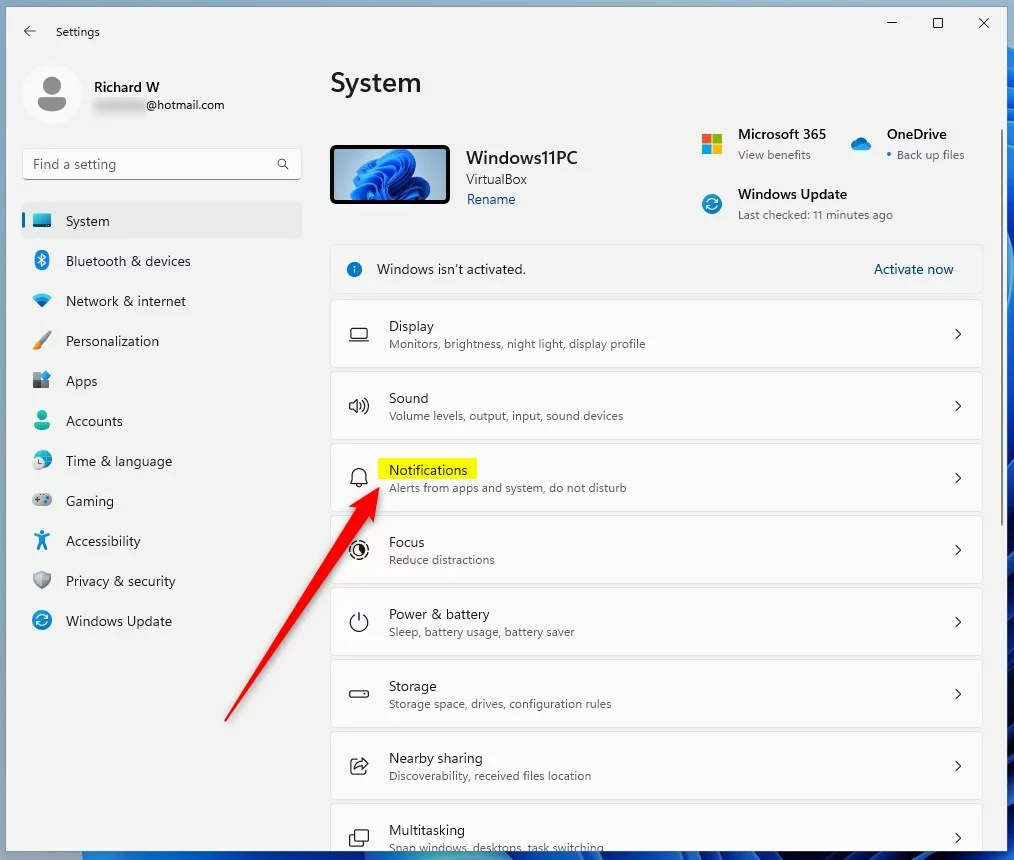
- Open Notifications: On the right side, find and click the Notifications section.
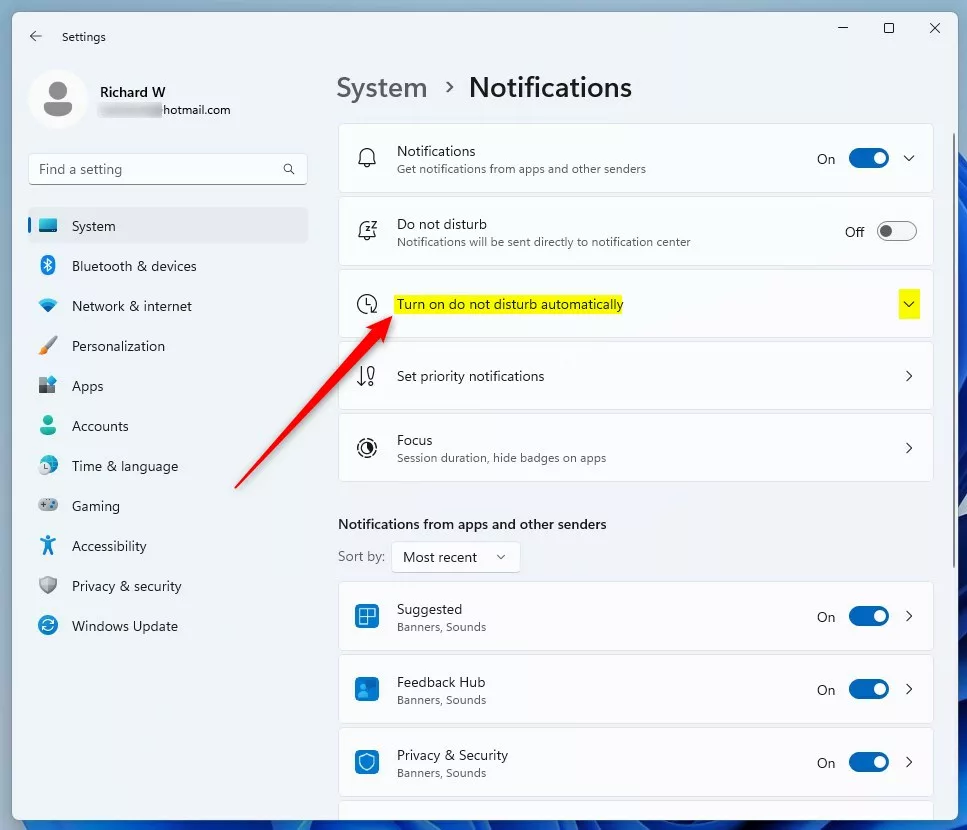
- Find Do Not Disturb Automation: Scroll down and click on Turn on Do Not Disturb automatically to see more options.
- Set Your Schedule: Check the box next to During these times. Then choose the time you want Do Not Disturb to start and end. You can also select how often it repeats (daily, weekdays, weekends).
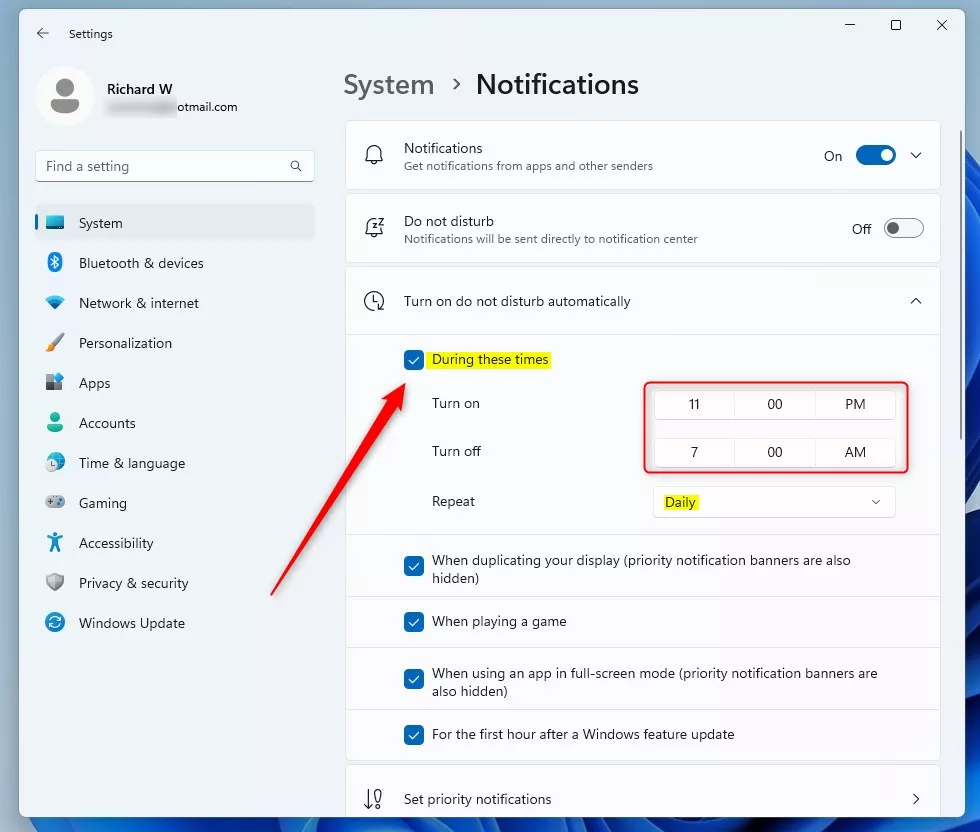
- Choose Extra Options (Optional): You can also check boxes to turn on Do Not Disturb automatically when:
- You are duplicating your display (like during presentations)
- You are playing a game
- You are using an app in full-screen mode
Once done, you can close the Settings app. Your Do Not Disturb will now work automatically based on your chosen times and activities!
Summary
Windows 11 notifications keep you informed but can sometimes distract you. The Do Not Disturb feature helps reduce distractions by hiding notifications when you need to focus. You can set Do Not Disturb to turn on automatically at certain times or during activities like gaming or presentations. Follow the simple steps above to set it up and enjoy fewer interruptions during your busy times. For more tips on managing notifications, you can visit this helpful guide.
Was this guide helpful?

About the Author
Richard
Tech Writer, IT Professional
Richard, a writer for Geek Rewind, is a tech enthusiast who loves breaking down complex IT topics into simple, easy-to-understand ideas. With years of hands-on experience in system administration and enterprise IT operations, he’s developed a knack for offering practical tips and solutions. Richard aims to make technology more accessible and actionable. He's deeply committed to the Geek Rewind community, always ready to answer questions and engage in discussions.


No comments yet — be the first to share your thoughts!