How to Open Windows Terminal Automatically When You Start Windows 11

Do you use Windows Terminal a lot? You can set it up to open automatically every time you start your computer. This guide shows you how to do it in just a few easy steps.
What is Windows Terminal?
Windows Terminal is an app that lets you use command tools like Command Prompt, PowerShell, and even Linux commands through Windows Subsystem for Linux (WSL). It’s a modern and simple tool for running commands on your PC.
You can customize Windows Terminal in many ways. You can change the colors, the size when it opens, or which command tool it uses by default. If you want to learn more about these options, check out these helpful guides:
Why Open Windows Terminal Automatically?
If you open Windows Terminal often, setting it to start automatically saves you time. You don’t have to find and open it yourself every time you turn on your PC. Plus, if you’ve set up Terminal with specific settings you like, it will always open just the way you want.
How to Make Windows Terminal Open When You Sign In
Follow these simple steps to set this up:
- Open Windows Terminal: Click the Start menu button (the Windows icon on the bottom left). Type
Terminalin the search box. Click Windows Terminal to open it.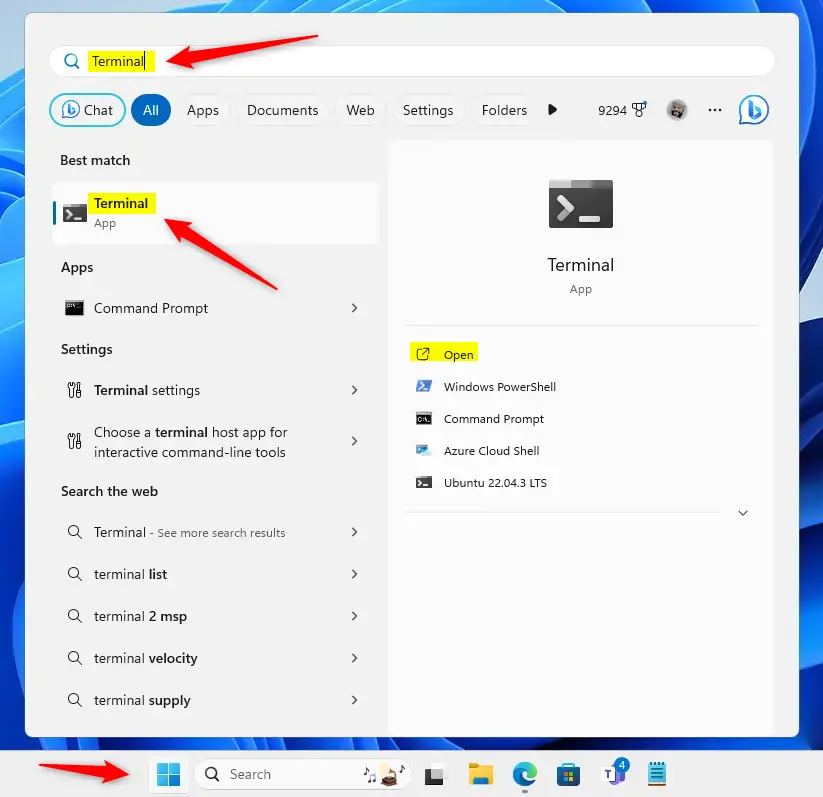
- Open Terminal Settings: Click the small down arrow icon at the top of the Terminal window. Then choose Settings. You can also press
Ctrl + ,(comma) on your keyboard.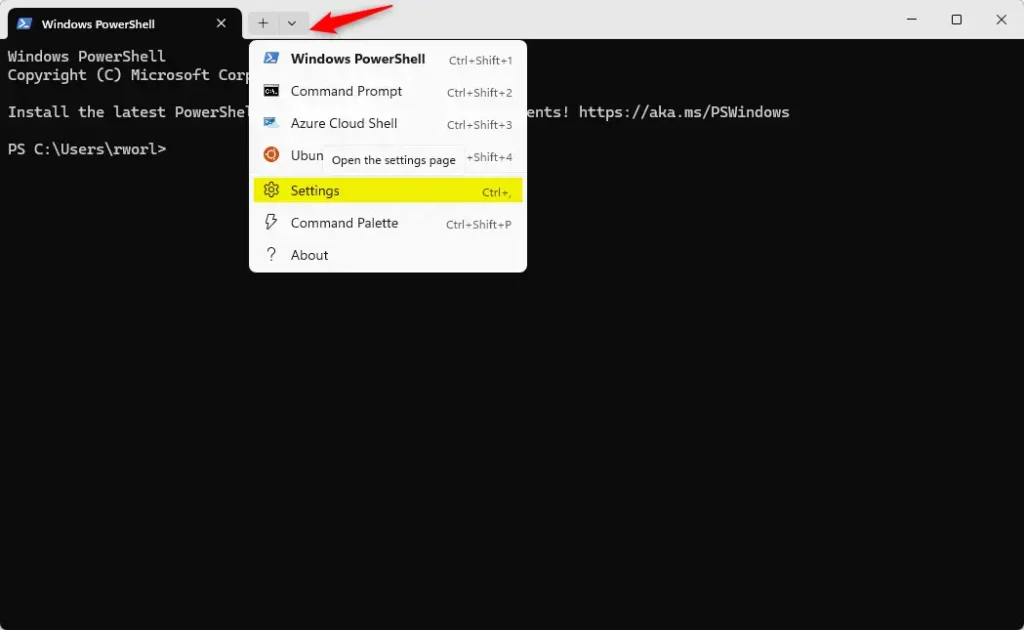
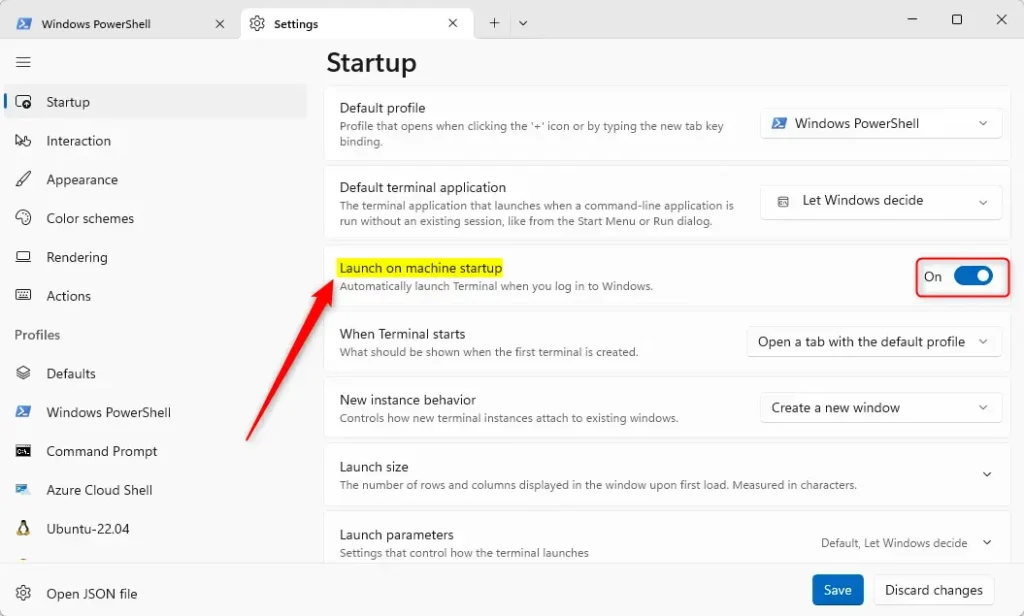
- Go to the Startup tab: In the Settings window, click on the Startup tab on the left side.
- Turn on “Launch on machine startup”: Find the option called Launch on machine startup. Click the toggle switch to turn it On.
- Save your changes: Click the Save button at the bottom right. Then close the Settings window.
That’s it! Now, every time you turn on your computer and log in, Windows Terminal will open for you automatically.
Summary
- Opening Windows Terminal automatically saves time if you use it often.
- It makes sure your favorite Terminal settings are always ready when you log in.
- The steps are easy to follow and can be turned off anytime if you change your mind.
If you have questions or want to share feedback, use the comments section below.
Was this guide helpful?

About the Author
Richard
Tech Writer, IT Professional
Richard, a writer for Geek Rewind, is a tech enthusiast who loves breaking down complex IT topics into simple, easy-to-understand ideas. With years of hands-on experience in system administration and enterprise IT operations, he’s developed a knack for offering practical tips and solutions. Richard aims to make technology more accessible and actionable. He's deeply committed to the Geek Rewind community, always ready to answer questions and engage in discussions.


[…] the Terminal app on your device as administrator. Then run the command below to turn the lock screen on or off in […]