How to Enable Enhanced Sign-in Security on Windows 11

This guide will help everyday Windows 11 users turn on or off Enhanced Sign-in Security. This keeps your device safer from hackers.
What is Enhanced Sign-in Security?
Windows Hello is a feature that lets you sign in to your computer in a safer and easier way. Instead of just typing a password, you can use a PIN, your face, or your fingerprint.
Enhanced Sign-in Security (ESS) adds an extra layer of protection to your sign-in info. It uses special hardware and software inside your PC. This helps keep hackers from stealing your fingerprint or face details.
What Does Your PC Need to Support ESS?
Your device should have:
- Virtualization-Based Security (VBS) turned on
- Trusted Platform Module 2.0 (TPM 2.0) chip installed
- A biometric sensor (camera or fingerprint reader) that supports ESS
- Device software (firmware) that supports secure biometric hardware
How to Turn On Enhanced Sign-in Security (ESS)
Why do this? Turning on ESS protects your biometric data from hackers. What happens? You’ll need to set up your face and fingerprint sign-in again after enabling it.
Follow these easy steps to turn ESS on or off from the Windows Settings app:
- Click the Start menu button at the bottom-left of your screen, then choose Settings. Or, press Windows key + I on your keyboard to open Settings quickly.
- In Settings, click Accounts on the left menu.
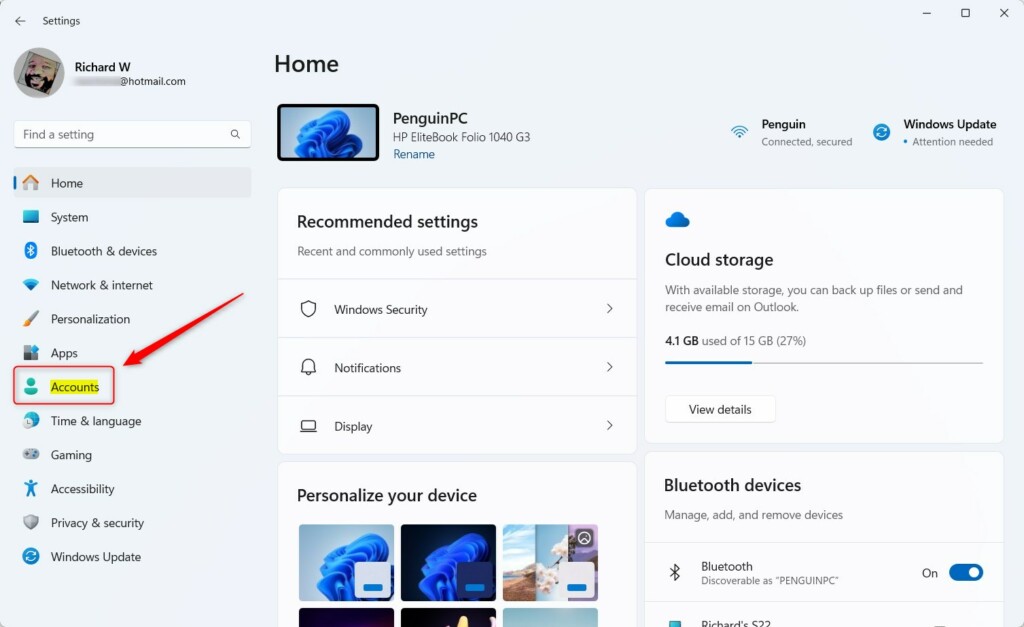
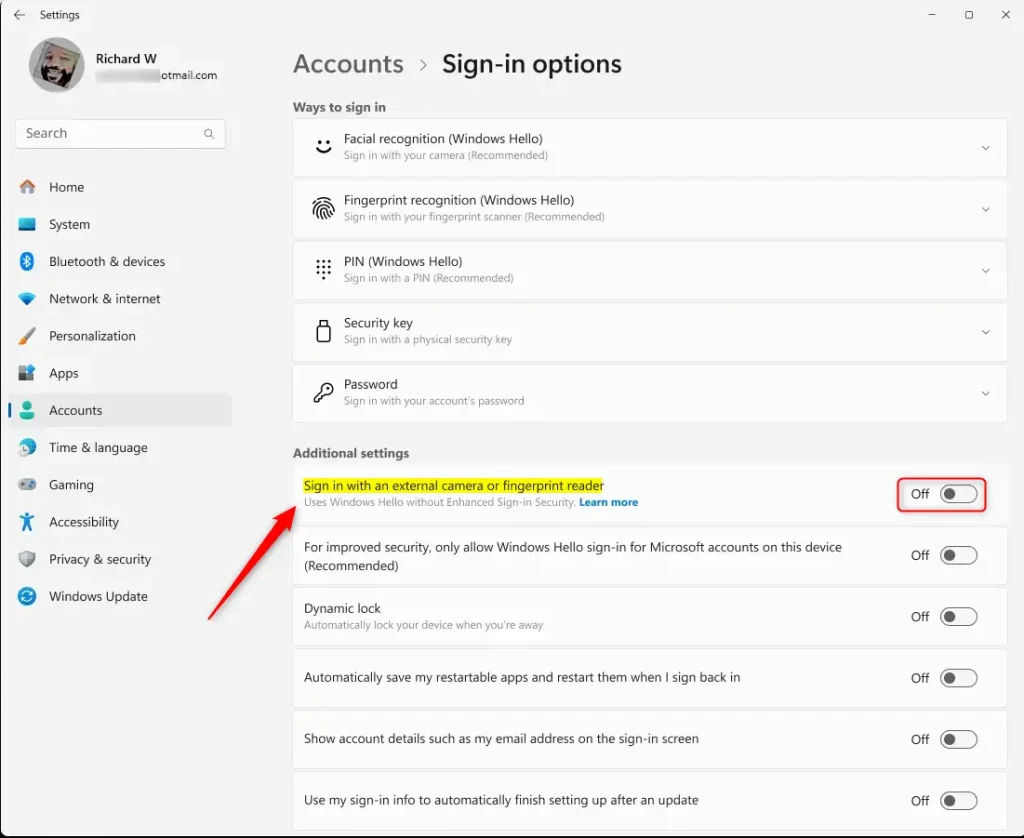
- On the right side, click Sign-in options.

- Scroll down to find Sign in with an external camera or fingerprint reader under Additional settings. Toggle the switch to On to enable or Off to disable ESS.
- Close the Settings app when done.
Note: If you don’t see this option, your device may not support ESS.
How to Enable ESS Using Registry Editor (Advanced)
⚠️ Admin privileges required for this method.
If you’re comfortable with advanced settings, you can also turn ESS on or off using the Windows Registry Editor.
- Open the Registry Editor by pressing Windows key + R, type
regedit, and press Enter. (If you want help opening Registry Editor, see this guide.) - In Registry Editor, go to this folder path:
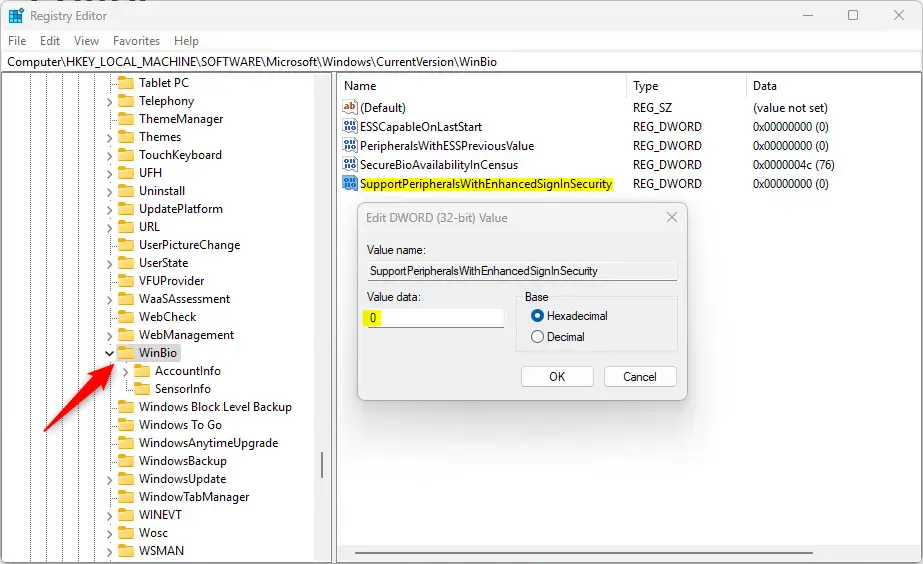
Computer\HKEY_LOCAL_MACHINE\SOFTWARE\Microsoft\Windows\CurrentVersion\WinBio - Look for a value named
SupportPeripheralsWithEnhancedSignInSecurityin the right pane. - Double-click it to open.
- Enter
0to turn ON Enhanced Sign-in Security. - Enter
1to turn OFF Enhanced Sign-in Security.
- Enter
- If the value is missing, right-click inside the right pane, choose New > DWORD (32-bit) Value, name it
SupportPeripheralsWithEnhancedSignInSecurity, then set the value as above. - Close Registry Editor and restart your computer to apply changes.
What Happens After You Turn On ESS?
When ESS is on, the next time you sign in, you’ll need to use your password or PIN first. Then you’ll set up your face and fingerprint sign-in again. This extra step helps protect your biometric data better.
Summary
- Extra Protection: ESS makes your sign-in safer by using modern hardware and software.
- Check Your Device: Make sure your PC supports ESS before trying to enable it.
- Easy to Change: You can turn ESS on or off in Settings or Registry Editor.
- Setup Again: After enabling ESS, you will need to set up your face and fingerprint sign-ins again.
- Keep Hackers Away: ESS helps stop bad people from stealing your biometric info.
By following these simple steps, you can keep your Windows 11 device more secure while signing in.
Reference: Microsoft – Enhanced Sign-in Security
Was this guide helpful?

About the Author
Richard
Tech Writer, IT Professional
Richard, a writer for Geek Rewind, is a tech enthusiast who loves breaking down complex IT topics into simple, easy-to-understand ideas. With years of hands-on experience in system administration and enterprise IT operations, he’s developed a knack for offering practical tips and solutions. Richard aims to make technology more accessible and actionable. He's deeply committed to the Geek Rewind community, always ready to answer questions and engage in discussions.




No comments yet — be the first to share your thoughts!