How to Show the Emoji Panel Icon on Your Windows 11 Taskbar

Want to quickly add emojis or GIFs while chatting or typing on your Windows 11 PC? You can turn on a handy emoji button on your taskbar to make it easier!
What is the Emoji Panel?
The emoji panel is a small window that pops up when you press Windows key + . (period) or Windows key + ; (semicolon). It lets you pick and add emojis, symbols, or GIFs to your messages or documents.
Why use it? It saves you time. Instead of hunting through menus, you get quick access to all your emoji options in one place.
Here’s a quick guide on how to show its icon on your taskbar so you can open it anytime with just one click.
Step 1: Enable the Emoji Icon Using ViVeTool
Windows 11 has a hidden feature that lets you show the emoji icon on your taskbar system tray. To turn it on, you need a free tool called ViVeTool.
How to use ViVeTool:
- Download ViVeTool from the link above and unzip it.
- [Admin Privileges Required] Open Command Prompt or Windows Terminal as an administrator. To do this, right-click the Start button and select it.
- Type the following command and press Enter:
vivetool /enable /id:48504539 - Restart your computer.
What happens? The emoji feature becomes available on your system. After you restart, Windows will recognize that you want to use this hidden feature.
Step 2: Turn On the Emoji Icon in Windows Settings
Now that the feature is enabled, let’s make sure the emoji icon shows on your taskbar:
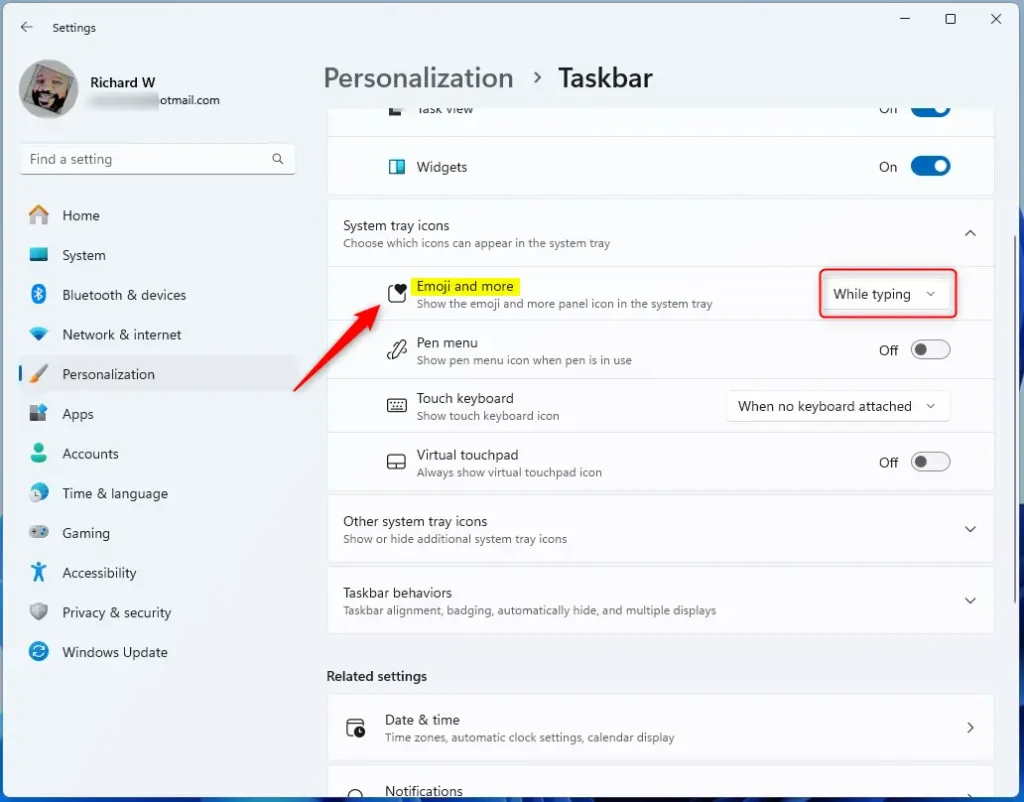
- Open the Settings app. You can do this by clicking the Start menu and selecting Settings, or by pressing Windows key + I.
- Click Bluetooth & devices on the left menu.
- Click Taskbar on the right side.
- Look for the “Emoji and more” option under System tray icons.
- Click the drop-down menu and choose when you want the icon to appear:
- Never – Hide the icon.
- While typing – Show it only when you type.
- Always – Keep the icon visible all the time.
- Close the Settings app when you’re done. You should now see the emoji button on your taskbar if you chose “Always” or “While typing”.

Alternative: Use the Registry Editor (Advanced)
If you prefer, you can also turn this icon on or off by editing the Windows Registry. Be careful: Changing the registry can cause problems if done wrong. Always back up your registry or create a restore point first.
Here’s how:
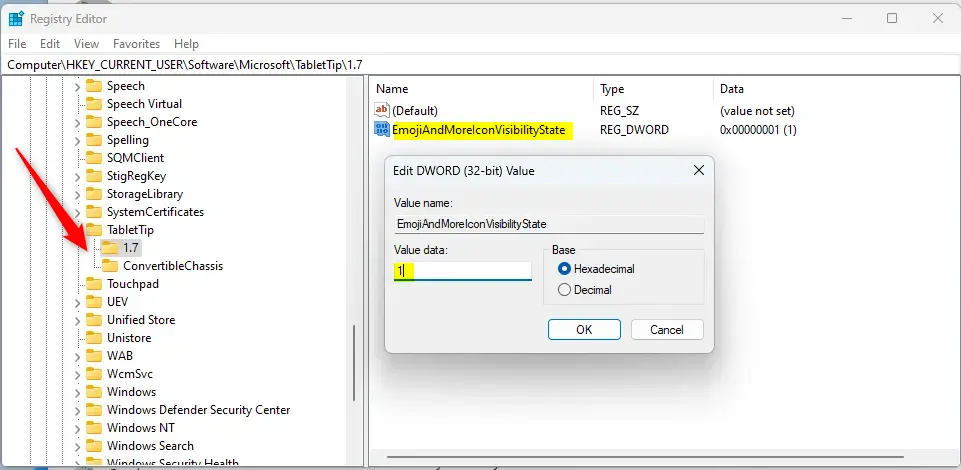
- [Admin Privileges Required] Press Windows key + R, type
regedit, and press Enter to open the Registry Editor. - Navigate to this folder:
HKEY_CURRENT_USER\Software\Microsoft\TabletTip\1.7 - Right-click the 1.7 folder, choose New > DWORD (32-bit) Value, and name it
EmojiAndMoreIconVisibilityState. - Double-click the new DWORD and set its value to:
- 0 for Never
- 1 for While typing
- 2 for Always
- Click OK and close Registry Editor.
- Restart your computer to apply the changes.
Summary
- The emoji panel helps you quickly add emojis, symbols, and GIFs while typing.
- You can show its icon on your taskbar for easy access.
- Use ViVeTool to unlock this feature, then turn it on in Settings.
- Or, if you know how, change it via the Registry Editor (make sure to backup first!).
- Restart your computer after any change for it to take effect.
- With these simple steps, you can customize your Windows 11 taskbar and make emoji use faster and more fun!
Frequently Asked Questions
What is the Emoji Panel?
Was this guide helpful?




Leave a Reply