When to Clean Install Windows 11 Instead of Resetting

- 15 steps
- Includes a restart or sign-out
A clean install of Windows 11 wipes your hard drive and installs a fresh copy of the operating system from a USB drive. A standard PC reset keeps your files if you ask it to, and it uses recovery files already on your computer.
Choose a clean install instead of a reset when your PC has stubborn malware, repeated blue screen crashes, or severe system file corruption that a normal recovery cannot fix. The install itself usually takes 30 to 60 minutes. It gives you a fresh start by removing every old driver, leftover junk file, and manufacturer app. Because it erases the whole drive, back up anything you want to keep before you begin.
A clean install of Windows 11 is the better choice when a reset cannot fix your PC, such as stubborn malware, repeated blue screen crashes, or severe system file corruption. It wipes the entire drive and installs a fresh copy of Windows 11 from a USB flash drive, removing old drivers, junk files, and manufacturer apps. Back up your files first, because the install erases everything.
Understanding Your Options: Resetting Versus Clean Installing
Before you decide how to fix your computer, you need to know what each process does. A reset is quick and convenient. A clean install is slower and more work, but it is more thorough. The next sections show how both choices work in practice.
What is a 🪟 Windows 11 Reset?
A Windows 11 reset is a built-in recovery tool that reinstalls your operating system using files already stored on your computer. It removes your apps and settings. You choose whether to keep or delete your personal files, and you do not need an external USB drive.
During a reset, Windows asks what you want to do with your data. You can keep your personal files, such as documents, pictures, and music, or you can remove everything. Even if you remove everything, the reset tool still depends on the Windows recovery environment and recovery files on your computer’s main drive. If those files are damaged, the reset can fail or carry the same problems into the new system.
A reset is a good first try for a slow PC or a system that has gathered a lot of clutter. It is also easier to recover from, because the “keep my files” option leaves your documents in place. It does not give you a fully independent copy of Windows, though.
What is a Clean Install of 🪟 Windows 11?
A clean install of Windows 11 wipes your computer’s hard drive and installs a fresh copy of the operating system from an external USB flash drive. It deletes every existing file, setting, app, and hidden error, so you start with a blank slate.
To do a clean install, you start your computer from a separate USB flash drive. You then delete the partitions on your drive, which removes every file, setting, hidden virus, and application. After that, you install a brand-new copy of Windows 11 from the USB drive. Nothing is left of your old operating system or of any software that came pre-installed on your machine.
Key Differences Between Resetting and Clean Installing
The main difference is where the new system files come from and how thoroughly the drive is wiped. A reset uses existing recovery files on your hard drive. A clean install formats the drive and uses fresh files from an external USB drive.
- Source of filesA reset builds a new system from backup files already on your computer. A clean install pulls fresh files from an external USB drive made straight from Microsoft’s installer.
- Bloatware removalA reset often brings back the trial programs and manufacturer apps that came with your PC. A clean install gives you a plain version of Windows without those extras.
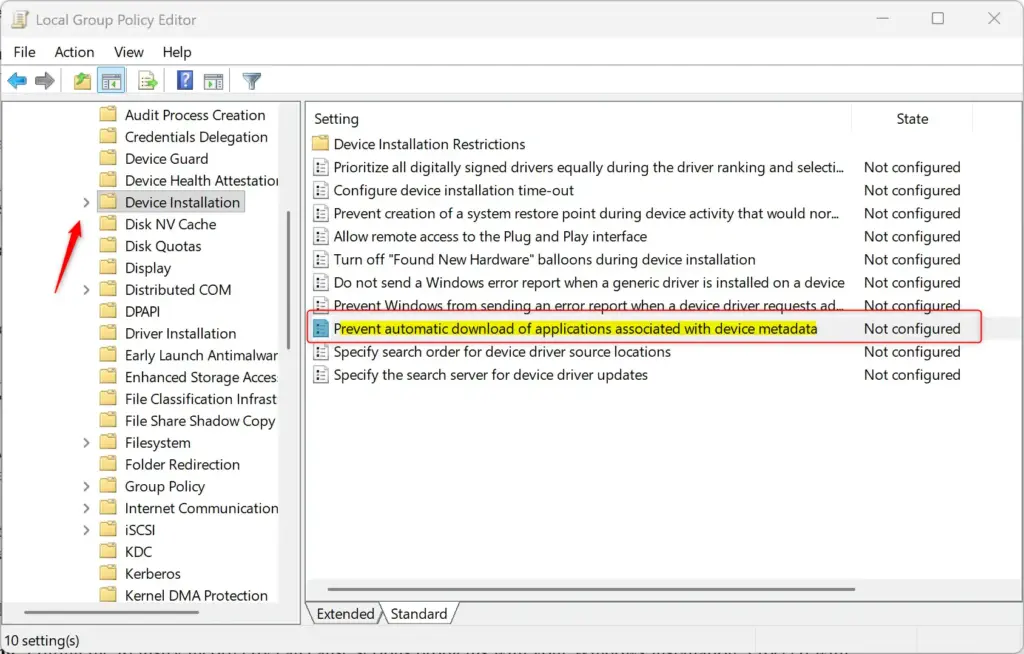
Toggle switch to prevent automatic download of manufacturer apps. - Deep-seated malware removalA reset might leave behind advanced viruses or rootkits that hide deep in system folders. A clean install wipes the storage drive completely, so malicious software has nowhere to hide.
- Internet dependencyA reset can usually be done completely offline. A clean install often needs an internet connection during setup to download the newest drivers and updates.
Time and effort differ too. A reset is mostly a few clicks. A clean install means building a USB installer, changing how the PC boots, and reinstalling your own apps afterwards.
Major Scenarios: When to Clean Install 🪟 Windows 11 Instead of Resetting
Now that you know how both methods work, here are the specific situations where you should skip the built-in reset tool and do a full clean install.
1Persistent Performance Issues and Unsolved Glitches
Persistent performance problems and glitches that never go away are a reason to clean install Windows 11 instead of resetting. If your computer keeps freezing, crashing, or running slowly even after a reset, the recovery files on your hard drive may be damaged and need to be replaced from a USB drive.
Windows uses those backup files to reset itself. If they are corrupted, a standard reset copies the corruption back onto your system, and you end up with the same crashes. A clean install from a fresh USB drive bypasses the broken recovery files entirely and gives you a true blank slate.
Try the reset first if you have not already. If the same blue screens or freezes come back afterwards, that points to damaged system or recovery files. It can also point to a hardware fault, such as a failing drive or bad memory. A clean install will not fix hardware problems, so if a clean install does not help either, test the hardware.
2Dealing with Stubborn Malware, Adware, or Viruses
Stubborn malware, adware, or deep-seated viruses are another reason to clean install Windows 11 instead of running a standard reset. Advanced threats can hide inside system recovery files. A normal reset might then reinstall the infection, whereas a full drive wipe removes every trace.
Consider a clean install if your antivirus program keeps finding the same infection, or if your browser keeps redirecting to strange websites. Malware can sometimes hide inside the recovery partition that a reset relies on. A clean install deletes the drive partitions, which destroys any hidden malware.
After a malware cleanup, change your passwords from a different, clean device. Do not restore backed-up files without scanning them first. Infected files you copy back can bring the problem with them.
3Removing Manufacturer Bloatware Completely
Removing manufacturer bloatware completely is best done with a clean install of Windows 11 rather than a standard reset. Factory resets often put trial apps and manufacturer software back on your machine. A clean install from a Microsoft USB drive gives you an operating system without the extra programs.
A standard reset brings these programs back because they are built into the manufacturer’s recovery partition. A clean install does not use that partition, so Windows goes on without bloatware.
One thing to watch: some manufacturer utilities control hardware features, such as keyboard backlighting, fan profiles, or driver updates. After a clean install, Windows Update usually finds most drivers. If a feature stops working, download the specific driver from your PC maker’s support page rather than reinstalling the whole bundle.
4Preparing a PC to Sell or Give Away
Preparing a PC to sell or give away is a strong reason to choose a clean install over a simple reset. A standard reset can leave recoverable traces of your personal files and passwords. A clean install formats all the drive partitions, so your private data is erased.
A clean install lets you delete every partition on the drive. That makes it much harder for anyone to dig through your old documents, photos, or financial records after the computer leaves your hands.
Sign out of your accounts and remove the PC from your Microsoft account’s device list before you hand it over. If you also want to be sure the drive is unreadable, the reset tool’s “Remove everything” option with its clean data setting is another route. The clean install method described below works well for most home users.
How to Perform a Clean Install of 🪟 Windows 11
A clean install needs an empty USB flash drive with at least 8 gigabytes of space, a working second computer with internet access, and your Windows product key. You use these to download the official setup files from Microsoft, create a bootable installer, and wipe your hard drive.
- An empty USB flash drive that holds at least 8 gigabytes of storage space. The tool erases everything on it, so use a drive with nothing you need.
- A working secondary computer with internet access to download the setup files.
- Your Windows product key. Windows 11 will usually activate automatically if your PC had a digital license linked to your Microsoft account.
Back up your files before you start. Step 13 deletes everything on the drive and cannot be undone.
- Plug your empty USB flash drive into a working computer.
- Go to the official Microsoft website and download the Windows 11 Media Creation Tool.
- Open the downloaded tool and accept the licensing terms. Then choose the option to create installation media for another PC. You should see a screen asking you to pick the language, edition, and type of media.
- Select your USB flash drive from the list and let the tool download the files and copy them to the drive. This can take a while on a slow connection.
- When the process finishes, safely eject the USB drive from that computer. Then plug it into the computer that needs the clean install.
- Restart the computer and tap the boot menu key for your brand, such as F12, F11, F8, or Esc, to open the boot device menu. Start tapping as soon as the manufacturer logo appears. If the key does nothing, restart and try another one from the list.
- Select your USB flash drive as the boot device. If you do not see it listed, check that the drive is plugged in firmly and try a different USB port. The Windows Setup screen should appear.
- On the Windows Setup screen, choose your language, time, and keyboard preferences, then click Next.
- Click the Install now button.
- Enter your product key when prompted. If your Windows 11 license is digital, click I don’t have a product key instead. If asked, pick the edition that matches your license (Home or Pro).
- Accept the license terms and click Next.
- Choose the Custom: Install Windows only (advanced) option. Do not pick the upgrade option, because it keeps your old files and settings.
- Select each existing partition on your main hard drive and click Delete until the drive shows only unallocated space. Warning: this deletes everything on the drive. If you have more than one drive, check the sizes carefully so you do not wipe the wrong one.
- Highlight the unallocated space and click Next to start installing Windows 11.
- Wait while your computer copies files and restarts. It may restart more than once, and you can leave the USB drive in until the setup screens appear. Then follow the on-screen prompts to set up your user account and finish your preferences.
When you reach the desktop, run Windows Update to pick up the latest drivers and fixes. Then reinstall your apps and restore your files from the backup.
Summary
Knowing when to clean install Windows 11 instead of resetting comes down to whether you need to fix corrupted system files, remove stubborn malware, get rid of bloatware, or safely wipe your data. A reset is a quick fix that uses built-in files. A clean install uses an external USB drive to erase your hard drive and give you a fresh start. If you are unsure, try a reset first, and move to a clean install if the problems return.
Have a question about this guide?
Answered by AI from this guide. Good questions may be added to this page — please don't include personal details.
Did this guide fix your problem?

About the Author
Richard
Tech Writer, IT Professional
Richard is a writer at Geek Rewind who turns complex IT tasks into clear, step-by-step guides. He draws on years of hands-on experience in system administration and enterprise IT operations, focusing on Windows, Linux and WordPress: the problems people actually run into, and the fixes that work. His server and WordPress guides come from systems he runs himself. Richard builds and maintains the platform behind Geek Rewind, from its Ubuntu servers and Nginx configuration to its custom WordPress plugins. Many new tutorials start with readers' questions, and he's always glad to answer them in the comments.
No comments yet — be the first to share your thoughts!