Turn On Word Wrap in Notepad on Windows 11

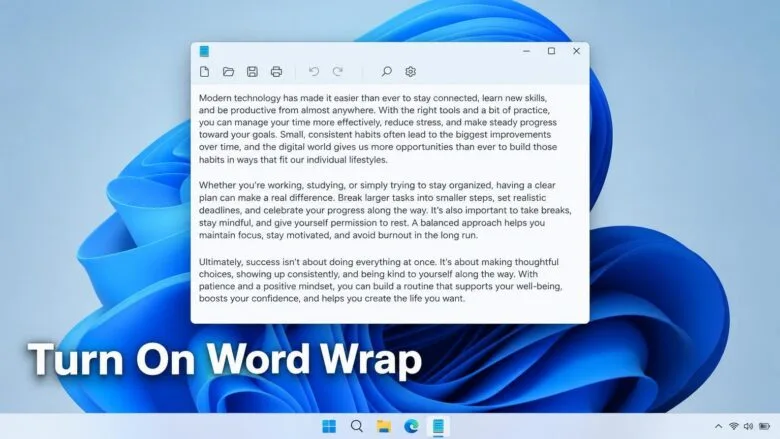
- 16 steps
- Needs administrator rights
Word wrap in Notepad on Windows 11 breaks long lines at the right edge of the window, so you read a paragraph without scrolling sideways. It changes only how the text appears on screen and leaves the file itself untouched.
The quickest route is to open Notepad, select View in the menu bar, then select Word wrap. Current versions of Notepad also toggle word wrap with Alt+Z. No administrator rights are needed, and the steps are the same on Windows 11 Home and Pro.
To turn on word wrap in Notepad on Windows 11, open Notepad, select View in the menu bar, then select Word wrap. The text folds at the window edge so you can read long lines without scrolling sideways. Word wrap changes only the on-screen display, not the file. Current versions also toggle it with Alt+Z.
What Word Wrap Does in Notepad
Without word wrap, Notepad shows each line of text on a single row, however long it is. A paragraph pasted from a web page or a long entry in a log file runs far past the window edge, and a horizontal scroll bar appears at the bottom. Reading means dragging that bar back and forth.
With word wrap on, Notepad folds each long line at the window edge and continues it on the next row. Resize the window and the text refolds to fit.
Notepad does not insert line breaks (the invisible characters made when you press Enter) into your file. A paragraph that wraps across five rows on your screen is still one line when you save it, open it in another editor, or paste it into an email.
.log and .csv files, configuration files, and scripts.You can wrap them for reading and nothing in the file changes.
Turn On Word Wrap Using the View Menu
The View menu is the standard way to turn on word wrap in Notepad on Windows 11, and it works in the current Microsoft Store version of the app. The Microsoft Store updates Notepad, so the menu layout depends on the Notepad version you have installed, not on your Windows 11 version. If you cannot find Word wrap under View, see the section on missing options further down.
To turn on word wrap in Notepad:
- Open Notepad. Press the Windows key, type Notepad, and press Enter. A Notepad window opens with a menu bar at the top. If you need other ways to launch it, see how to find and use Notepad in Windows 11.
- Open your text file. Press Ctrl+O, pick the file, and click Open. The text appears, and long lines run past the right edge if word wrap is off.
- Click View in the menu bar. A drop-down list opens with options such as Zoom, Status bar, and Word wrap.
- Select Word wrap. The text refolds at once so every line fits the window, and the horizontal scroll bar disappears.
- Open View again to check the setting. A check mark or an active toggle next to Word wrap means it is on.
If you clicked Word wrap and the text did not change, the option was probably already on, and your click turned it off. Click it once more and the text wraps again.
You can turn on word wrap before you open a file, too. Notepad applies it to whatever text you open or paste next.
If Word Wrap Is Under Format Instead of View
Older builds of Notepad on Windows 11 keep the option in a different menu. If View does not list Word wrap, click Format in the menu bar and look there. The option is named Word wrap in the same way, and one click turns it on. Both menus do the same thing.
Windows 10 uses the classic Notepad, where the option is called Word Wrap under the Format menu. If you are following these steps on a Windows 10 PC, use Format.
Turn On Word Wrap Using the Keyboard Shortcut
A shortcut switches word wrap on or off without opening a menu, which helps if you move between wrapped and unwrapped views often. In current Microsoft Store versions of Notepad, press Alt+Z to toggle word wrap.
Alt+Z flips the setting each time you press it. Press it once and the text wraps. Press it again and the text returns to single long lines.
If nothing happens when you press Alt+Z, your Notepad version may not support the shortcut. Use the View menu instead, then check for updates as described below.
Turn On Word Wrap in Notepad Settings
Current versions of Notepad also include a Settings page that holds the same toggle next to other text options. This route suits you if you are already changing the font or other appearance options. It is available only in newer builds of Notepad, so skip it if you cannot see a gear icon.
To turn on word wrap from Notepad settings:
- Click the Settings icon. It is the gear in the top-right corner of the Notepad window. The Settings page opens inside the Notepad window.
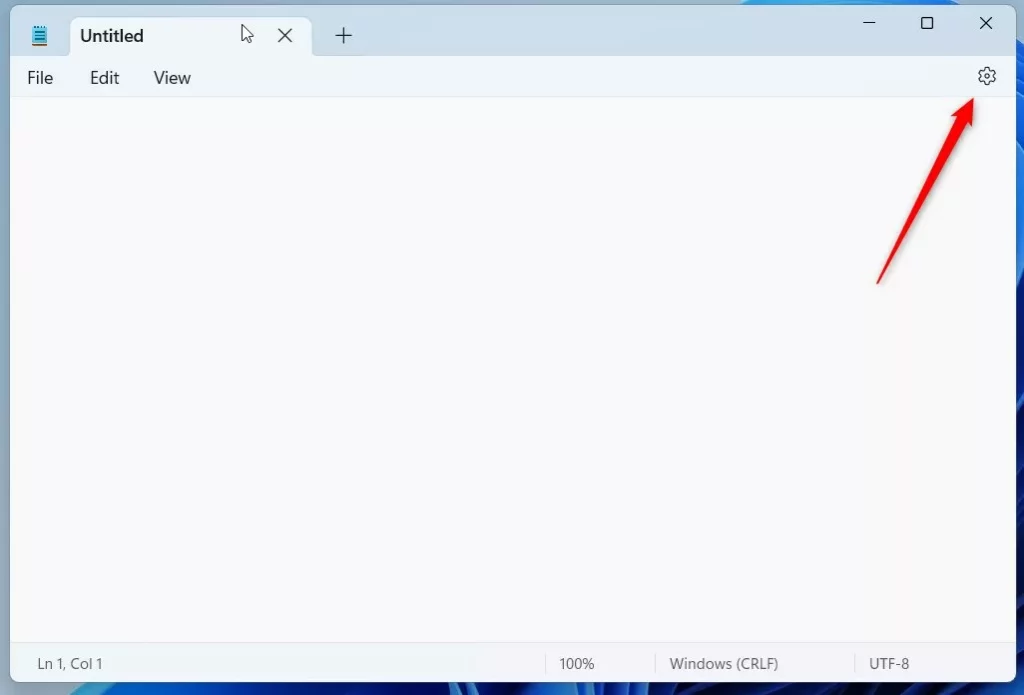
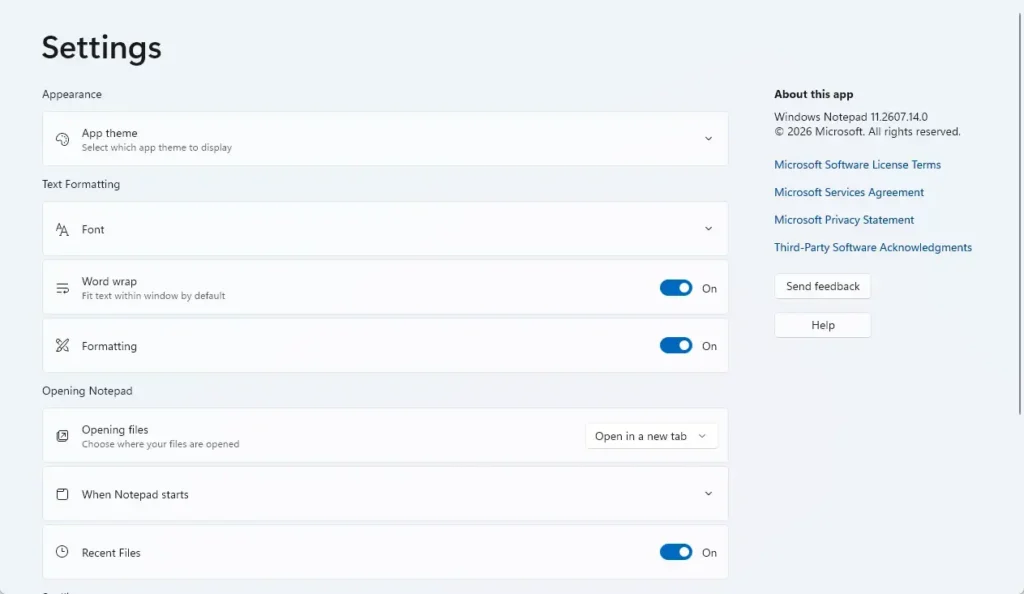
windows notepad settings button - Find the Text formatting section. It sits near the top of the page and holds options for the font and for text layout.
- Switch Word wrap to On. The toggle moves to the right and changes colour.
- Return to your document. Use the back arrow or close the Settings page. Your text now wraps at the window edge.
If the Text formatting section is not on your Settings page, your Notepad version lays out its settings differently. Use the View menu or the Alt+Z shortcut instead. The guide to changing the font in Notepad on Windows 11 covers the other options in this part of the Settings page.
Check Whether the Setting Stays On
Notepad remembers your word wrap choice. Close the app, open it again later, and the setting is normally still on. You do not repeat the steps each time you launch Notepad.
To confirm, close Notepad completely, reopen it, paste a long paragraph, and see whether it folds at the window edge. If it does, the setting has stuck.
A Notepad update, a reset of the app, or a new Windows user profile can bring the default back. A new Windows user profile (the separate set of settings each account gets) has its own Notepad settings, so you turn word wrap on again there.
Turn Off Word Wrap in Notepad
Turn word wrap off when you want each line of a file to stay on one row. This helps when you compare columns in a data file or count characters along a line. The undo is the same action as turning it on.
- Click View in the menu bar. If your Notepad version keeps the option under Format, click that instead.
- Select Word wrap. The check mark clears, and long lines run past the right edge again.
- Scroll right to confirm. The horizontal scroll bar returns at the bottom of the window.
Alt+Z does the same thing, and so does switching Word wrap to Off on the Settings page.
If Word Wrap Is Missing or Does Not Work
Most problems with this setting come from the Notepad version, the file itself, or a different editor. Work through the causes below in order.
The Word Wrap Option Is Not in the Menu
Check both View and Format. Which one holds the option depends on the Notepad version. If neither lists it, Notepad is probably out of date.
To update Notepad:
- Open the Microsoft Store. Press the Windows key, type Microsoft Store, and press Enter.
- Click Library in the left pane. A list of your installed Store apps appears.
- Click Get updates. The Store checks for new versions and installs them, including Notepad if an update is waiting.
- Reopen Notepad and check the menus again. If Notepad was open during the update, close it first so the new version loads.
If Get updates finds nothing and the option is still missing, you may be using a different program that only looks like Notepad. Check the title bar and the About information inside the app.
The Text Still Runs Off the Screen
If the menu shows word wrap as on but the text still runs off the screen, check that you are working in Notepad. A file opened in another editor, such as a code editor, uses that program's own settings. Notepad++, a separate code editor made by another developer, has its own word wrap option under its View menu. If you use it as your main editor, the guide on making Notepad++ the default in Windows 11 covers how files get routed to it.
Check these other causes if the text still runs off the screen:
- The window is smaller than the screen. Maximise it so the wrap point moves to the right edge of the display.
- The text contains very long strings with no spaces, such as a web address or a block of data written as a long string of random-looking characters. Notepad folds these at the window edge, but they can look odd because there is no natural break point.
- The zoom level is high. Check View Zoom and reset it to 100% if the text looks unusually large.
The Setting Turns Itself Off
If word wrap is off every time you open Notepad, check which Notepad you launch. A pinned shortcut to an older copy or a different program can start with its own defaults. Open Notepad from the Start menu, turn word wrap on, close the app, and open it the same way again.
If the setting still does not stick, update Notepad through the Microsoft Store as described above. If it still resets after that, [Verification Required: the cause of a Notepad setting not saving cannot be confirmed from the source material].
Word Wrap and Other Notepad Features
Word wrap is one of several display options in Notepad on Windows 11, and it works alongside the others. Changing the font or font size changes how much text fits on each row, so the line breaks on screen move with it. Zoom works the same way.
The AI features in newer Notepad builds are separate from word wrap. If you want text rewritten in place, see how to enable or disable Rewrite in Notepad. If you would rather remove the AI buttons from Notepad, the guide to enabling or disabling Copilot in Notepad covers that. None of these features change whether word wrap is on.
What to Do Next
With word wrap on, long text now fits the window, and once long lines wrap, you may want the text easier to read. Change the typeface and size with the Notepad font guide, and the wrapped lines refold to match. If you work with text you do not fully understand, Explain with Copilot in Notepad, which uses Microsoft's AI assistant, is the closest related feature to try next.
Have a question about this guide?
Answered by AI from this guide. Good questions may be added to this page — please don't include personal details.
Did this guide fix your problem?

About the Author
Richard
Tech Writer, IT Professional
Richard is a writer at Geek Rewind who turns complex IT tasks into clear, step-by-step guides. He draws on years of hands-on experience in system administration and enterprise IT operations, focusing on Windows, Linux and WordPress: the problems people actually run into, and the fixes that work. His server and WordPress guides come from systems he runs himself. Richard builds and maintains the platform behind Geek Rewind, from its Ubuntu servers and Nginx configuration to its custom WordPress plugins. Many new tutorials start with readers' questions, and he's always glad to answer them in the comments.
No comments yet — be the first to share your thoughts!