Stop Xbox Mode from Starting at Boot In Windows 11

Xbox Mode is a full-screen, console-style view in Windows 11 that can load every time you turn on your PC. To stop it, open Settings , go to Gaming, then Full screen experience, and turn off Enter full screen experience on startup. After you restart, Windows 11 opens the normal desktop instead.
You do not need administrator rights for any of these steps. If the Full screen experience page is missing or the switch is greyed out, the sections below explain the likely cause and what to check.
To stop Xbox Mode from starting at boot in Windows 11, open Settings , select Gaming, then Full screen experience, and set Enter full screen experience on startup to Off. Restart the PC, and Windows loads the normal desktop with the taskbar instead of the console-style Xbox interface. No administrator rights are needed.
What “Xbox Mode” Means in 🪟 Windows 11
“Xbox Mode” is the common name for the Xbox full screen experience. This is a controller-friendly, console-style interface that replaces the Windows desktop. It first shipped on Windows 11 handhelds and is rolling out to other devices. On screen, Windows calls it Full screen experience, not “Xbox Mode”.
When the experience starts at boot, the Xbox home screen loads instead of the desktop with the taskbar . Your files, apps and settings are untouched. You are only starting in a different shell (the interface layer you interact with).
If you do not see that console-style screen at boot, you may be dealing with something different. Read the next section to find out what is starting.
Check What Is Actually Starting at Boot
Two different things get mistaken for Xbox Mode, and they have different fixes. Work out which one you have before you change anything.
- The full screen experience. The whole screen shows a controller-driven Xbox interface and no desktop or taskbar. Use the next section.
- The Xbox app opening on the desktop. You see the normal desktop with the taskbar, and an Xbox window opens on top of it after you sign in. Skip to "Stop the Xbox App from Launching at Sign-In".
If you have both, work through both sections.
Turn Off the Full Screen Experience at Startup
This setting tells Windows to open the full screen experience when the device starts. Turning it off makes Windows load the desktop. It does not remove the full screen experience, so you can still start it by hand later.
- Open Settings by pressing Windows key + I.

- Select Gaming in the left pane. The Gaming page opens with options such as Game Mode and Xbox Game Bar.
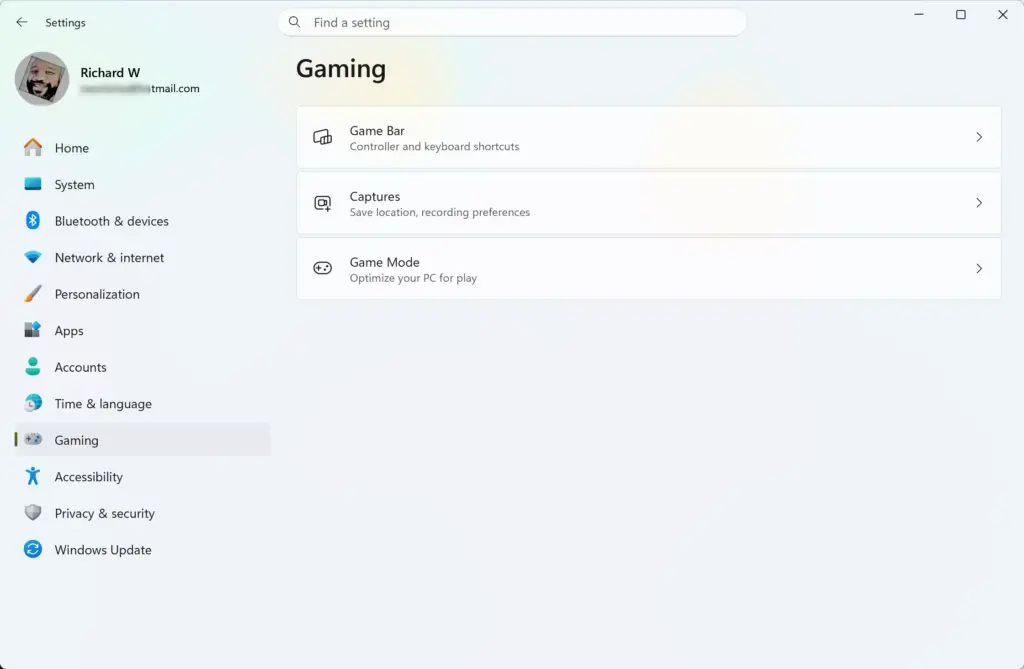
Settings › Gaming - Select Full screen experience. If you do not see this entry, go to "If the Option Is Missing or Greyed Out" below.
- Find Enter full screen experience on startup and set the toggle to Off. The toggle should now read Off.
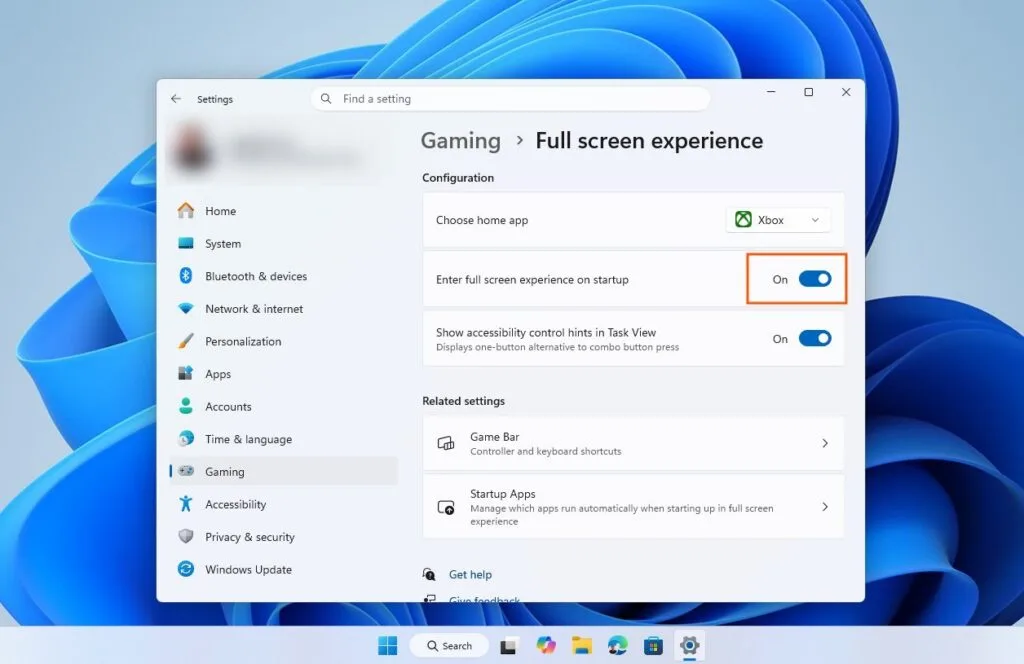
- Close Settings.
- Restart the PC. Select Start Power Restart. A full restart tests the change properly. Fast Startup saves part of the system state when you shut down. Because of that, a plain shutdown and power-on can behave differently from a restart.
- Sign in and check the result. You should land on the normal Windows 11 desktop with the taskbar.
Setting names and page layout can differ slightly between Windows 11 builds, because this feature is still being rolled out. If a label on your PC reads a little differently, look for the toggle that mentions starting the full screen experience at startup or sign-in.
If You Are Stuck Inside the Full Screen Experience
Exit the full screen experience first, then follow the steps above.
- Open Task view (the screen that shows your open apps). On a handheld, press the Xbox button or the device's Task view button. On a PC with a keyboard, press Windows key + Tab.
- Select Exit full screen experience. The desktop should load with the taskbar visible.
- Open Settings and follow the steps in the previous section.
The location and wording of the exit option can differ by build and by handheld maker. If you cannot find it in Task view, check the settings or power menu in the full screen experience itself. Exiting the experience only affects the current session. It does not change the startup setting, which is why you still need to turn the toggle off.
Stop the Xbox App from Launching at Sign-In
If the desktop loads and the Xbox app opens on top of it, the Xbox app is a startup app. Startup apps are programs that Windows launches for you when you sign in. Turn it off in Settings.
- Open Settings and select Apps in the left pane.
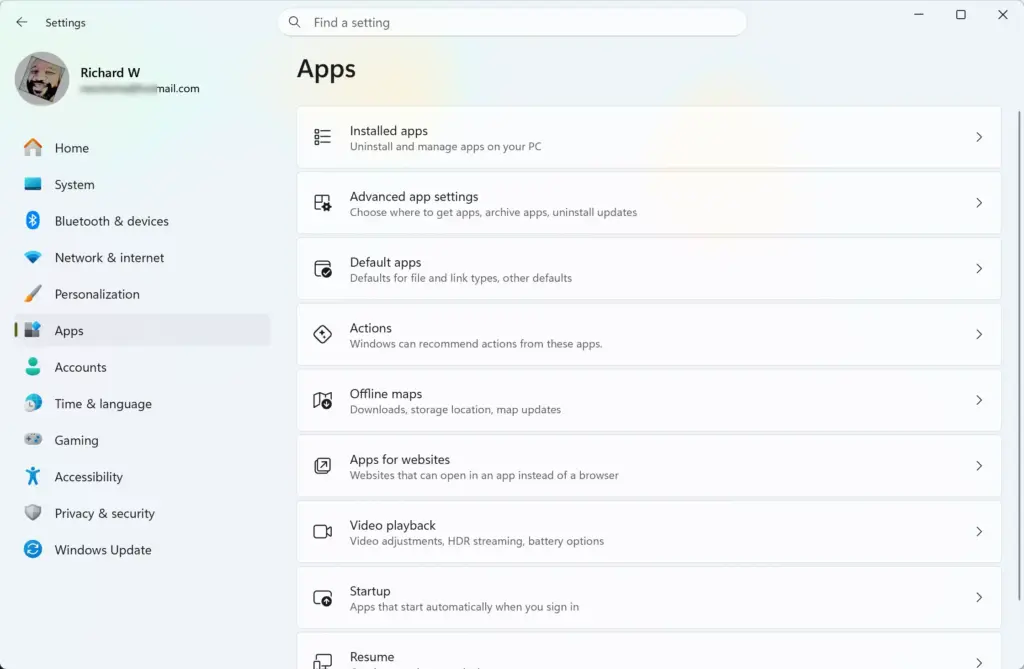
Settings › Apps - Select Startup. A list of apps appears, each with an On/Off toggle and an impact label such as Low or High.
- Find Xbox in the list. Use the search box at the top if the list is long.
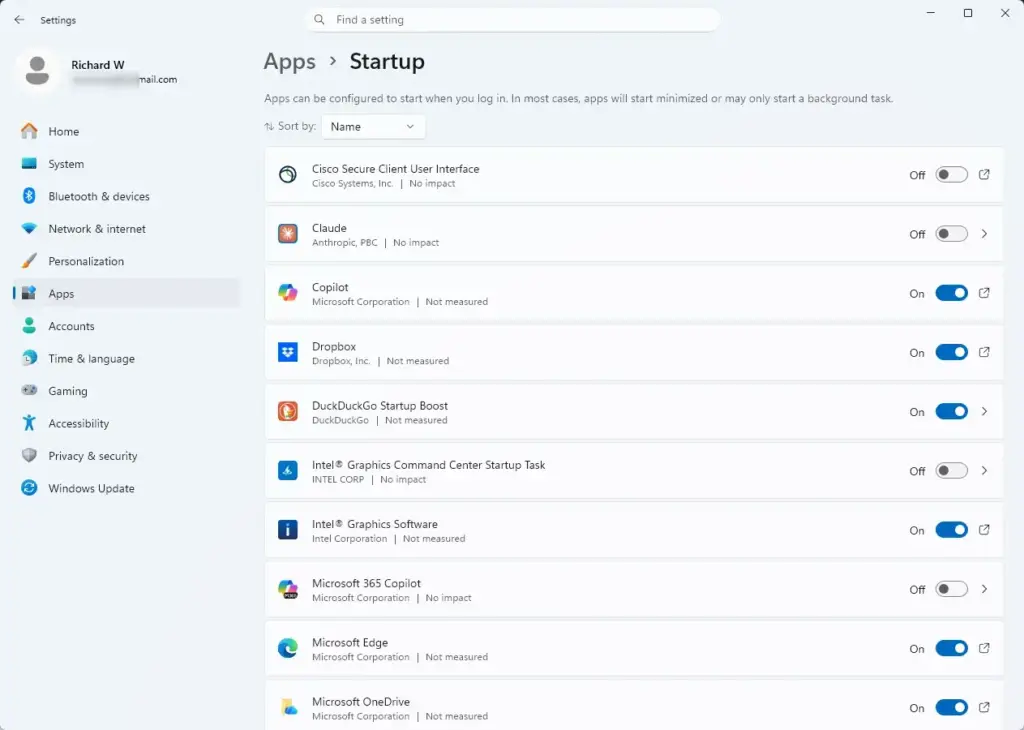
Settings › Apps › Startup - Set the toggle for Xbox to Off. The toggle should now read Off.
The change applies at your next sign-in. Uninstalling is not needed. The Xbox app still opens from the Start menu whenever you want it.
Use Task Manager Instead
Task Manager shows the same startup list and is useful if the Settings page does not list the Xbox app. Disabling an entry here does not delete the app.
- Press Ctrl + Shift + Esc to open Task Manager.

Task Manager - Select Startup apps in the left pane. If the pane is collapsed, select the menu icon at the top left to expand it.
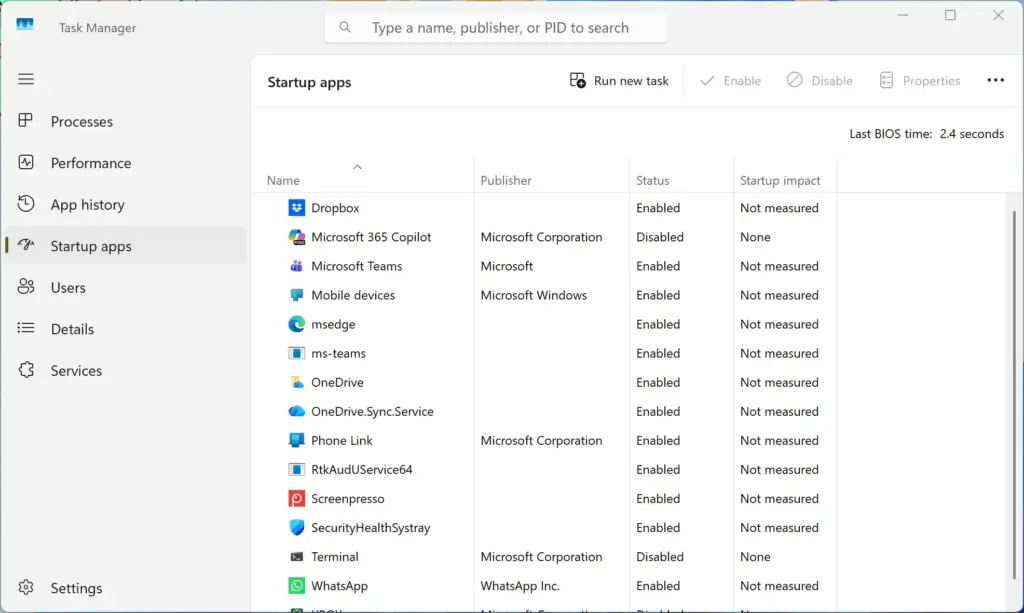
Task Manager › Startup - Right-click Xbox and select Disable. The Status column should now read Disabled.
- Check the list for other Xbox-related entries and disable any that you do not want at sign-in.
Task Manager offers no extra steps for the full screen experience. The Gaming setting in Settings controls that startup behaviour.
If the Option Is Missing or Greyed Out
The full screen experience is not available on every Windows 11 PC yet. If a setting is missing or cannot be changed, one of the following applies.
The Full Screen Experience Entry Is Not in Settings > Gaming
Your device or Windows build may not include the feature. If it is not there, it is not what starts at boot. In that case, check the Xbox app startup entry in the previous section.
If you expect the feature to be there, run Windows Update. Select Settings Windows Update Check for updates, and install anything offered. Restart, then look at Settings Gaming again. No confirmed list of builds includes this setting, so treat the update as a check, not a fix.
The Toggle Is Greyed Out or Shows a Managed Message
A message such as Some of these settings are managed by your organization means a work or school policy controls the setting. You cannot override that from your own account. Ask your IT administrator to change it. This applies to any Windows 11 edition that is joined to an organization.
The Toggle Turns Itself Back On
Some handheld makers ship the device set to start in the full screen experience, and their own software may control that behaviour. Check the manufacturer's app for a startup or boot-mode option. Also check that a Windows feature update (a larger, scheduled Windows upgrade) did not reset the setting. Feature updates can restore defaults on settings like this one.
Registry and Group Policy
This article gives only Settings routes, because no registry key or Group Policy setting for this option has been verified. A guessed value could change the wrong behaviour. Use the Settings routes above. [Registry method: to be verified]
Check the Fix Worked
After the restart and sign-in, confirm these things:
- The Windows 11 desktop and taskbar appear, not the Xbox home screen.
- No Xbox window opens by itself after you sign in.
- Open Settings Gaming Full screen experience Enter full screen experience on startup still reads Off.
If the toggle shows Off but the full screen experience still loads, restart once more. Then check the section on the toggle turning itself back on.
How to Undo the Change
To start in the full screen experience again, open Settings Gaming Full screen experience and set Enter full screen experience on startup to On. Restart to see the change.
To let the Xbox app launch at sign-in again, open Settings Apps Startup and set Xbox to On. If you disabled it in Task Manager, right-click Xbox on the Startup apps page and select Enable.
If This Didn't Work
If the full screen experience still loads at boot, update Windows and the Microsoft Store apps. In the Store, select Library Get updates. Then repeat the Settings steps. On a handheld, also check the manufacturer's software for its own startup option. If the toggle returns to On after a Windows feature update, turn it off again after the update finishes.
Have a question about this guide?
Answered by AI from this guide. Good questions may be added to this page — please don't include personal details.
Did this guide fix your problem?

About the Author
Richard
Tech Writer, IT Professional
Richard is a writer at Geek Rewind who turns complex IT tasks into clear, step-by-step guides. He draws on years of hands-on experience in system administration and enterprise IT operations, focusing on Windows, Linux and WordPress: the problems people actually run into, and the fixes that work. His server and WordPress guides come from systems he runs himself. Richard builds and maintains the platform behind Geek Rewind, from its Ubuntu servers and Nginx configuration to its custom WordPress plugins. Many new tutorials start with readers' questions, and he's always glad to answer them in the comments.
No comments yet — be the first to share your thoughts!