Show My Pictures Photo Gallery on This Computer in Windows 11

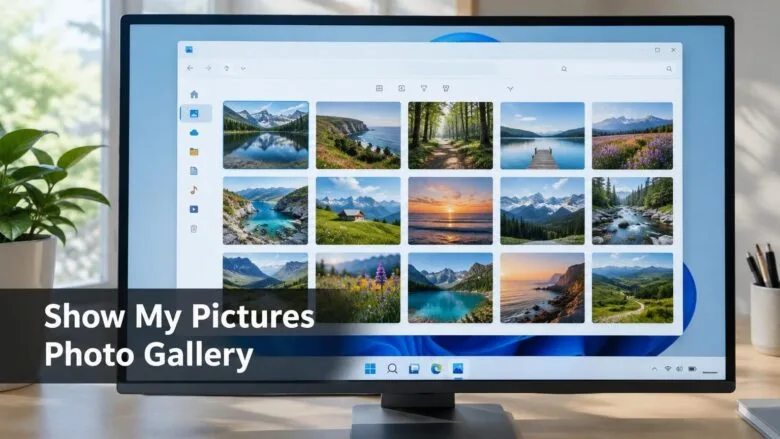
The Pictures folder and the Gallery section of File Explorer are where Windows 11 shows the photos on this computer. Press Win+E to open File Explorer, then select Gallery in the left pane, or open This PC and then Pictures.
Gallery shows your photos on one scrolling timeline. Pictures is the folder that stores them, and it sits inside your user profile. Gallery is a view that gathers photos from Pictures and any other folders you add into one scrolling timeline. Gallery needs a recent version of Windows 11 (version 23H2 or later, including 25H2 and 26H2). Windows 11 versions 22H2 and 21H2 (early releases) do not have it.
None of these steps need administrator rights or a restart. They work the same on Home and Pro editions.
To show your photos on this computer in Windows 11, press Win+E to open File Explorer, then select Gallery in the left pane. Gallery shows every photo from your Pictures folder on one scrolling timeline. If Gallery is missing, turn on Show Gallery under Options, then View, Advanced settings, Navigation pane.
What “My Pictures Photo Gallery” Means in Windows 11
The phrase mixes three things that older versions of Windows kept separate. Knowing which one you want saves time.
- Pictures is the folder where your photos and screenshots are stored. Its default location is
C:\Users\USERNAME\Pictures. - Gallery is an entry in the File Explorer navigation pane (the list of locations on the left). It displays your photos as a visual timeline instead of a list of files.
- Photos is the app that opens when you double-click an image. It is also a photo viewer and organiser.
Windows Photo Gallery, the program from Windows Essentials, was discontinued years ago and is not part of Windows 11. Gallery in File Explorer and the Photos app replace it. If you are looking for the old program, you do not need to reinstall anything.
Show the Gallery in File Explorer
Gallery is the closest match for a photo gallery on this computer. It lists your pictures in date order, with thumbnails, without making you open folders. If the left pane does not list Gallery, turn it on using the steps below. If it does, you can open it straight away.
- Press Win+E to open File Explorer. The window opens on Home and lists locations in the left pane.
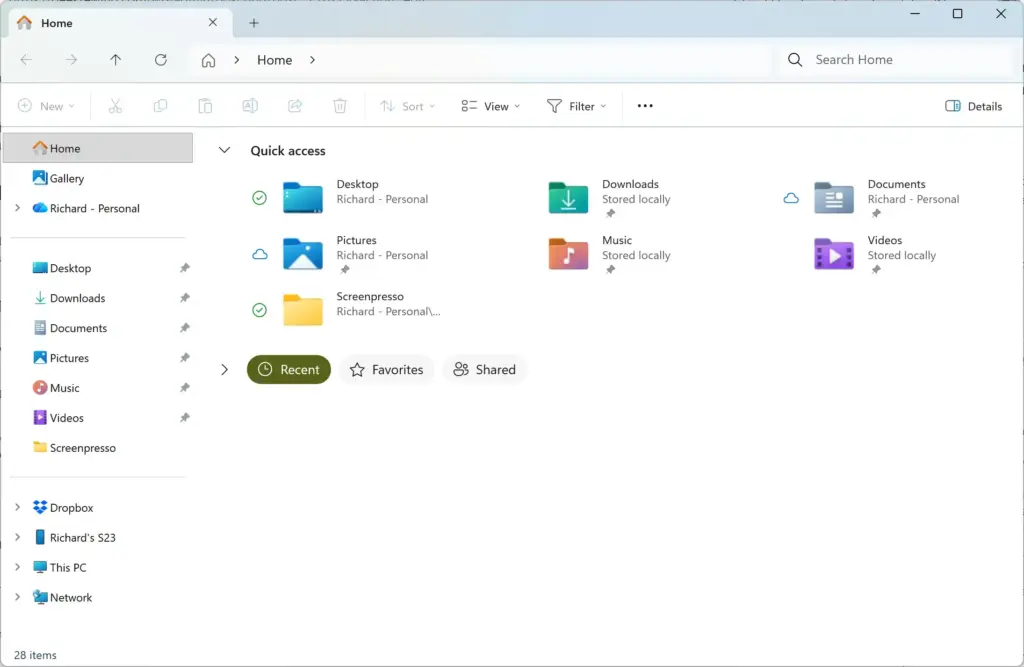
Windows 11 File Explorer showing Dropbox folder in sidebar. - Look for Gallery in the left pane. It sits below Home. If you see it, skip to step 8.
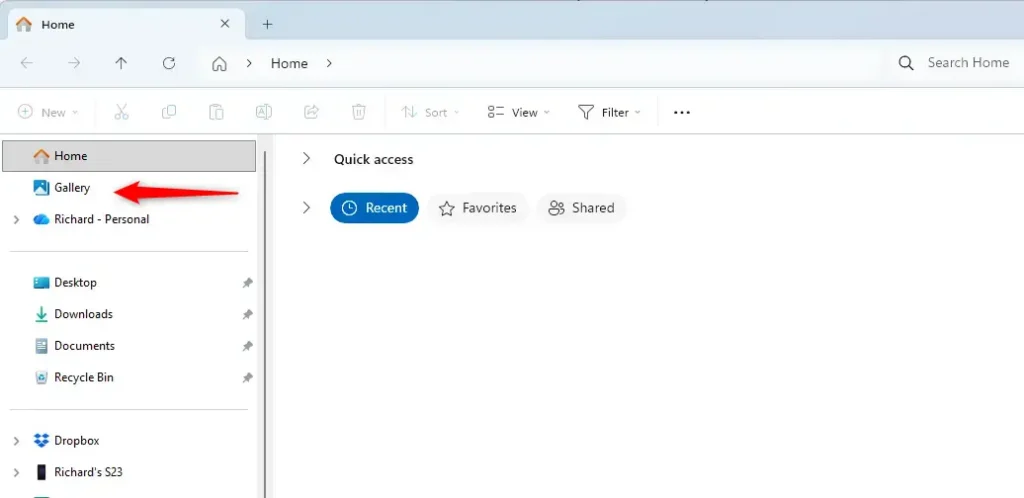
File Explorer - Select See more in the command bar. This is the three-dot button at the top of the File Explorer window. A menu opens.
- Select Options. The Folder Options window opens.
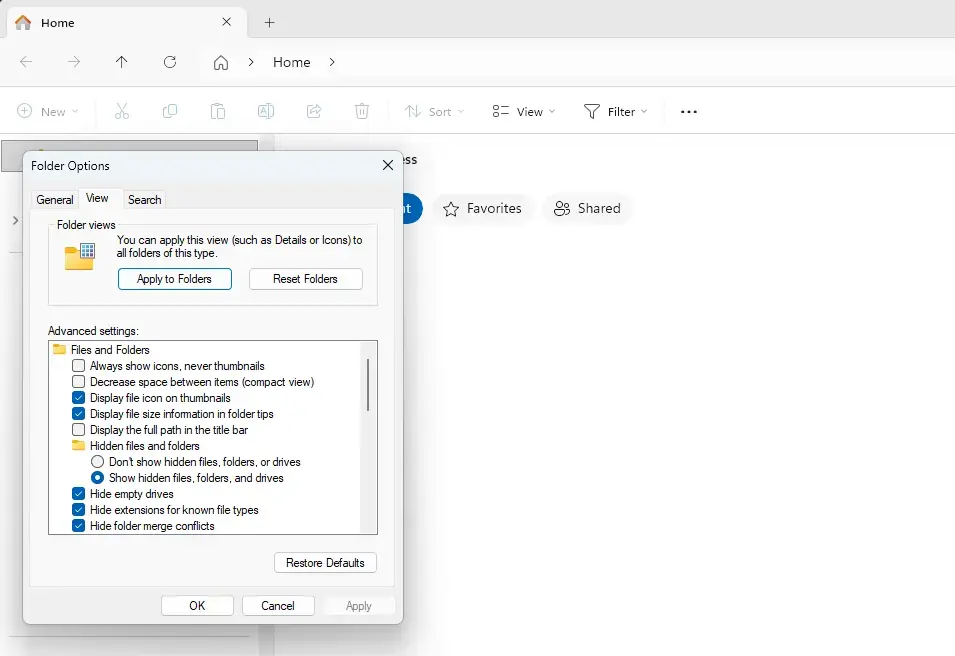
File Explorer - Open the View tab. A list called Advanced settings appears.
- Scroll down to the Navigation pane group and tick Show Gallery. If the box is already ticked and Gallery is still missing, see the troubleshooting section below.
- Select Apply, then select OK. The Gallery entry now appears in the left pane.
- Select Gallery in the left pane. Your photos load as thumbnails grouped by date. Large libraries can take a few seconds to fill in.
- Scroll to browse your photos. Double-click one to open it in your default photo app, which is Photos unless you changed it.
For a fuller walkthrough of this setting, including how to hide the entry again, see How to Show or Hide Gallery in Windows 11 File Explorer.
Show the Pictures Folder on This PC
Use this method when you want the actual folder, with files and subfolders, rather than the Gallery timeline. The Pictures folder is listed under This PC on most Windows 11 builds.
- Press Win+E to open File Explorer.
- Select This PC in the left pane. The right pane shows your folders and drives.
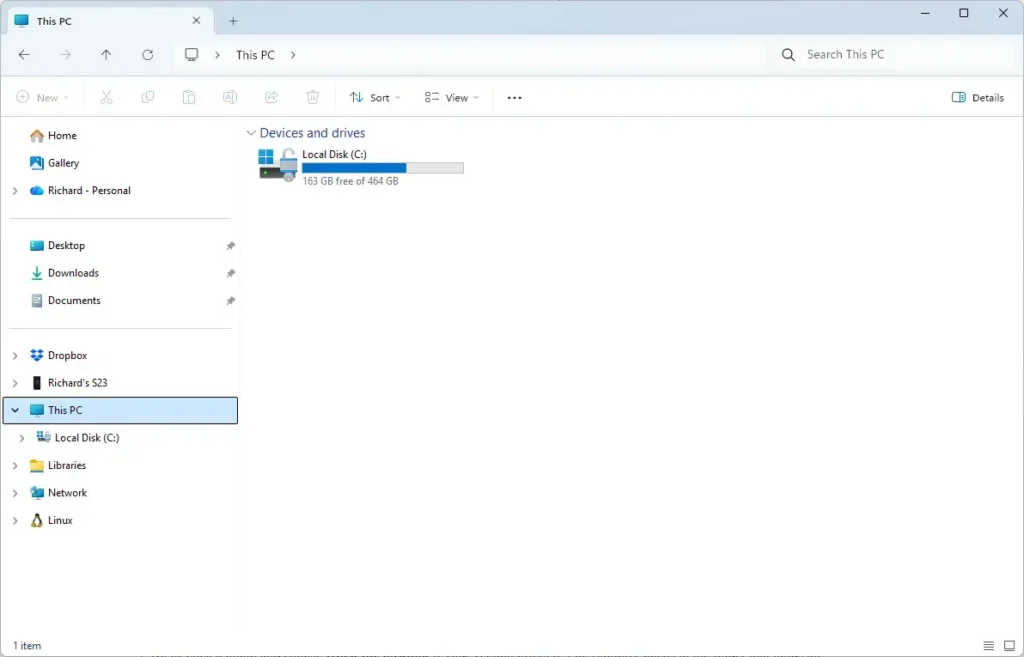
File Explorer - Find the Folders group. It holds Desktop, Documents, Downloads, Music, Pictures and Videos. If the group is collapsed, select its arrow to expand it.
- Double-click Pictures. The folder opens and shows your photos and any subfolders.
You can also type the path into the address bar at the top of File Explorer and press Enter:
C:\Users\USERNAME\PicturesReplace USERNAME with your own Windows user name. The guide How to Find the Pictures Folder in Windows 11 covers the other places this folder can appear.
Check Whether OneDrive Moved Your Pictures
C:\Users\USERNAME\OneDrive\Pictures instead.The folder still appears as Pictures under This PC, but the files sit inside your OneDrive folder. Photos that exist only online show a cloud icon. Open a photo, or mark it to keep on this device, and the icon changes.
Pin Pictures So It Is Always One Click Away
- Press Win+E to open File Explorer.
- Select This PC in the left pane.
- Right-click Pictures. A context menu opens.
- Select Pin to Quick access. On newer builds, the same command may read Pin to Home.
Once you pin it, Pictures appears in the left pane under the other pinned items. To remove it later, right-click it there and select Unpin from Quick access. Unpinning does not delete the folder or the photos.
Add Pictures to the Start Menu
Windows 11 can place folder shortcuts next to the power button on the Start menu. This gives you a way to open Pictures without starting File Explorer first.
- Press Win+I to open Settings.
- Select Personalization in the left pane.
- Select Start. The Start settings page opens.
- Select Folders. A list of folder toggles appears.
- Turn on the Pictures toggle. A Pictures icon appears next to the power button when you open Start.
To remove the icon later, turn its toggle off on the same page. Other toggles on the same page (such as Documents and Downloads) work the same way.
Put a User Files Icon on the Desktop
The Desktop icon for your user folder opens the profile that contains Pictures, Documents and Downloads. It is useful if you prefer starting from the desktop.
- Open Settings Personalization Themes.
- Select Desktop icon settings. The Desktop Icon Settings window opens.
- Tick User’s Files.
- Select Apply, then select OK. A folder icon named after your account appears on the desktop.
- Double-click that icon, then open Pictures.
Choose Which Folders Appear in Gallery
Gallery does not scan your whole drive. It shows photos from the Pictures folder plus any folders you have included. Photos stored in other places, such as a folder on the D: drive, do not show up until you add that folder.
The guide How to Add or Remove the Windows 11 Gallery Folder explains how to include or exclude folders. Check the folder list there before you assume photos are missing.
Make Thumbnails Show in the Pictures Folder
The Pictures folder should show a small preview of each photo. If the Pictures folder shows plain file icons instead of previews, change the view first. Then check the thumbnail setting.
- Open the Pictures folder in File Explorer.
- Select View in the command bar. A menu opens.
- Select Large icons or Extra large icons. Previews appear for each photo.
- Select See more, then select Options, if the icons are still generic.
- Open the View tab in Folder Options.
- Clear the Always show icons, never thumbnails box.
- Select Apply, then select OK. Thumbnails now load in the folder.
Troubleshooting
The Gallery Option Is Missing
A missing Show Gallery box usually means your Windows 11 build is too old. Open Settings Windows Update and select Check for updates, then install what is offered. Gallery arrived with updates to 22H2 and is part of 23H2 and later.
On a work or school PC, an administrator may have hidden Gallery. If the box is greyed out or missing on an up-to-date PC, contact whoever manages the device. A policy (a setting your organisation sets centrally) may be the cause. This article cannot tell which one without seeing your PC’s settings.
Gallery Opens but Shows No Photos
Gallery lists only what is in its included folders. Confirm your photos are in Pictures, or add the folder where they live using the guide linked above. Wait a few seconds after opening a large library, because thumbnails load gradually.
Pictures Is Not Where You Expect
Someone, or a program, may have moved the folder to another drive. Right-click Pictures under This PC and select Properties. Open the Location tab to see the current path. Select Restore Default to point Pictures back to its standard place in your user profile.
Restoring the default changes where Windows looks for the folder. It does not move your existing photos for you, so check the old location afterward. The article Locate My Pictures Folder on My Computer in Windows 11 shows other ways to track it down.
Pictures Is Missing From This PC
Some builds and some customised PCs do not list the usual folders under This PC. Open Pictures with the address bar path shown earlier, then pin it to Quick access or add it to the Start menu. No confirmed Settings option restores the entry under This PC, so use the address bar path shown earlier. [Registry method: to be verified]
Hide Gallery Again
Gallery can be hidden without deleting any photos. Open Folder Options from See more Options, open the View tab, and clear Show Gallery. Select Apply, then OK. The entry leaves the left pane, and your Pictures folder stays exactly as it was.
What to Do Next
A feature update can occasionally reset navigation pane options, so recheck Show Gallery if the entry disappears after one. If you take photos on a phone, see the guide photo notifications from your phone on Windows 11 so new shots reach your PC faster. Newly added photos then show up in Gallery once they land in an included folder.
Have a question about this guide?
Answered by AI from this guide. Good questions may be added to this page — please don't include personal details.
Did this guide fix your problem?

About the Author
Richard
Tech Writer, IT Professional
Richard is a writer at Geek Rewind who turns complex IT tasks into clear, step-by-step guides. He draws on years of hands-on experience in system administration and enterprise IT operations, focusing on Windows, Linux and WordPress: the problems people actually run into, and the fixes that work. His server and WordPress guides come from systems he runs himself. Richard builds and maintains the platform behind Geek Rewind, from its Ubuntu servers and Nginx configuration to its custom WordPress plugins. Many new tutorials start with readers' questions, and he's always glad to answer them in the comments.
No comments yet — be the first to share your thoughts!