Should You Enable Full File Path in Windows 11 Advanced File Explorer Settings

- 39 steps
- Needs administrator rights
- Includes a restart or sign-out
Full file path in Windows 11 Advanced File Explorer settings is an option that shows the exact location of your files and folders in the File Explorer window. Windows 11 does not show the full path in the title bar by default, though the address bar breadcrumbs show the location.
Turning on this setting shows the full address starting from your main drive, such as 📁C:\
Yes, enabling full file path in Windows 11 File Explorer is worth it if you frequently share files across networks, write scripts, or need to locate nested folders. Open File Explorer, click the three-dot menu, select Options, go to the View tab, check Display the full path in the title bar, then click Apply and OK.
What Is a File Path in 🪟 Windows 11?
A file path in Windows 11 is the exact text address of a file or folder on your computer. It lists every folder Windows opens to reach that item, starting with the drive. A typical example is 📁C:\
On Windows 11, a typical file path looks like this:
C:\Users\USERNAME\Documents\Work\Report.docxHere is what each part of that address means, read from left to right:
- 📁C:\
is your main hard drive, where Windows is installed. - Users is the main folder that holds all user accounts on the computer.
- USERNAME is the profile folder for the currently signed-in user.
- Documents is the standard folder for personal files.
- Work is a subfolder you created to keep your job-related files organized.
- Report.docx is the file itself, the last item in the chain.
Each backslash separates one folder level from the next. Once you can read a path in this order, you can locate almost anything on the drive, even without File Explorer open.
With the default settings, File Explorer shows only the word “Work” as the name of the open folder. That keeps the window uncluttered, but it hides where the folder actually lives on your drive.
The Default File Explorer View vs. The Full Path View
The default File Explorer view hides folder levels to keep the screen clean, so it shows only the current folder name. The full path view shows the complete address instead, so you see every parent folder in the chain at once.
The practical difference is this. In the default view, two folders both named “Work” look identical at a glance, even if one is in Documents and the other is on a USB drive. With the full path shown, you can tell them apart immediately.
The Default Clean View
The default view hides technical folder addresses behind clickable breadcrumbs, the small folder names separated by arrows in the address bar. Each step in the address bar is a button, so one click takes you back to any parent folder. This layout keeps the screen tidy and helps everyday users browse without being faced with long strings of text.
If you need the path only once in a while, you do not have to change any setting. Use one of these quick methods to turn the breadcrumbs into plain text you can select and copy:
- Click an empty area of the address bar.
- Press Alt+D to select the address bar. Ctrl+L does the same thing.
- Select a file or folder and press Ctrl+Shift+C. This is the keyboard shortcut for Copy as path, and it copies the full path of the selected item to the clipboard.
Paste the result into a document, a script or a chat message. Nothing on your PC changes when you do this.
The Full Path View
The full path view shows the complete text address of your current location, including the drive letter and every folder in the chain. That makes exact locations much clearer to read, copy and paste. To turn it on:
- Open File Explorer. A File Explorer window appears.
- Click the three-dot See more button in the toolbar, then click Options. The Folder Options window opens.
- Click the View tab. A list called Advanced settings appears.
- In the Advanced settings list, scroll to Display the full path in the title bar and tick the checkbox.
- Click Apply, then click OK. The window closes, and you do not need to restart Windows.
That’s it. File Explorer now shows the full path of the folder you have open in its title.
Open a folder a few levels deep to check the result. In Windows 11 versions that use tabs in File Explorer, the tab itself may still show only the folder name. In that case, hover over the tab or the File Explorer icon on the taskbar to see the full path.
To undo the change, repeat the steps and clear the checkbox. If the option is greyed out or keeps switching back, the PC is probably managed by a work or school policy, and you will need to ask your administrator.
Pros and Cons of Enabling the Full File Path
Enabling the full file path in Windows 11 gives you instant visibility into your exact folder locations without clicking through nested folders. It is especially useful when you troubleshoot, write scripts, or tell a colleague where a file is saved.
The main downside is a slightly cluttered title bar when you work with deep folder structures. The time saved during troubleshooting usually outweighs the extra visual noise. If it bothers you, turn the option off again. The setting changes only how File Explorer looks and does not touch your files.
One related point: showing a long path is not the same as allowing one. Windows has a separate setting called LongPathsEnabled that lets supporting programs use paths longer than the traditional 260-character limit. The checkbox in this guide does not change it.
If you decide to use LongPathsEnabled, keep these points in mind before you change anything:
- Editing it needs administrator rights, and it is a registry change. A wrong edit can cause system problems, so create a restore point or export the registry key first.
- The LongPathsEnabled value may not exist on your PC. If it is missing, you must create it as a DWORD (32-bit) Value and set it to 1.
- Apps must support long paths for the setting to help. File Explorer itself still has limits, so some very deep folders may still behave badly there.
For everyday use, you can skip this entirely. The full path checkbox works on its own and carries no such risk.
The Drawbacks
The main drawbacks of turning on the full file path in Windows 11 are extra visual clutter and reduced readability for deep folder structures. Long blocks of text can crowd your window title bar and make the interface look confusing if you prefer a minimal, clean computer workspace.- Visual ClutterLong file paths can fill up the top of your window with complex text, making the interface look busier and more technical.
- Readability IssuesIf your folder structure is deep, the path text can become very long, forcing you to click and scroll horizontally to see the beginning or end of the address.
- Potential Confusion for BeginnersUsers who are new to computers might find the long strings of letters, slashes, and folder names intimidating.
How to Enable Full File Path in 🪟 Windows 11 Advanced File Explorer Settings
Enabling the full file path in Windows 11 Advanced File Explorer settings takes just a few clicks inside your folder options. You can complete this change by opening File Explorer, accessing the View tab in Folder Options, and checking the box that displays the complete address in the title bar.
Follow these steps to update your File Explorer settings:
- Click the Start button or press the Win on your keyboard, type File Explorer, and press Enter to open it.
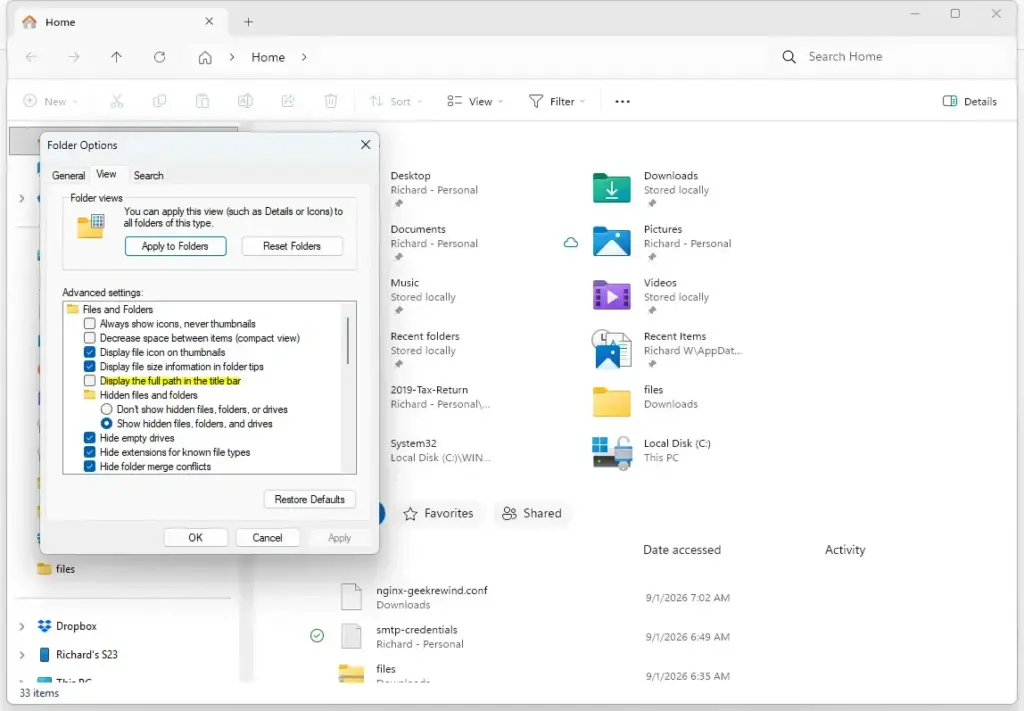
File Explorer - At the top of the File Explorer window, look at the command bar and click the See more button (represented by three horizontal dots).
- From the drop-down menu that appears, click on Options. This will open the Folder Options window.
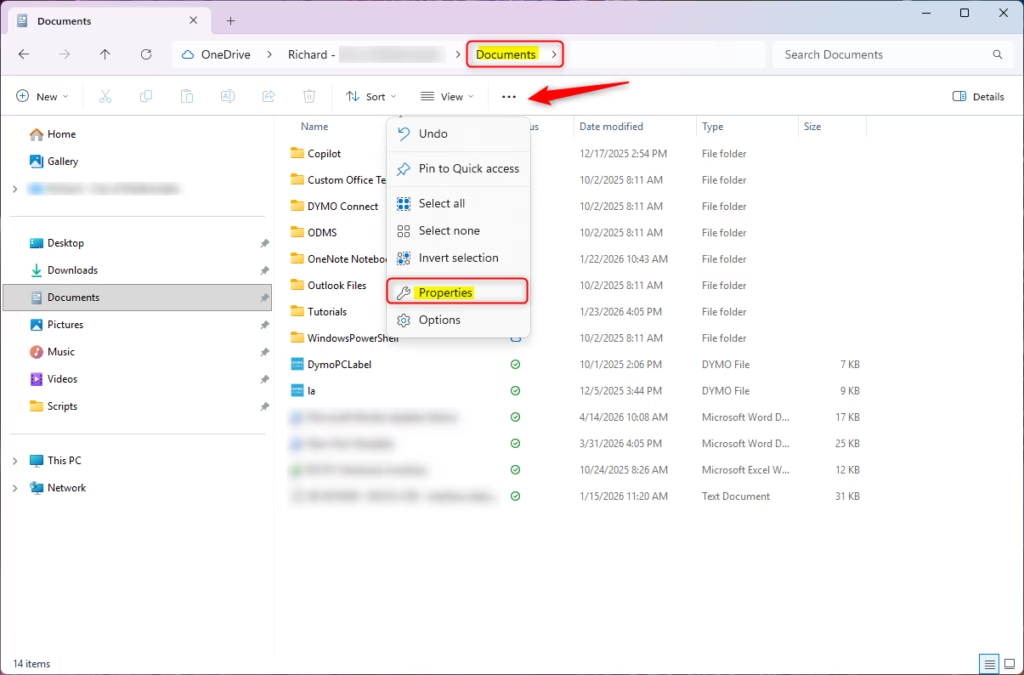
- In the Folder Options window, click on the View tab near the top.
- Scroll down through the list of Advanced settings until you find the option labeled Display the full path in the title bar (Note: depending on your specific Windows 11 version update, you may also look for settings related to the address bar).
- Check the box next to this option.
- Click the Apply button at the bottom right of the window, and then click OK to save your changes and close the window.
Once you finish turning on the full file path setting in Windows 11, you can open a few folders to see the change in action. You will notice that the full text file path now appears clearly at the top of the File Explorer window.
Alternative Ways to See Your Full File Path
Windows 11 also provides a few quick shortcuts for grabbing a file path on the fly without changing permanent settings.
1Use the Keyboard Shortcut
2Use the “Copy as path” Right-Click Feature
- Find the file in File Explorer.
- Hold down the Shift key on your keyboard and right-click on the file.
- In the menu that pops up, click on Copy as path.
The full file path feature copies the entire file location, including quotation marks, directly to your computer's clipboard. You can now paste the copied file path anywhere you need it.
Unique Expert Tips: Managing Long File Paths in 🪟 Windows 11
Managing long file paths in Windows 11 helps you avoid traditional character limits and prevents frustrating errors when moving or opening files. Keeping your folder names short and updating your system settings ensures your computer handles deep folder structures without throwing unexpected error messages.
Here are two expert tips to help you avoid path-length issues while keeping your file organization clear and functional.
Tip 1Keep Folder Names Short and Descriptive
Keeping your folder names short and descriptive prevents your full file paths from exceeding the Windows character limit. Using concise names instead of long sentences keeps your address bar readable and stops your computer from throwing file error messages.
Tip 2Enable Long Path Support in 🪟 Windows 11
To enable long paths using the graphical interface:
- Click the Start button, type Registry Editor, and select the app from the search results. Administrator privileges are required for this step, so Windows may prompt for permission to make changes.
- In the Registry Editor window, use the left-hand sidebar to navigate through the folders. Click on 🗝️HKEY_LOCAL_MACHINE, then open SYSTEM, then CurrentControlSet, and then Control.
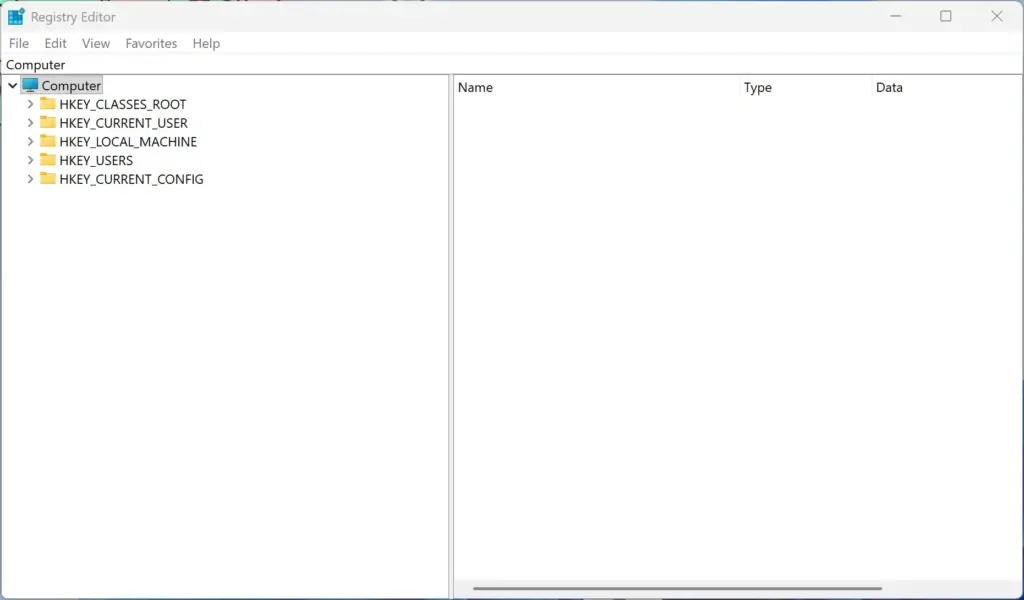
Registry Editor - Scroll down and click on the subfolder named FileSystem.
- Look at the main panel on the right side and find the entry named LongPathsEnabled.
- Double-click on LongPathsEnabled to open its properties window.
- In the Value data box, change the number from 0 to 1.
- Click OK to save your changes, and then close the Registry Editor. Restart your computer for the change to take full effect.
Enabling the full file path setting in Windows 11 Advanced File Explorer Settings ensures that even if your file paths exceed the old 260-character limit, Windows 11 will handle those long paths smoothly. You will no longer encounter unexpected errors when opening or copying deeply nested folders and files across your system drives.
Summary
Deciding whether to enable the full file path in Windows 11 Advanced File Explorer settings depends on whether you value quick file locations or a clean screen. Turn it on if you frequently need to copy exact addresses for work, or leave it off if you prefer a simpler view.
The Benefits
The main benefits of enabling the full file path in Windows 11 include instant visibility of your exact file locations and the ability to copy exact text addresses quickly. These advantages help you troubleshoot missing files, share precise locations in chat apps, and work faster without digging through extra menus.- Instant VisibilityYou always know the exact physical location of your files without needing to click into properties or check secondary menus.
- Easy CopyingYou can quickly click the address bar, copy the full path, and paste it into chat apps, emails, or software programs that require a file location.
- Better TroubleshootingIf a program cannot find a file, seeing the full path helps you spot errors, such as missing folders or incorrect drive letters.
- organizationIt helps you build a mental map of your computer’s directory structure, which is especially useful if you manage large numbers of files.
The Drawbacks
The main drawbacks of turning on the full file path in Windows 11 are extra visual clutter and reduced readability for deep folder structures. Long blocks of text can crowd your window title bar and make the interface look confusing if you prefer a minimal, clean computer workspace.- Visual ClutterLong file paths can fill up the top of your window with complex text, making the interface look busier and more technical.
- Readability IssuesIf your folder structure is deep, the path text can become very long, forcing you to click and scroll horizontally to see the beginning or end of the address.
- Potential Confusion for BeginnersUsers who are new to computers might find the long strings of letters, slashes, and folder names intimidating.
How to Enable Full File Path in 🪟 Windows 11 Advanced File Explorer Settings
Enabling the full file path in Windows 11 Advanced File Explorer settings takes just a few clicks inside your folder options. You can complete this change by opening File Explorer, accessing the View tab in Folder Options, and checking the box that displays the complete address in the title bar.
Follow these steps to update your File Explorer settings:
- Click the Start button or press the Win on your keyboard, type File Explorer, and press Enter to open it.
File Explorer - At the top of the File Explorer window, look at the command bar and click the See more button (represented by three horizontal dots).
- From the drop-down menu that appears, click on Options. This will open the Folder Options window.
- In the Folder Options window, click on the View tab near the top.
- Scroll down through the list of Advanced settings until you find the option labeled Display the full path in the title bar (Note: depending on your specific Windows 11 version update, you may also look for settings related to the address bar).
- Check the box next to this option.
- Click the Apply button at the bottom right of the window, and then click OK to save your changes and close the window.
Once you finish turning on the full file path setting in Windows 11, you can open a few folders to see the change in action. You will notice that the full text file path now appears clearly at the top of the File Explorer window.
Alternative Ways to See Your Full File Path
Windows 11 also provides a few quick shortcuts for grabbing a file path on the fly without changing permanent settings.
1Use the Keyboard Shortcut
Using the Alt+D keyboard shortcut in Windows 11 File Explorer instantly highlights your current address bar and turns it into editable text. This quick trick lets you copy your exact file location right away without changing any permanent system settings.
2Use the “Copy as path” Right-Click Feature
Using the Copy as path right-click feature in Windows 11 lets you grab the complete text address of any file without opening its folder properties. Holding down the Shift key while right-clicking your chosen file reveals a hidden menu option that copies the exact text directly to your clipboard.
- Find the file in File Explorer.
- Hold down the Shift key on your keyboard and right-click on the file.
- In the menu that pops up, click on Copy as path.
The full file path feature copies the entire file location, including quotation marks, directly to your computer's clipboard. You can now paste the copied file path anywhere you need it.
Unique Expert Tips: Managing Long File Paths in 🪟 Windows 11
Managing long file paths in Windows 11 helps you avoid traditional character limits and prevents frustrating errors when moving or opening files. Keeping your folder names short and updating your system settings ensures your computer handles deep folder structures without throwing unexpected error messages.
Here are two expert tips to help you avoid path-length issues while keeping your file organization clear and functional.
Tip 1Keep Folder Names Short and Descriptive
Keeping your folder names short and descriptive prevents your full file paths from exceeding the Windows character limit. Using concise names instead of long sentences keeps your address bar readable and stops your computer from throwing file error messages.
Tip 2Enable Long Path Support in 🪟 Windows 11
Enabling long path support in Windows 11 removes the old 260-character limit so your computer can open files with very long names. You can safely turn on this feature by making a quick change inside the Registry Editor or by using advanced system settings to bypass traditional file length restrictions.
To enable long paths using the graphical interface:
- Click the Start button, type Registry Editor, and select the app from the search results. Administrator privileges are required for this step, so Windows may prompt for permission to make changes.
- In the Registry Editor window, use the left-hand sidebar to navigate through the folders. Click on 🗝️HKEY_LOCAL_MACHINE, then open SYSTEM, then CurrentControlSet, and then Control.
Registry Editor - Scroll down and click on the subfolder named FileSystem.
- Look at the main panel on the right side and find the entry named LongPathsEnabled.
- Double-click on LongPathsEnabled to open its properties window.
- In the Value data box, change the number from 0 to 1.
- Click OK to save your changes, and then close the Registry Editor. Restart your computer for the change to take full effect.
Enabling the full file path setting in Windows 11 Advanced File Explorer Settings ensures that even if your file paths exceed the old 260-character limit, Windows 11 will handle those long paths smoothly. You will no longer encounter unexpected errors when opening or copying deeply nested folders and files across your system drives.
Summary
Deciding whether to enable the full file path in Windows 11 Advanced File Explorer settings depends on whether you value quick file locations or a clean screen. Turn it on if you frequently need to copy exact addresses for work, or leave it off if you prefer a simpler view.
Have a question about this guide?
Answered by AI from this guide. Good questions may be added to this page — please don't include personal details.
Did this guide fix your problem?

About the Author
Richard
Tech Writer, IT Professional
Richard is a writer at Geek Rewind who turns complex IT tasks into clear, step-by-step guides. He draws on years of hands-on experience in system administration and enterprise IT operations, focusing on Windows, Linux and WordPress: the problems people actually run into, and the fixes that work. His server and WordPress guides come from systems he runs himself. Richard builds and maintains the platform behind Geek Rewind, from its Ubuntu servers and Nginx configuration to its custom WordPress plugins. Many new tutorials start with readers' questions, and he's always glad to answer them in the comments.
No comments yet — be the first to share your thoughts!