How to Enable or Disable Long File Paths in Windows 11

Long file paths in Windows 11 remove the traditional 260-character limit (known as MAX_PATH) on file and folder paths, so paths can reach about 32,000 characters. Without it, programs often throw errors when you copy, move or open files buried inside deeply nested folders.
You can turn this setting on or off with the Settings app, the Group Policy Editor or the Registry Editor. All three change the same underlying system setting, so use whichever your edition of Windows supports. You need an administrator account for each method.
Open Settings System Advanced and switch Enable long paths to On. If that option doesn’t appear, open Registry Editor, navigate to 🗝️HKEY_LOCAL_MACHINE\
Method 1Enable Long Paths Using the Settings App
The Settings app is the quickest route. The option lets Windows 11 bypass the old 260-character limit, so you can open and save files with very long folder names without errors. It works on both Home and Pro. It only appears on recent Windows 11 builds, so if you can’t find it, skip to the Group Policy or Registry method below.
- Click the Start button (Windows icon) at the bottom left of your screen. The Start menu opens.
- Click Settings. Or press the Win+I to open it directly. The Settings window appears.
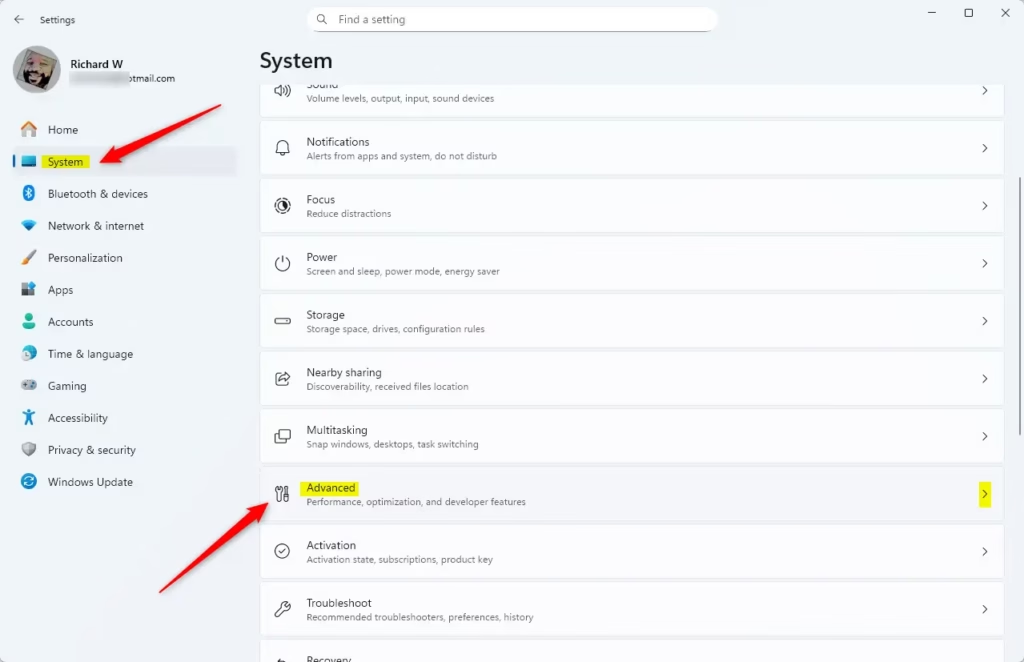
- In Settings, click System on the left side. The System options load on the right.
- On the right, scroll down and click Advanced.
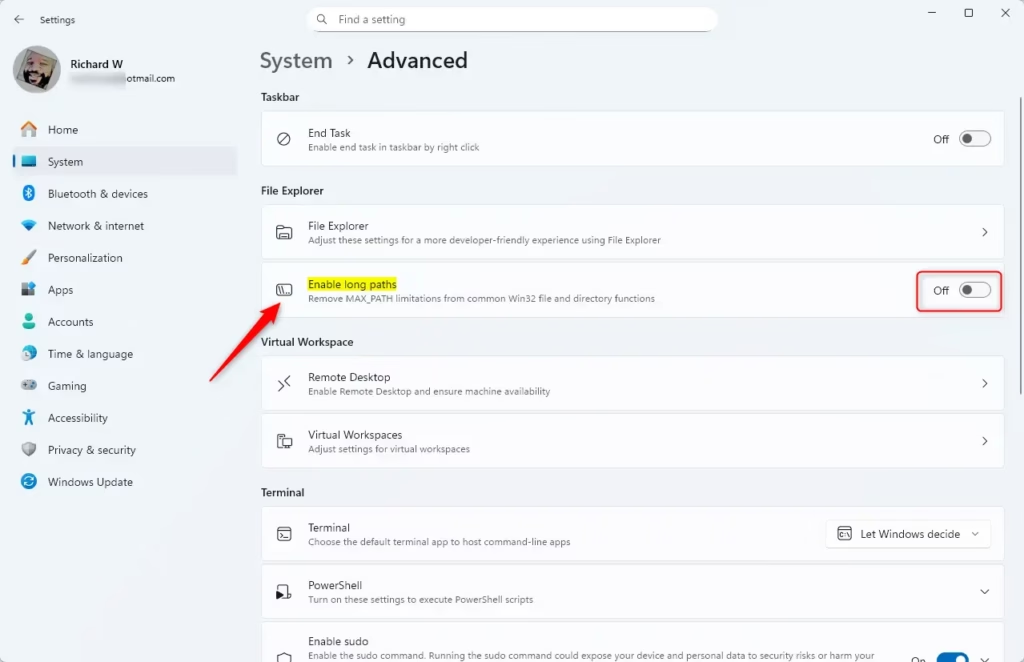
- Find Enable long paths and switch it On. If a User Account Control prompt appears, approve it. The toggle should now read On. To undo the change later, come back here and switch it Off.
- Close the Settings app when done. If the option doesn’t exist on your build, use one of the other two methods instead.
Programs that are already running won’t notice the change. Restart them, or restart Windows, before testing.
Method 2Enable Long Paths with Group Policy Editor
You can turn on long file paths with the Group Policy Editor if you run Windows 11 Pro, Enterprise or Education. Windows 11 Home doesn't include this tool, so Home users should use the Registry method instead. The policy changes a system rule so Windows stops blocking file names and folder paths that go past the normal character limit.
Many admins prefer this method because it gives them more control. Group Policy is also the cleanest way to apply the setting across several PCs. That matters when you manage complex projects or deeply nested folder structures.
Here's how:
- Click the Start button, type Edit group policy, then press Enter. The Local Group Policy Editor opens. If nothing is found, you're probably on Home edition.
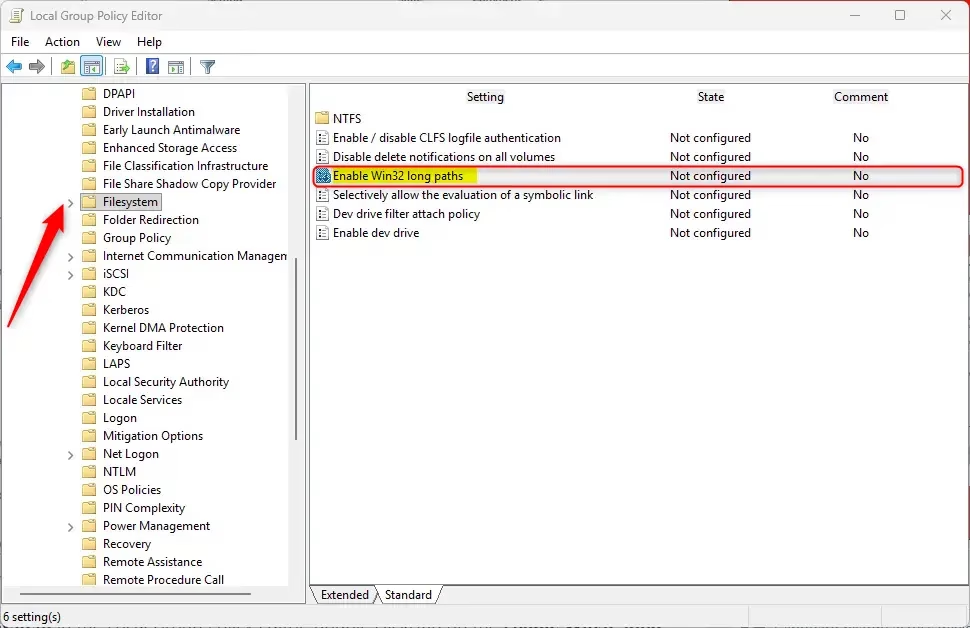
- In the Group Policy Editor window, use the left sidebar to navigate to: Computer Configuration Administrative Templates System Filesystem. The policy list for that folder appears on the right.
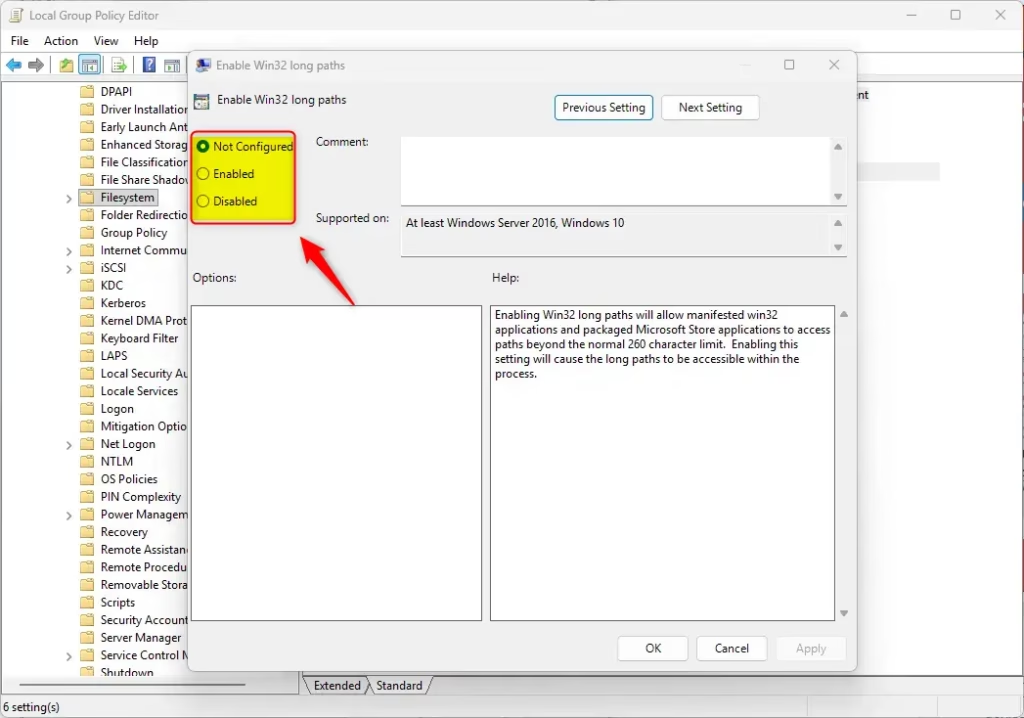
- On the right side, find Enable Win32 long paths and double-click it. Its settings window opens.
- Select Enabled to turn on long paths. To turn the feature off later, return here and choose Disabled or Not Configured.
- Click OK to save your settings. The window closes and the policy should now show as Enabled.
- Close the Group Policy Editor. Restart your PC to make sure the change applies everywhere.
Method 3Enable Long Paths Using Registry Editor
The Registry Editor lets you turn on long file paths by changing one value in the system database. This method works on all editions of Windows 11, Home included. It removes the traditional character limit for files and deeply nested folders.
Before you do this, back up your registry or create a system restore point to keep your PC safe. %%SC0%%
Here's what to do:
- [Requires admin privileges] Open the Registry Editor: press Windows key + R, type
regedit, and press Enter. Click Yes if User Account Control asks for permission. The Registry Editor window opens. - In Registry Editor, go to:
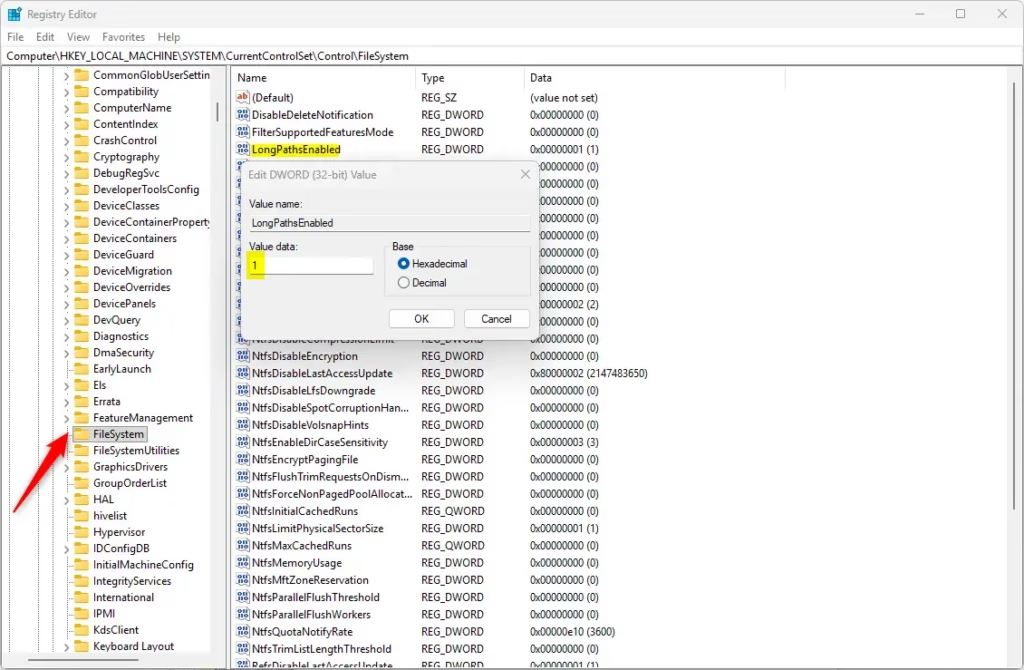
HKEY_LOCAL_MACHINE\SYSTEM\CurrentControlSet\Control\FileSystem. You can paste the path into the address bar at the top of the window, or expand the folders in the left pane one by one. - Right-click the FileSystem folder in the left pane. If a value with the name in the next step already exists in the right pane, skip to the step after next and just edit it.
- Choose New DWORD (32-bit) Value. A new value appears in the right pane with its name highlighted for editing.
- Name the new value
LongPathsEnabled. Spell it exactly, because Windows ignores a value with the wrong name. - Double-click
LongPathsEnabledand set its Value data to 1 to turn on long paths. Leave Base on Hexadecimal. A 1 means on, and a 0 means off. - Click OK and close Registry Editor.
- Restart your computer for the change to take effect. To undo it later, open the same value, set it back to 0 and restart again.
Summary
- What are long paths? A feature that lets Windows handle file paths longer than 260 characters, up to about 32,000.
- Easy options: Turn on this feature using Settings, Group Policy Editor (Pro, Enterprise and Education only), or Registry Editor (all editions).
- App support: Only apps designed to use long paths will take advantage of this feature. Older programs may still show errors even after you turn it on.
- Backup first: Always back up your system before changing Registry settings.
- Restart required: You might need to restart your PC for the changes to work. The Registry method always needs one, and a restart is a safe habit with the other two.
Windows 11 long file paths remove the old 260-character limit so apps can open deeply nested files without errors. You can turn this feature on using the Settings app, Group Policy Editor, or Registry Editor, depending on your version of Windows. Each method can be reversed, so you can switch the feature off again if it causes trouble.
Have a question about this guide?
Answered by AI from this guide. Good questions may be added to this page — please don't include personal details.
Did this guide fix your problem?

About the Author
Richard
Tech Writer, IT Professional
Richard is a writer at Geek Rewind who turns complex IT tasks into clear, step-by-step guides. He draws on years of hands-on experience in system administration and enterprise IT operations, focusing on Windows, Linux and WordPress: the problems people actually run into, and the fixes that work. His server and WordPress guides come from systems he runs himself. Richard builds and maintains the platform behind Geek Rewind, from its Ubuntu servers and Nginx configuration to its custom WordPress plugins. Many new tutorials start with readers' questions, and he's always glad to answer them in the comments.
No comments yet — be the first to share your thoughts!