How to View Microsoft Account Purchase Order History

Microsoft account purchase order history shows every digital and physical item you bought from Microsoft since 2005, including PC games, apps, software licenses, and subscriptions like Microsoft 365. Each transaction record lists the purchase date, item name, total cost, and payment method.
Checking this list helps you track spending, confirm charges, and manage your digital library in one place. It is also the first place to look when a charge on your bank statement doesn’t ring a bell.
Sign in to your Microsoft Account on the web, go to the Order history page, and your purchases appear immediately. You can also check Settings Accounts Order history on Windows. Both show the same transaction record since 2005.
Steps to View Your Microsoft Account Purchases
You can review past transactions using two different methods. The Settings app on a Windows computer or the main Microsoft website both provide access. Both show the same record, so use whichever is closer to hand.
If you own more than one account, an order may be missing simply because you are looking at the wrong one. Purchases made through other stores, such as Steam or a retail shop, will not appear here.
Method 1Using the Windows Settings App
You can check past purchases directly from your computer in a few clicks.
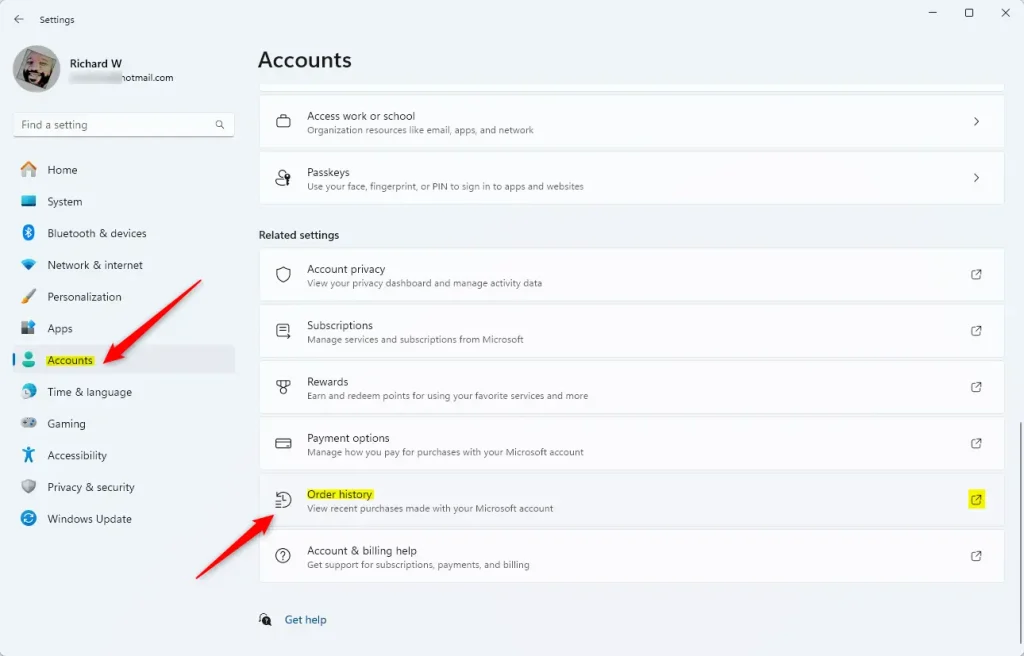
- Open Settings.
- Select Accounts. You should see your account details and the settings for your sign-in.
- Click Order history. Your past purchases should now appear.
The page is the same one, and it works on any device with a browser.
Method 2Using the Microsoft Account Website
Checking your Microsoft Account order history online gives you a complete list of past purchases, subscriptions, and digital downloads directly through your web browser. You can sign in to your Microsoft account, open the order history page, and sort items by date or purchase type to find specific receipts, track active game codes, or review past charges without needing to use a Windows app.
- Open Sign in to your Microsoft Account in your browser and sign in with the Microsoft account you used to buy the items.
- After signing in, go to the Order history page. Your list of orders should load.
On the order history page, you can:
- Use the View dropdown to select the type of purchase. Choose apps, games, or subscriptions.
- Use the Ordered within dropdown to pick a time frame. Try the last 30 days or last 6 months. If you can't find an older order, widen the range.
Here's an example of the order history page:
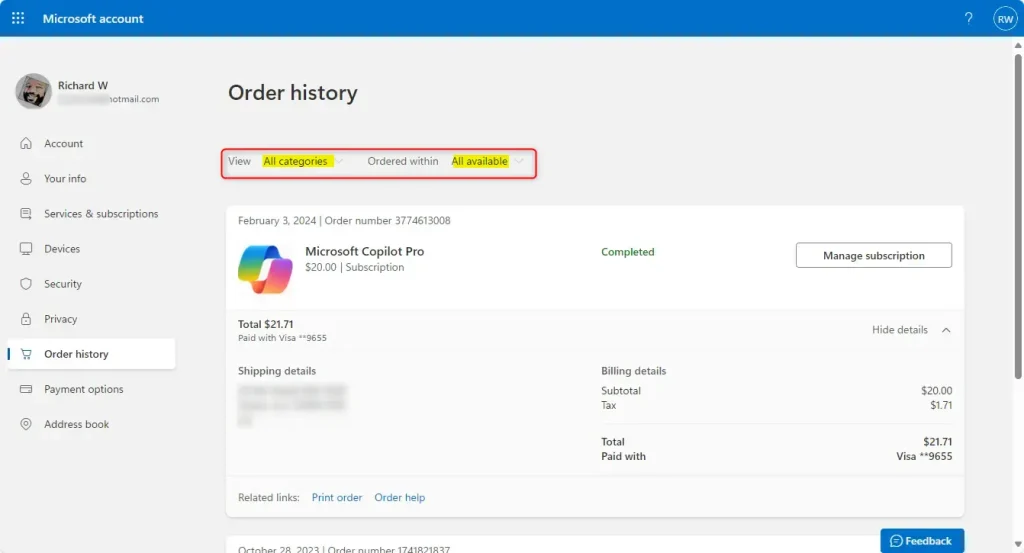
Want more details about a specific order? Click Show details next to it. The order expands to show more information about that purchase, which is useful when you need to match a charge to your bank statement.
Summary
The order history page brings together all your Microsoft purchases, including apps, games, and subscriptions. Windows Settings or the Microsoft Account website both grant access to this purchasing ledger.
Have a question about this guide?
Answered by AI from this guide. Good questions may be added to this page — please don't include personal details.
Did this guide fix your problem?

About the Author
Richard
Tech Writer, IT Professional
Richard is a writer at Geek Rewind who turns complex IT tasks into clear, step-by-step guides. He draws on years of hands-on experience in system administration and enterprise IT operations, focusing on Windows, Linux and WordPress: the problems people actually run into, and the fixes that work. His server and WordPress guides come from systems he runs himself. Richard builds and maintains the platform behind Geek Rewind, from its Ubuntu servers and Nginx configuration to its custom WordPress plugins. Many new tutorials start with readers' questions, and he's always glad to answer them in the comments.
No comments yet — be the first to share your thoughts!