How to Use Quick Assist in Windows 11

Quick Assist is a built-in Windows 11 tool that lets you connect to another PC over the internet. You can view the other person’s screen, take control of the mouse and keyboard, and fix problems remotely. Both computers need an active internet connection. The app runs natively on Windows 11 version 22H2 and newer, so there is nothing extra to download. If Quick Assist is missing on an older build, you can get it from the Microsoft Store.
Open Quick Assist by pressing Win+Ctrl+Q, or search for it in the Start menu. Choose Help someone if you’re assisting, then share the six-digit security code with the person you’re helping. They open Quick Assist, click Get help, enter the code, and you gain remote access to their screen and controls.
How to Use Quick Assist
1Open Quick Assist
The fastest way to open Quick Assist is to press the Win+Ctrl+Q on your keyboard. The app opens straight away. If you prefer menus, open the Start menu , search for Quick Assist, and click the app icon. Both methods work on Home and Pro editions, and neither needs administrator rights.
- Click the Start button (the Windows icon) on the bottom left of your screen, or press the Win on your keyboard. The Start menu opens.
- Type
Quick Assistin the search box. You can start typing as soon as Start is open. The app should appear at the top of the results. - Click the Quick Assist app when it appears. The Quick Assist window opens, with options to get help or help someone.
Shortcut tip: Press Ctrl + Windows key + Q together to open it faster. This is handy when you are on the phone with someone and want to get the session going without hunting through menus.
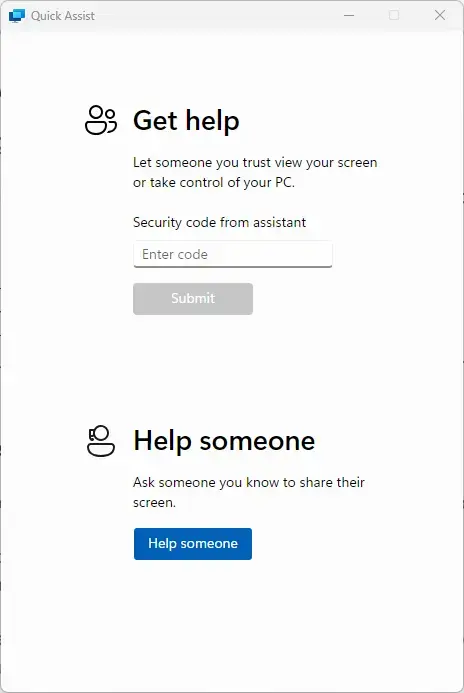
If neither method finds the app, search the Microsoft Store for Quick Assist and install it from there. Both people need the app, so check this on the other PC too.
2Start Quick Assist
When Quick Assist opens, decide which side of the session you are on. Choose Get help if someone is going to fix your computer. Choose Help someone if you are the one logging in to troubleshoot another person’s device. Only one of you picks each option, so agree on who is who before you start.
- Get help – Click this if you want to receive help from someone. You will be asked for a code that the helper gives you.
- Help someone – Click this if you want to help another person. You will get a code to pass on to them.
As the helper, click Help someone. Quick Assist may ask you to sign in with your Microsoft account. Sign in when prompted. Once you are signed in, the app moves on to creating your security code. The person receiving help does not need to sign in.
3Share the Security Code
Give this code only to the person you are helping, and treat it like a password. The code expires after about ten minutes. If it runs out before the other person uses it, close the window and start again to get a new one.
Treating the code like a password prevents unauthorized access to your system. The easiest way to pass it on is by phone or in a chat message you trust.
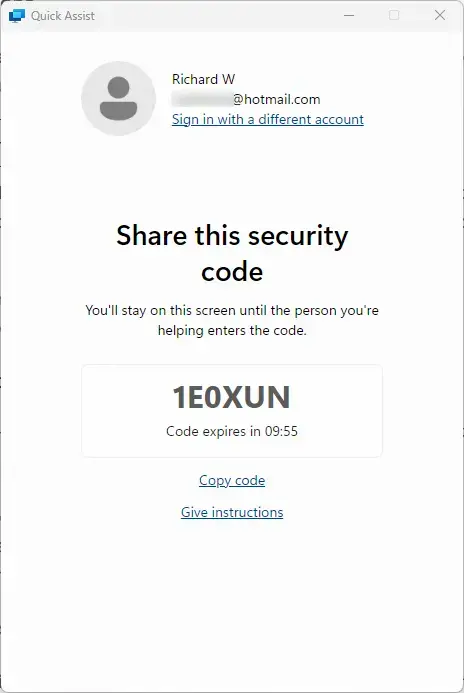
The code on screen works only for this one session. Keep the Quick Assist window open on your side until the other person has entered it.
Never post it online or give it to strangers. If someone you don't know calls and asks you to read out a Quick Assist code, hang up. This is a common support scam, and guarding the code is what protects your machine from unauthorized connections.
4The Person Getting Help Enters the Code
The person receiving help now enters the code on their own PC. They open Quick Assist, click Get help, type the six-digit code into the box, and click Submit. Walk them through it by phone if they have not used the app before.
- Click Get help. A box for the code appears.
- Type the security code you gave them in the box labeled "Security code from assistant". Check each digit, since a typo is the most common reason a connection fails.
- Click Submit. Quick Assist starts connecting to the helper. This can take a few seconds.
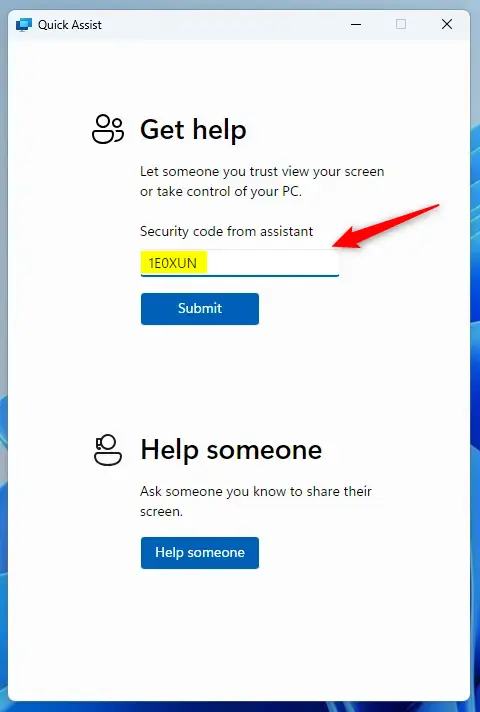
If the code is rejected, it has most likely expired or been mistyped. The helper can generate a fresh code and read it out again.

Both people need a working internet connection at this point. If the connection stalls, check the network on both PCs before trying again.
The person receiving help sees a prompt asking for permission to share their screen. They must click Allow to start the session and give the helper a view of their display. If they click anything else, or ignore the prompt, the session does not start. Nothing is shared until they agree.
5Wait for the Connection to Start
While Quick Assist waits for the connection to start, the person getting help is deciding whether to let you in. Once they accept, the helper sees the remote desktop directly. If the helper has control, they can move the mouse and open apps to fix issues. The person getting help can keep watching everything that happens on their own screen.
With remote control active, you can move the mouse, launch apps, and work through the problem as if you were sitting at that PC. Be patient with clicks and typing, because there is a short delay over the internet. Tell the other person what you are about to do, especially before you change settings or install anything.
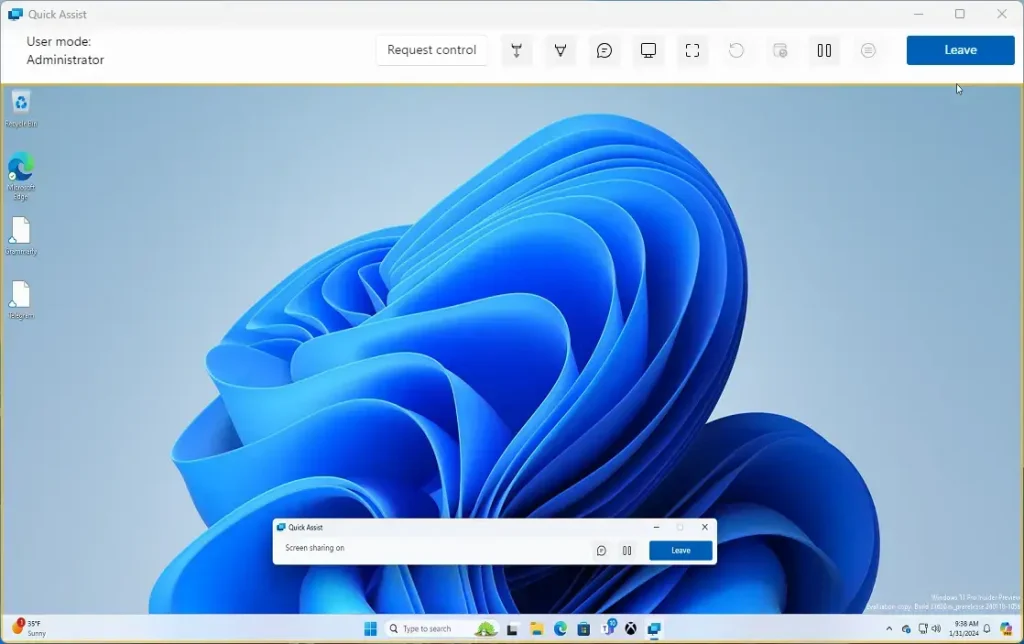
If the screen looks slow or blurry, a weak connection on either side is the usual cause. Close other apps that use the network and try again.
6Use the Quick Assist Toolbar
A compact toolbar appears at the top of your screen during the session. It has the following controls:
- Pause: Temporarily stop the session. Use it when you need a moment without the other person seeing what you do.
- Annotate: Draw on the screen to explain things, such as circling the button you want them to click.
- Task Manager: Open Task Manager on the other PC, which is useful for stuck apps or a slow system.
- Restart: Restart the other PC and reconnect automatically. Warn the person first, and ask them to save their work.
- End: Stop the Quick Assist session.
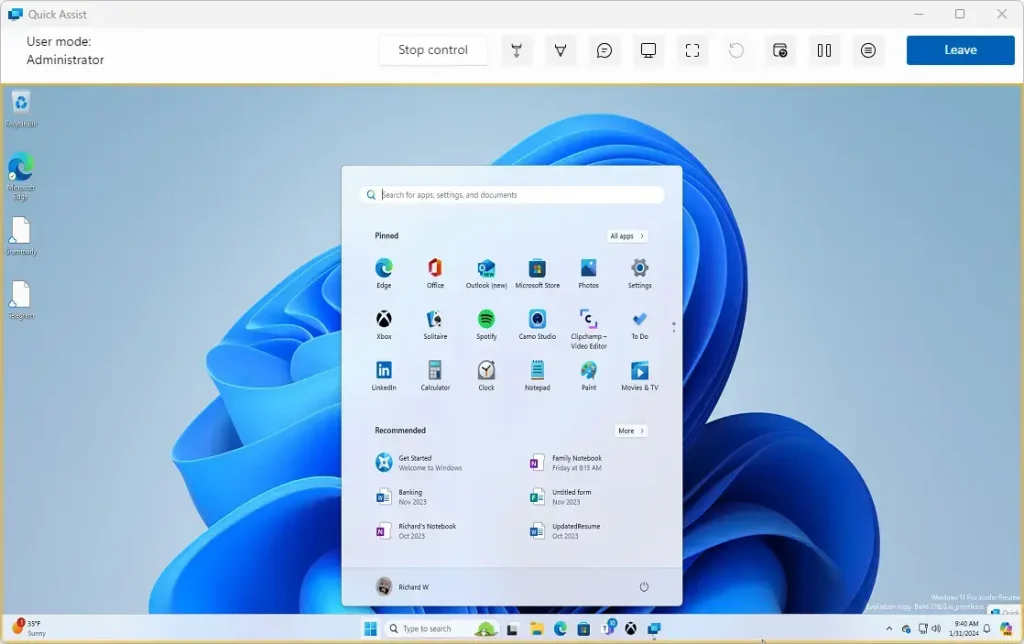
Some buttons are shown only to the helper, so the toolbar can look different on each PC. That is normal.
7Ending the Session
When the problem is fixed, end the session properly instead of just closing the window. Follow these steps:
- Click Leave on the Quick Assist toolbar. A confirmation window opens.
- Confirm by clicking End in the pop-up window.
What happens? The connection terminates and the Quick Assist interface closes. The helper can no longer see or control the other PC. To help again later, you both need to start a new session with a new code.
Tips for a Smooth Quick Assist Session
- Make sure both computers have a good internet connection to avoid interruptions. A wired or strong Wi-Fi connection helps.
- Close any private or sensitive windows before sharing your screen, such as email, banking pages, or password managers.
- Keep talking by phone or chat to explain what you're doing. Quick Assist is for the screen, so you need a separate way to talk to each other.
Summary
Quick Assist is a safe and practical way to troubleshoot computers from a distance. It connects two PCs with a temporary security code, so you can share screens and fix problems without being in the same room.
- Quick Assist helps you give or get remote help on Windows 11 computers.
- It uses a temporary security code to connect two PCs safely.
- Always keep security codes private and protect your personal information.
- Good communication and a steady internet connection make the session go better.
- Quick Assist is a fast and easy way to help or get help from anywhere in the world.
Have a question about this guide?
Answered by AI from this guide. Good questions may be added to this page — please don't include personal details.
Did this guide fix your problem?

About the Author
Richard
Tech Writer, IT Professional
Richard is a writer at Geek Rewind who turns complex IT tasks into clear, step-by-step guides. He draws on years of hands-on experience in system administration and enterprise IT operations, focusing on Windows, Linux and WordPress: the problems people actually run into, and the fixes that work. His server and WordPress guides come from systems he runs himself. Richard builds and maintains the platform behind Geek Rewind, from its Ubuntu servers and Nginx configuration to its custom WordPress plugins. Many new tutorials start with readers' questions, and he's always glad to answer them in the comments.
No comments yet — be the first to share your thoughts!