How to Uninstall Windows Subsystem for Linux (WSL) in Windows 11

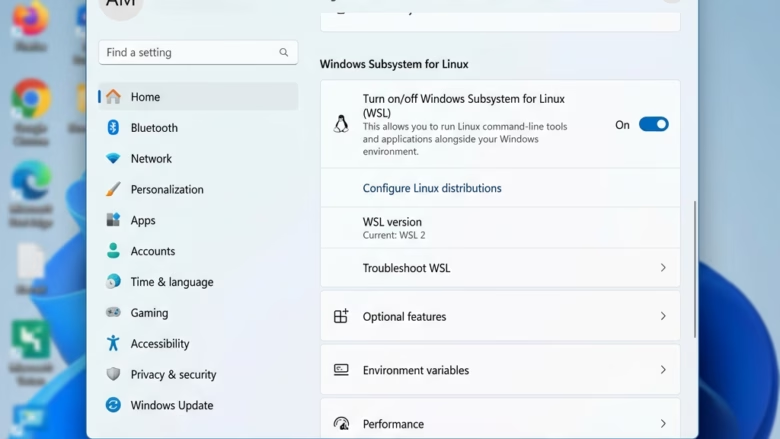
Removing Windows Subsystem for Linux (WSL) frees up disk space and deletes all associated Linux files and apps.
To uninstall Windows Subsystem for Linux (WSL), first uninstall your Linux distributions from Settings or File Explorer . Then, turn off the “Windows Subsystem for Linux” feature via Optional Features or by toggling it off in Settings.
Why remove WSL?
Reclaiming your disk space clears out the Linux environment and any files associated with it.
What happens when done?
Once finished, your computer will no longer be able to run Linux apps or commands. All your Linux-based files will be deleted.
Option One
Uninstall via Settings
You can uninstall WSL Windows 11 quickly through the Settings app on newer versions of the operating system. This built-in feature lets you turn off the Windows Subsystem for Linux without touching the command line, making it the easiest way to remove the feature if your system supports it.
- Open Settings (press Win+I).
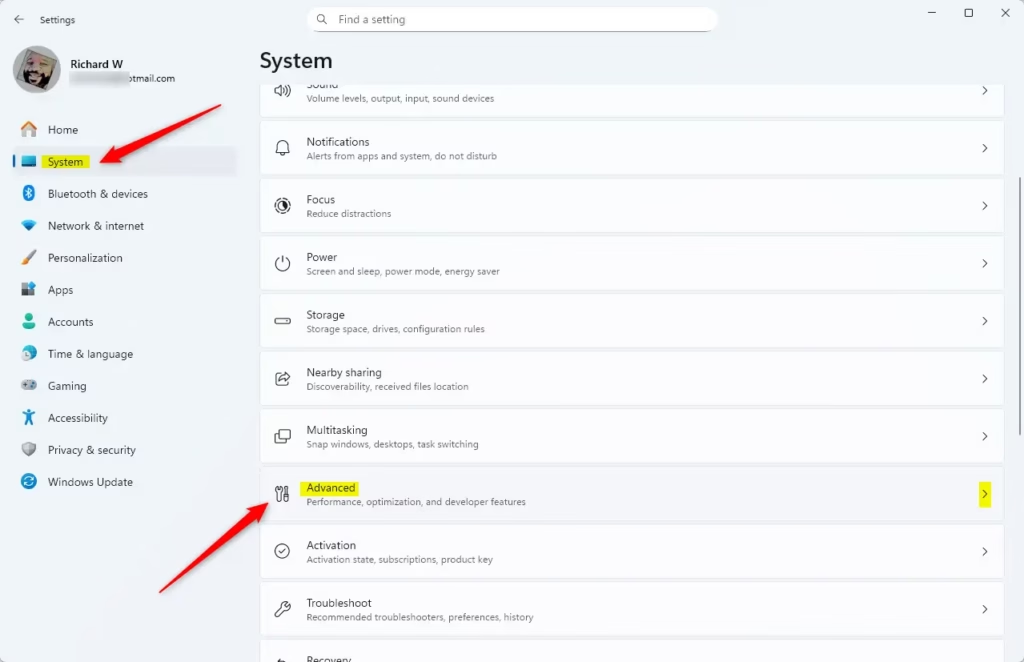
- Click System on the left, then click Advanced on the right. Open Advanced settings
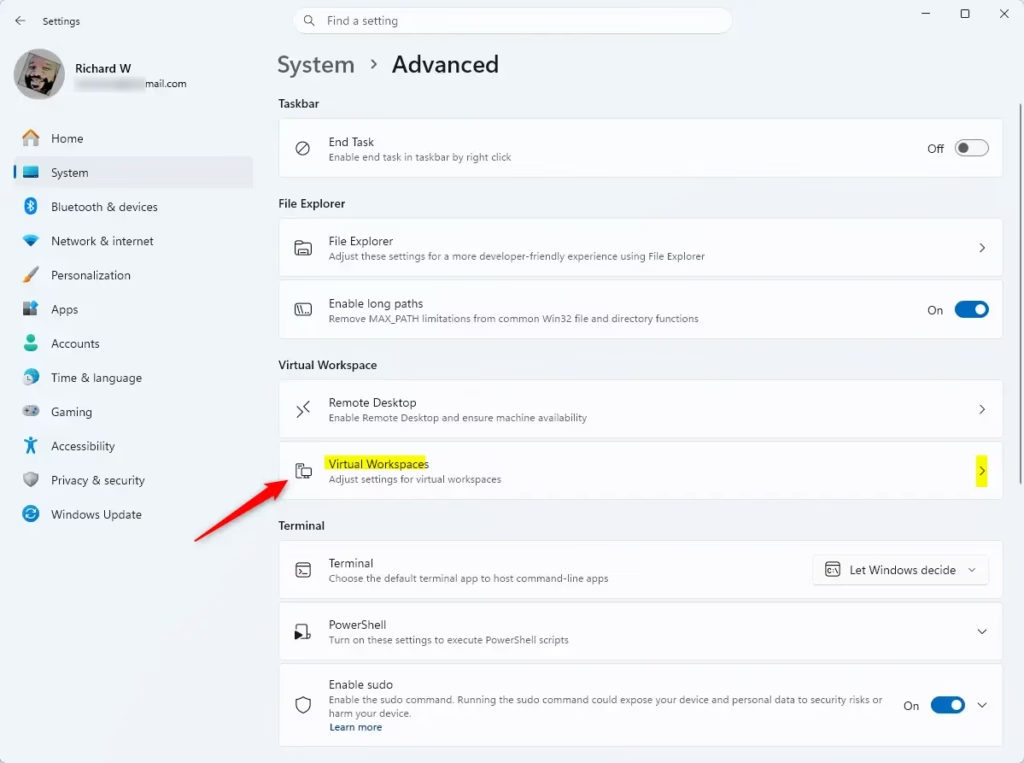
- Click on Virtual Workspaces.
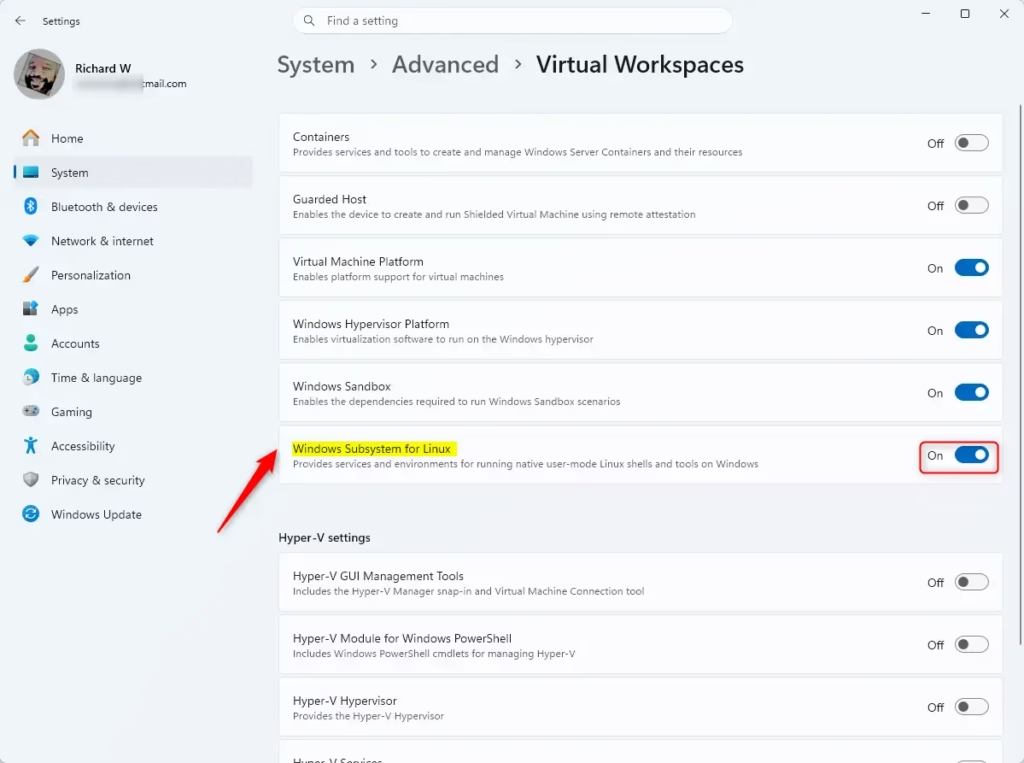
- Turn off Windows Subsystem for Linux.
- Click Yes if the User Account Control (UAC) window appears (Admin privileges required).
- Close Settings once the process completes.
Option Two
Manual Uninstall
To manually uninstall WSL Windows 11, you must remove your installed Linux distributions through File Explorer before clearing out the core platform files. This hands-on process ensures you delete every leftover file and completely clean the feature off your system when the settings menu does not work.
- Open the Start menu . Start menu
- Click the All apps button.
- Uninstall your Linux distributions:
- Open File Explorer (Win+E) and click Linux in the side panel to see your installed versions.
- Right-click your Linux distro (e.g., “Ubuntu”).
- Select Uninstall and confirm.
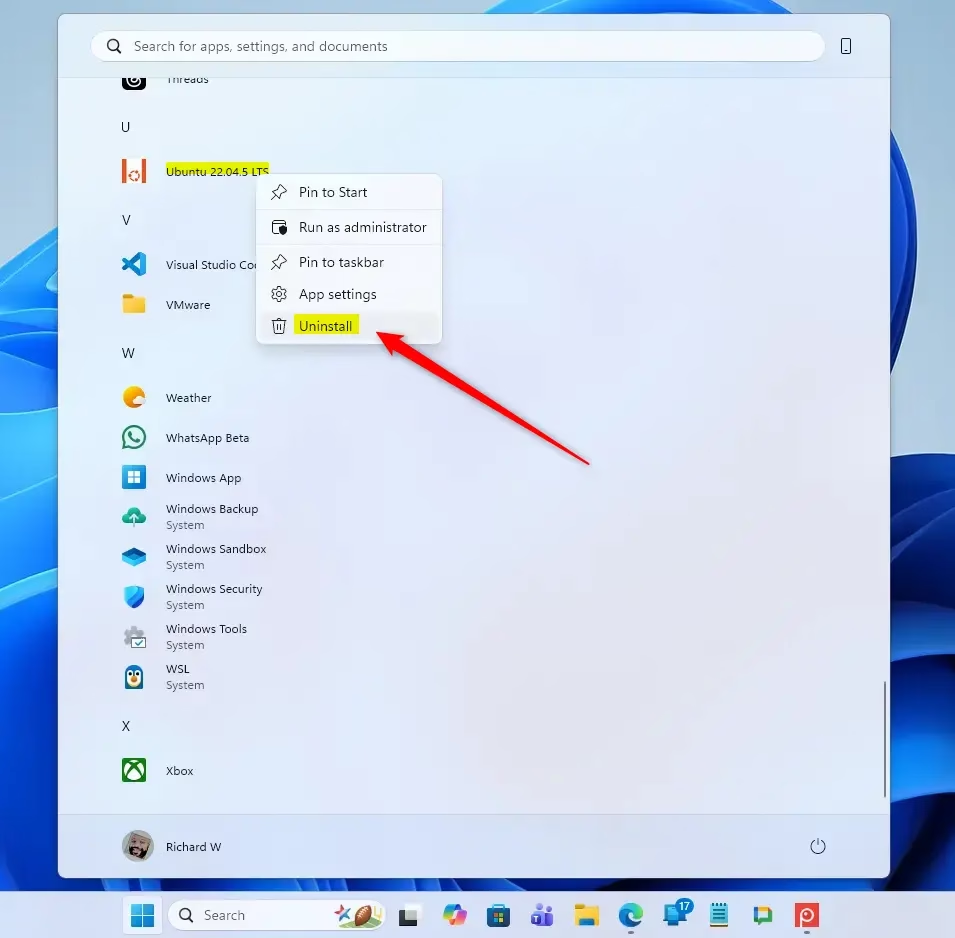
- Uninstall the Windows Subsystem for Linux app:
- Right-click the Windows Subsystem for Linux app in your app list.
- Select Uninstall and confirm.
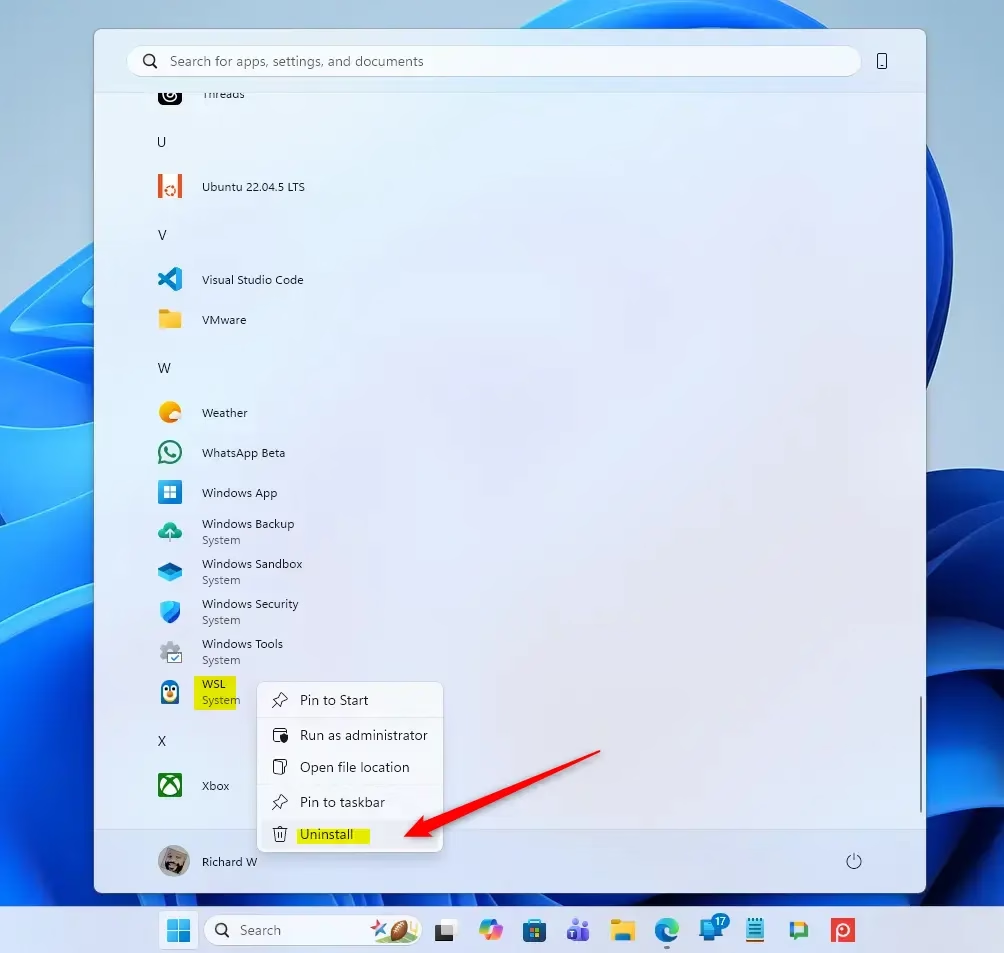
- Press Win+R, type OptionalFeatures.exe, and press Enter.
- Uncheck Windows Subsystem for Linux and click OK (Admin privileges required).
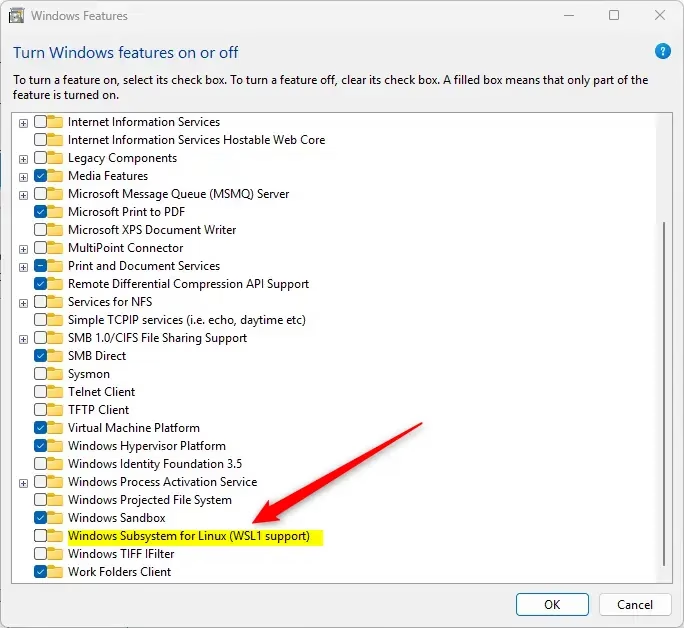
- Click Restart now to finish the removal.
Summary
Wrapping up means deleting your Linux apps and turning off the core feature in the settings menu.
Was this guide helpful?
100% of readers found this helpful (1 votes)

About the Author
Richard
Tech Writer, IT Professional
Richard, a writer for Geek Rewind, is a tech enthusiast who loves breaking down complex IT topics into simple, easy-to-understand ideas. With years of hands-on experience in system administration and enterprise IT operations, he’s developed a knack for offering practical tips and solutions. Richard aims to make technology more accessible and actionable. He's deeply committed to the Geek Rewind community, always ready to answer questions and engage in discussions.


… liked this!