How to Enable or Disable Cellular Use in Windows 11


Cellular data in Windows 11 lets your laptop or tablet connect to mobile phone networks using a physical SIM card or eSIM (a digital SIM profile you download). This mobile internet connection serves as a reliable backup when Wi-Fi is down or out of reach.
Windows 11 switches to your mobile network automatically if your Wi-Fi drops, keeping you online without breaks. You can turn this mobile data feature on or off at any time in your network settings.
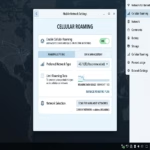
Open Settings , go to Network & internet, then Cellular. Toggle “Use cellular whenever Wi-Fi is poor” to On to enable or Off to disable. You may also need a mobile data plan and SIM or eSIM.
How to Check if Your PC Supports Cellular Data
Not all laptops include a built-in cellular modem. Open Device Manager by right-clicking the Start button to check hardware capabilities. Expand the Network adapters section. Look for a device labeled Mobile Broadband, LTE, or 5G to confirm readiness.
Enable or Disable Cellular in Settings
To enable cellular Windows 11 setup guide tasks, open the Settings app and go to Network & internet to find your mobile data controls. You can turn your cellular connection on or off right here to stop your laptop from using mobile data when you have Wi-Fi , which helps you avoid unexpected charges on your phone bill.
- Open the Windows Settings app by pressing the Win+I.
- Click on Network & internet in the left-hand menu.
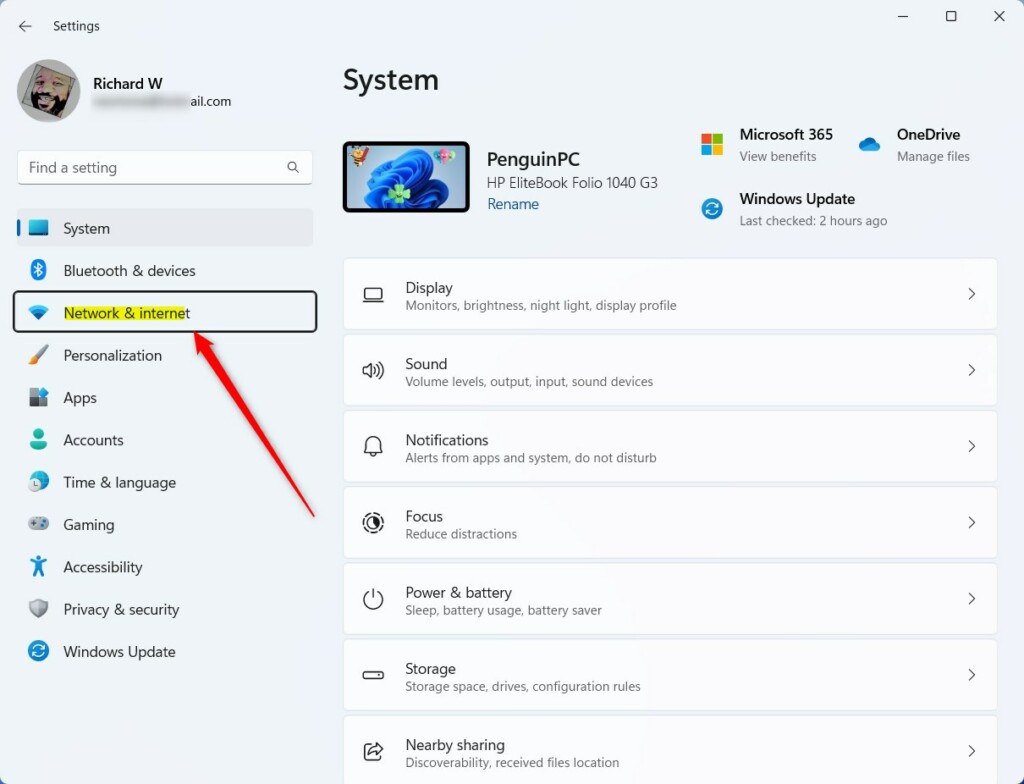
- Click the Cellular tile on the right side of the screen.
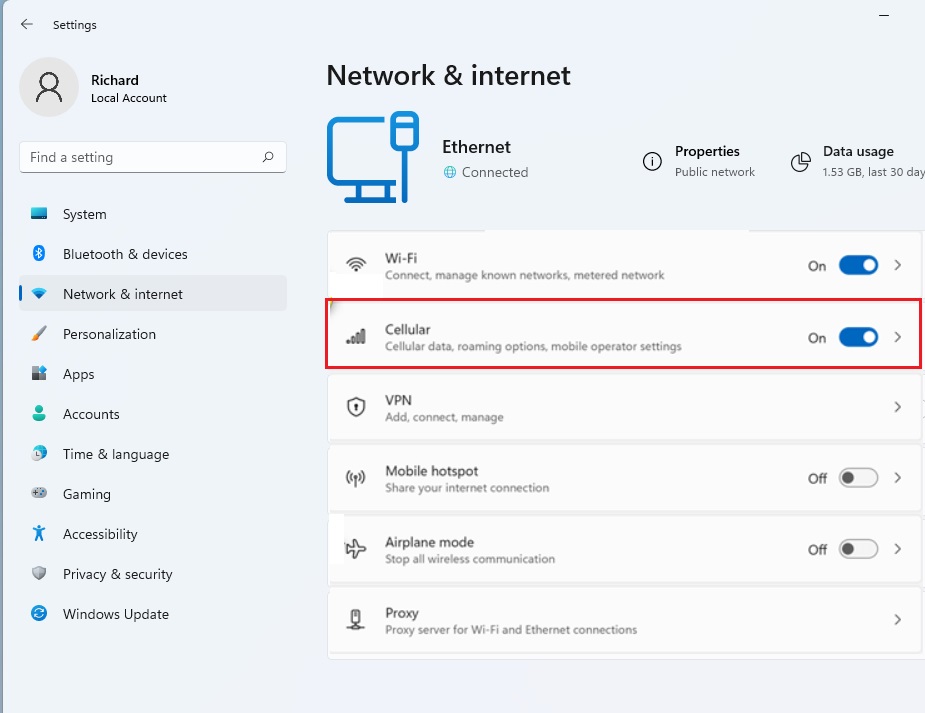
- Find the option labeled Use cellular whenever Wi-Fi is poor.
- Toggle the switch to On to enable it, or Off to disable it.
Setting Up Your Mobile Data Plan
Setting up a mobile data plan on Windows 11 lets your laptop connect to cellular networks using either a physical SIM card or a digital eSIM profile from your carrier. You need to activate your plan with a mobile provider first, then add the profile details in your network settings to get your PC online anywhere.
Enable or Disable via Registry Editor
Using the Registry Editor lets you turn off cellular features on Windows 11 by changing system keys directly in the registry database. This advanced method requires administrator privileges and is useful if the main settings menu is blocked or missing on your computer.
- Press the Windows key, type
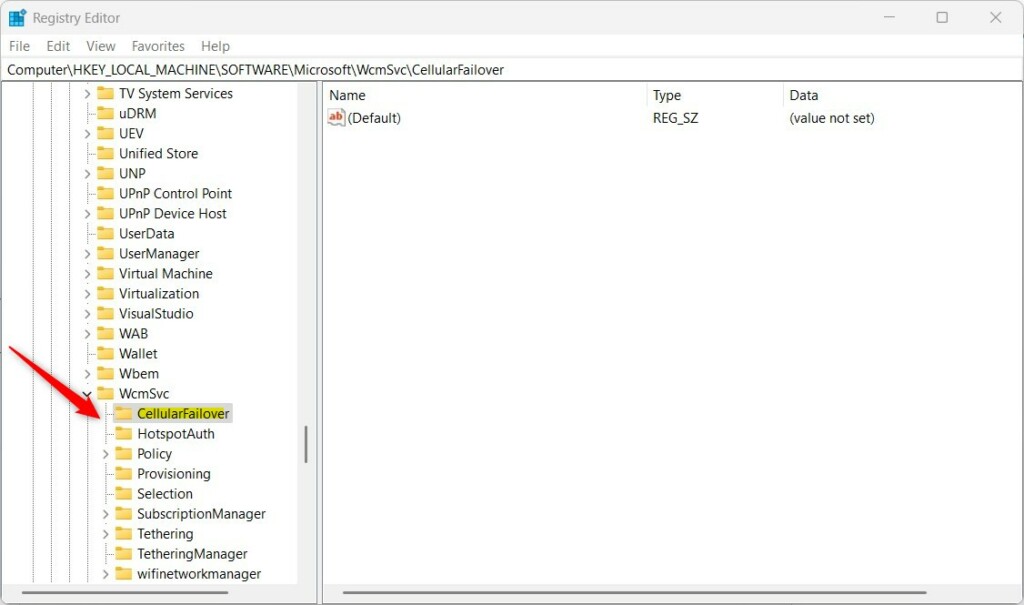
regedit, and press Enter. - Navigate to:
HKEY_LOCAL_MACHINE\SOFTWARE\Microsoft\WcmSvc\CellularFailover - If the folder is missing, right-click
WcmSvc, select New Key, and name itCellularFailover.
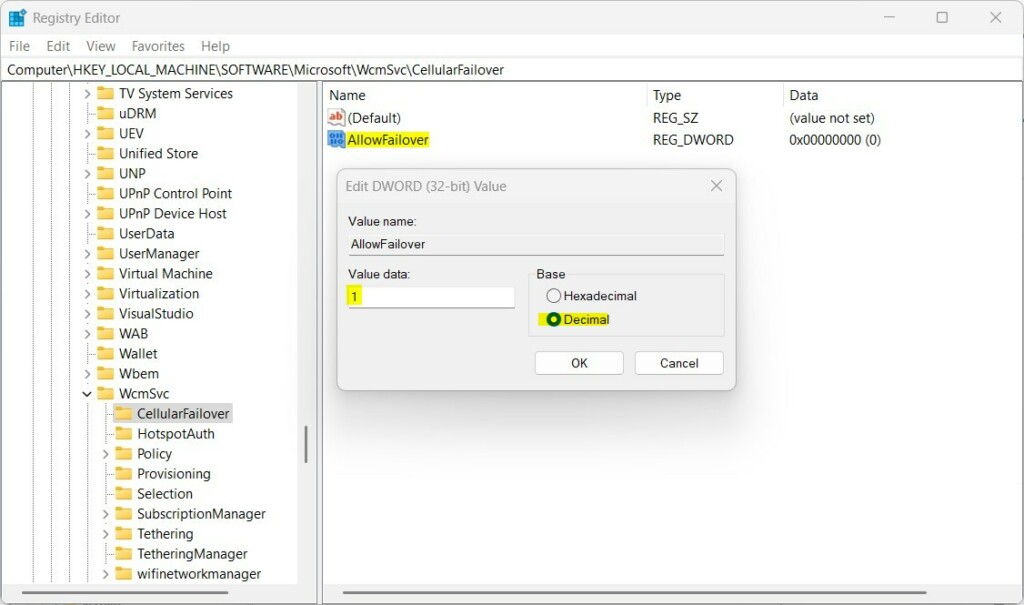
- Right-click in the empty space, select New String Value, and name it
AllowFailover. - Double-click
AllowFailoverand set the value to2to enable or0to disable.
Troubleshooting Connectivity
Hardware detection failures usually point to an incorrectly seated SIM card. Check your APN (Access Point Name, which tells your PC how to connect to your carrier) settings under Cellular Advanced options to verify carrier requirements. The official Microsoft cellular support page provides additional troubleshooting resources.
Summary
This guide covered hardware checks, eSIM setup, and registry tweaks for enabling cellular data on Windows 11. These steps keep devices online during Wi-Fi outages.
Can I use both Wi-Fi and cellular data at the same time?
Windows 11 maintains both connections simultaneously. Wi-Fi takes priority for data traffic. Cellular data acts as a failover connection when Wi-Fi signals weaken or drop entirely, preserving internet access without manual intervention.
Was this guide helpful?

About the Author
Richard
Tech Writer, IT Professional
Richard, a writer for Geek Rewind, is a tech enthusiast who loves breaking down complex IT topics into simple, easy-to-understand ideas. With years of hands-on experience in system administration and enterprise IT operations, he’s developed a knack for offering practical tips and solutions. Richard aims to make technology more accessible and actionable. He's deeply committed to the Geek Rewind community, always ready to answer questions and engage in discussions.


No comments yet — be the first to share your thoughts!