Phone Link App: Enable Cross-Device Copying on Windows 11

Cross-device copying in Windows 11 lets you copy text, links, and images on your phone and paste them instantly onto your PC. This clipboard sharing connects your Android phone and computer over your home Wi-Fi network so you skip emailing or messaging things to yourself.
You turn on the feature through the Phone Link settings on both devices. Once active, your phone clipboard data flows straight to your Windows desktop with zero extra steps.
Open the Phone Link app on your Windows 11 PC, go to Settings , select Features, and toggle “Cross-device copy and paste” to On. This enables seamless text, link, and image transfer between your devices over Wi-Fi .
Device Compatibility and Requirements
Not all phones support this capability. It runs best on Surface Duo and select Samsung hardware running One UI version 2.1 or newer. Both devices require a shared Wi-Fi connection alongside active Bluetooth pairing to function correctly.
Supported File Types
- Text: Plain text and some rich text formats.
- Images: Single images copied from your gallery or web browser.
- Links: URLs copied from your mobile browser.
How to enable or disable cross-device copy and paste
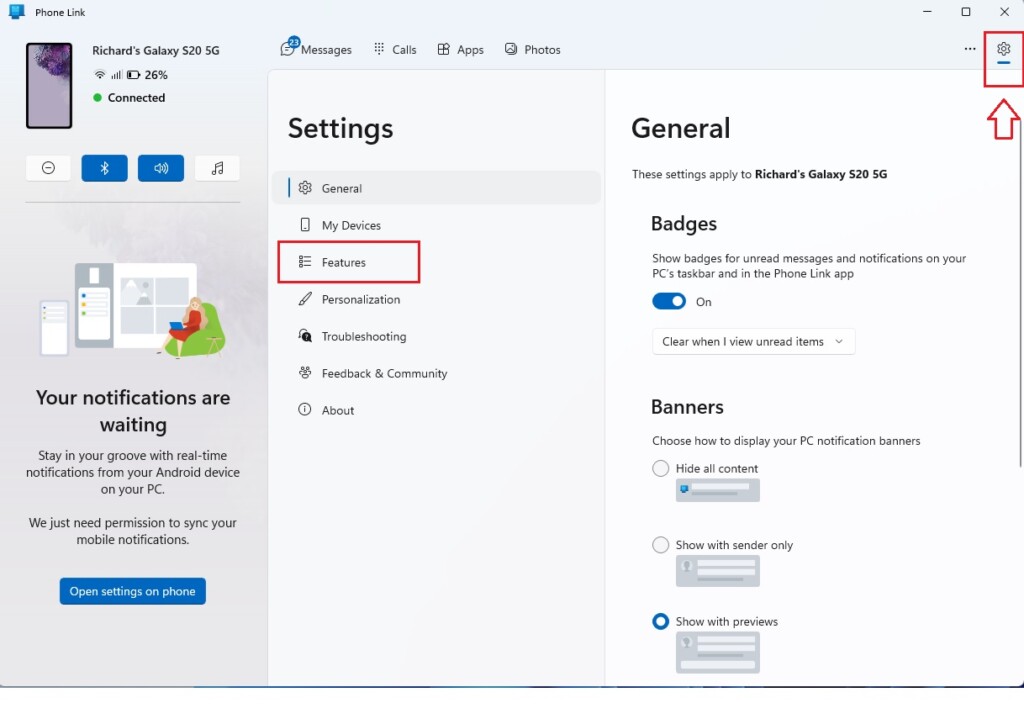
You can turn on cross-device copy paste in Windows 11 by opening the Phone Link app, clicking the gear icon for Settings, choosing Features, and switching Cross-device copy and paste to On. This lets you copy text on your phone and paste it directly onto your computer, or the other way around, without needing administrator rights on your PC.
- Open the Phone Link app on your Windows 11 PC.
- Click the Settings (gear icon) located at the top right corner.
- Select Features from the menu.
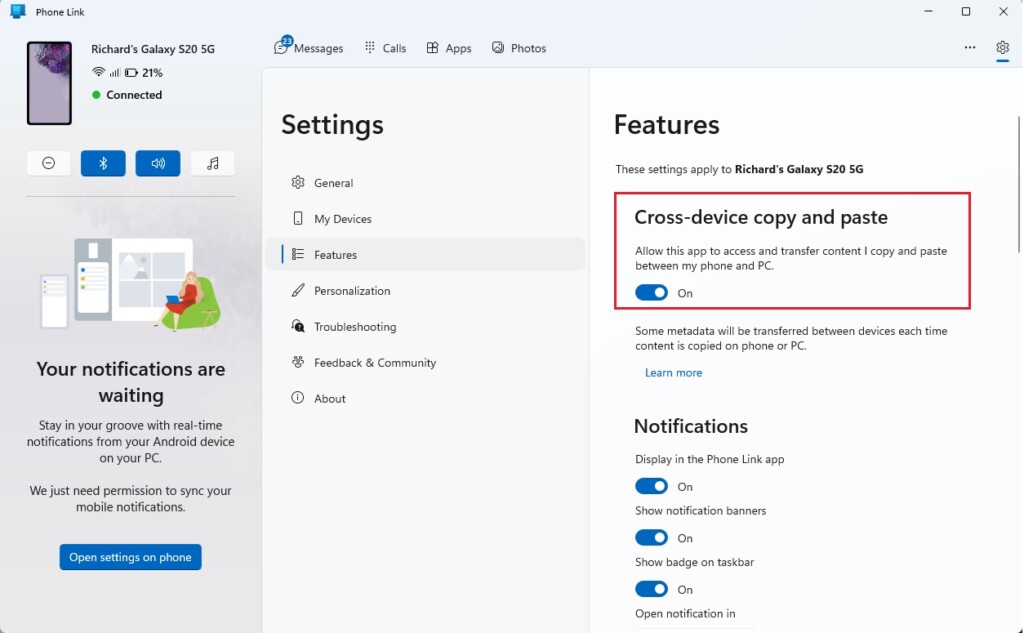
On the Features screen, look for Cross-device copy and paste. Toggle the switch to On. Note: Administrative privileges are not required to change these settings within the app.
Privacy and Security
Clipboard content stays private throughout the process. End-to-end encryption protects the data during transfer, meaning only you can access the synced information.
Troubleshooting Common Issues
If cross-device copy paste stops working between your phone and PC, fix the issue by checking that both devices share the same Wi-Fi network, turning on Bluetooth for both, and restarting the Phone Link app. You should also check that Windows clipboard history is turned on in your main system settings.
- Ensure both devices are on the same Wi-Fi network.
- Check if Bluetooth is enabled on both devices.
- Restart the Phone Link app on your PC and the Link to Windows service on your phone.
- Verify that your clipboard history settings in Windows (Settings System Clipboard) are enabled.
Summary
The Phone Link app makes sharing data between your phone and Windows 11 PC frictionless, helping you get things done faster.
Related posts:
- How to link an Android phone to Windows 11
- How to turn on or off phone link app notification banners in Windows 11
Does cross-device copy and paste use mobile data?
No, the feature primarily relies on your local Wi-Fi network and Bluetooth connection to sync data between devices. It leaves your mobile data plan untouched for standard clipboard transfers, keeping data usage minimal while working across multiple screens.
Why does my copied text lose formatting?
The Phone Link app prioritizes plain text to work across different operating systems. Copying rich text often strips away complex formatting to prevent errors, providing clean text that recipient apps can handle without trouble.
Do I need to be on the same Wi-Fi network?
Yes, optimal performance and minimal latency require both your Android phone and your Windows 11 PC to share the same local Wi-Fi network. This allows direct, secure communication between devices, ensuring copied content transfers almost instantly.
Was this guide helpful?

About the Author
Richard
Tech Writer, IT Professional
Richard, a writer for Geek Rewind, is a tech enthusiast who loves breaking down complex IT topics into simple, easy-to-understand ideas. With years of hands-on experience in system administration and enterprise IT operations, he’s developed a knack for offering practical tips and solutions. Richard aims to make technology more accessible and actionable. He's deeply committed to the Geek Rewind community, always ready to answer questions and engage in discussions.

No comments yet — be the first to share your thoughts!