How to Turn On or Off Battery Saver in Windows 11

Want to make your Windows 11 laptop or tablet last longer on a single charge? This guide shows you how to turn Battery Saver on or off.
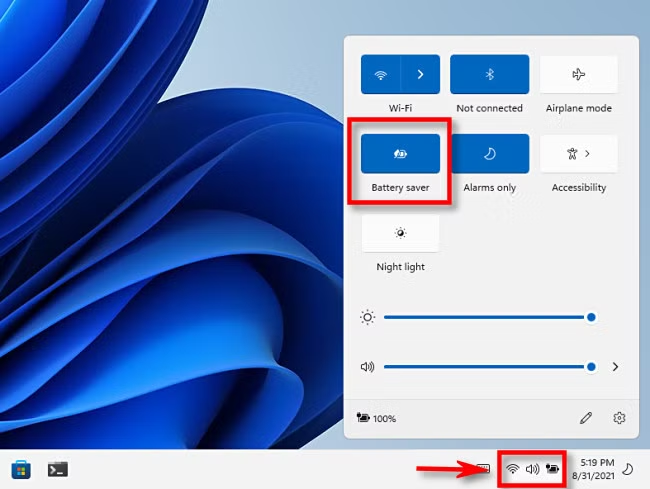
Open Quick Settings by pressing ⊞ Win+A and click the Battery Saver button. Alternatively, go to Settings > System > Power & battery, then click Battery saver to expand and choose “Turn on now” or “Turn off now”.
What is Battery Saver?
Windows 11 Battery Saver is a built-in feature that helps your laptop or tablet run longer on a single charge by reducing power use when you’re not plugged in.
Windows 11's Battery Saver feature turns on automatically when the battery level falls below 20 percent. Battery Saver also reduces screen brightness, helping the battery last longer.
How to Turn On or Off Battery Saver
Option 1Use Quick Settings
- Press ⊞ Win+A on your keyboard to open Quick Settings.
- Look for the Battery Saver button (it looks like a battery with a heart).
- Click the button to turn Battery Saver on or off.
Option 2Use Settings
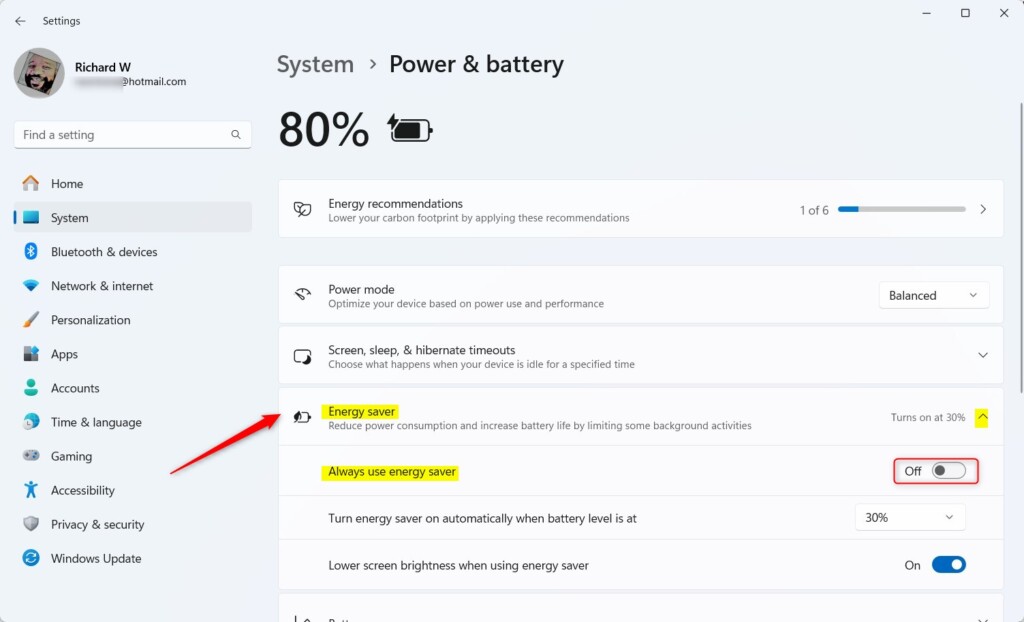
- Press ⊞ Win+I to open the Settings app.
- Click System on the left menu.
- Select Power & battery on the right side.
- Find Battery saver and click it to expand.
- Click Turn on now or Turn off now to change Battery Saver status.
You can easily turn Windows 11 Battery Saver on or off using the Settings app by pressing ⊞ Win+I to open it, then navigating to System > Power & battery.
Option 3Set When Battery Saver Turns On Automatically
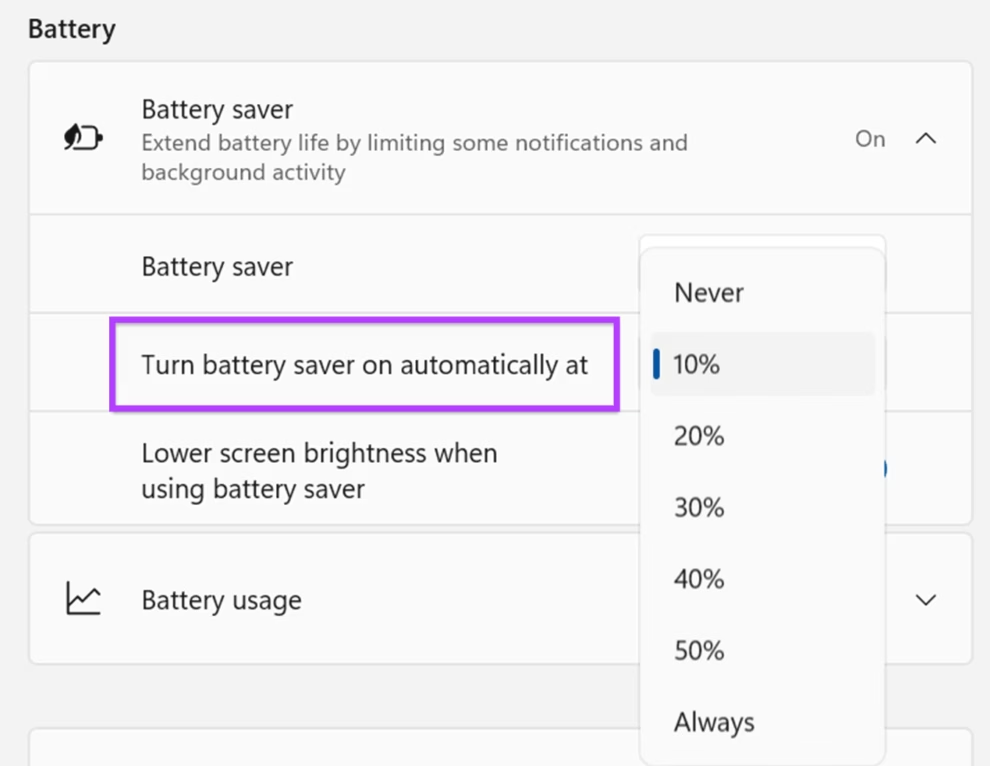
You can also decide when Battery Saver kicks in automatically.
- Open Settings with ⊞ Win+I.
- Go to System > Power & battery.
- Expand Battery saver.
- Under Turn battery saver on automatically at, pick a percentage like 10%, 20% (default), 30%, or even Never if you don’t want it to turn on automatically.
Option 4Use Windows Terminal (for advanced users)
- Open Windows Terminal by right-clicking the Start button and selecting it.
- Type this command and press Enter:
powercfg /setdcvalueindex SCHEME_CURRENT SUB_ENERGYSAVER ESBATTTHRESHOLD <percentage>Replace `
- 0 = Never turn on Battery Saver automatically
- 20 = Default, turn on at 20% battery
- 100 = Always keep Battery Saver on when on battery
Example (to set Battery Saver to turn on at 20%):
powercfg /setdcvalueindex SCHEME_CURRENT SUB_ENERGYSAVER ESBATTTHRESHOLD 20What is Energy Saver in 🪟 Windows 11?
Starting with new Windows 11 versions, Microsoft also added Energy Saver. It’s like Battery Saver, but it works even when your PC is plugged in (great for desktops too!) to help cut down on energy use without making your computer feel sluggish.
Summary – Why Use Battery Saver?
- Save Battery Life: Helps your laptop last longer by saving power.
- Auto On: Turns on automatically when battery is low (default 20%).
- Brightness Reduced: Makes your screen a bit dimmer to save energy.
- Easy to Use: Turn on or off quickly from Quick Settings or Settings.
- Customizable: Choose when Battery Saver should start automatically.
- Energy Saver: New enhanced mode for saving energy even when plugged in.
Using Windows 11 Battery Saver is a great way to extend your laptop’s battery life, as it automatically turns on when your battery is low and reduces power consumption.
How to limit battery charging to 80% in 🪟 Windows 11?
Tool usually I don't like to use manufacturers. Tools but this one is actually useful okay let's steps okay first let's open start. And look for the my ASUS. App. Then go to devices.
Does 🪟 Windows 11 have a battery saver?
Application open Settings. Here click on System. Then scroll down and select the Power & battery option. Look for the Battery section and select the Battery Saver drop-down menu.
Why can't I turn on battery saver in 🪟 Windows 11?
11. Device so this should hopefully be a pretty direct process here guys and without further ado let's go ahead and jump straight into it. So all you have to do is open up the search menu.
Was this guide helpful?

About the Author
Richard
Tech Writer, IT Professional
Richard, a writer for Geek Rewind, is a tech enthusiast who loves breaking down complex IT topics into simple, easy-to-understand ideas. With years of hands-on experience in system administration and enterprise IT operations, he’s developed a knack for offering practical tips and solutions. Richard aims to make technology more accessible and actionable. He's deeply committed to the Geek Rewind community, always ready to answer questions and engage in discussions.


No comments yet — be the first to share your thoughts!