How to Show Hidden Files, Folders, and Drives in Windows 11

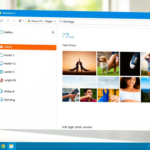
You can show hidden files, folders, and drives in Windows 11 by changing the File Explorer view settings.
Windows hides certain files and folders on purpose. It does this to prevent you from accidentally deleting or changing them, which helps keep your system stable and organized. These can include crucial system files or application data.
For instance, system files are often hidden by default to protect the operating system’s integrity. Windows 11 makes revealing these elements possible through its File Explorer interface.
You’ll find that once enabled, these hidden items appear slightly faded, helping you easily distinguish them from regular files.
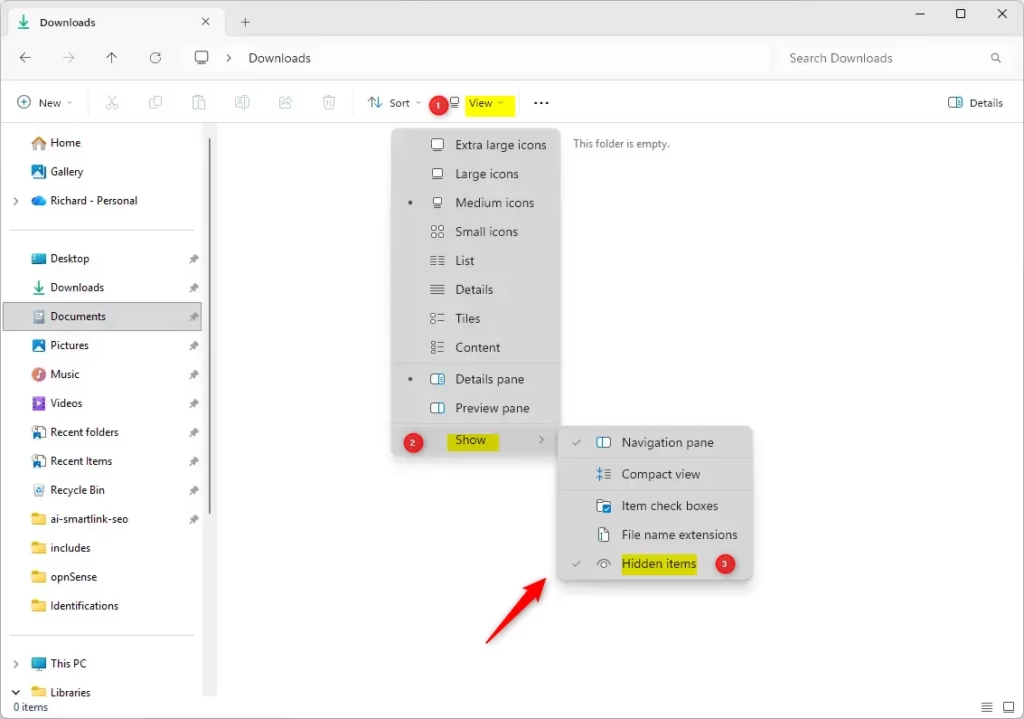
Open File Explorer, click the View menu, hover over Show, and click Hidden items. Alternatively, open Folder Options, go to the View tab, and select Show hidden files, folders, and drives.
What Are Hidden and Protected Files?
- Hidden files, folders, and drives are marked by Windows to not show up by default.
- Protected operating system files are even more important and hidden by default to prevent accidental changes that could harm your system.
If you want to see these files, follow the steps below.
Option 1Show Hidden Files Using File Explorer
- Open File Explorer. You can press
Windows + Eon your keyboard to open it quickly. - At the top, click on the View menu.
- Hover over or click Show.
- Click on Hidden items to check it. This will show hidden files and folders. Uncheck it to hide them again.
Option 2Show Hidden Files Using Folder Options
- Open Folder Options:
- Press
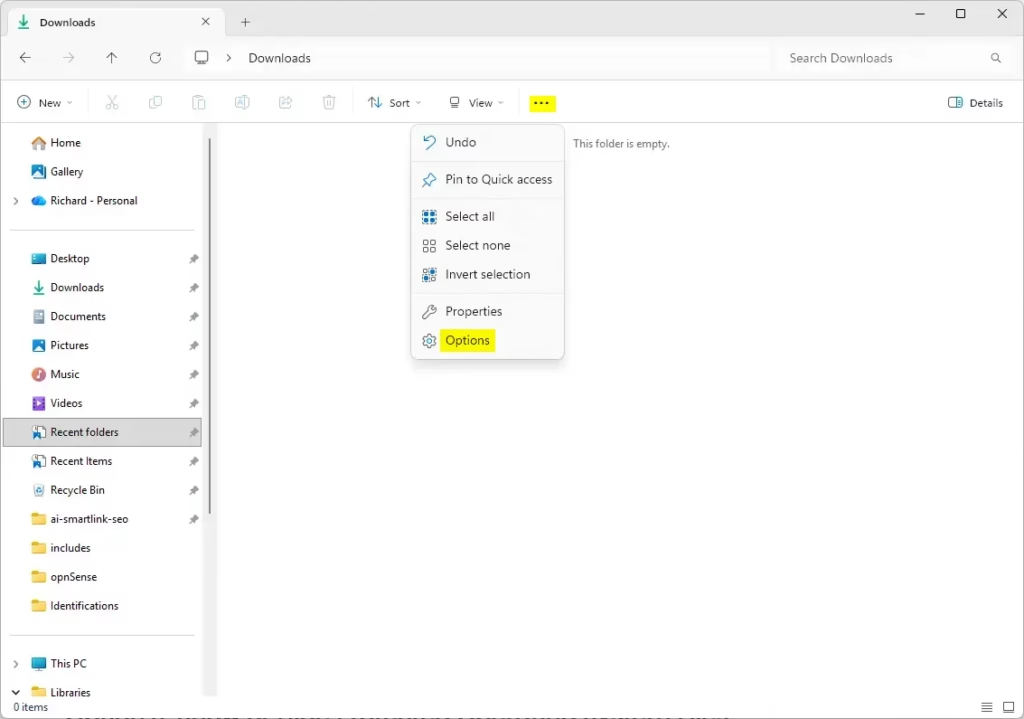
Windows + S, type Folder Options or File Explorer Options and select it.
- Press
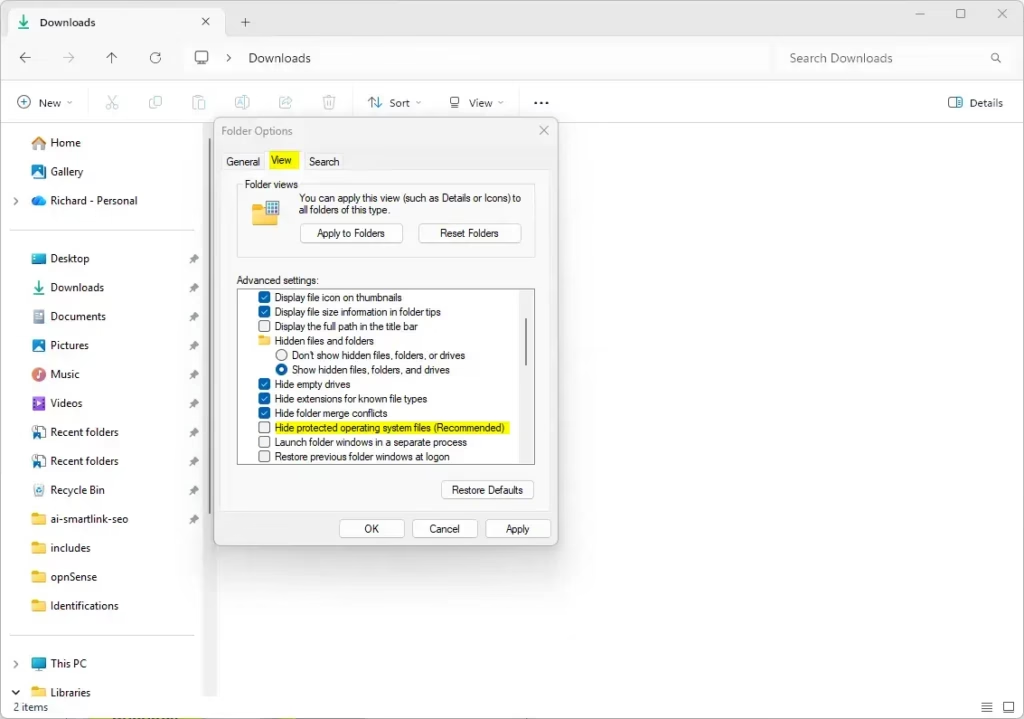
- Click the View tab.
- Under “Hidden files and folders,” choose Show hidden files, folders, and drives to see hidden items, or Don’t show to hide them.
- Click OK to save your changes.
Option 3Show or Hide Protected Operating System Files
You can show protected operating system files in Windows 11 by changing a setting in Folder Options. This lets you see important files that Windows hides by default to prevent accidental changes.
- Open Folder Options and go to the View tab.
- Find Hide protected operating system files (Recommended) and uncheck it to show these files.
- You will see a warning — click Yes to continue.
- Click OK to apply the changes.
Be careful: These files are important for Windows to work properly. Don’t change or delete them unless you know what you’re doing.
Option 4Use a Registry File to Show or Hide Hidden Files
Using a registry file is a quick way to show or hide hidden files in Windows 11 if you’re comfortable with advanced settings. Running a simple command can change this setting for you.
To show hidden files, run the command below.
reg add "HKCU\Software\Microsoft\Windows\CurrentVersion\Explorer\Advanced" /v Hidden /t REG_DWORD /d 1 /f
To hide hidden files again, run the command below.
reg add "HKCU\Software\Microsoft\Windows\CurrentVersion\Explorer\Advanced" /v Hidden /t REG_DWORD /d 0 /f
Option 5Use a Registry File to Show or Hide Protected Operating System Files
You can show or hide protected operating system files in Windows 11 using registry files, which also manages regular hidden files. This method is useful if you want to control both types of hidden files with one command.
To show protected system files, run the commands below.
reg add "HKCU\Software\Microsoft\Windows\CurrentVersion\Explorer\Advanced" /v Hidden /t REG_DWORD /d 1 /f

reg add "HKCU\Software\Microsoft\Windows\CurrentVersion\Explorer\Advanced" /v ShowSuperHidden /t REG_DWORD /d 1 /f
To hide the protected system files again, run the commands below.
reg add "HKCU\Software\Microsoft\Windows\CurrentVersion\Explorer\Advanced" /v ShowSuperHidden /t REG_DWORD /d 0 /f
Follow the same steps as Option 4 to apply these changes.
Option 6Turn On or Off Hidden and System Files in Windows Settings
- Open Settings by pressing
Windows + I. - Click System on the left side.
- On the right, click Advanced (you can also open it quickly by clicking this link).
- Click on File Explorer.
- Turn On or Off the toggle for Show hidden and system files depending on what you want.
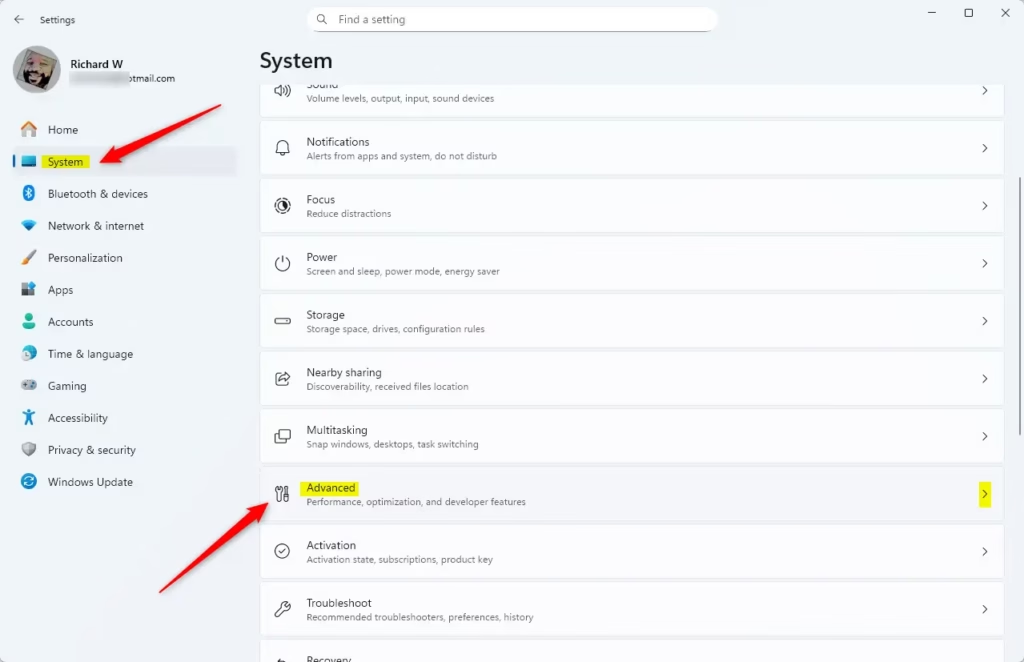
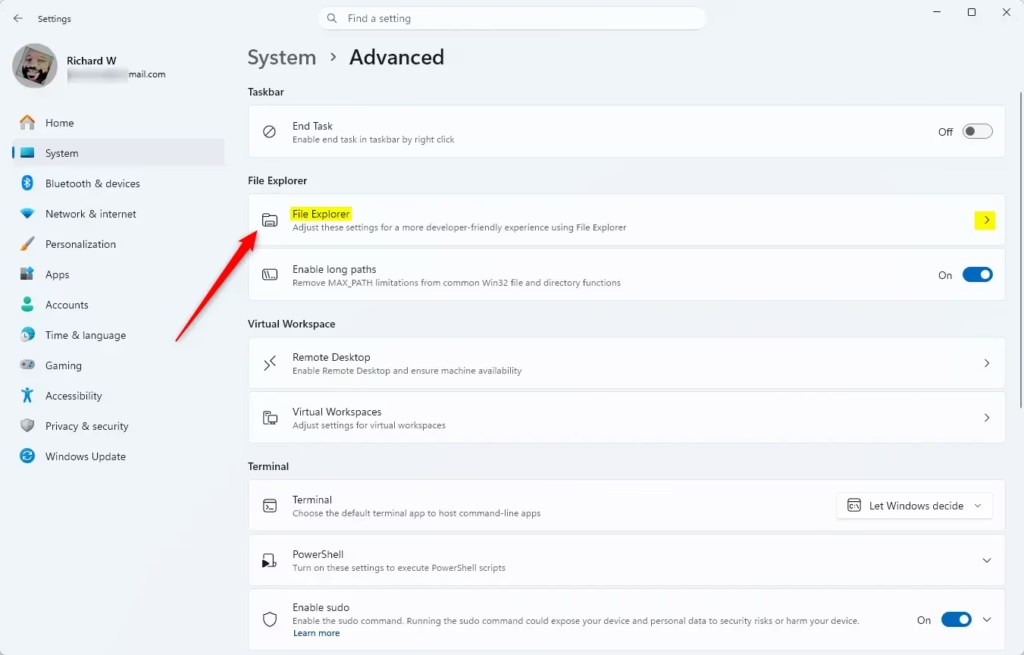
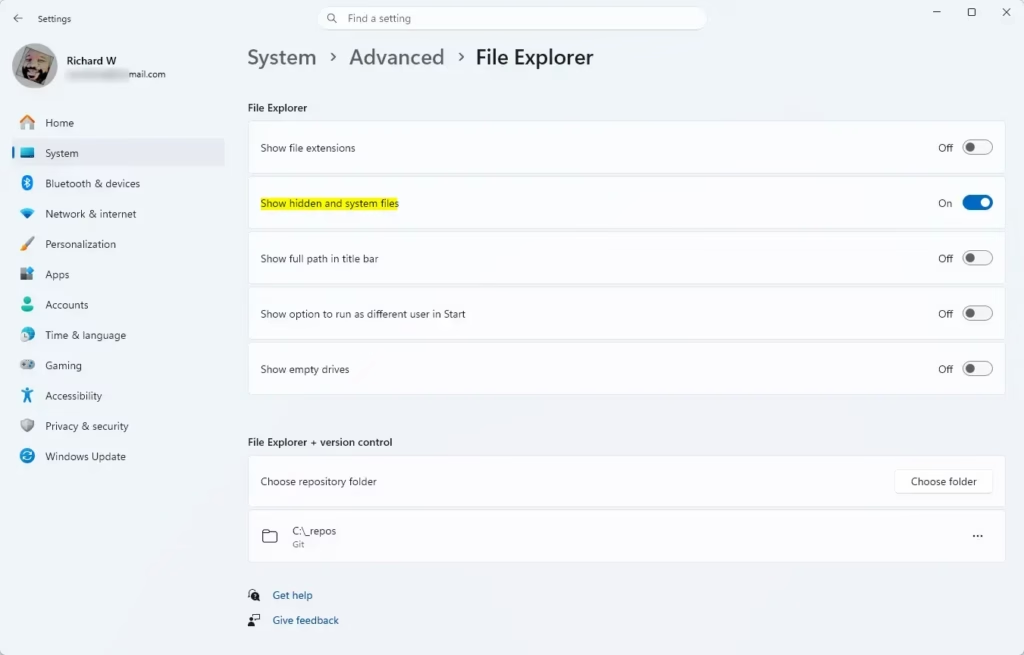
Turning on hidden and system files in Windows 11 Settings is straightforward. You can easily toggle this option on or off through the File Explorer settings within the main Settings app.
Summary
Showing hidden files, folders, and drives in Windows 11 is simple with several methods available, including File Explorer, Folder Options, Registry files, or Settings. Remember that hidden files appear dimmed, and protected system files should be handled with care to keep Windows running smoothly.
- You can easily show or hide files that Windows normally hides.
- There are several ways to do it: through File Explorer, Folder Options, Registry files, or Settings.
- Hidden files look dimmed so you know they are normally hidden.
- Be extra careful with protected system files — they keep Windows running smoothly.
- Choose the method that feels easiest and safest for you.
If you want to learn more, visit the official Microsoft guide here: View Hidden Files and Folders in Windows.
Was this guide helpful?

About the Author
Richard
Tech Writer, IT Professional
Richard, a writer for Geek Rewind, is a tech enthusiast who loves breaking down complex IT topics into simple, easy-to-understand ideas. With years of hands-on experience in system administration and enterprise IT operations, he’s developed a knack for offering practical tips and solutions. Richard aims to make technology more accessible and actionable. He's deeply committed to the Geek Rewind community, always ready to answer questions and engage in discussions.


No comments yet — be the first to share your thoughts!