Protect Your Windows 11 with Microsoft Security

Protect your Windows 11 PC using Microsoft Defender Antivirus, the integrated security solution that forms the core of Windows Security.
Windows Security acts as your primary defense against viruses, malware, and other cyber threats, delivering constant, real-time protection for your digital life.
This essential built-in app automatically scans your system for threats the moment you start Windows 11. It stays current by automatically downloading the latest security intelligence directly from Microsoft, ensuring you’re always covered.
Even if you install a different antivirus program, Windows Security smartly pauses itself to prevent conflicts, then reactivates automatically if you remove the third-party software.
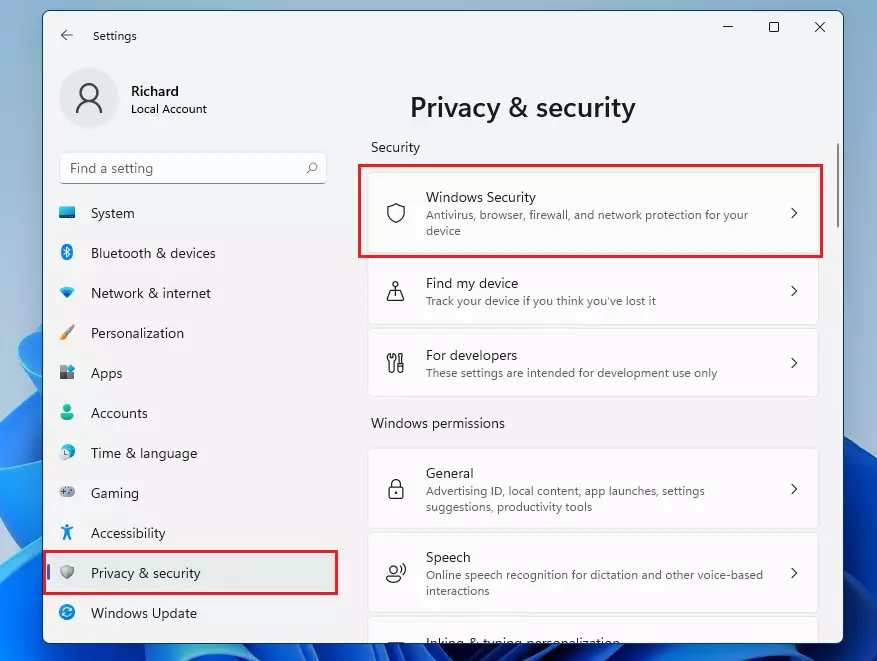
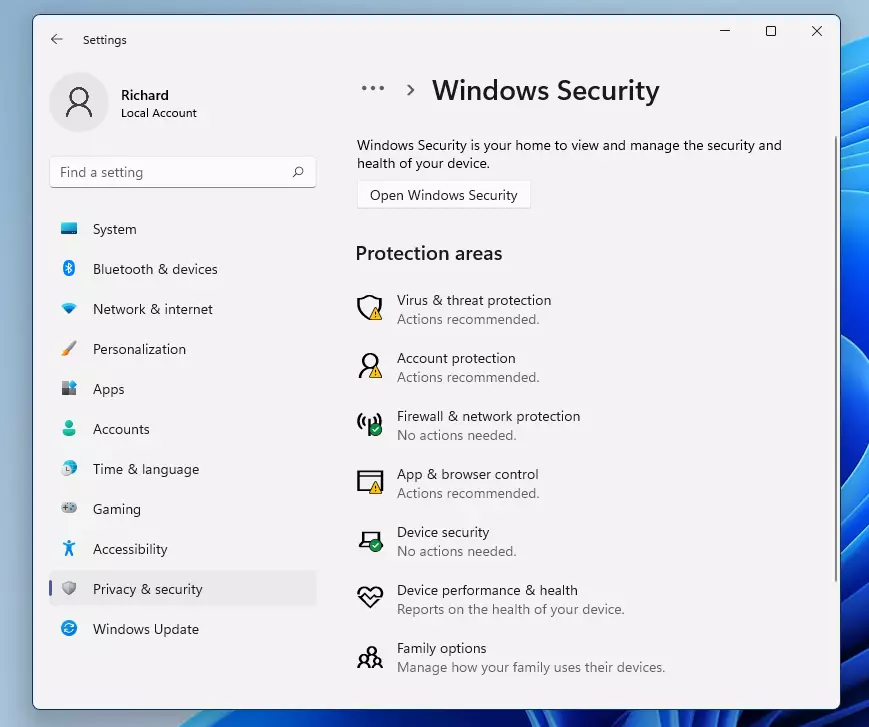
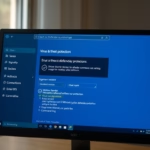
Open Windows Security by searching for it in the taskbar. Ensure all security areas show green checkmarks for optimal protection. This built-in tool defends against viruses, malware, and other online threats.
Login to Windows Security
Opening Windows Security is the first step to checking your Windows 11 security status and making sure your computer is protected.
The app shows you a quick status report. If you see a green checkmark, your computer is safe. Yellow means you should check for recommendations. Red means you need to take action immediately to fix a security issue.
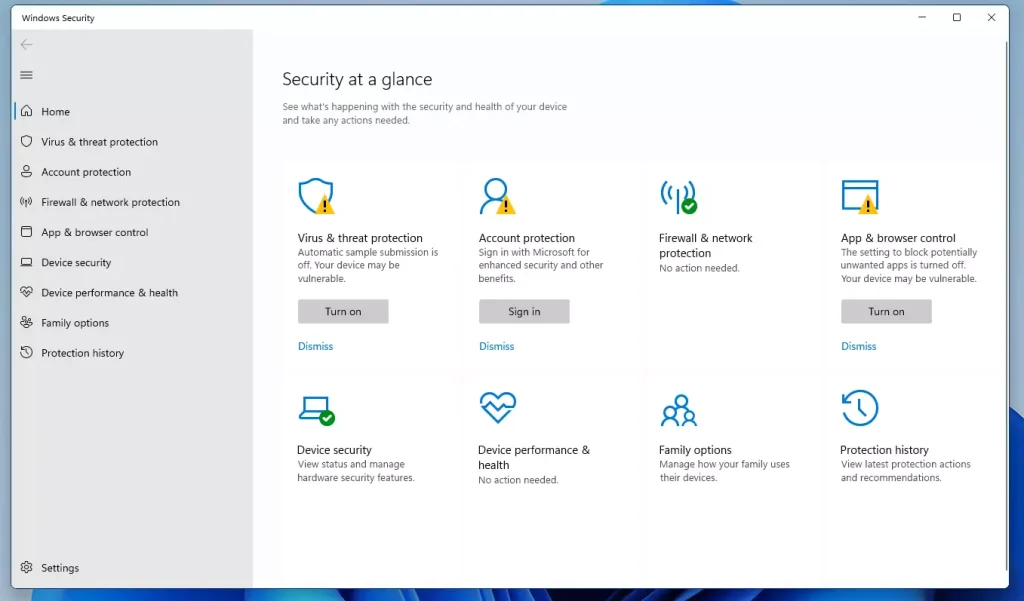
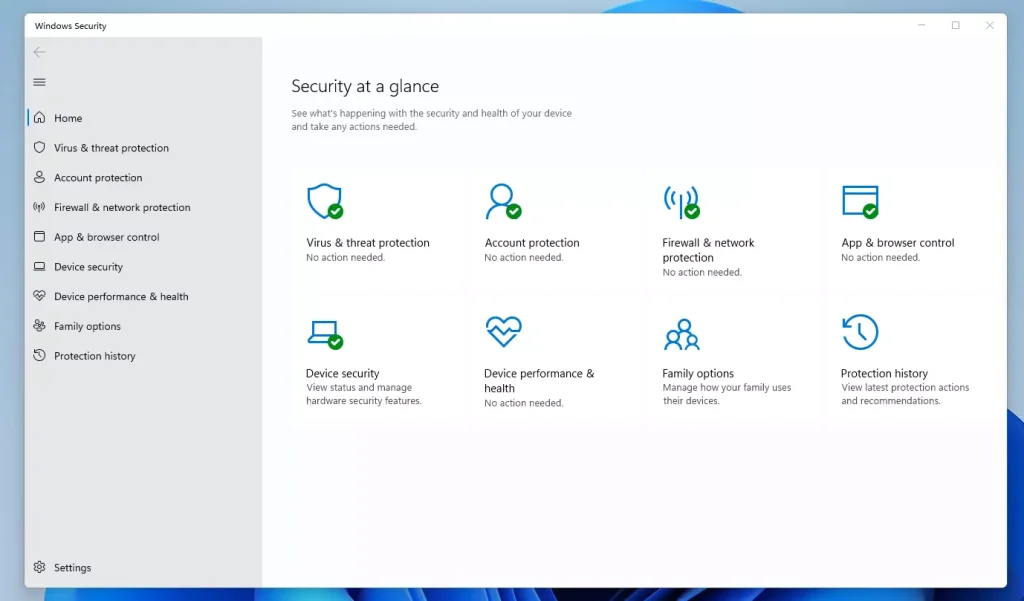
Security areas in Windows Security
- Virus & threat protection: Monitors your files for viruses and runs scans.
- Account protection: Manages your sign-in options like Windows Hello.
- Firewall & network protection: Watches your internet connections for suspicious activity.
- Apps & browser control: Uses SmartScreen to block dangerous websites and apps.
- Device security: This includes Core Isolation and Memory Integrity. These features use hardware security to prevent malicious code from accessing your computer’s memory. Keep these turned on for the best protection.
- Smart App Control: This is a modern security feature that blocks untrusted or potentially unwanted apps. It provides a vital layer of defense for Windows 11 users.
- Device performance & health: Checks your system for updates and performance issues.
- Family options: Helps you manage online safety for children.
Windows Security covers several important areas to keep your Windows 11 safe, including Virus & threat protection for scanning files, Account protection for sign-in options, and Firewall & network protection to watch internet activity.
How to fix Windows Security apps
If the app stops working, you may need to reset it. Follow this guide to fix it: %📂%LNK0%%
How to schedule a scan in 🪟 Windows 11
You can schedule a virus scan in Windows 11 using the Task Scheduler, even though the main Windows Security app doesn’t offer this feature directly.
Using Task Scheduler:
- Search for “Task Scheduler” in the search bar and open it.
- Go to Task Scheduler Library > Microsoft > Windows > Windows Defender.
- Right-click “Windows Defender Scheduled Scan” and select Properties.
- Go to the Triggers tab, click New, and set your preferred time.
Using PowerShell:
- Right-click the Start button and select Terminal (Admin).
- Type
Set-MpPreference -ScanScheduleDay [DayOfWeek]and press Enter. - Type
Set-MpPreference -ScanScheduleTime [HH:MM]and press Enter to set the time.
Using the information above will keep your device secure. One important takeaway is that Windows Security is very capable, and most users do not need extra software. %📂%LNK1%%
Conclusion
- Windows Security offers strong, built-in protection against modern threats.
- Features like Smart App Control and Memory Integrity are essential for Windows 11 security.
- Regularly checking your status ensures your device stays healthy.
- Knowing these tools helps you stay safe while browsing the web.
Was this guide helpful?

About the Author
Richard
Tech Writer, IT Professional
Richard, a writer for Geek Rewind, is a tech enthusiast who loves breaking down complex IT topics into simple, easy-to-understand ideas. With years of hands-on experience in system administration and enterprise IT operations, he’s developed a knack for offering practical tips and solutions. Richard aims to make technology more accessible and actionable. He's deeply committed to the Geek Rewind community, always ready to answer questions and engage in discussions.
📚 Related Tutorials



[…] Removing the PIN from a Microsoft account will also turn off Account protection in Windows Security. […]
[…] changes to Microsoft Defender antivirus settings with tamper protection. Tamper Protection in Windows Security helps prevent malicious apps from changing Microsoft Defender Antivirus settings, including […]
[…] for and view device performance and health data in Windows 11. Windows has a built-in tool, part of Windows Security, that checks your device for security issues and provides a health report, which appears on the […]
[…] How to protect Windows 11 with Windows Security. […]
[…] How to install and use Microsoft Defender to protect one’s computer. […]
[…] post shows students and new users steps to turn Core Isolation Memory Integrity on or off with Microsoft Security in Windows 11. Core Isolation is a security feature that protects critical Windows core processes […]
[…] recently shared a guide on how to secure and protect your computer using Microsoft Security. We highlighted that when you […]
[…] do that, open the Windows Security app. Click the Start button and search for Windows Security, under Best match, select […]