How to Schedule Windows Update Restarts in Windows 11


Scheduling Windows update restarts in Windows 11 stops your PC from rebooting in the middle of your work. Windows 11 lets you pick exact restart times or pause updates for up to 35 days so your computer only reboots when you are ready.
Open Settings to set active hours or choose a custom restart time before an update takes you by surprise.
Schedule your Windows Update restarts by going to Settings, then Windows Update, and clicking Schedule restart. Choose a day and time that works best for you to avoid interruptions. Your computer will then restart automatically at your selected time.
How to Schedule a Restart for Windows Update in 🪟 Windows 11
To schedule windows update restart times in Windows 11 so your PC does not reboot while you are working, open Settings , go to Windows Update, click Advanced options, and adjust your Active hours. This feature tells Windows exactly when you use your computer, preventing random restarts during the day.
- When Windows finishes installing updates, you might see a message like this that lets you pick a restart time:
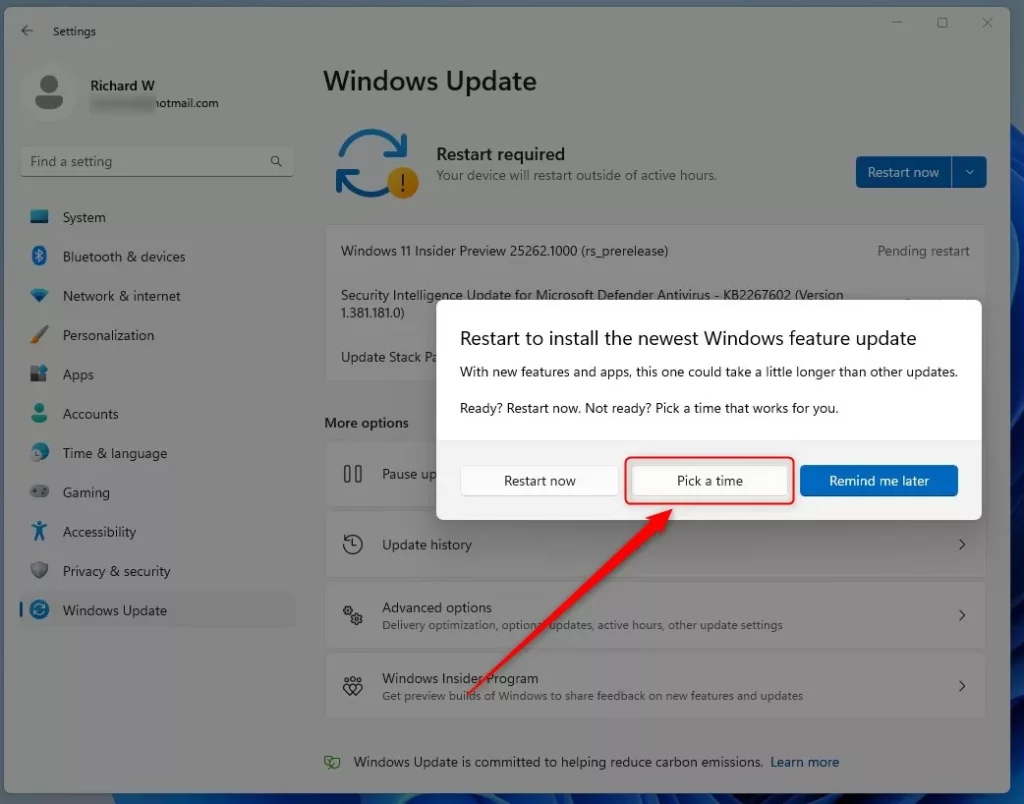 Choose a convenient time to restart your PC after updates.
windows pick a time to restart after update - If you missed that message or want to change your restart time, click the Start menu (the Windows icon in the bottom-left corner), then click Settings.

windows 11 start menu settings updated Open the Settings from the Start menu . - In the Settings window, click Windows Update on the left side.
- Click on Schedule restart.
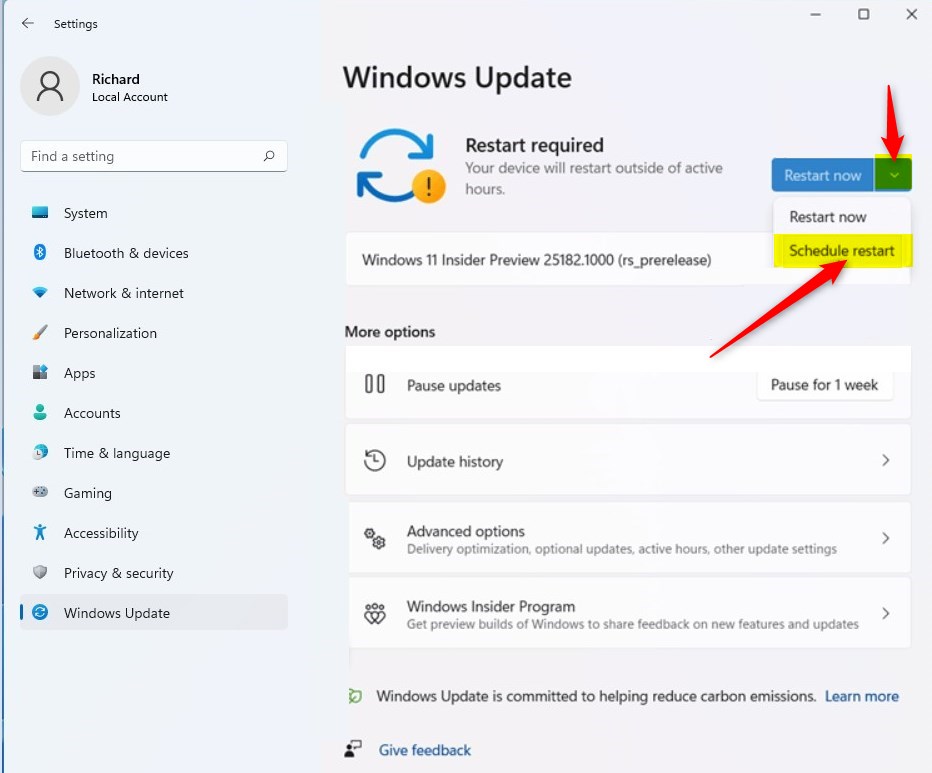
windows 11 schedule restart Find and click “Schedule restart”. - Choose the day and time when you want your computer to restart. Pick a time when you won’t be using your computer so you don’t get interrupted.
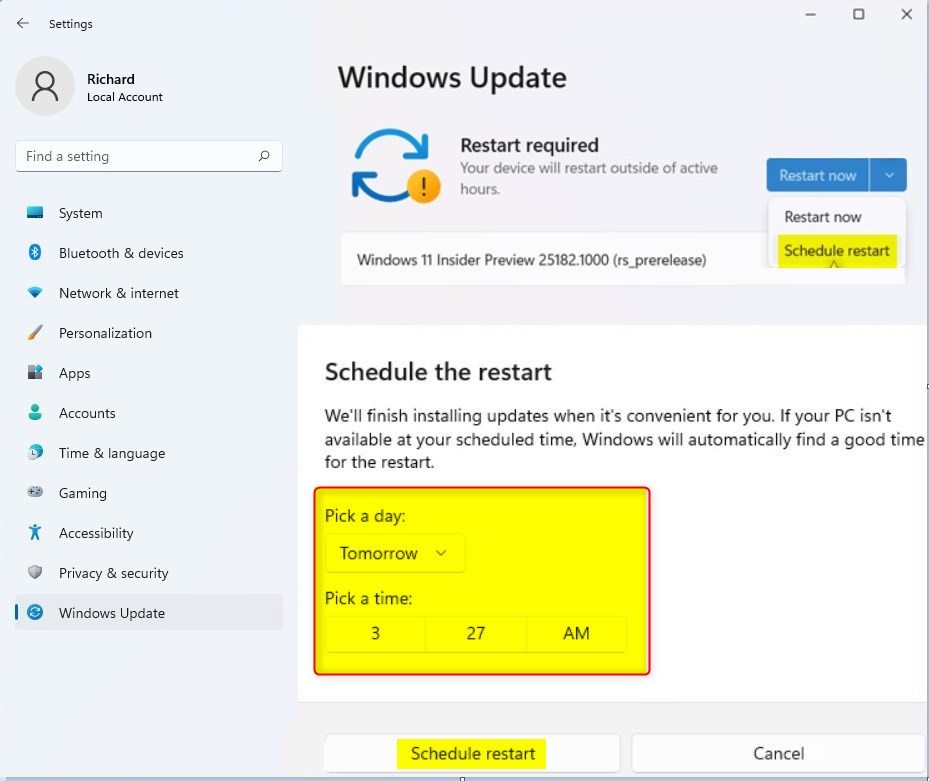
windows 11 pick time to schedule restart Select your preferred day and time for restart. - Click Schedule restart to save your choice.
That’s it! Your computer will restart at the time you picked to finish installing updates.
Settings App vs. Group Policy vs. Registry
- The Settings app is the easiest and safest for most users, offering basic control over active hours and restart times.
- Group Policy Editor provides more granular control for IT administrators on Pro, Enterprise, and Education editions, allowing for forced deadlines and specific restart policies.
- The Windows Registry offers the most flexibility and can be used on all editions, but it carries the highest risk of system errors if not edited carefully.
File > Export in the Registry Editor and saving a copy. Incorrect changes to the registry can cause serious system problems, including preventing Windows from starting.Managing restart schedules in Windows 11 can be done through the Settings app, Group Policy Editor, or the Windows Registry. The Settings app works best for everyday users who want quick control over active hours, while the Group Policy Editor and Registry offer advanced management options for network administrators and Pro edition users.
For advanced users or those on Windows 11 Home edition (which lacks Group Policy Editor), you can modify the Windows Registry. Proceed with caution, as incorrect registry edits can cause system instability.
1. Press Windows key + R, type regedit, and press Enter.
2. Navigate to HKEY_LOCAL_MACHINE\SOFTWARE\Policies\Microsoft\Windows\WindowsUpdate.
3. If WindowsUpdate does not exist, right-click on Windows, select New > Key, and name it WindowsUpdate.
4. Right-click on WindowsUpdate, select New > Key, and name it AU.
5. Right-click on the AU key, select New > DWORD (32-bit) Value.
6. Name the new value AUOptions.
7. Double-click AUOptions. Set the Value data based on the following:
2: Auto download and notify for install.
3: Auto download and schedule the install.
4: Auto download and install, and restart automatically at the scheduled time.
5: Auto download and install, and restart automatically without warning.
8. To control active hours via registry, create a DWORD (32-bit) Value named ActiveHoursStart and set its value to the hour you want active hours to begin (e.g., 8 for 8 AM). Create another DWORD (32-bit) Value named ActiveHoursEnd and set its value to the hour active hours end (e.g., 17 for 5 PM).
9. You can also add a DWORD (32-bit) Value named UpdateServiceOrSignal and set it to 1 to use Windows Update for Business.
10. Restart your computer for these changes to take effect.
Using Group Policy Editor (for Pro, Enterprise, Education editions)
If you have Windows 11 Pro, Enterprise, or Education, you can use the Group Policy Editor for more advanced control.
1. Press Windows key + R, type gpedit.msc, and press Enter.
2. Navigate to Computer Configuration > Administrative Templates > Windows Components > Windows Update.
3. Find and double-click on Configure Automatic Updates.
4. Select Enabled. Then, under Options, choose a setting like 2 - Auto download and notify for install or 3 - Auto download and schedule the install.
5. Crucially, look for settings related to restart behavior. You can configure options like Always automatically restart at the scheduled time or No auto-restart with logged on users for scheduled automatic updates installations.
6. You can also find settings to Specify deadline for automatic updates and restarts. This forces an update installation and restart after a set number of days, overriding active hours if needed. This is a powerful option for ensuring updates are applied promptly across managed devices.
Always test these settings on a non-critical machine first.
Latest Update
For Windows 11 versions 22H2 and later, you can also set a specific restart time. If you don't, Windows will attempt to restart outside of your active hours.
Why Scheduling Restarts is Helpful
- Windows Updates keep your computer safe and running smoothly.
- Scheduling restarts lets you choose a time that won’t interrupt your work or fun.
- It helps prevent sudden restarts when you’re busy using your computer.
- The steps above are easy to follow and give you control over when your PC restarts.
Scheduling your Windows Update restarts prevents your computer from suddenly rebooting in the middle of an important task or game. Instead of letting Windows restart automatically at random times, you stay in full control of when your PC installs updates and reboots.
Understanding how Windows Update restarts are managed is key to maintaining system security without disrupting your workflow. While the Settings app offers simple controls, advanced methods like Group Policy and the Registry provide IT professionals with the tools needed to enforce update policies across organizations, ensuring that critical updates are applied even if users attempt to postpone them.
Was this guide helpful?
100% of readers found this helpful (2 votes)

About the Author
Richard
Tech Writer, IT Professional
Richard, a writer for Geek Rewind, is a tech enthusiast who loves breaking down complex IT topics into simple, easy-to-understand ideas. With years of hands-on experience in system administration and enterprise IT operations, he’s developed a knack for offering practical tips and solutions. Richard aims to make technology more accessible and actionable. He's deeply committed to the Geek Rewind community, always ready to answer questions and engage in discussions.

No comments yet — be the first to share your thoughts!