How to Uninstall Windows Subsystem for Linux (WSL) in Windows 11

- 18 steps
- Needs administrator rights
- Includes a restart or sign-out
Removing Windows Subsystem for Linux (WSL) frees up disk space and deletes all associated Linux files and apps. The steps below work on Windows 11 Home and Pro. Read the warning below before you start, because the file deletion cannot be undone.
To uninstall Windows Subsystem for Linux (WSL), first uninstall your Linux distributions from Settings or File Explorer. Then, turn off the “Windows Subsystem for Linux” feature via Optional Features or by toggling it off in Settings.
Why remove WSL?
Removing WSL clears out the Linux environment and every file stored inside it. That includes your home folders, any projects you kept in a distro, and installed packages.
What happens when done?
Once finished, your computer will no longer be able to run Linux apps or commands. All your Linux-based files will be deleted. If you want to keep anything, copy it to a normal Windows folder before you begin. You can reach the Linux files through the Linux entry in File Explorer’s side panel.
If you are signed in with a standard account, you will be asked for an admin password at the User Account Control prompt. If you cannot provide one, the feature will not switch off.
You can undo the change later by turning the feature back on and reinstalling a distro. The files you deleted will not come back.
Option One
Uninstall via Settings
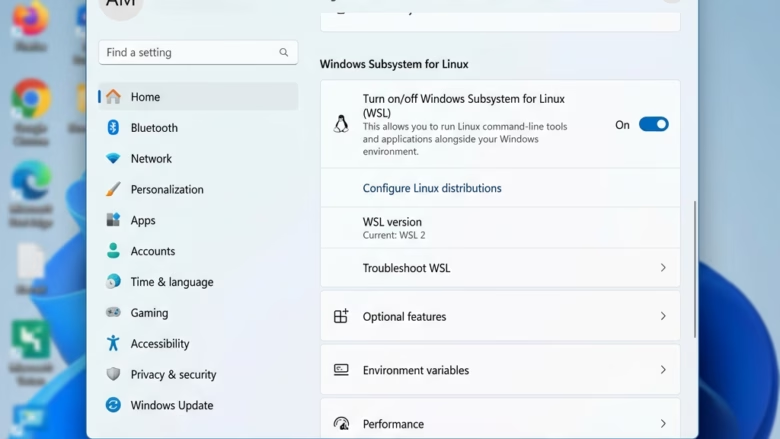
On newer builds of Windows 11, you can uninstall WSL through the Settings app. This turns off the Windows Subsystem for Linux without touching the command line, so it is the easiest route if your system offers it. Not every build has this option. If you do not see Virtual Workspaces in step 3, skip to the manual method further down.
- Open Settings by pressing Win+I. The Settings window opens.
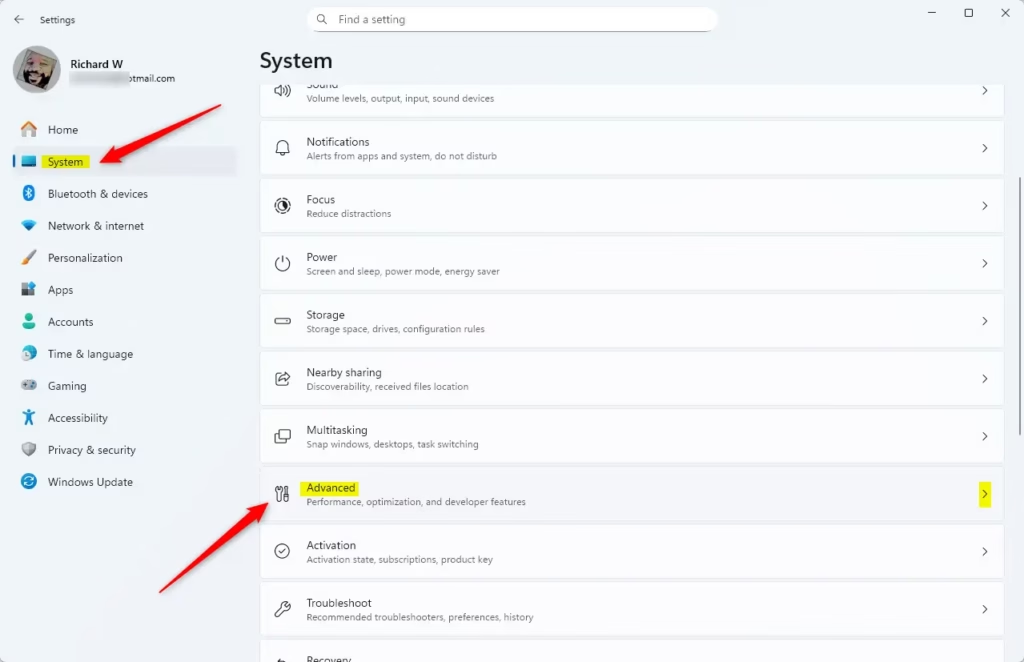
- Click System on the left, then click Advanced on the right. Open Advanced settings
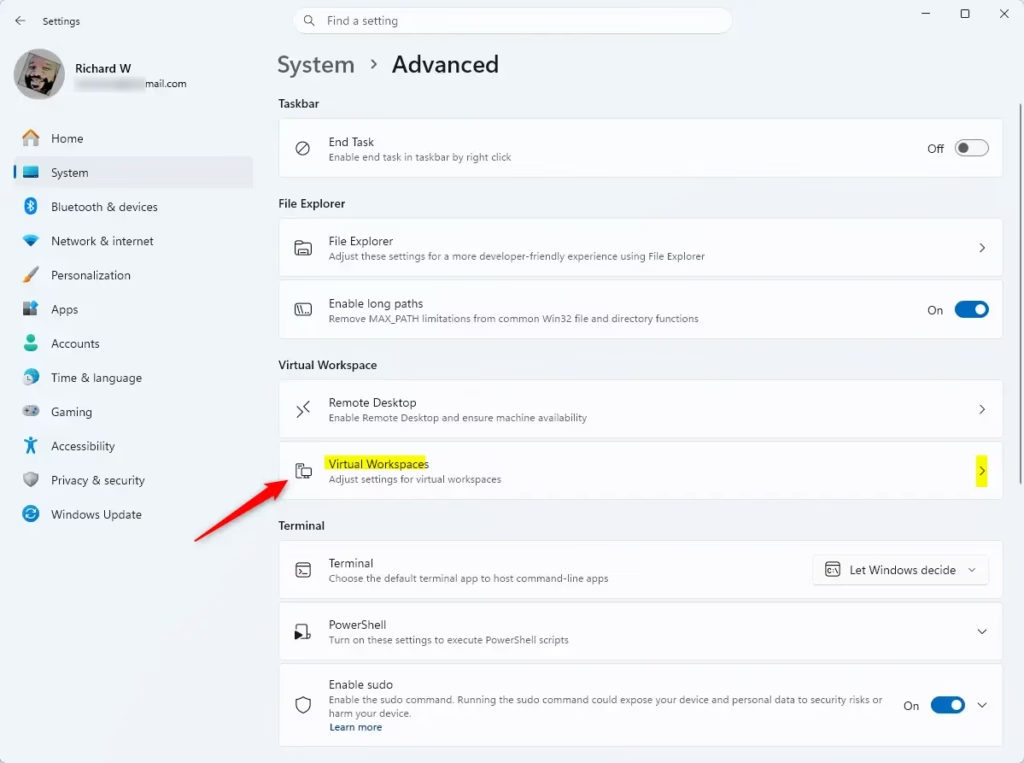
- Click Virtual Workspaces. A list of virtualization-related features appears.
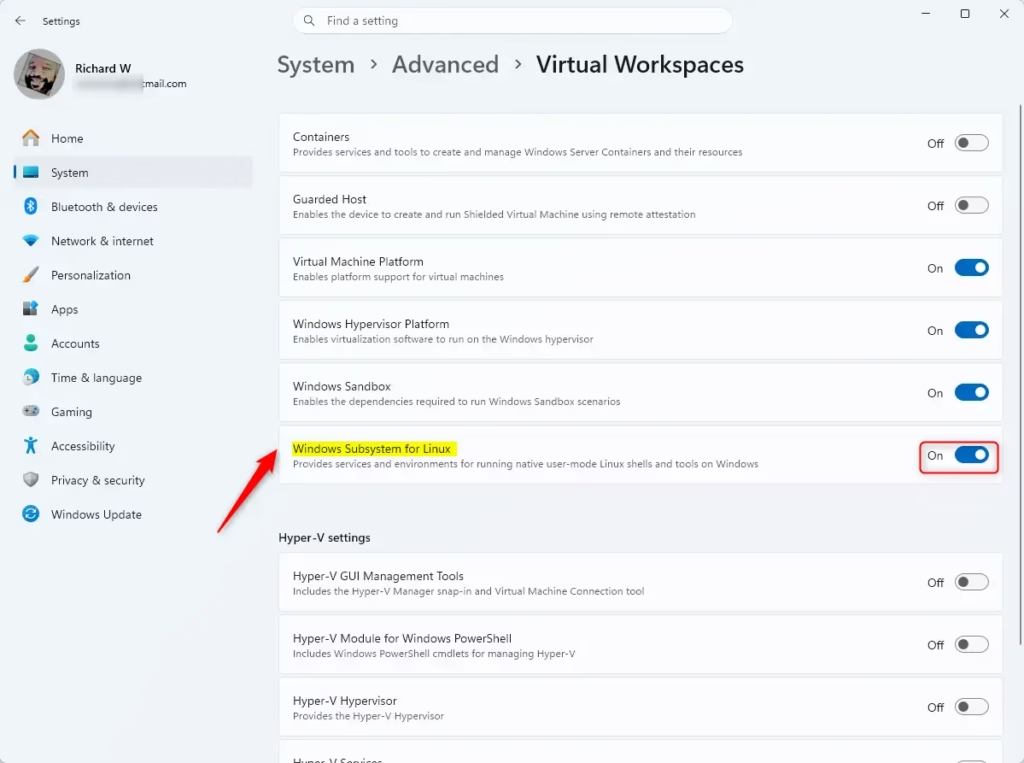
- Turn off Windows Subsystem for Linux. The toggle should now show as off, and Windows will ask for permission to make the change.
- Click Yes if the User Account Control (UAC) window appears (admin privileges required). If the toggle is greyed out or the change fails, check that you are signed in as an administrator.
- Close Settings once the process completes. If Windows asks you to restart, do it now so the change is fully applied.
Option Two
Manual Uninstall
To uninstall WSL manually, first remove your installed Linux distributions, then the WSL app, and finally turn off the core Windows feature. This hands-on process makes sure no leftovers remain. Use it when the Settings method is not available or does not work.
- Open the Start menu .
- Click the All apps button. You should see the full list of installed apps.
- Uninstall your Linux distributions:
- Open File Explorer (Win+E) and click Linux in the side panel to see your installed versions.
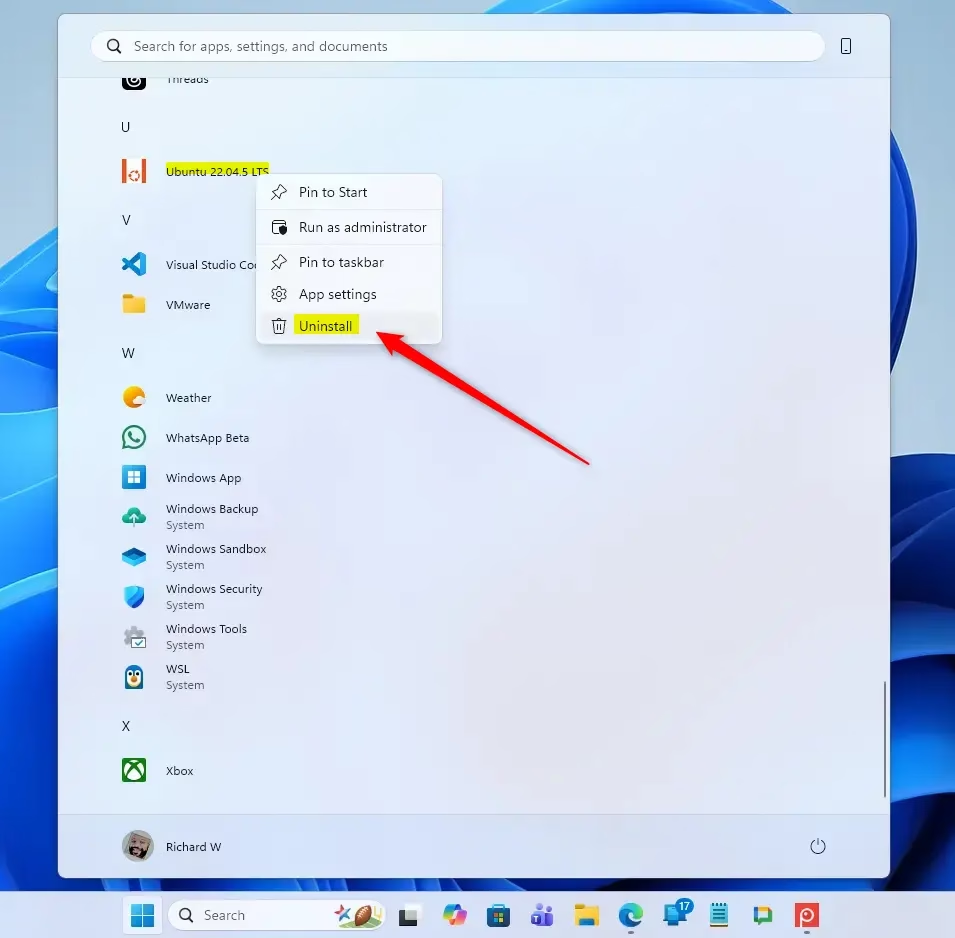
- Right-click your Linux distro (e.g., “Ubuntu”).
- Select Uninstall and confirm.
Repeat this for every distro in the list. Each one has its own set of files, so removing one does not clear the others.
- Uninstall the Windows Subsystem for Linux app:
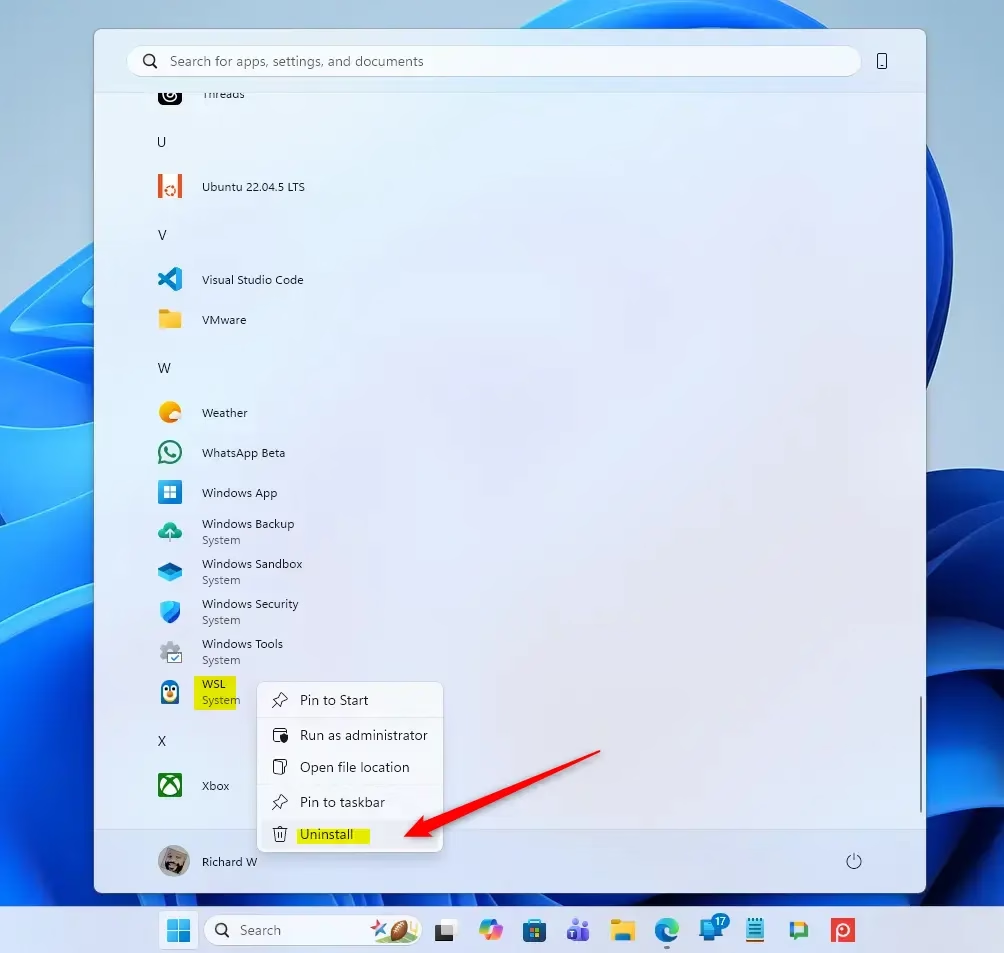
- Right-click the Windows Subsystem for Linux app in your app list.
- Select Uninstall and confirm.
If the app is not in the list, it may already be removed, or WSL may have been installed another way. Carry on with the next step either way.
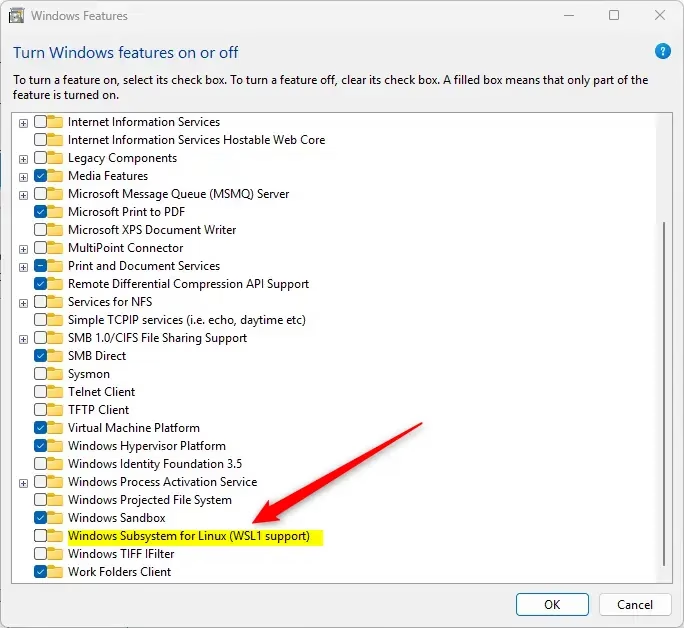
- Press Win+R, type OptionalFeatures.exe, and press Enter. The Windows Features dialog opens.
- Uncheck Windows Subsystem for Linux and click OK (admin privileges required). Windows will apply the change, which can take a minute.
Other entries in this list, such as Virtual Machine Platform, are separate features. Leave them alone unless you know nothing else on your PC needs them.
- Click Restart now to finish the removal. Save your work first, because the PC restarts straight away.
Summary
In short, you delete your Linux distros and apps, then turn off the core WSL feature, either in Settings or in Windows Features. To bring WSL back later, turn the feature on again, restart, and reinstall the distro you want.
Frequently asked questions
How to uninstall WSL completely?
Open Settings, go to Apps, then Installed apps. Find Windows Subsystem for Linux, select the three dots next to it, and choose Uninstall. This deletes every Linux distro and all files stored inside them, and the deletion cannot be undone. Copy anything you want to keep first.
How do I uninstall a Windows update using the command line?
Open Command Prompt as administrator and run wusa /uninstall /kb:KBnumber, replacing KBnumber with the update's number, such as KB5034441. You can find the number in Settings under Windows Update, then Update history. Restart your PC afterward. Removing security updates can leave your computer exposed.
What is WSL on Windows?
Windows Subsystem for Linux (WSL) is a feature that lets you run Linux command-line tools and distributions directly on Windows. It works without a separate virtual machine or dual-boot setup. You can install it from PowerShell or the Microsoft Store and use it alongside your normal Windows apps.
How do I remove Ubuntu and put Windows back on?
Ubuntu is a Linux distribution that runs inside WSL, so removing it does not reinstall Windows. To remove it, open PowerShell, run wsl --unregister Ubuntu, and confirm. This deletes all Ubuntu files. If you installed Ubuntu as a separate dual-boot system, you must delete its partitions in Disk Management instead.
Still have a question?
Answered by AI from this guide. Good questions may be added to this page — please don't include personal details.
Did this guide fix your problem?

About the Author
Richard
Tech Writer, IT Professional
Richard is a writer at Geek Rewind who turns complex IT tasks into clear, step-by-step guides. He draws on years of hands-on experience in system administration and enterprise IT operations, focusing on Windows, Linux and WordPress: the problems people actually run into, and the fixes that work. His server and WordPress guides come from systems he runs himself. Richard builds and maintains the platform behind Geek Rewind, from its Ubuntu servers and Nginx configuration to its custom WordPress plugins. Many new tutorials start with readers' questions, and he's always glad to answer them in the comments.
… liked this!