How to Mute or Unmute Sound on Ubuntu Linux


Muting or unmuting sound on Ubuntu Linux stops audio output instantly through the system menu in the top-right corner of your screen. It is the fastest way to silence the computer for a phone call or when something suddenly gets loud. This guide covers the system menu, the Settings app, the keyboard keys and a terminal option.
The short version: click the system menu in the top-right corner of the top bar, then click the speaker (volume) icon or drag the slider to zero to mute. Click the icon again, or drag the slider back up, to restore your audio. Nothing is uninstalled or reset by muting, so you can switch it on and off as often as you like. No restart or logout is needed for any method in this guide.
Open the system menu in the top-right corner of the top bar and drag the volume slider all the way to the left to mute. The speaker icon changes to a muted symbol. Drag the slider back to the right to unmute. No restart or logout is needed.
How to mute the sound volume in Ubuntu Linux
The system menu is the quickest place to mute. It sits in the top-right corner of the top bar and groups the network, volume and power controls together. These steps work on the default Ubuntu desktop (GNOME).
- Click the system menu in the top-right corner of the top bar, the area with the network, volume and power icons. A panel opens with quick controls.
- Find the volume slider in the panel.
- Drag the slider all the way to the left. All audio from your computer is now silent, and the speaker icon in the top bar changes to a muted symbol.
To unmute, drag the slider back to the right. The sound returns at whatever level the slider is set to.

The slider works for normal volume changes as well as for muting. You do not have to mute to turn things down.
- Click the system menu in the top-right corner to open the panel.
- Drag the volume slider left to lower the volume or right to raise it.
- Play a sound while you do this. The change applies immediately, so you can adjust the level as it plays.
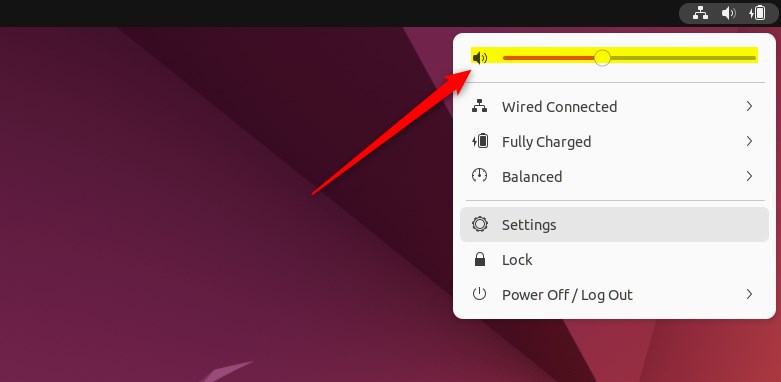
Move the slider left to lower the volume and right to raise it. Small moves make small changes, so you can set a comfortable level without muting completely. If the sound is much too quiet after you drag the slider up, check the volume on the app itself, such as the player in your browser, because each app has its own level as well.
Dragging the slider fully to the left mutes your computer’s audio. To confirm, look at the speaker icon in the top bar. When sound is muted it shows a muted symbol, usually a speaker with a slash or an “x”.
Muting applies to the output device you are using at that moment, so audio on a different output, such as headphones or a Bluetooth speaker, may be unaffected. The Settings app section below shows how to check this.
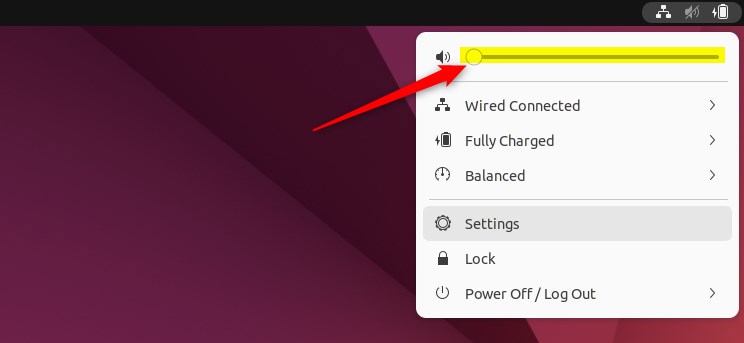
How to unmute Sound in Ubuntu Linux
To unmute, click the speaker icon again or drag the slider to the right. The muted symbol disappears from the top bar and the sound comes back at the new volume. Which of the two works depends on your Ubuntu release, so if clicking the icon does nothing, use the slider.
If you click the icon and the sound returns at a very low level, the slider was probably left near zero. Drag it up until the volume suits you. If there is still no sound, the wrong output device may be selected. See the Settings app section below.
How to mute or unmute from the Ubuntu Linux settings app
You can also control sound from the main Settings app if you prefer a full control panel. It offers more than the system menu, including the choice of output device and volume levels for individual apps.
- Open Settings from the application menu or from the system menu.
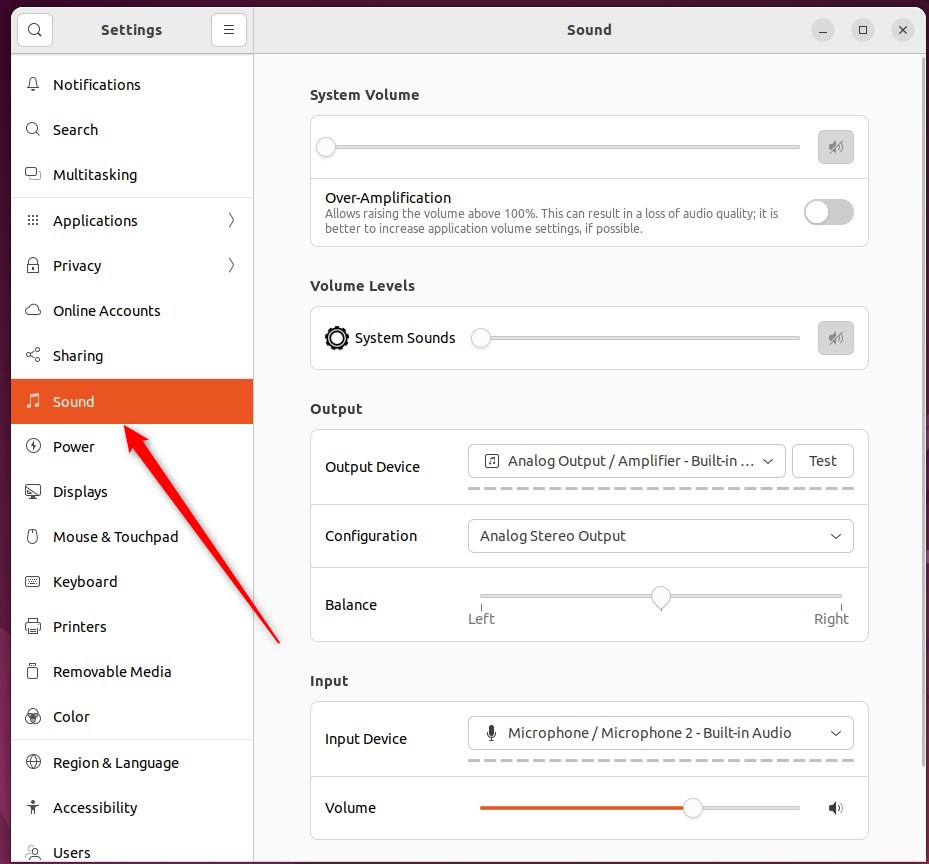
- Click Sound in the sidebar. The sound panel opens on the right.
- Use the output volume slider to change or mute the volume.
If you have speakers, headphones or an HDMI display connected, check that the right one is selected, because muting and volume apply to the active output. If you mute the speakers and then plug in headphones, the headphones may play at their own, unmuted level. Check the slider again after you switch devices.
The panel also has a volume levels section where each app that is playing sound gets its own slider. That lets you silence one app, such as a browser, without muting everything else. An app only appears in the list while it is running and playing sound. The exact layout and labels vary a little between Ubuntu releases.
Ubuntu Linux centralizes most settings. Manage system configurations, create new users, and update software all from the System Settings panel. Sound is one of the categories in the same window.

There is a second way in. Click the system menu at the top-right corner of the top bar on your desktop. The panel opens and shows the quick controls, with the Settings button near the bottom.
On the system menu, select Settings, as highlighted below. The Settings window opens with a list of categories in the sidebar.

In the Settings app, click the Sound tile or sidebar entry to open the panel. If the window is narrow, you may need to scroll the sidebar to find it. If Sound is missing from the list entirely, the system may not have detected an audio device. Check that your speakers or headphones are connected, then look again.
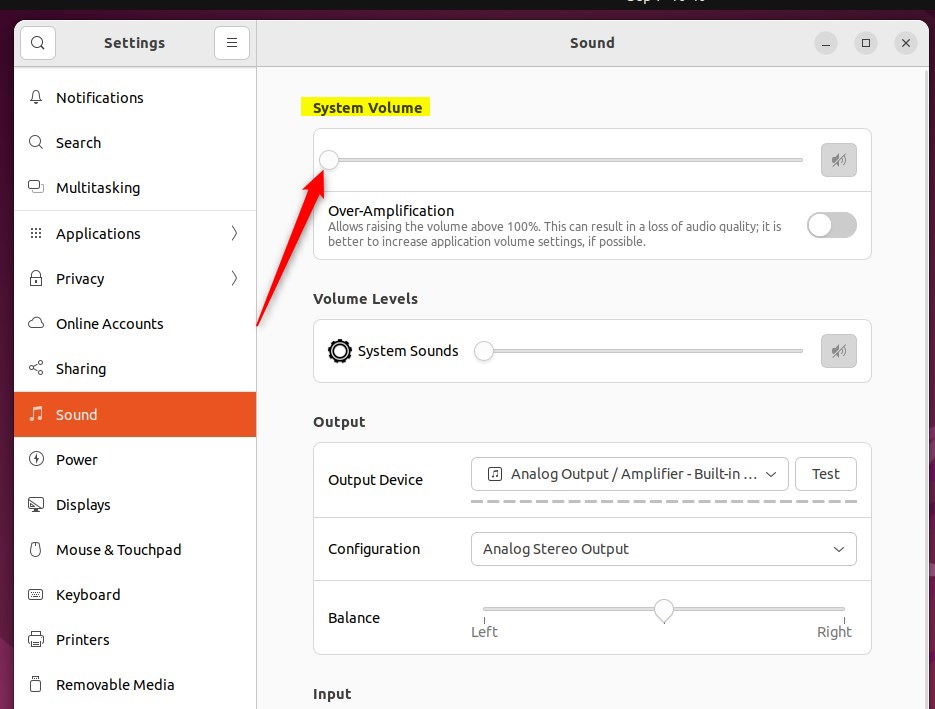
In the Settings Sound panel, find the system or output volume slider and use it to change the volume on your computer. Drag it to the far left to mute. If you hear nothing at all, also check the output device selection in the same panel, since the wrong device can look like a muting problem.
- Look at the output device list in Settings Sound and note which one is selected.
- Select the device you actually want to listen on, for example your speakers instead of an HDMI display.
- Check that its volume slider is not at zero. The sound should now play from that device.
To undo a mute, drag the slider back up. Muting never changes anything else in your settings.
Dedicated volume keys on your keyboard are even quicker. Laptop keyboards usually place these controls on the “F” keys at the top, marked with speaker icons. If the keys act as normal F-keys, hold down the Fn key while you press them.
The mute key, the one with a speaker and a slash or “x”, toggles mute with a single press. On many laptops it is F1 or another F-key in that top row.
- Press the mute key once. The sound stops and the top bar shows the muted symbol.
- Press the same key again to bring the sound back at the previous volume.
Many desktop and external keyboards have a mute key in the media key row too. Pressing the key mutes the active output only, so if sound still plays, check the output device in Settings Sound.
If you work in a terminal, you can toggle mute there as well. Ubuntu's sound system provides command-line tools, pactl and wpctl, that can mute, unmute or toggle the default output. wpctl belongs to PipeWire, which is the default sound server on current Ubuntu releases. pactl is the PulseAudio tool and normally keeps working on PipeWire systems too. Check each tool's manual page for the exact syntax on your release. Using the toggle option, one command both mutes and unmutes, just like the keyboard key. This is optional and mostly useful for scripts or remote sessions.
- Muting or unmuting the sound volume in Ubuntu Linux can be easily done from the system menu on the top bar.
- Users can adjust the volume using the slider and quickly mute or unmute the sound by accessing the system menu.
- Alternatively, the Ubuntu Linux settings app provides another option to adjust the sound volume, choose the output device and set volume for individual apps.
- With keyboard shortcuts such as the mute key, and command-line tools for terminal users, there are convenient alternatives for managing sound output on your computer.
Have a question about this guide?
Answered by AI from this guide. Good questions may be added to this page — please don't include personal details.
Did this guide fix your problem?

About the Author
Richard
Tech Writer, IT Professional
Richard is a writer at Geek Rewind who turns complex IT tasks into clear, step-by-step guides. He draws on years of hands-on experience in system administration and enterprise IT operations, focusing on Windows, Linux and WordPress: the problems people actually run into, and the fixes that work. His server and WordPress guides come from systems he runs himself. Richard builds and maintains the platform behind Geek Rewind, from its Ubuntu servers and Nginx configuration to its custom WordPress plugins. Many new tutorials start with readers' questions, and he's always glad to answer them in the comments.
[…] can adjust the volume, switch the microphone off, or mute it from this […]
[…] can adjust the volume, switch the microphone off, or mute it from this […]